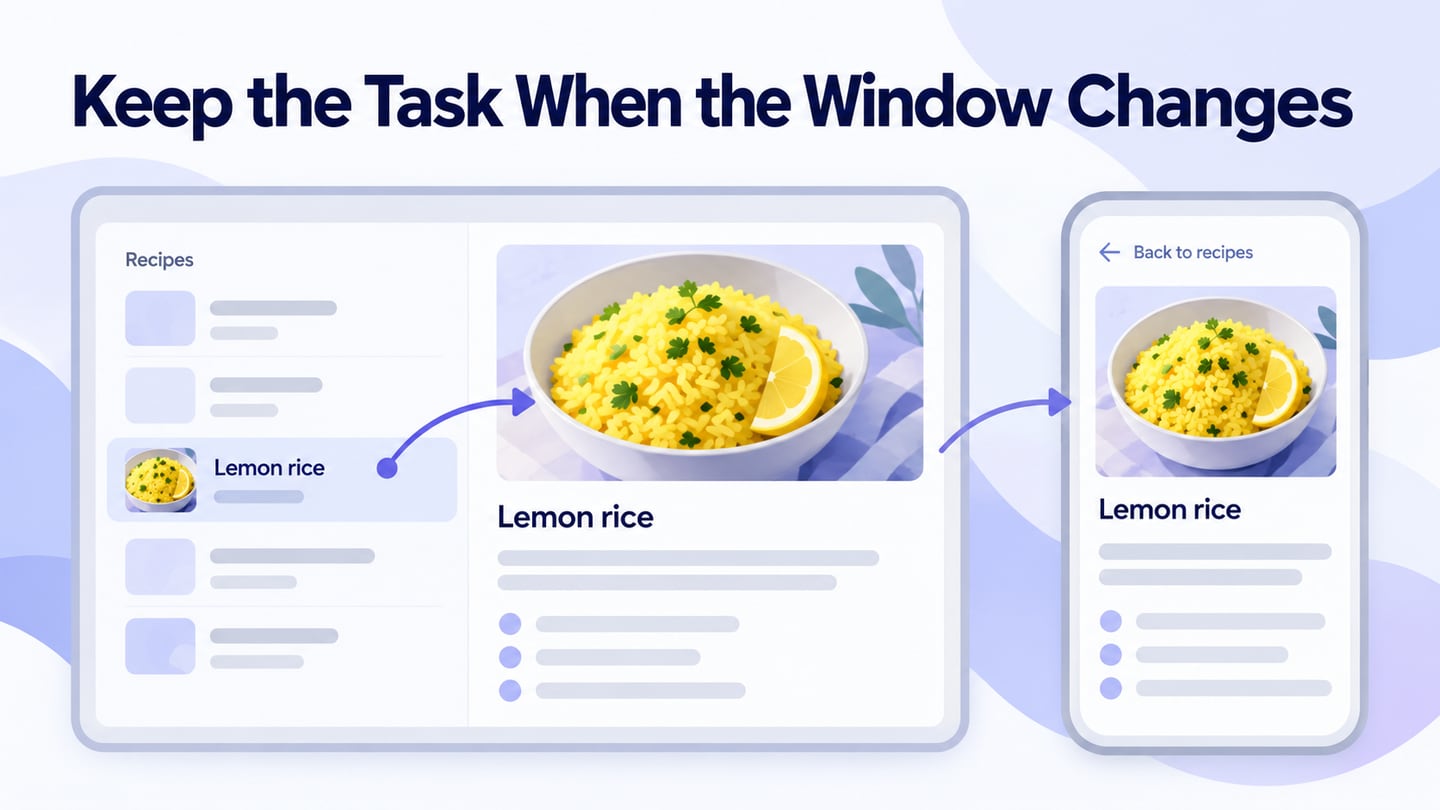
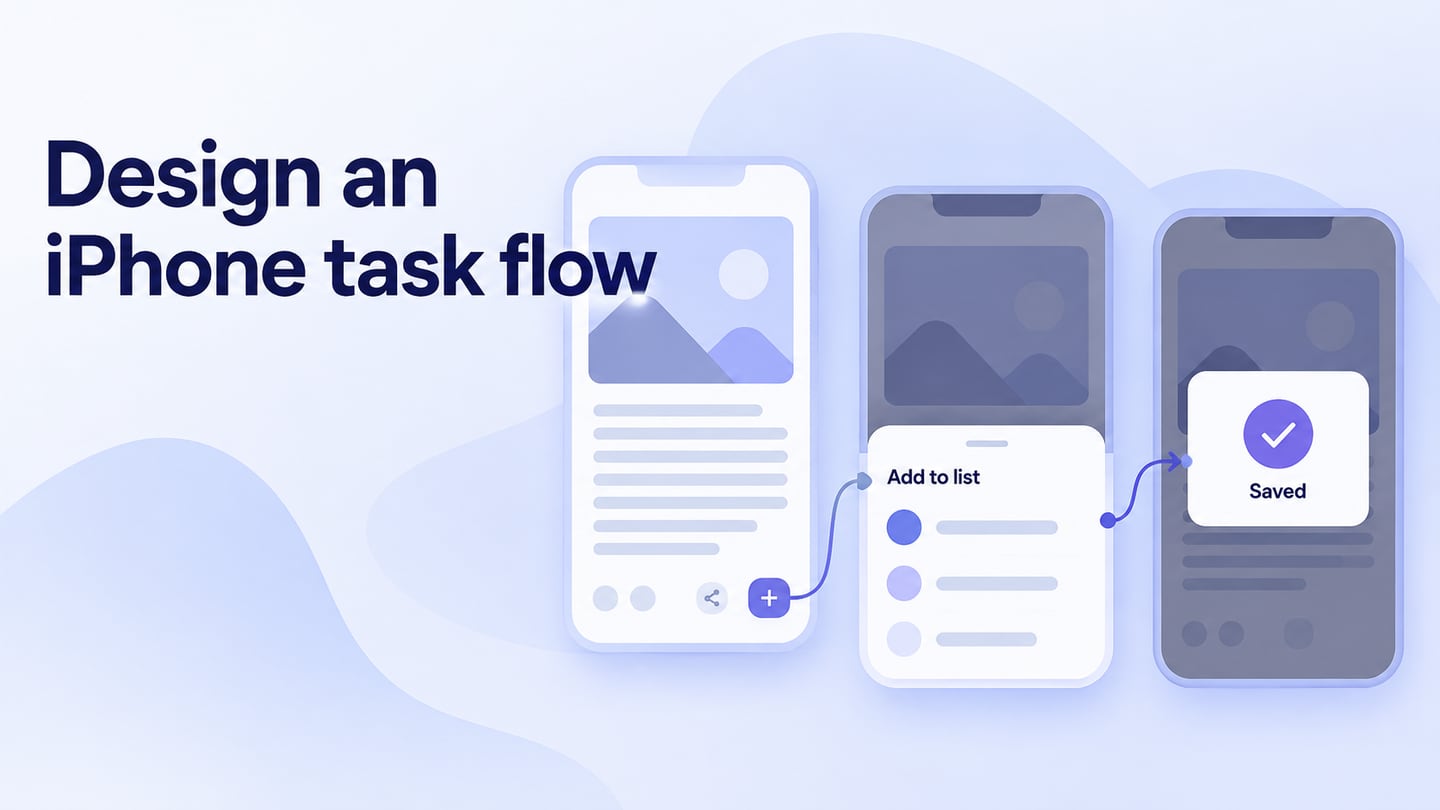
iOS app design should support the task while respecting how people use an iPhone. Start with a sketch of the flow, study relevant platform guidance, and turn the idea into an iPhone app prototype for review. iPhone, iPad, and Mac experiences have different platform and layout considerations; selecting a device frame does not make one design appropriate for all of them.
A Tool for Prototyping an iOS App
Mockitt lets you arrange screens, reuse components, link interactions, and share a prototype. Use it to discuss how the app should behave before native implementation. The retained screenshots show the original tutorial’s earlier interface.
Features for the Design Workflow
- Check the current account and plan limits instead of relying on historical prices or a blanket free-access claim.
- Drag and arrange components to develop the screen layout.
- Use widgets, icons, or templates as starting points and adapt them to the task.
- Save and share projects with the appropriate access permissions.
- Collaborate with the designers and developers responsible for the app.
- Review the design with stakeholders and record concrete issues to resolve.
How to Prototype an iPhone App Online
Follow the project, design, preview, and sharing sequence below. Use Apple’s iOS design guidance when making platform-specific decisions; a prototype does not verify native behavior.
Step 1: Create a new project

- After signing in, you can create a new project by clicking the "Create" button.
- Start with a blank prototype or suitable example and choose an iPhone screen size representative of the intended users.
Step 2: Start Designing
Add widgets and icons
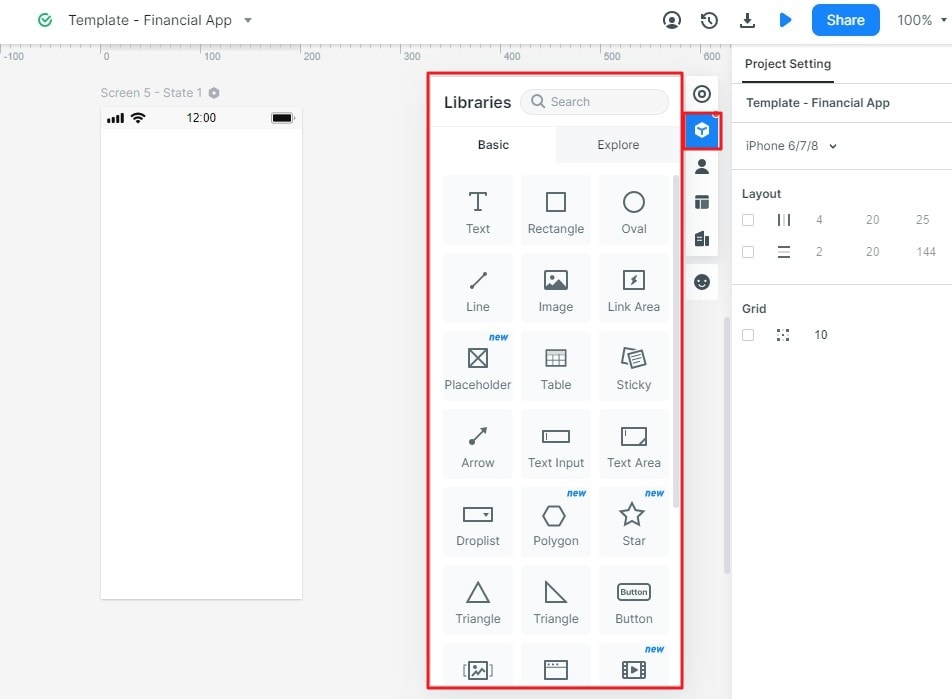
- Add interface elements from the available libraries. Their exact panel placement may differ from the archived tutorial.
- Drag or insert the elements you need onto the canvas, then arrange them around the task.
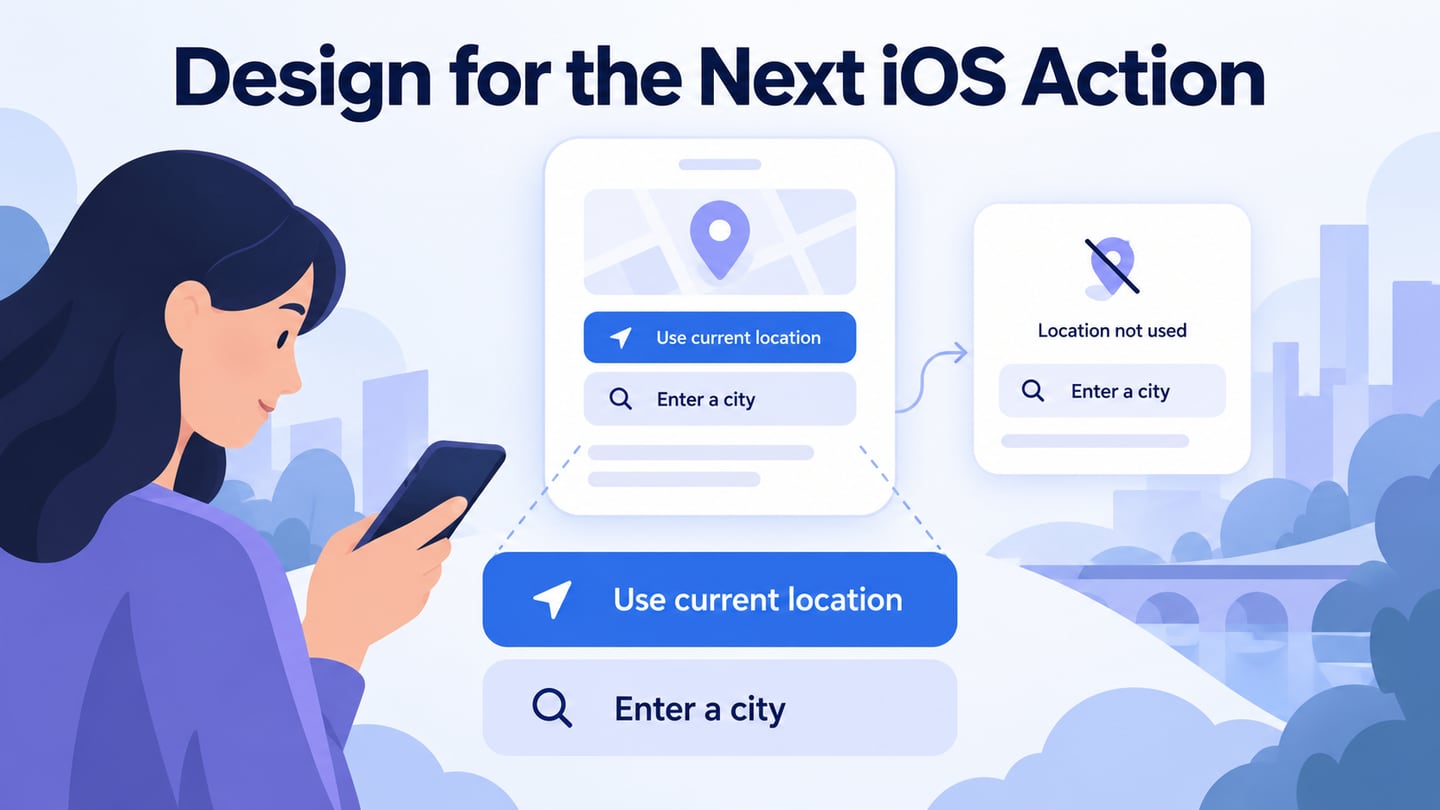
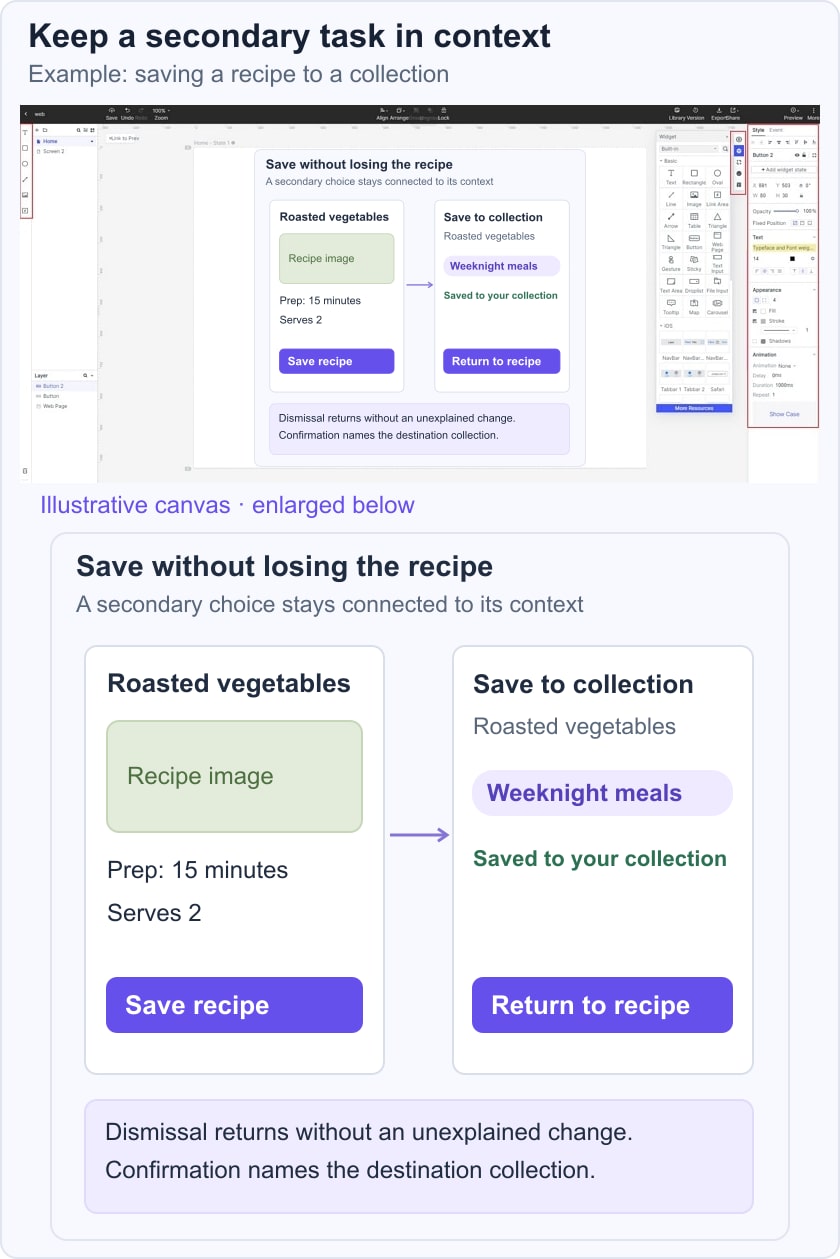
For example, prototype saving a recipe to a personal collection. Keep the recipe title visible while the person chooses “Weeknight meals,” then confirm that it was saved there. If the person dismisses the collection picker, return to the recipe without an unexplained change.
Edit and save widgets
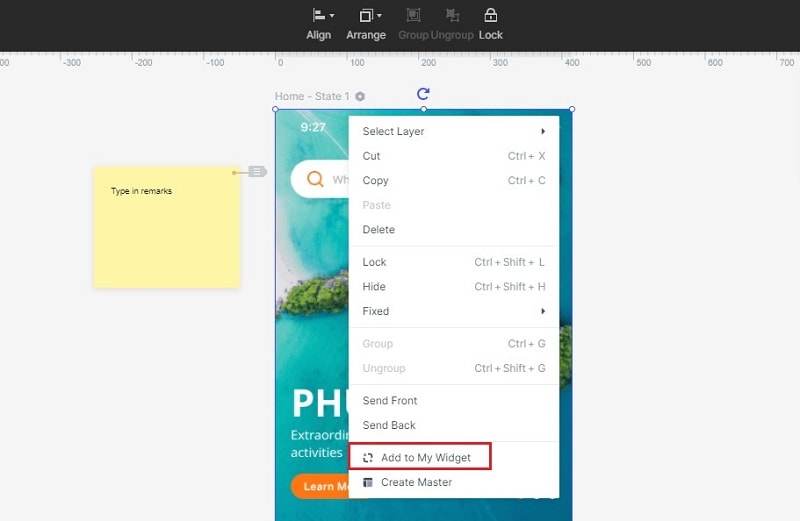
- Edit text, size, spacing, and appearance in the component properties.
- Save repeated controls as reusable widgets or components to keep the collection list and action buttons consistent.
Add links between screens
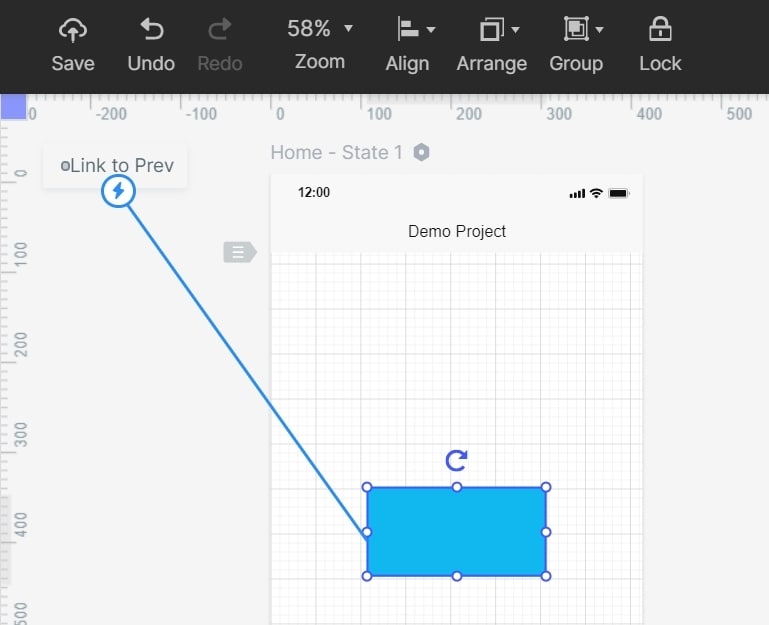
- Select a control and connect it to the appropriate screen or state. Link the save action to the collection picker, then show confirmation and a clear return to the recipe.
Asset library and Dynamic widgets
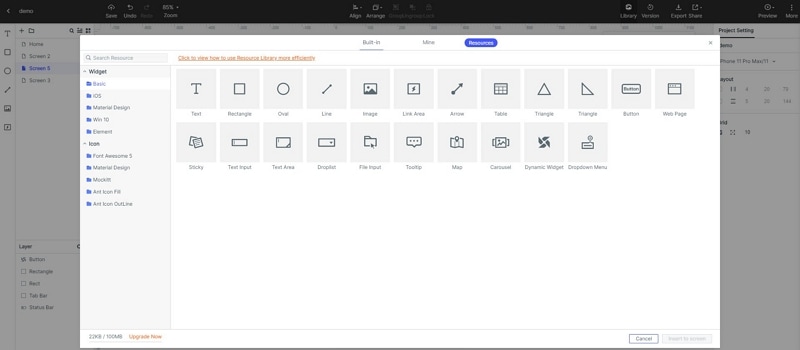
- Use the asset library to find starting components; do not assume a demo contains every current iOS pattern.
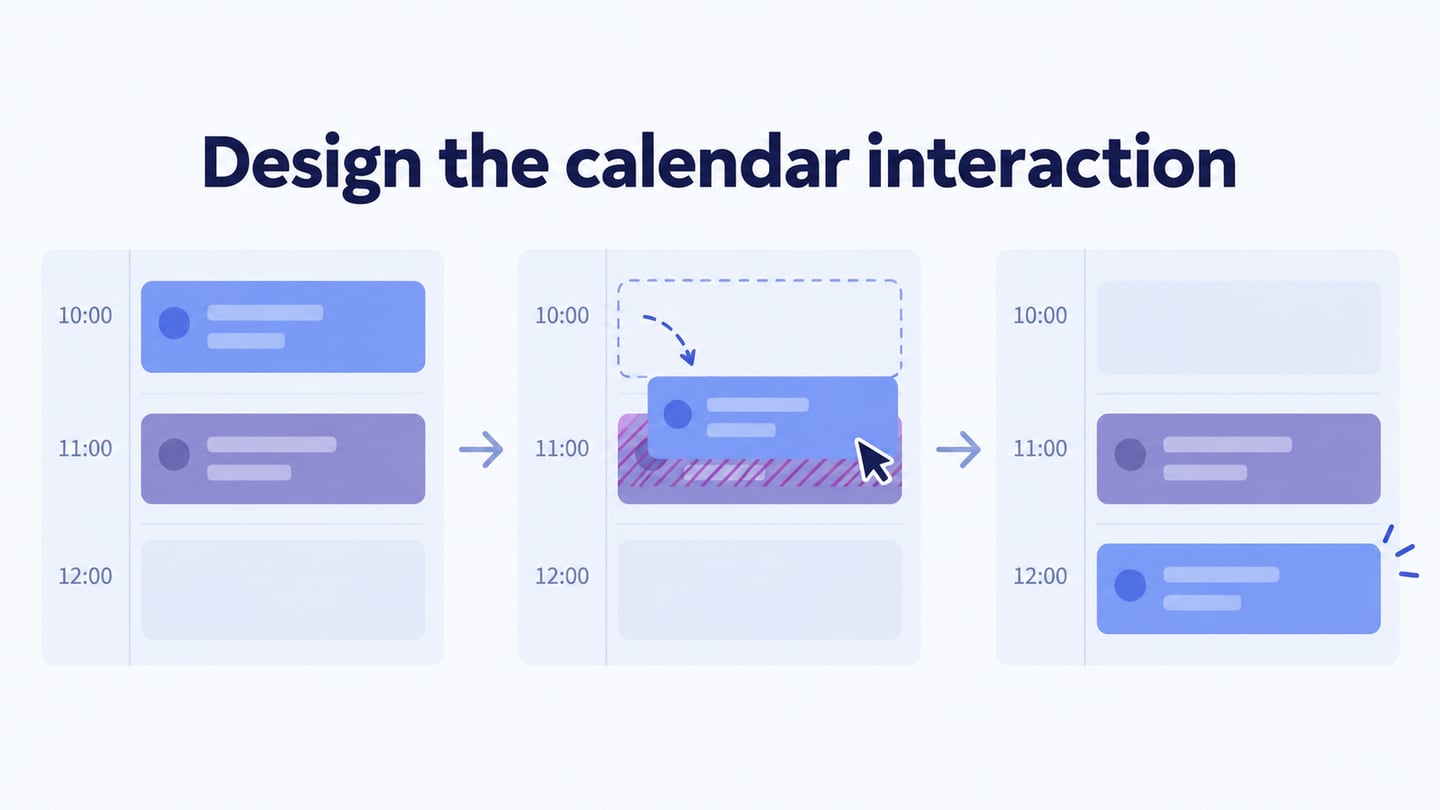
- Use states to show selection and feedback where useful. Motion should explain the change rather than distract from the task.
Add Media Only When the Task Needs It
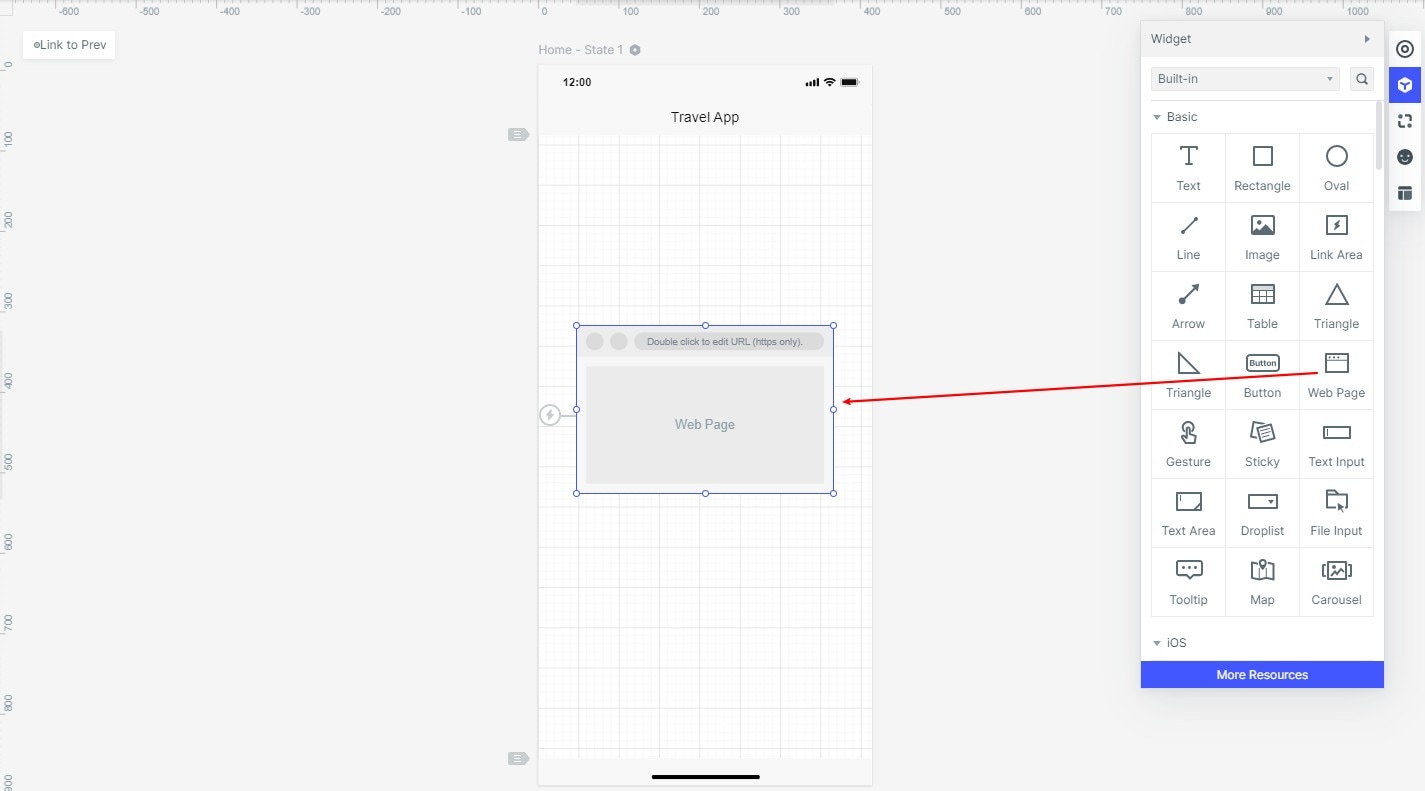
- Include a recipe image or other media when it clarifies the content. Represent unsupported or unimplemented behavior with a clear note for the team rather than assuming every external URL will embed or publish correctly.
Step 3: Preview your design
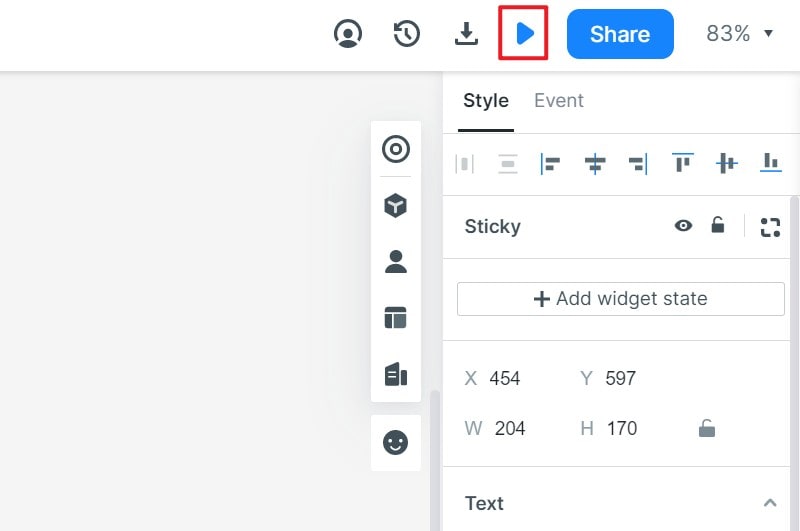
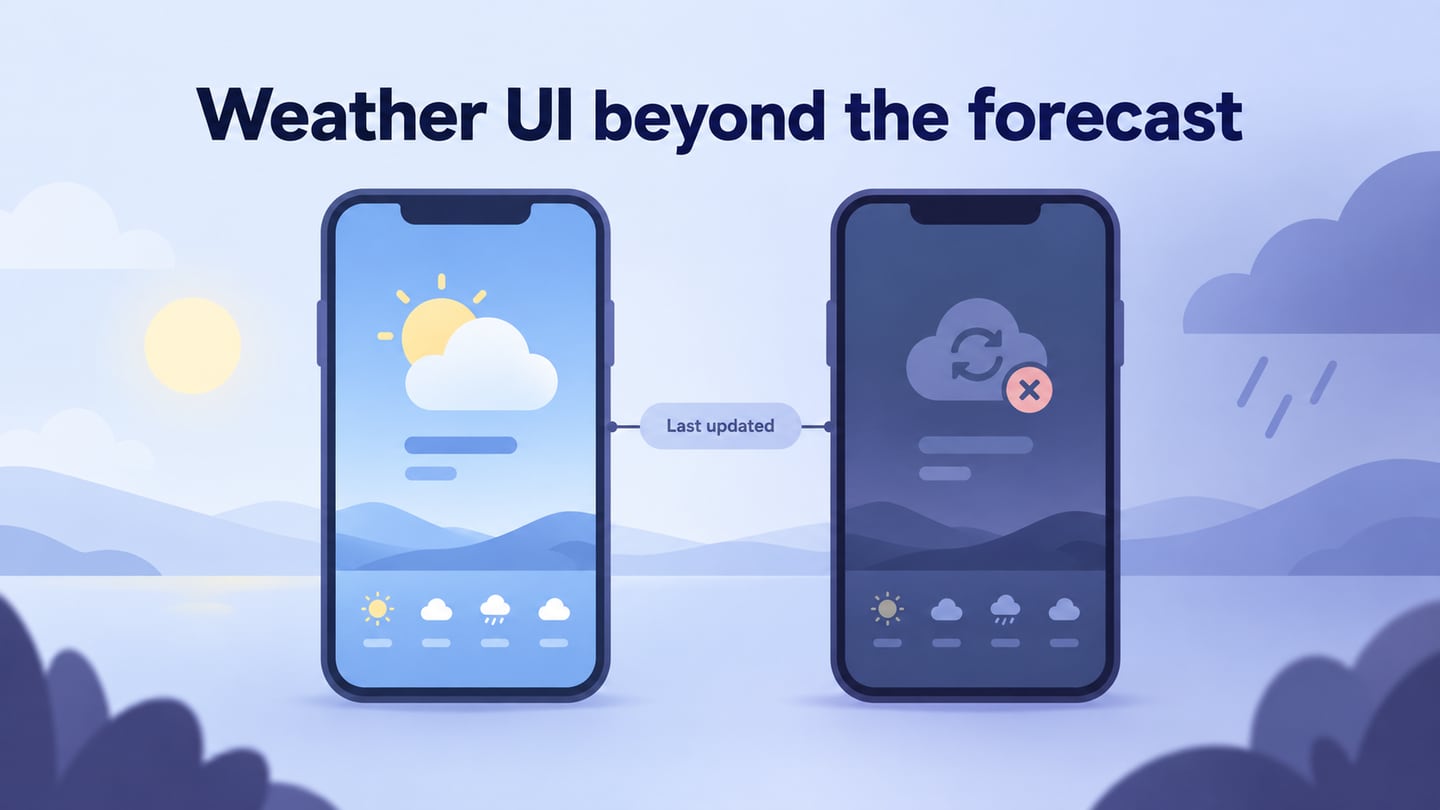
- Preview the flow at the intended size. Review long recipe names, larger text, and the dismissal path as well as saving successfully. Native permissions and device behavior require testing in the implemented app.
Step 4: Share your design
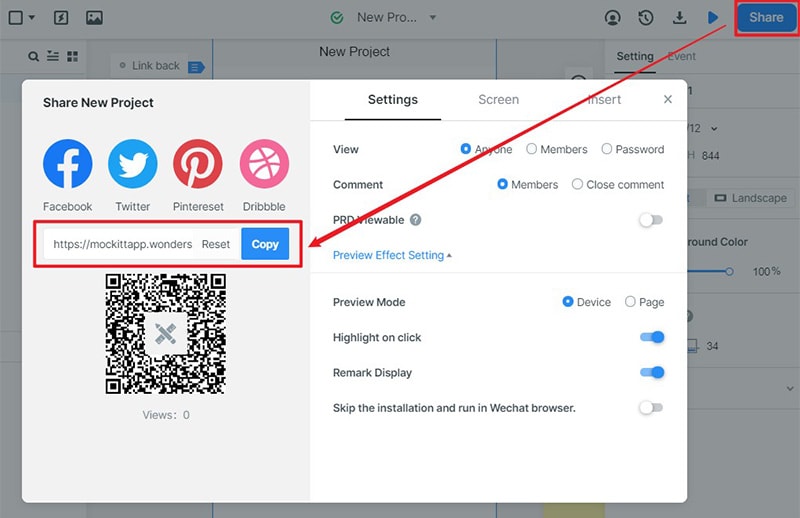
- Share the current project’s preview link and check its permissions before the review.
- Ask developers and designers to identify remaining questions about navigation, state, and implementation.
Top 5 Tips to Get iOS App Design Inspiration
Use these five principles to turn inspiration into decisions you can justify for the task.
1. Research the task and platform: Study how people currently complete the action and compare relevant iOS patterns. Visual inspiration can suggest a layout, but it is not a substitute for understanding the user’s needs or checking current platform guidance.
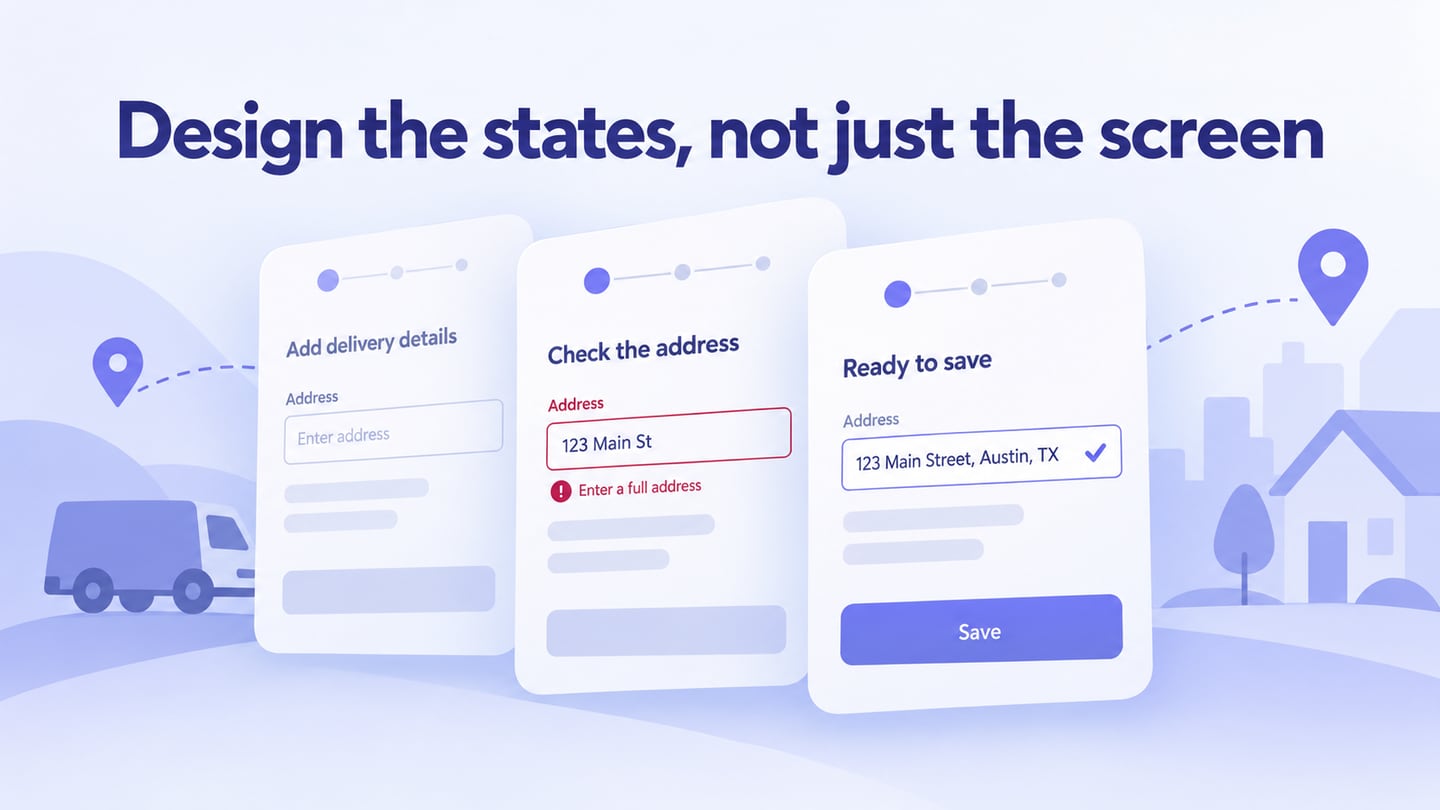
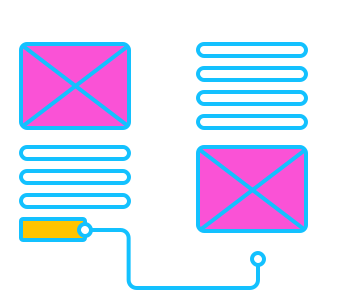
2. Start with wireframes: Sketch the recipe, collection choice, and confirmation before refining appearance. UI covers the controls and presentation; UX also includes the task sequence and outcome. Neither term is simply a synonym for technical implementation.
3. Make controls easy to target: Keep interactive areas large enough to use comfortably and separate controls that should not be activated together. Preserve clear labels and visible states when customizing the visual style.
4. Give each screen a clear priority: A screen may support more than one action, but the task should determine the hierarchy. In the recipe view, reading and saving should not compete with unrelated promotional controls.
5. Reveal detail when it is useful: A secondary view can keep the initial screen focused, provided the user understands where they are and can return. The navigation design guide offers a broader framework for reviewing those paths.
Use the prototype to test these choices with realistic content. Inspiration becomes useful when it helps someone complete the task, understand the result, and recover from an unwanted action.