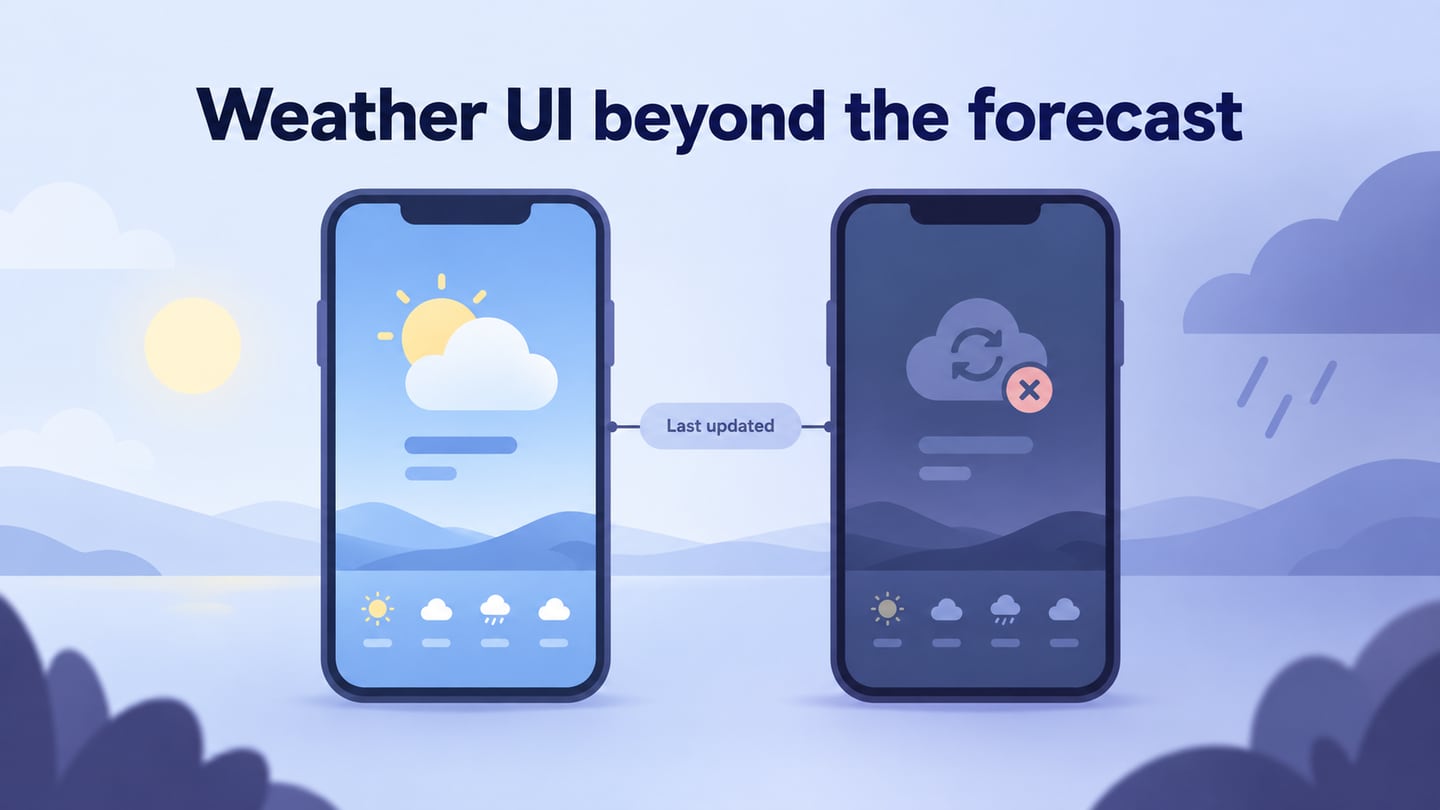
A weather app can help someone decide whether to take an umbrella or plan a weekend trip. A useful weather app design presents the location, forecast period, units, and update time clearly, then explains what happens when new data is unavailable. You can review those choices in an interactive weather app prototype before connecting a live weather service.
A Tool for Prototyping a Weather App
Mockitt lets you arrange interface elements, connect screens and states, and share a preview of the weather experience. Use it to explore the layout and interaction flow; forecasting accuracy depends on the data provider and the finished application, not the prototyping tool. The original screenshots below show an earlier Mockitt interface, so current panel labels may differ.
Features That Support the Workflow
- Drag-and-drop components provide a starting point for the layout. Check the current account and plan limits for the project you intend to create.
- Use built-in widgets and icons where appropriate, and create reusable components for repeated forecast rows or location cards.
- Connect screens and states with interactions to represent changing location, opening forecast details, or retrying an update.
- Save the project in the workspace and review the available history and export options. Cloud storage should not be described as a guarantee against data loss.
- Share the prototype with designers and developers so they can discuss layout, behavior, and the data needed for each state.
Steps to Design a Weather App
Design the weather app around what someone needs to decide, then make the information needed for that decision visible. Use these steps to create the screens and interactions in Mockitt.
For a concrete example, design a saved-location forecast with “Updated 08:10” beneath the temperature. A later refresh fails. Keep the last-known forecast visible, label it as not refreshed, and offer “Try again.” Do not replace it with zero degrees, hide the location, or show a success message when no new data arrived.
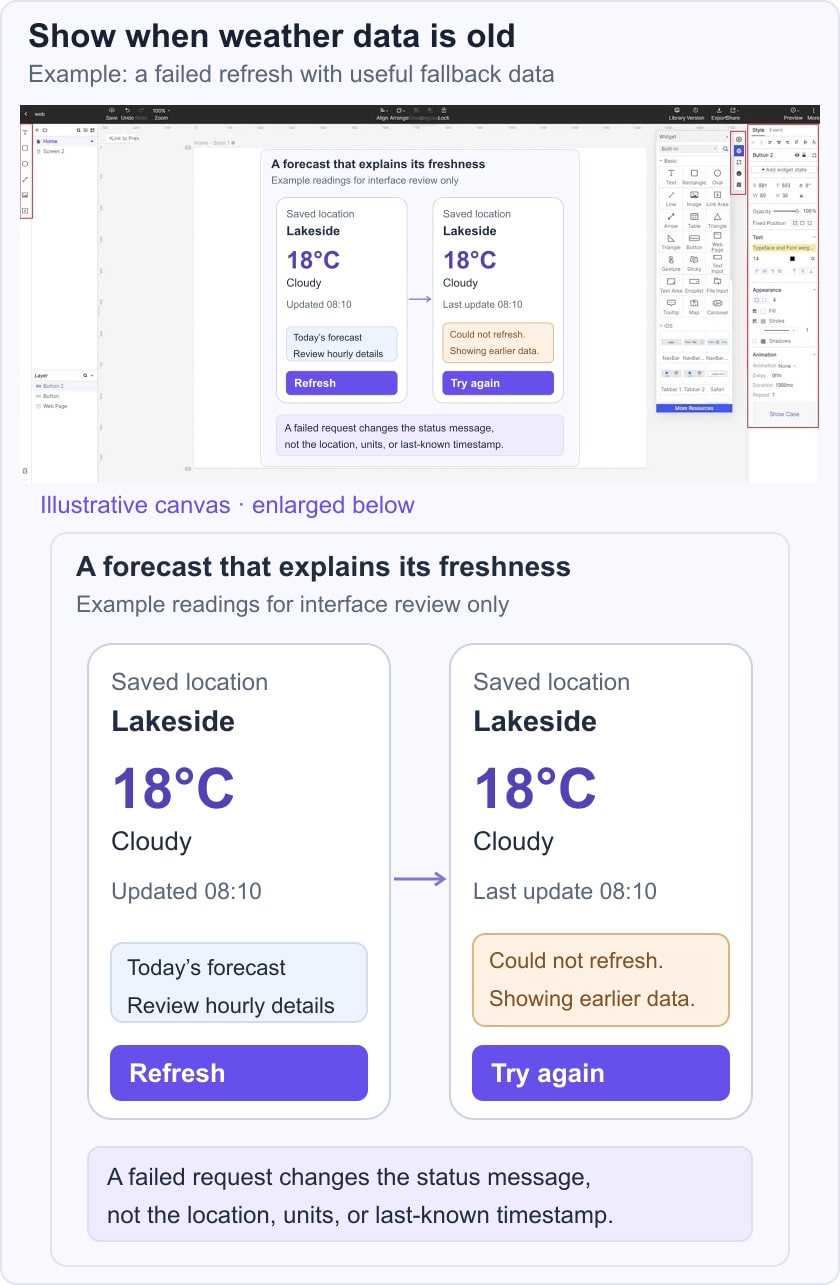
Create separate mock states for the successful response and failed refresh. These are illustrative values, not live weather readings. Ask a reviewer to identify the location, tell how old the information is, and find the retry action before adding decorative animation.
Step 1: - Create a project
- Sign in to Mockitt and create a prototype project.
- Choose a blank project or adapt a suitable example layout.
- Choose the target mobile size and give the project a clear name. Build at a size representative of the intended device rather than relying only on a large desktop preview.
 Original tutorial screenshot from an earlier Mockitt interface; current panel labels may differ.
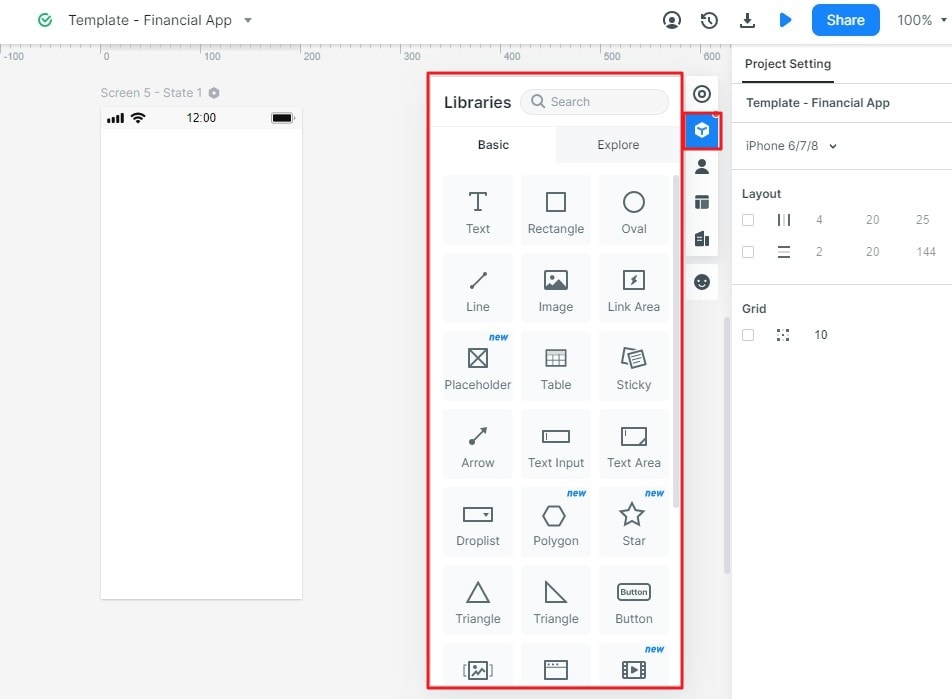
Step 2: - Add Widgets and Icons
- Add elements from the available libraries or create your own reusable components. The archived screenshot illustrates an earlier Libraries panel.
- Use relevant weather icons alongside text for temperature, humidity, time, and conditions. Label values with their units so that a number cannot be mistaken for another measurement.
- Edit and save repeated elements, such as hourly forecast rows, so their spacing and labels stay consistent across locations.
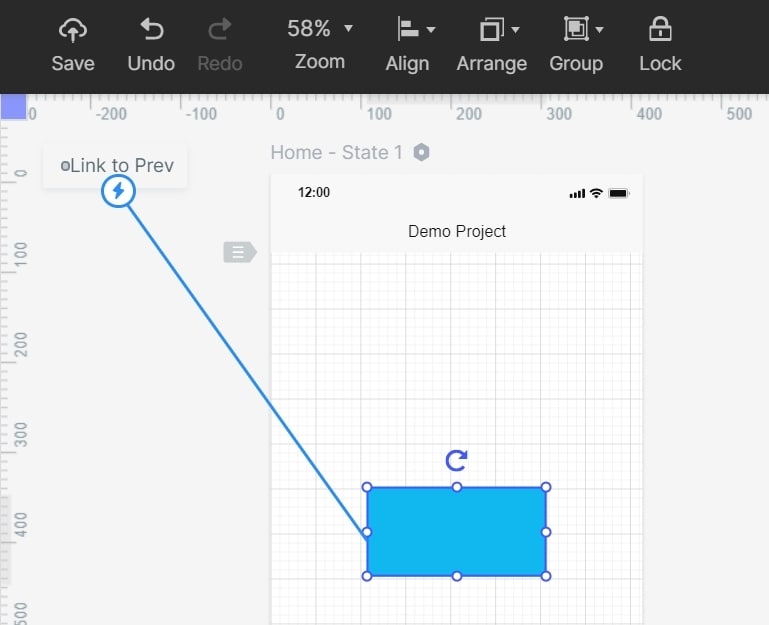
Step 3: - Add links and Use dynamic widgets
- Link the location selector, forecast details, and retry control to the corresponding screen or state. Make the return path and selected location clear.
- Use dynamic states where useful to demonstrate a change. An animation is optional; a clear update label matters more than a moving weather symbol.
Step 4: - Prototype Management
- Preview the weather app at the intended device size and inspect long place names, large temperatures, and translated labels if those are in scope.
- Share the preview and ask reviewers to complete a task, such as checking whether the latest forecast has loaded.
Step 5: Collaborate and Prepare the Handoff
- Review colors, contrast, and weather symbols with the design team. Pair important status colors with text.
- Give developers the screens, states, and notes describing where each value comes from. Include unavailable, missing, and stale data rather than only a successful response.
- Agree who will implement and test the weather service, location permission, unit conversion, and notification behavior. A finished prototype is not a launched weather application.
Useful Tips to Do Weather Mobile App Design
Weather information changes over time, so the interface needs more than an attractive default screen. Apply these principles while refining the original design.
- Define the scope: Decide whether the app shows current conditions, short-term forecasts, or weather alerts. Do not promise long-range precision or emergency reliability through visual design alone.
- Sketch the task: List the information a user needs for a decision, then separate it from optional features. A commute view may need an hourly forecast before a monthly overview.
- Keep the visual hierarchy clear: Use a readable temperature and condition summary, with details underneath. Icons should support their text labels. Avoid animated or decorative backgrounds that make the forecast harder to read.
- Specify the data: Document the provider, location, units, and observation time for each value. For example, OpenWeather’s current-weather documentation defines unit options and response fields. Confirm the chosen service’s actual coverage and terms; an interface prototype does not verify forecast accuracy.
- Make notifications optional: Explain what an alert is for and let people control it. Represent a denied-permission state so the rest of the app remains usable.
- Balance numbers with explanation: Show units, forecast periods, and plain-language failure messages alongside the readings. Use the mobile interface design guide to review the broader layout rather than reducing every state to a number.