A paper wireframe is a quick way to make an interface idea visible before investing in detailed design. A few sheets, a pen and movable pieces can show labels, content groups and the route through a task. This guide explains the method’s strengths and limits, then works through a library-book renewal example and a digital follow-on.
What Is a Paper Wireframe?
A paper wireframe represents the structure of a screen. It can be rough and still support useful discussion if the labels and choices are clear. Its usefulness comes from the question it helps answer, not from being an older or newer technique than a software tool.
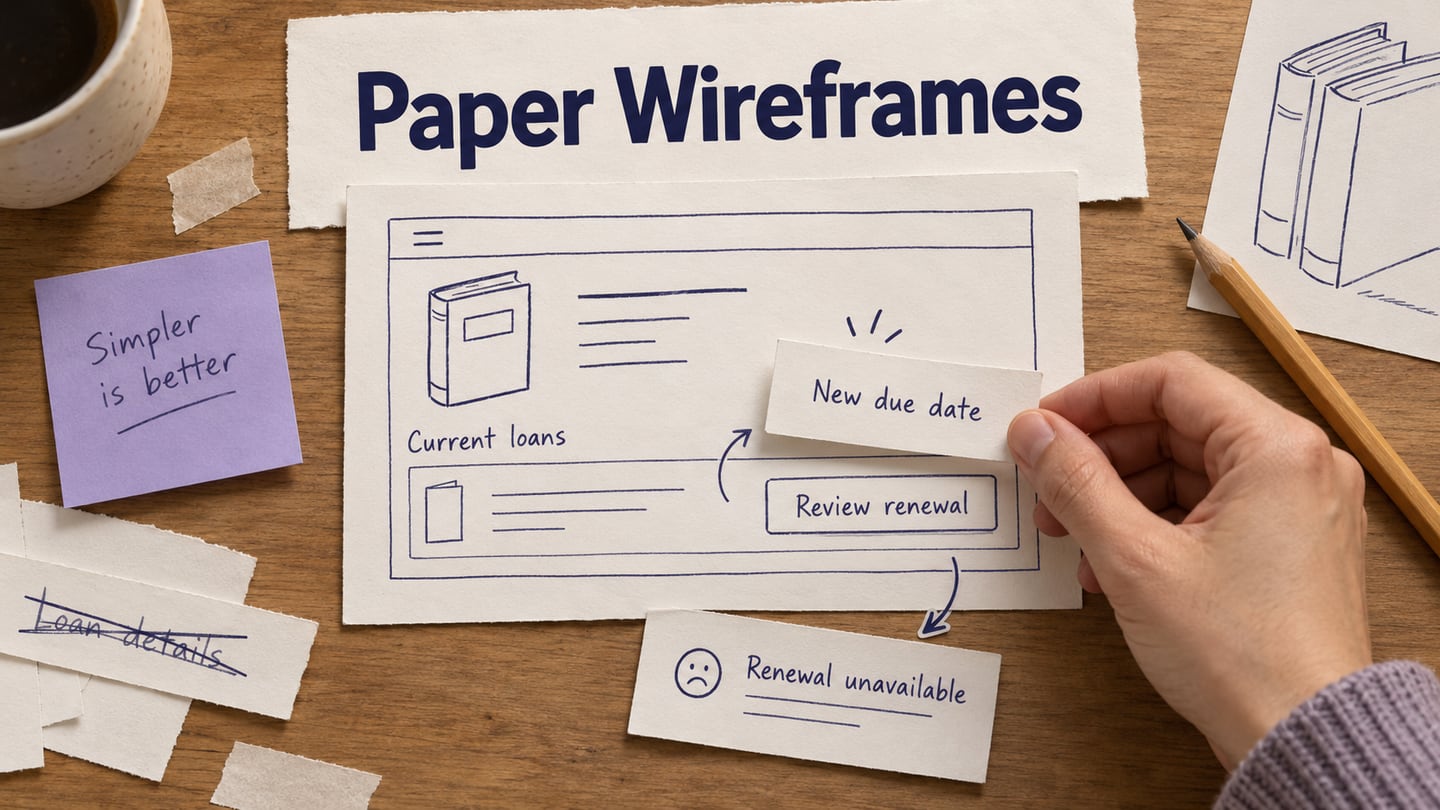
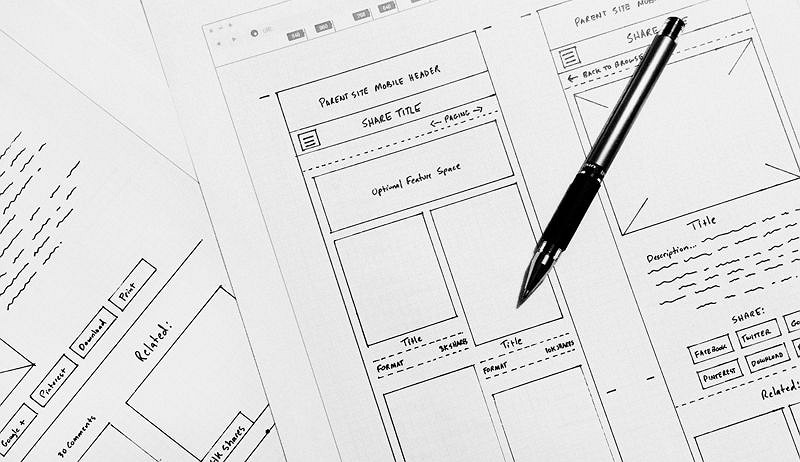
Draw the main content areas and controls on a sheet. Use separate sheets for different screens and small paper pieces for a message, menu or changed state. When a facilitator swaps these pieces in response to a participant’s actions, the sketches become a paper prototype. NN/g’s paper-prototyping guidance describes using this approach to investigate early design ideas. Keep sketches and the observations they prompted rather than discarding the evidence after each revision.
Advantages and Disadvantages of Paper Wireframe
Paper is useful when the team needs to compare structure or wording with little setup. It is less suitable for questions that depend on precise scrolling, timing, animation or assistive-technology behavior. Choose it for the decision you need to make, and recognize where a digital or implemented version is necessary.
Advantages of Paper Wireframe
- Low setup cost: common stationery is enough to represent a small task. The total effort still includes preparation, facilitation and analysis.
- Accessible participation: people can contribute labels and layouts without learning a design application. Good facilitation and knowledge of the user’s task remain important.
- Easy revision: replace a label or state card without rebuilding a polished screen. Keep one change at a time when you need to understand its effect.
- Visible structure: arranging sheets beside one another can expose missing steps and return paths. Explain the notation rather than assuming everyone interprets a sketch the same way.
- Low commitment to appearance: a rough sketch can encourage discussion of structure. It does not guarantee candid feedback; use neutral prompts and avoid defending the design during a task.
Disadvantages of Paper Wireframe
- Paper can simulate interaction through a facilitator, but it does not run real application logic.
- Screen dimensions, responsive behavior, scrolling and detailed visual hierarchy may be represented only approximately.
- The facilitator can accidentally guide the participant or react inconsistently; prepare the state changes in advance.
- A successful paper task does not verify performance, keyboard behavior, assistive technology, persistence or backend services.
How to Make and Review a Paper Wireframe
Use this fictional task: a library member wants to renew a borrowed book before its due date. Prepare Current loans, Book details and Renewal result sheets. Add separate cards for “Renewal available” and “Reserved by another reader.” The exercise explores whether the member understands the decision and next step, not whether a real library system accepts a renewal.
- Research the task: learn what information members need before renewing and what the library’s actual renewal rules are. For this exercise, treat the reservation restriction as an explicit sample rule, not a universal library policy.
- Record the assumptions: write the sample book title, current due date and proposed new due date on a separate reference sheet. Keep research observations distinct from invented example data.
- Map the flow: Current loans leads to Book details, then either Renewal result or an explanation of why renewal is unavailable. Include a route back to the loan list.
- Sketch the controls: use a book title, due-date label and “Review renewal” action. Keep the drawing readable; artistic detail is not the purpose of this exercise.
- Prepare the changed states: make an unavailable-renewal card and a proposed confirmation card. The latter should clearly show the new due date rather than only “Success.”
- Run the task: ask someone to renew the sample book and explain the result. One facilitator swaps the sheets while an observer records the chosen action and any confusion. Repeat with the reservation restriction, revise a specific label and retain the notes explaining the change.
Move the Useful Decisions Into an Interactive Wireframe
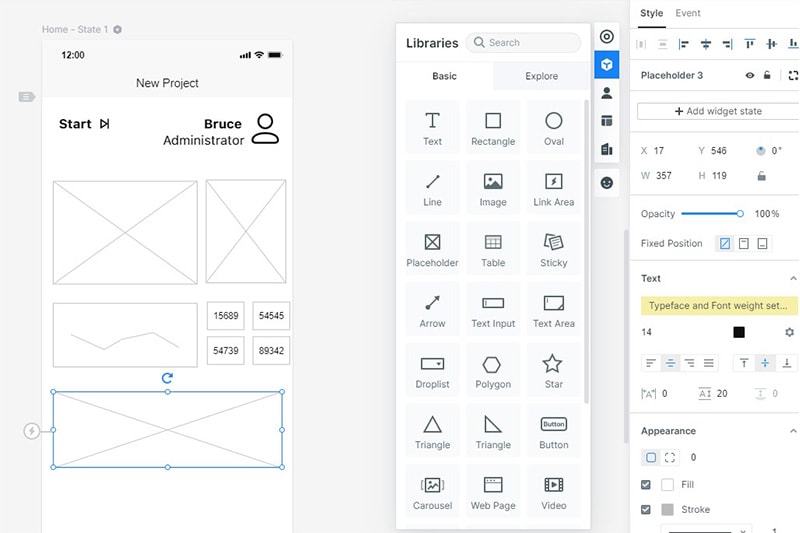
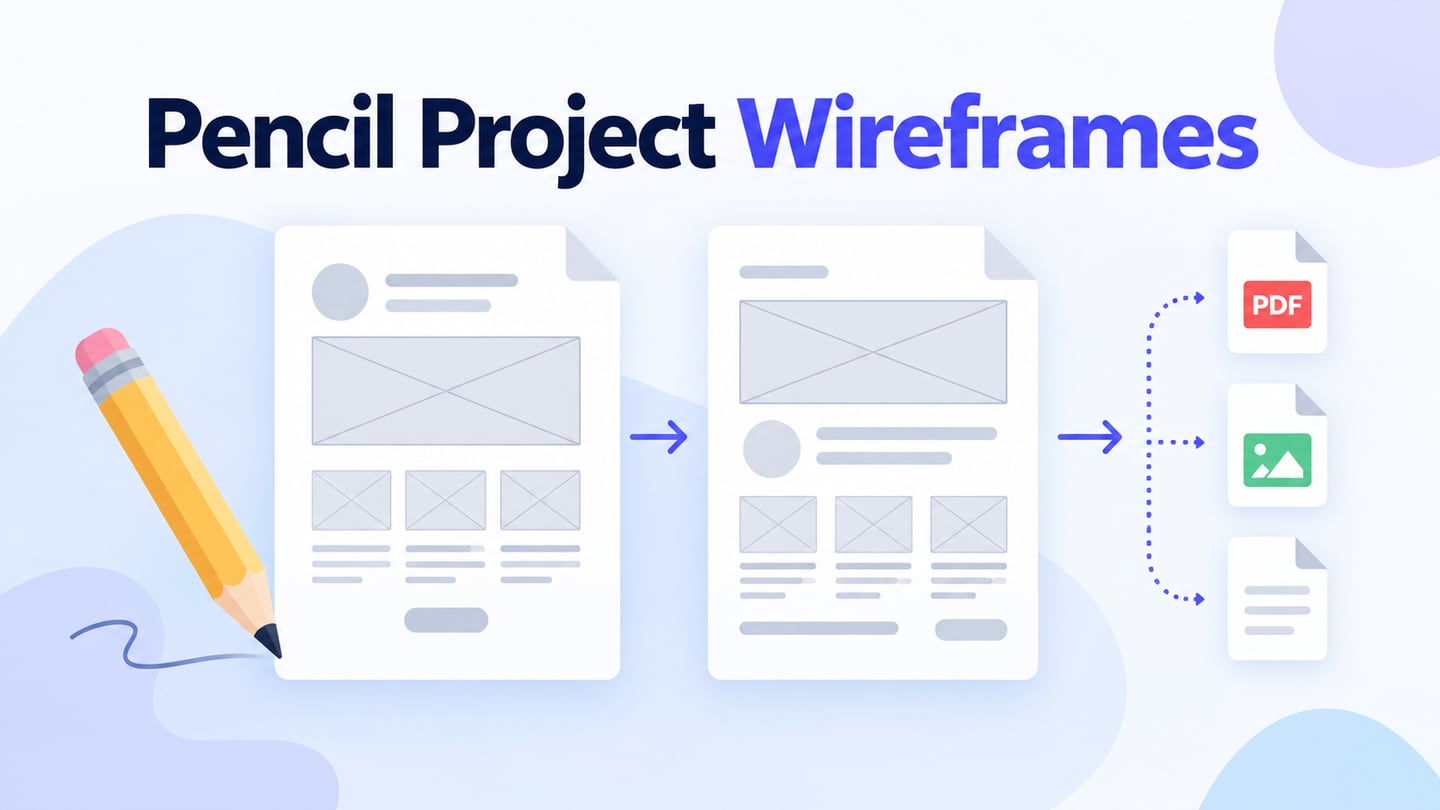
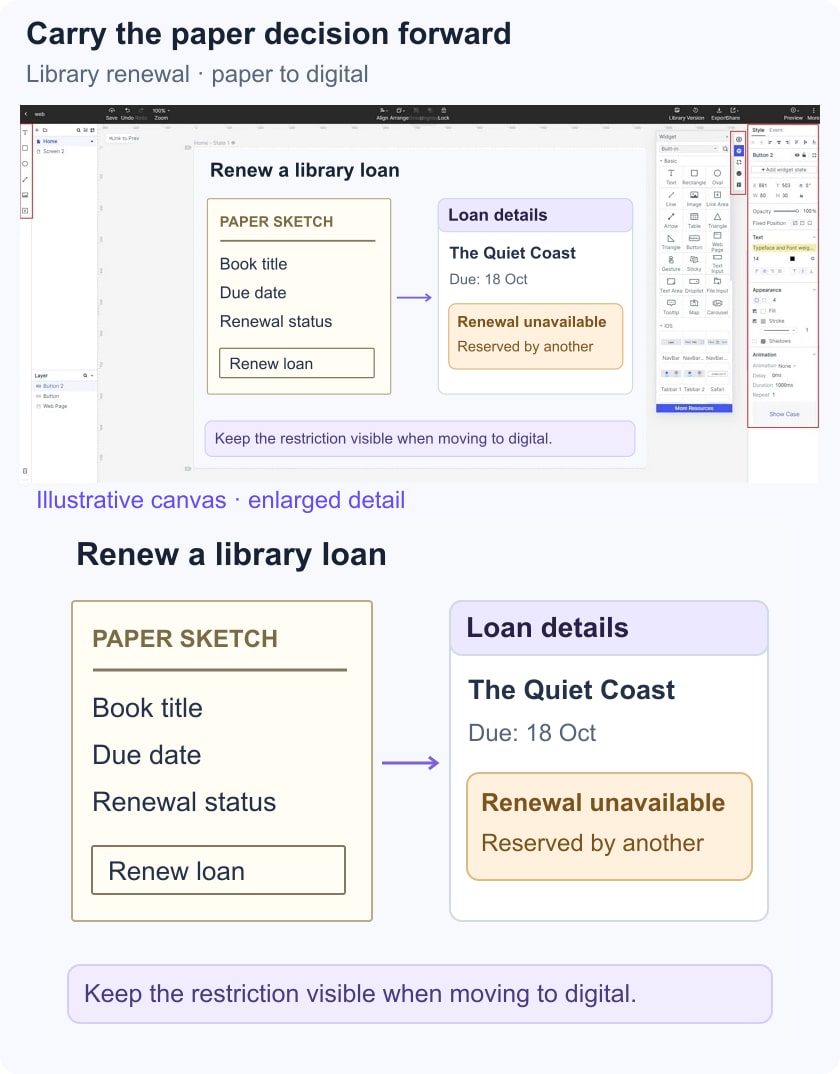
Keep working on paper if it still answers the question. Move into Mockitt when a linked digital version will help remote review, realistic content or a more consistent sequence of states. This continues the same design task rather than requiring every sketch to become a polished prototype.
Rebuild the useful labels and state relationships from the paper exercise. Use reusable fields and buttons, connect the relevant screens and share a defined version for review. Preserve the reservation restriction and the due-date feedback; digitizing the screens should not erase the decisions the paper session exposed. The retained Mockitt images illustrate an earlier editor workflow.
- Use comments to connect a question to the relevant screen and explain why a label changed.
- Use shared editing where it helps the team maintain one design, and agree who owns the next revision.
- Confirm that reviewers can access the intended version before the session.
- Use simple widgets and text to represent the loan details and renewal action.
- A relevant starting template is optional; do not add unrelated fields just to keep its original layout.
- Review the layout at the sizes that matter to the task, rather than assuming the same screen works everywhere.
- Preview the linked sequence and verify the recipient’s experience separately; an offline or image export serves a different purpose from an interactive link.
Step 1. Create a Project
Create a prototype project and name the screens after the paper sheets: Current loans, Book details and Renewal result. Choose the intended review size and retain the sample data so the digital version can be compared with the sketch.

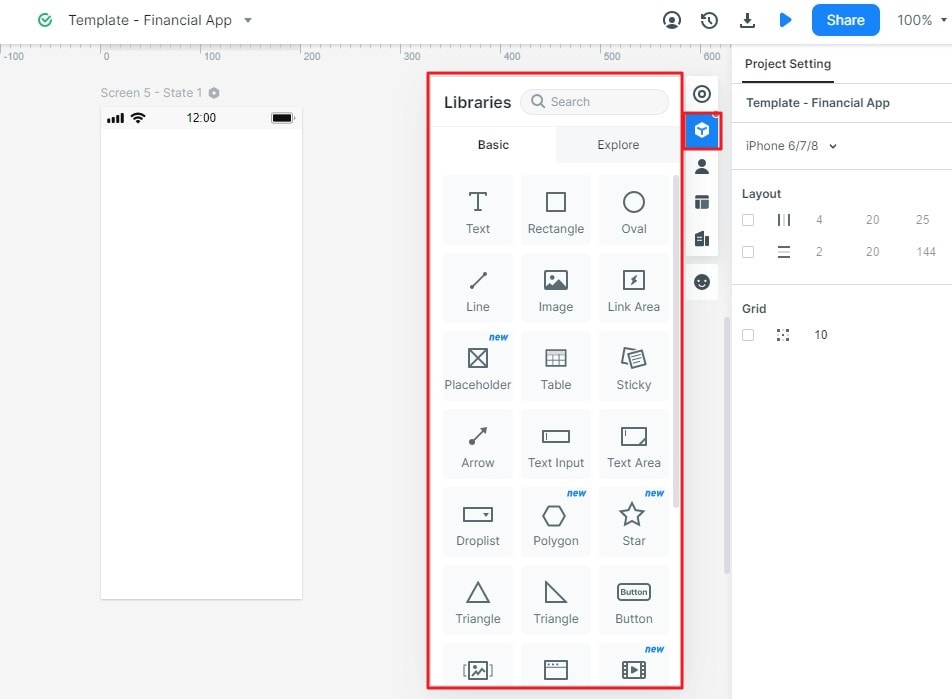
Step 2. Add Widgets and Components
Add the book title, due date, renewal status and actions from the paper design. Keep repeated rows consistent. The original widget-library screenshot demonstrates the editing concept; current controls may appear in a different position.
Step 3. Connect and Review the Same Task
Connect the available-renewal route and the reservation-restriction route. Ask the same task again and record whether the person can explain the new due date or the reason they cannot renew. This comparison concerns the design, not a completed library transaction. Keep implementation questions such as policy enforcement and real account access separate.