A PRD, or product requirements document, describes the problem a product should solve, the people it serves, and the behavior the team intends to deliver. It gives design, engineering, and testing a shared starting point without prescribing every implementation detail. This guide explains its contents, compares example formats, and shows how requirements connect to a prototype. If you need a first draft, an AI-assisted PRD outline can help organize your inputs; the team still needs to verify its assumptions and decisions.
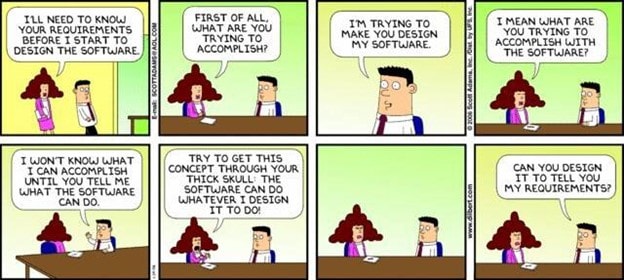
What is a PRD?
A PRD is a shared description of product requirements. The product manager often coordinates it, with input from users, design, engineering, and other stakeholders. It explains what the team intends to achieve and the constraints that matter. It is not a substitute for a technical design or a promise that every proposed feature will ship.
The document can support a defined release or evolve alongside an agile backlog. A roadmap describes direction and sequencing; a PRD gives enough detail to discuss a particular product or feature. Use the PRD writing workflow when you are ready to develop an outline, and connect relevant UI design decisions to the requirements they illustrate.
A template is a useful checklist, not a reason to fill every possible heading. Keep sections that help the team decide scope, evaluate alternatives, or recognize whether the work meets the agreed need. Mark unresolved questions instead of filling gaps with guesses.
What Should a Product Requirements Document (PRD) Contain?
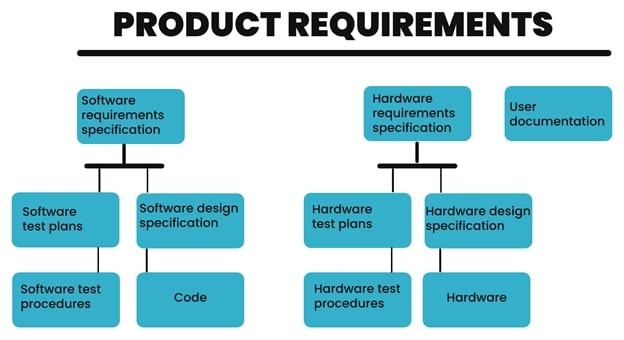
The core purpose of a PRD is to define a particular capability and then give an example of a use case where the user might utilize that capability. If there are nuances within that feature, each variant or additional sub-feature should likewise be defined and given a specific use case.
A PRD may cover one release, a feature, or a wider product, depending on the team. A market requirements document focuses more on market needs and opportunities. Naming conventions vary; state the scope and intended readers at the beginning.
So far we've talked about the functional aspects of a PRD. However, it also needs to outline the platform (device type, OS environment, etc.), specific usability and accessibility requirements (text to speech, one-hand usage, etc.), as well as dependencies, assumptions, and constraints.
A small requirement with a testable boundary
For the review-request example later in this guide, write the requirement as: “After a completed task, the user can continue using the app whether or not a store review request appears.” This describes an observable outcome without promising that the operating system will show a dialog.
- In scope: the completed-task screen, continuation action, and return to the app.
- Acceptance check: a reviewer can continue without choosing a rating.
- Dependency: the platform’s review-request API and its display restrictions.
- Out of scope: guaranteeing a published review or changing the native review card.
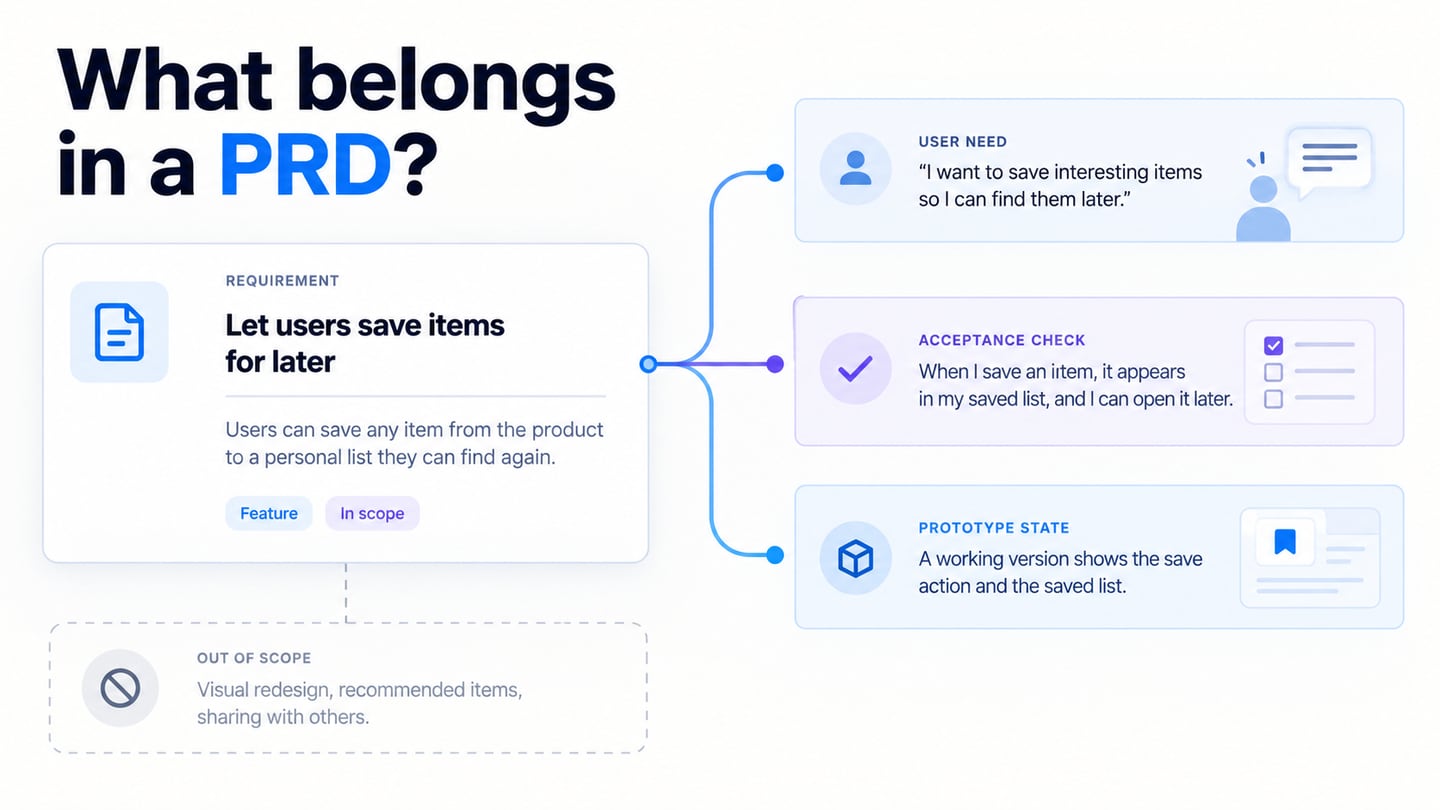
Include information that changes a product decision: user needs, functional behavior, dependencies, nonfunctional constraints, success measures, and what is out of scope. Link supporting research or technical detail rather than copying it all into the PRD. This keeps the document usable while preserving its evidence.
Product Requirements Document Examples and Outlines
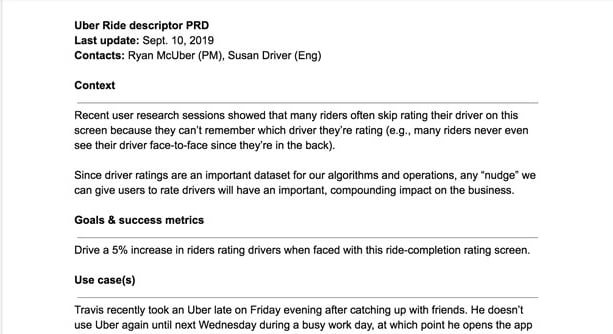
For a single feature, a compact outline may be enough. The ride-rating example below illustrates context, a proposed success measure, and a use case. Treat its company names and figures as example content, not verified results or a current internal document from that company.
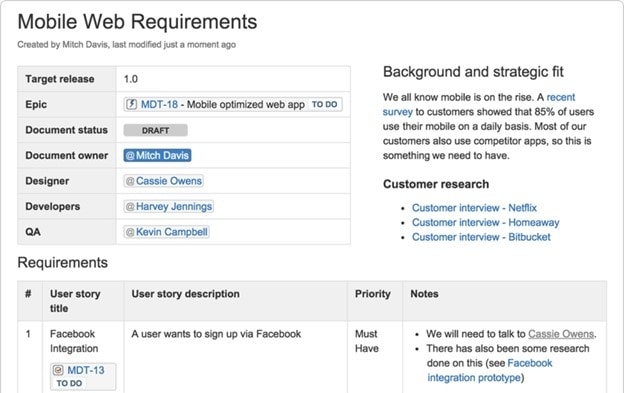
A larger feature may need more detail, but length is not a quality measure. Separate the problem, requirements, open questions, and release boundaries. The example below shows ownership and structured requirements; its dates and research figures belong to the original illustration.
There are several different formats for a PRD because every product is unique. The common aspects of a product requirements document have been outlined above, but keep in mind that every type of product may require a specific set of contents in the PRD. Some might even be hand-written, as in the example below:
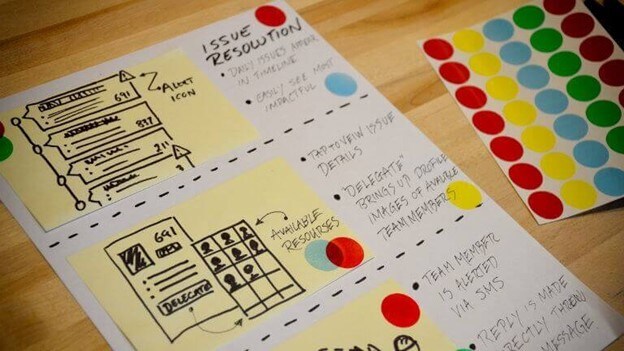
These formats differ, but the useful questions are consistent: who has the problem, what outcome matters, which behavior is required, and how will the team check it? A prototype can clarify an interaction requirement. It does not prove backend feasibility, accessibility, performance, or implementation completeness by itself.
Link each important prototype state to the requirement it explains. A reader should be able to move from a requirement to its screen or behavior, then back to the acceptance criteria. This is more useful than attaching a demo with no explanation of what it validates.
How to Create a PRD or Prototype with Mockitt
Mockitt can help the team build and share the screens that support a PRD discussion. Use the written document for scope and acceptance criteria, then use a prototype to inspect the visible flow. The earlier editor illustrations below remain useful for adding widgets, connecting screens, and sharing; their controls may differ from the current interface.

Key Features
- Rich asset libraries of platform-specific and generic components and widgets - easily customizable and sharable within teams.
- User-friendly drag-and-drop design and prototyping functionality to make you more productive.
- Robust collaborative tools like real-time previews, prototype-sharing, commenting, and feedback mechanisms.
- Fast prototyping with extensive gestures, rich transitions, eye-catching effects, dynamic animation, etc.
- A prototype can communicate layout and interactions to developers; generated or exported material still needs engineering review and implementation work.
- Keep the requirements, design assets, and agreed behavior together for handoff. Check the export options and sharing permissions in your current workspace before committing to a delivery format.
Creating a PRD Prototype with Mockitt
Consider a release that adds an opportunity to leave an app-store review after completing a useful task. The original example used a rating pop-up; the important requirement is the timing and return path, not a custom replacement for the store dialog. The prototype should distinguish your app screens from the platform-controlled review request.
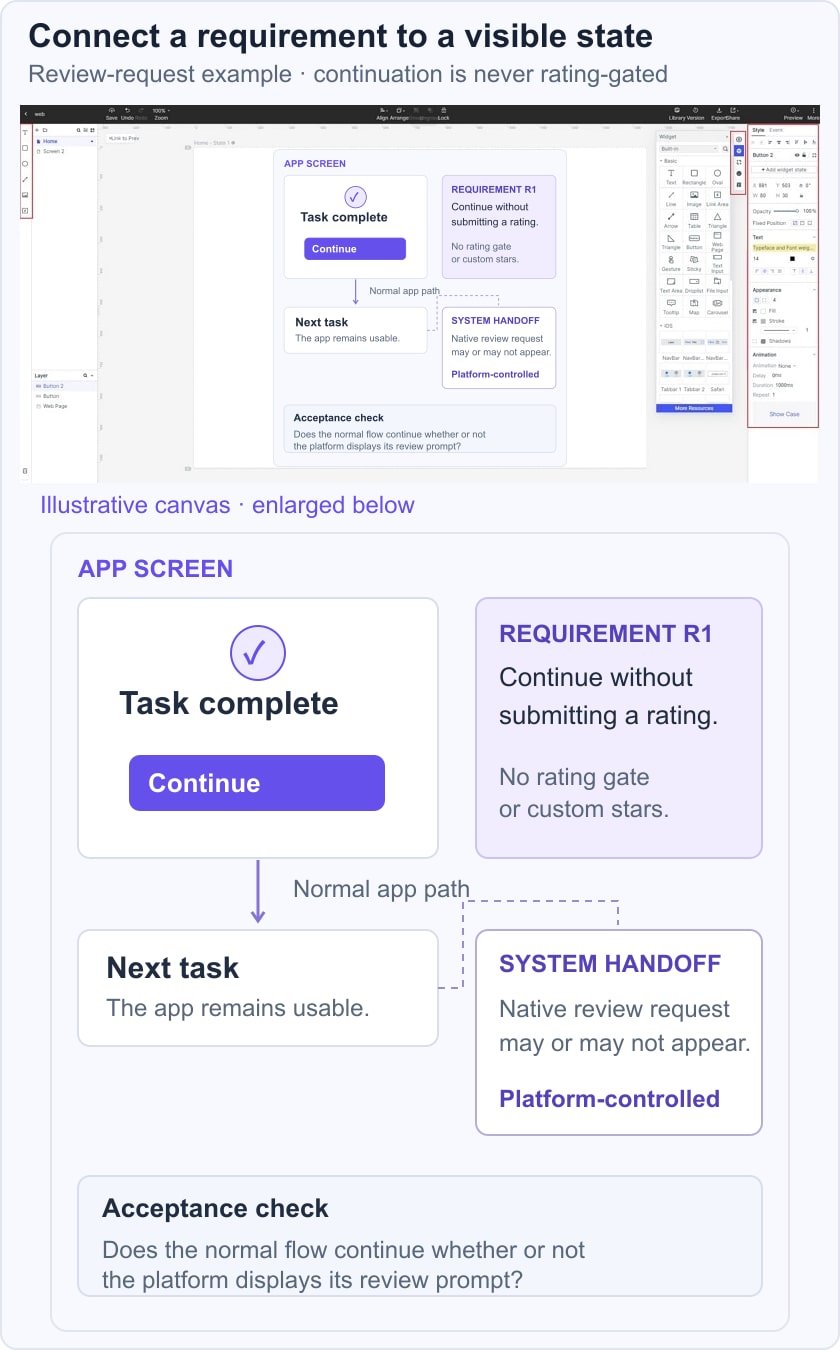
Follow the platform guidance when implementing this feature: Apple’s review-request documentation describes appropriate timing, and Google Play’s review guidance prohibits prescreening opinion questions and changes to its review card. A clickable concept is not an implementation of either API.
Step 1. After setting up the Mockitt account and starting a new project for this PRD prototype, the first step would be to detail the various screens involved in the rating process.
Begin with the successful task-completion screen. Add an annotation describing when a review request might be considered and a normal continuation path if no request appears. Avoid interrupting an unfinished task.
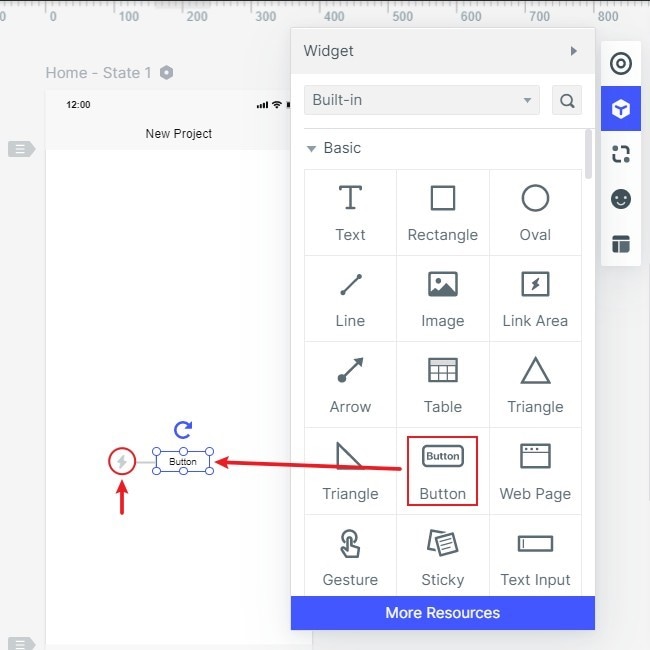
Drag the components you need onto the canvas, keeping the underlying task result and next useful action visible. Give each screen a name that can also be referenced in the PRD.
Represent the platform review handoff with a clearly labeled placeholder. Do not redraw the store dialog as though its appearance or display were under the app team’s control.
Model the return to the app and the route that continues without a review prompt. The prototype should not force a star selection or make continued use depend on submitting a review.
Use a completion state for the original task, not a message claiming that a store review was submitted or accepted. The application may not receive that information.
Lay out these screens and notes together so reviewers can inspect the intended transition and fallback. Keep the platform-controlled step visibly separate from app-owned UI.
But what about being able to interact with this basic design? That's the next step - prototyping.
Step 2. In the prototyping stage, the various screens and the assets/components/widgets are connected with their corresponding pages or page states.
Select the element that continues the completed task. Link it to the next app screen; use a separate annotation to explain the possible system review request.
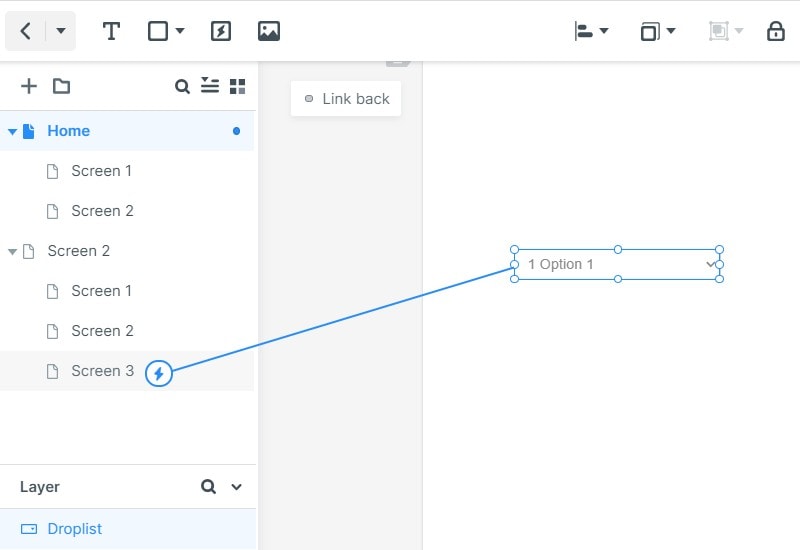
This widget can be linked to the second page by simply dragging the link from the left edge of the asset and dropped to the second page on the left-side navigation panel where all the pages and page states are listed.
Connect the return path to the same useful next step whether the system shows a review request or not. Reviewers should be able to finish the flow without leaving a rating.
Use a separate screen state only where it clarifies app-owned behavior. A dynamic widget is not evidence that a native store review interaction can be customized.
Choose a simple click or tap interaction and a restrained transition. The purpose is to inspect timing and continuity, not to decorate the rating prompt.
You can now proceed to create the various interactions required for this feature.
Step 3: Share for review
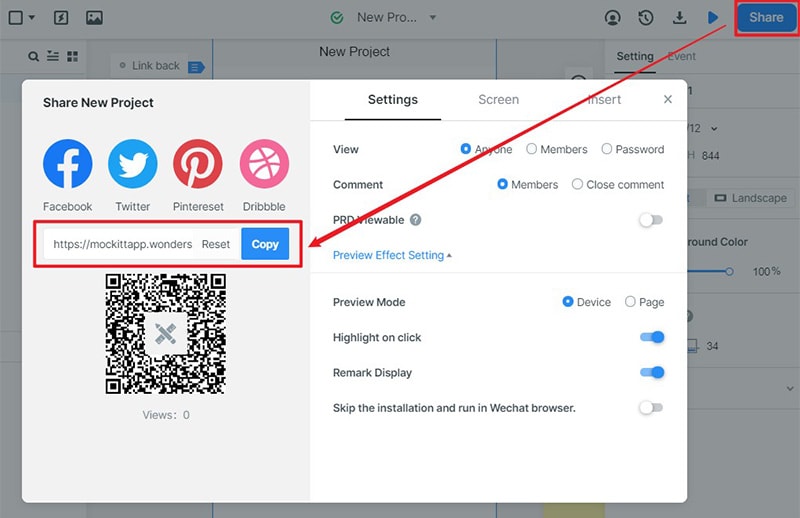
Open the sharing controls, choose appropriate access permissions, and copy the review link. Check it in a separate browser session before circulating it. Use only export formats offered by your current workspace, and keep the document’s screen references intact.
Step 4: Review against the requirements
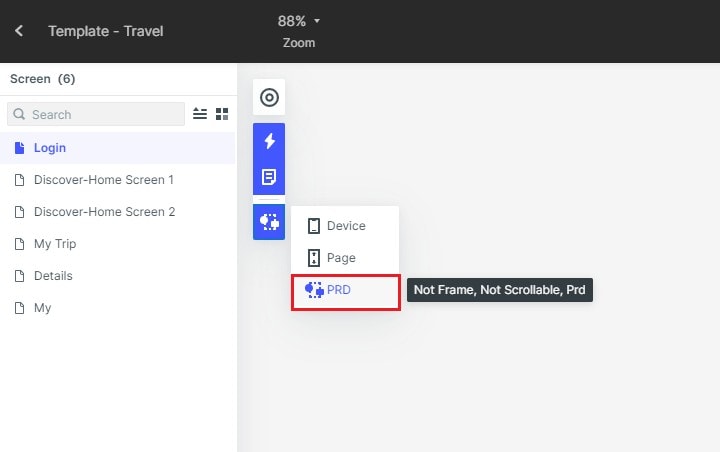
Preview the flow and ask a reviewer to complete the original task, continue without reviewing, and return from the platform handoff. Record missing states or unclear wording in the PRD. The older screenshot below shows a historical PRD preview option; do not depend on that control being present in the current editor.
A useful handoff pairs the written requirement with relevant screens and unresolved questions. Recheck the behavior when requirements change, and record an actual editorial revision only when the document itself has materially changed.