
Hyperlinks help people move to another page, document, or section of a page. Their wording and behaviour are part of interaction design: a person should be able to recognize the link and predict its destination before activating it. The useful question is not how many links someone encounters, but whether each link supports the current task.
Compare link types and states, then use the ten practical tips to distinguish navigation from commands. Focus on understandable labels, visible interaction states, and predictable behaviour. Search discovery can benefit from useful links, but adding more links or repeating keywords is not a substitute for a coherent user experience.
Links: Uses and Related Controls
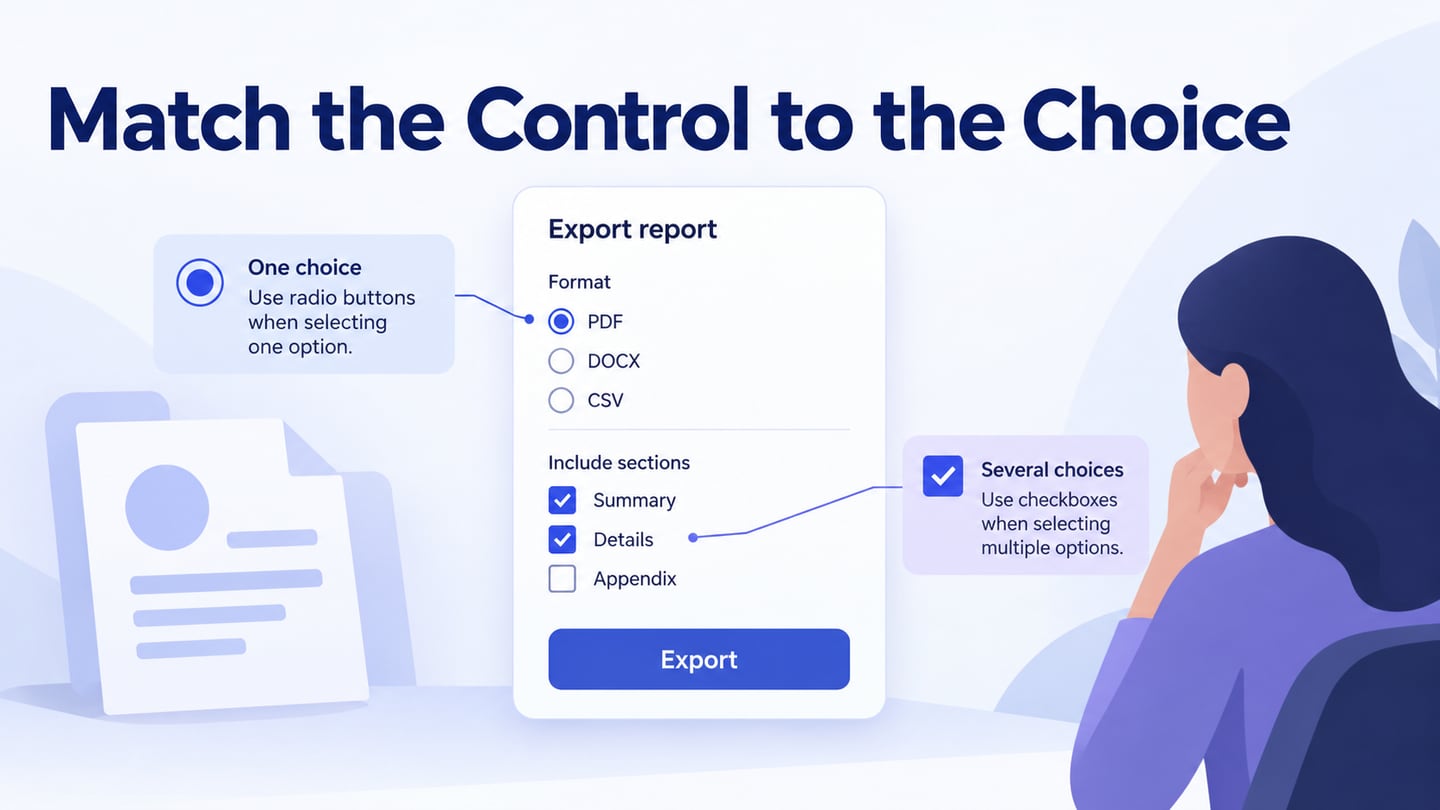
Not every clickable element is a hyperlink. A link navigates to a destination; a button normally performs an action such as submitting a form or opening a control. The distinction affects expected keyboard behaviour and browser features, so preserve it in implementation as well as appearance.
- Navigation links move to a page, document, or an identified section of the current page.
- Commands such as Save or Submit are usually buttons, even when styled as text. Do not describe them as links merely because they are clickable.
- Definition links lead to an explanation or reference. If an explanation opens a popover instead, design and implement that control according to its actual behaviour.
- A home link often appears on the site logo. Give it an understandable accessible name and keep its destination consistent.
Links also need recognizable states. The original three states are useful, but keyboard focus and activation should be considered too:
- Unvisited: recognizable as a link before any interaction.
- Hover and focus: feedback for a pointer or keyboard user without hiding the link until that moment.
- Visited: an optional, useful distinction where knowing previous destinations helps the task.
Importance of Links
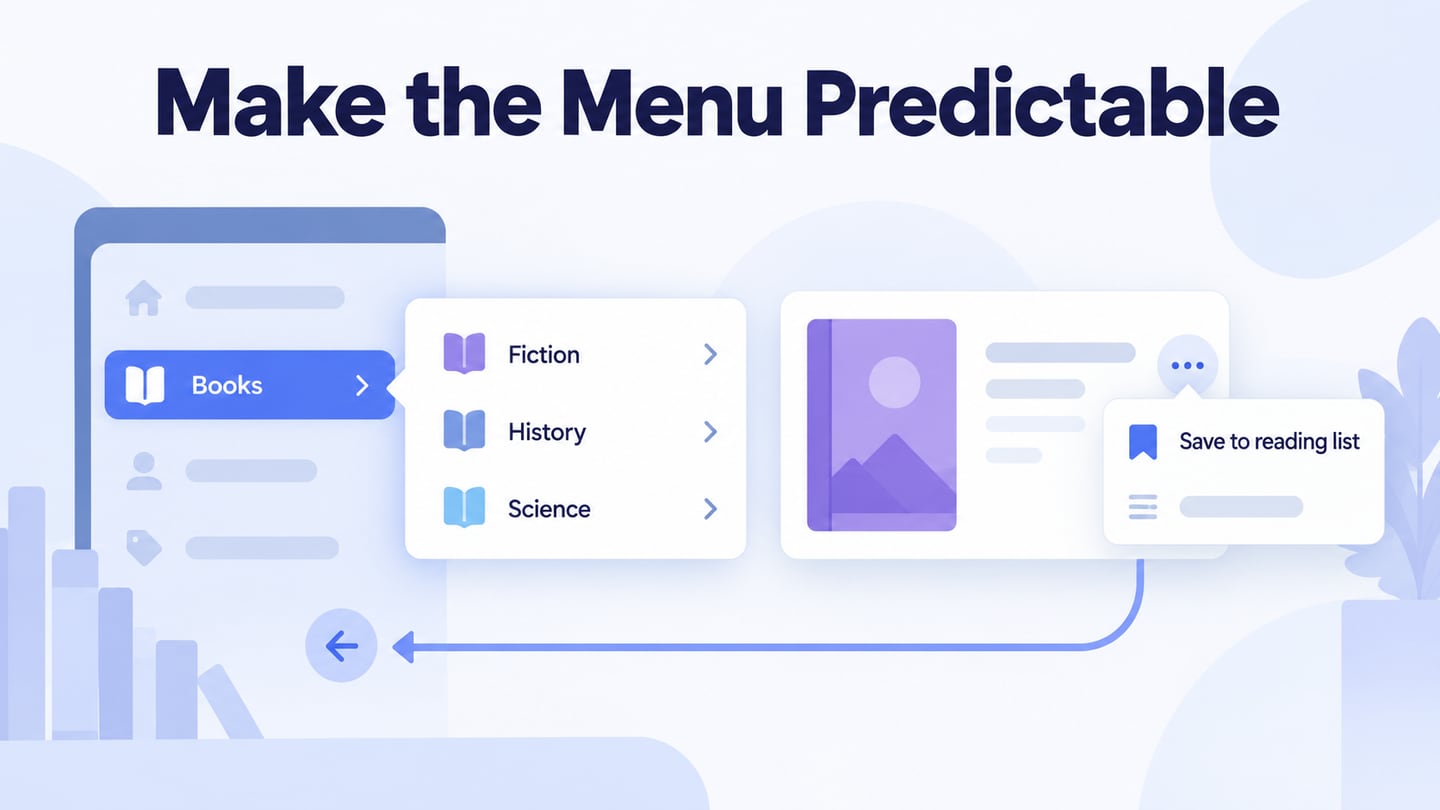
Useful internal links connect related information and help readers continue a task. Link wording should explain what the destination adds, rather than treating the page as a collection of keywords. A reference that answers the next question is more useful than a repeated promotional link unrelated to the sentence.
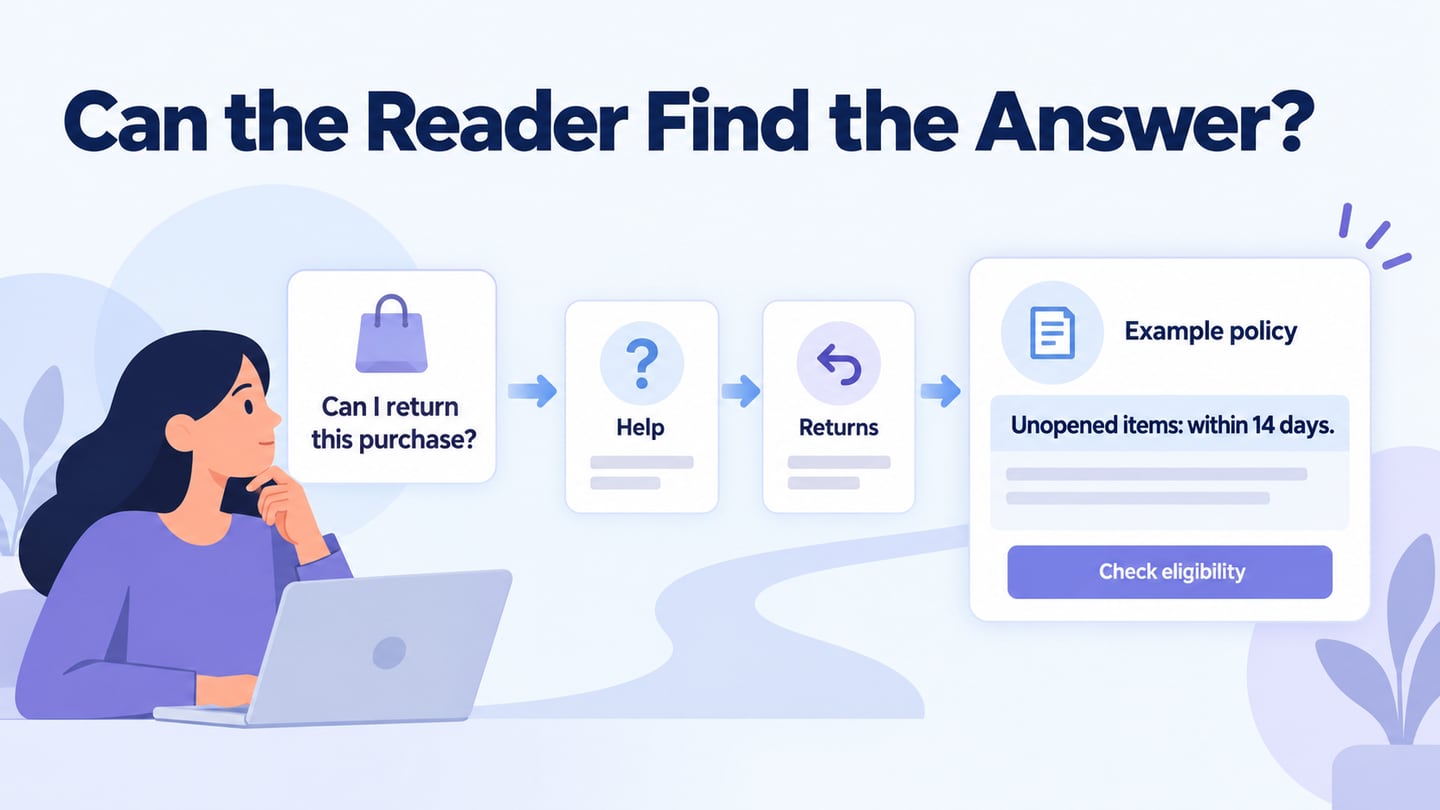
The information structure and link destinations should agree. If a label promises a setup guide, the destination should provide that guide rather than a generic homepage. Review broken links, unexpected redirects, and outdated documents because those problems affect the experience after the click.
The following tips help review the label, appearance, state, and destination together.
Tips for Beginners to Make Use of Links
Use these ten checks for body links, navigation, resource lists, and links inside task instructions. The appropriate visual treatment can differ by context, but the purpose and behaviour should remain understandable.
A link that looks elegant but cannot be recognized or used does not serve the task. Check the default state and alternative input methods, not only the hover effect in a design file.
Start with these practical checks:
1. Use Meaningful Text
Write a label that describes the destination, such as “Launch checklist” instead of an isolated “Click here.” W3C’s link-purpose guidance explains how the link text and its associated context help people decide whether to follow it. When the same label leads to different places, add enough context to distinguish them.
2. Use a Recognizable Link Treatment
Blue is a familiar link convention, but it is not mandatory. Use a color that fits the interface and remains readable against the background. In running text, an underline is a strong way to distinguish the link from surrounding words without relying on color alone.
Keep the treatment consistent. If ordinary emphasized text looks identical to links, readers must experiment to discover what is interactive. Do not claim that one color guarantees more clicks across every audience or context.
3. Use Emphasis Deliberately
Underlines, borders, or background emphasis can make a link recognizable. Choose the treatment according to the context: an inline reference should remain readable within the sentence, while a resource card may use a larger linked title.
Check the result at the normal reading size and with long labels. Heavy shading around every phrase can make the paragraph difficult to scan. The aim is to communicate interaction, not make every link compete for attention.
4. Do Not Hide Links Until Hover
People should not need to move a pointer across each word to discover a link. Touch devices do not provide the same hover interaction, and keyboard users need a visible focus state.
Make the default state recognizable, then use hover and focus as additional feedback. Minimal visual styling should not remove the information needed to identify the control.
5. Use Symbols With Clear Labels
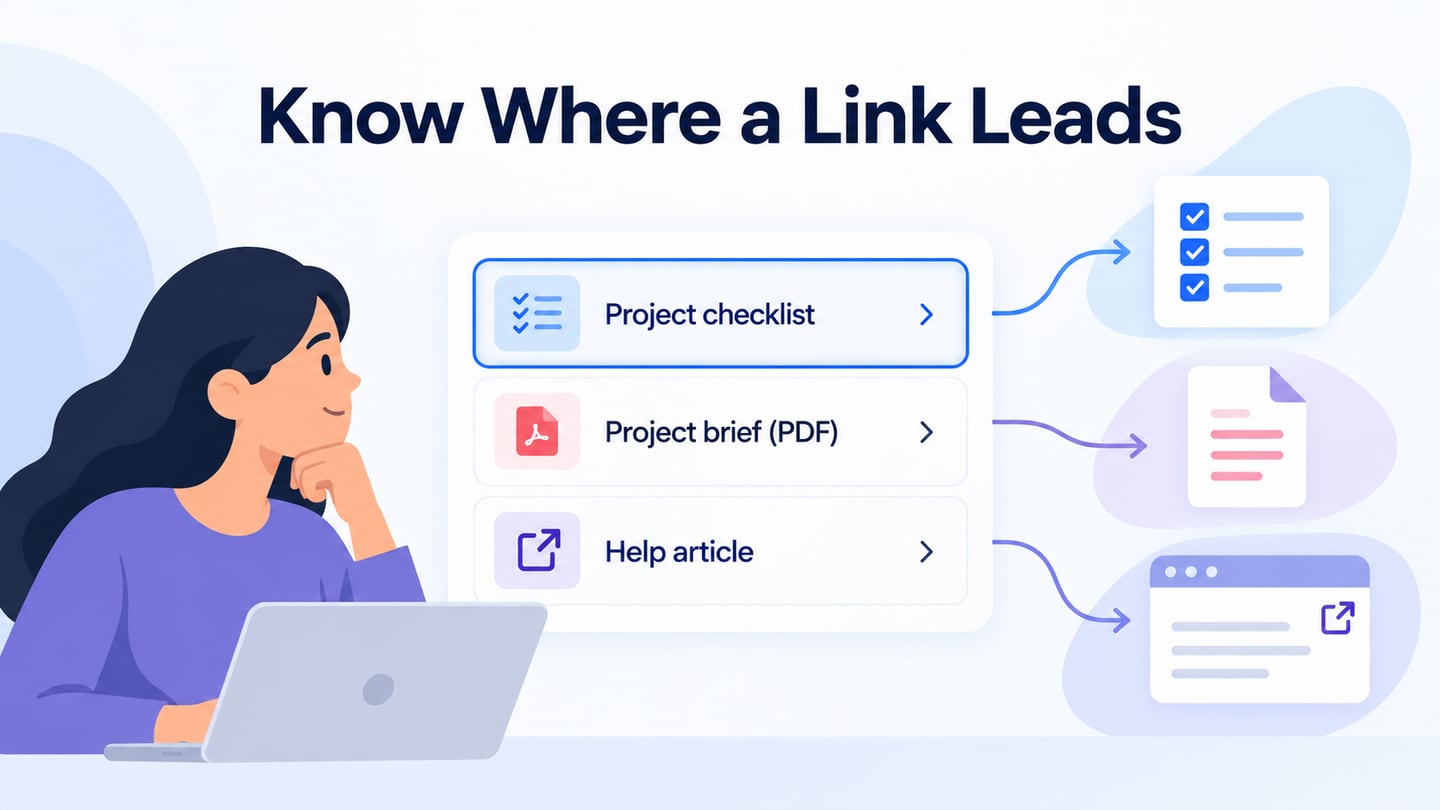
An arrow, document icon, or external-link symbol can supplement a label. The symbol should add useful information, such as file type or a change of browsing context, rather than replace the destination’s name.
Keep icons legible and provide an appropriate accessible name when an icon is the only content. Do not assume everyone understands a symbol because the design team does. Avoid several unexplained symbols beside one link.
6. Make the Clickable Area Understandable
A linked title, adjacent image, and separate action can create several ways to reach the same destination. Use a coherent pattern and avoid unnecessary repeated links or nested interactive controls. For inline text, make it clear which words form the link; for a card, ensure the clickable area matches what its visual treatment suggests.
7. Show Hover and Keyboard Focus
Provide feedback when the link is hovered or focused, and keep the focus indicator visible against the surrounding colors. Review keyboard order and activation in the actual page. A static mockup can communicate the intended state, but it cannot verify the implemented keyboard behaviour.
8. Consider Visited States Where Useful
Visited styling can help people compare resources or avoid reopening a page unintentionally. Keep it readable and distinguishable from a disabled state. It is less useful for controls whose purpose is to perform an action; those should not be disguised as navigation links.
9. Avoid Unexpected New Windows
Opening links in the same tab usually preserves familiar browser behaviour. A new tab can be appropriate when the task justifies it, but it should not be forced indiscriminately for every external link or document.
When a new browsing context is necessary:
- Make the behaviour understandable in the link or nearby context, following W3C’s new-window guidance.
- Check that the link is activated by the person and that the new context does not interrupt an unfinished task without warning. A PDF file alone is not a universal requirement to open a new tab.
10. Describe the Destination Without Keyword Stuffing
Use words that accurately name the destination and fit the sentence. Relevant topic language can occur naturally, but repeating the same exact phrase across unrelated links does not make the experience clearer. Prefer one useful link to a target within a passage over several redundant links.
Review the destination as well as the label. A clear phrase cannot rescue a broken page or a resource that no longer answers the promised question.
Review a resource list before publishing
For an illustrative project portal, provide three resources: “Launch checklist,” “Project brief (PDF),” and “Account help (opens in a new tab).” The first is a normal page destination, the second identifies the document type, and the third explains the deliberate change of context. Give the focused item a visible outline without shifting the surrounding layout.
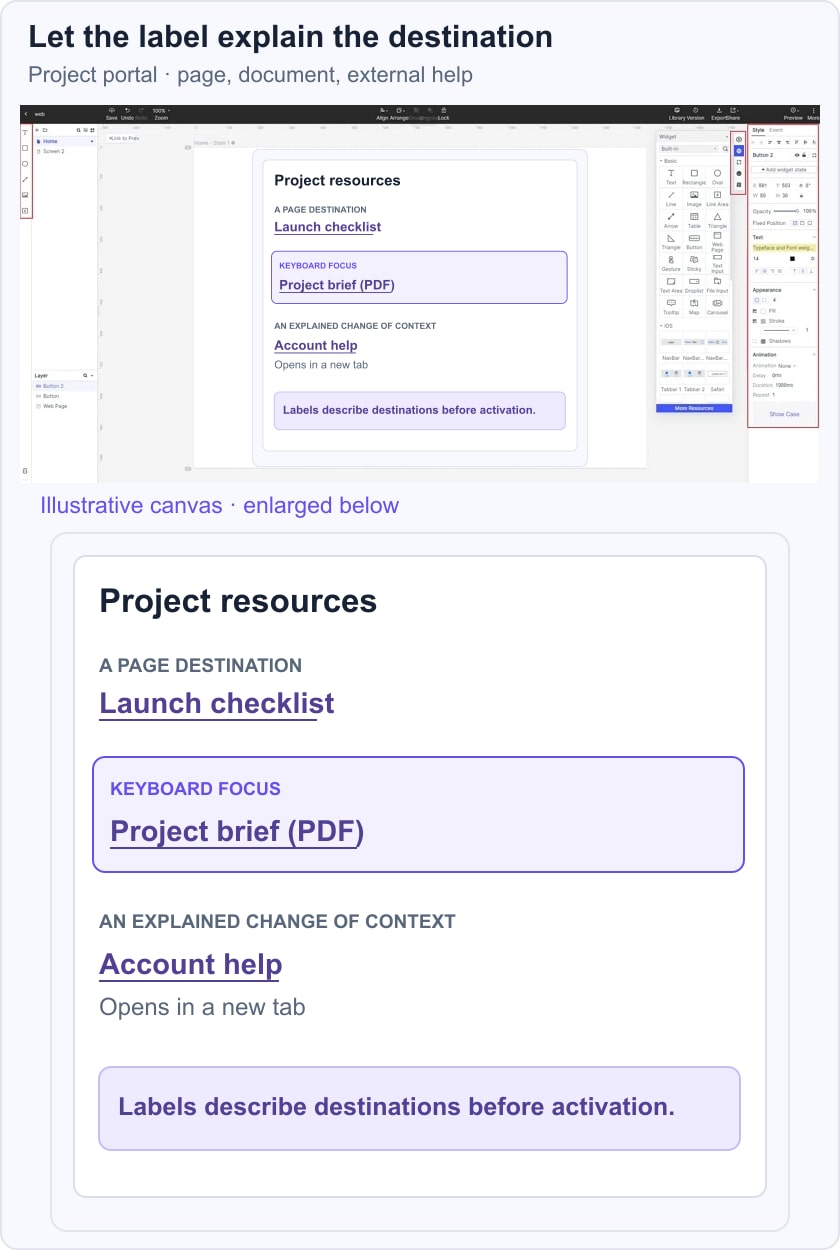
Connect the destinations in a prototype of the resource navigation and ask a reviewer what they expect each link to do before opening it. Then check the implemented page with a keyboard and verify that each destination matches its label. If the account-help page opens in the same tab instead, remove the inaccurate notice rather than leaving the design and behaviour inconsistent.
A final link review should check meaning, visibility, keyboard operation, destination accuracy, and whether the link is needed in that context.
Conclusion
Hyperlink UX depends on a clear relationship between the words, visual treatment, and destination. Navigation and action controls should be distinguishable, and interaction feedback should work beyond the pointer-hover state.
Use familiar conventions where they help, but test the actual task and implementation. Color, underlining, file labels, and new-tab notices are tools for communicating behaviour; none is a universal shortcut to usability or search rankings.
Keep the links maintained as pages and documents change. A small set of accurate, useful destinations serves the reader better than a page crowded with repeated or ambiguous links.