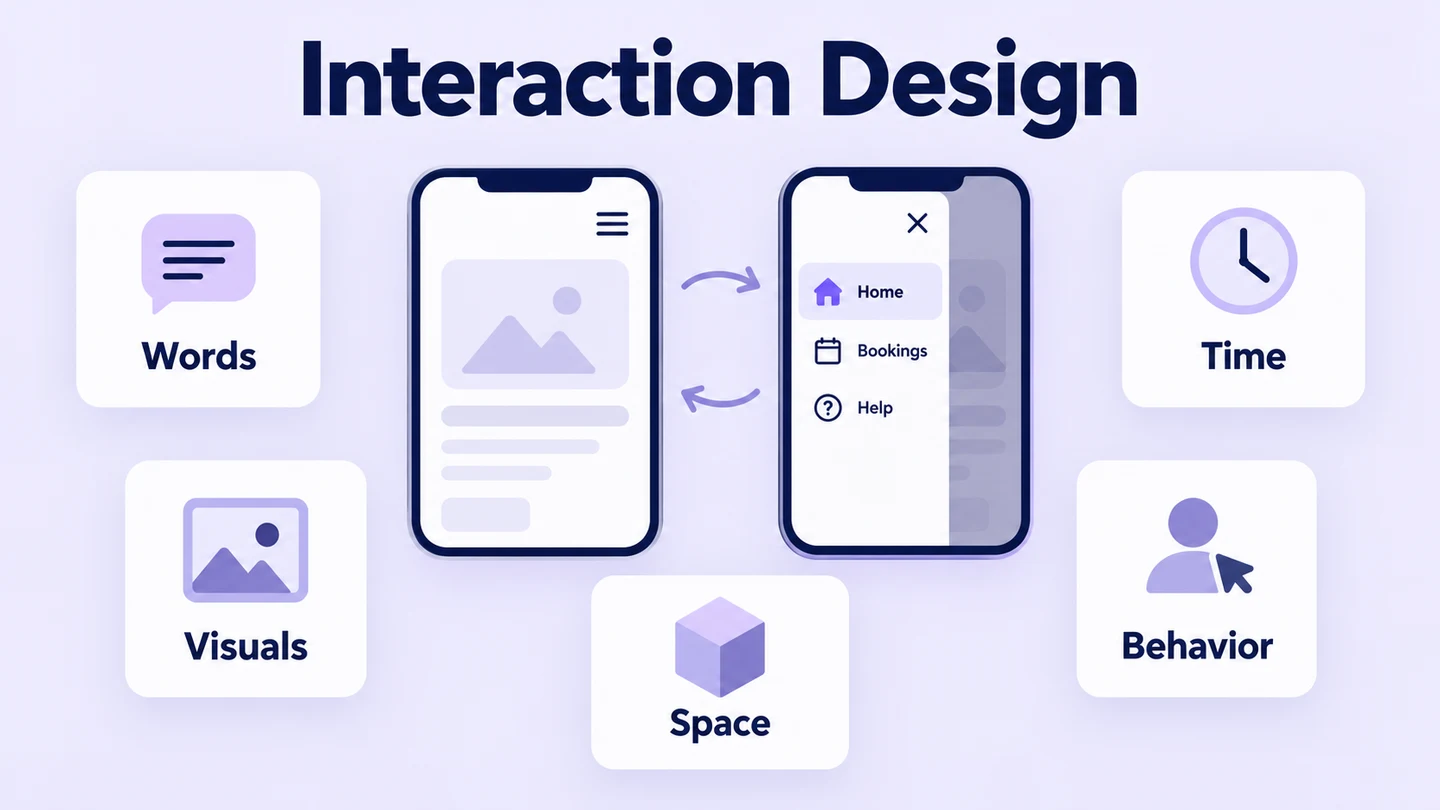
Interaction design shapes what people can do with a product and how the product responds. It connects an action, such as opening a menu, to a clear result and a way to continue or go back. Use an interactive prototype to examine those decisions before development: a button's appearance alone does not show whether its behavior makes sense.
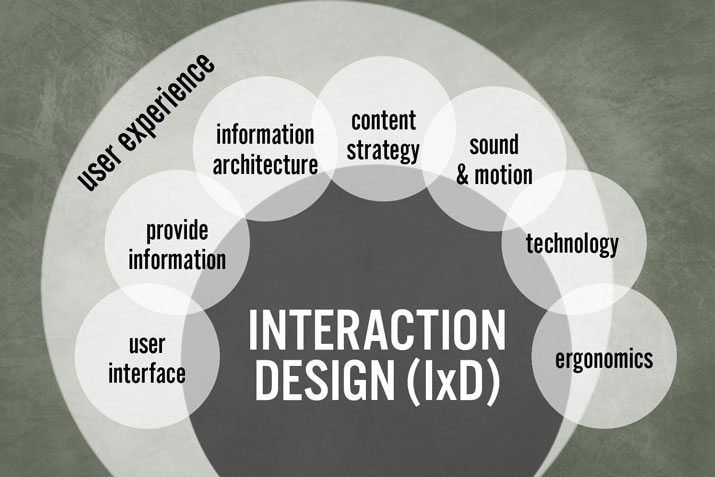
In the user experience model, interaction design plays a vital role in analyzing the relationship between users and products. Research helps you understand the people, their goals, and the conditions in which they use the product. This article explains five dimensions of interaction design, shows how to explore a navigation interaction in Mockitt, and considers the designer's daily work and review questions.
Simple and Useful Understanding of Interaction Design
Interaction design is often abbreviated to IxD. It focuses on how a person interacts with a product to achieve a goal. The concept applies to digital and physical products; here, the examples concern apps and websites. Think about the available actions, their sequence, the feedback after each action, and what happens when someone changes their mind.
This design occupies an important part of UX design, but it does not cover the whole experience. For example, deciding what happens when a customer opens a menu is an interaction decision. Understanding why they need the service and how they experience its support involves a wider set of UX questions. The separate guide to interaction design versus UX explains that relationship in more detail.
The Interaction Design Foundation's five-dimension framework names words, visual representations, physical objects or space, time, and behavior. Gillian Crampton Smith proposed the first four dimensions; Kevin Silver added behavior. Use them as different views of the same interaction, not as five independent decorations.
First Dimension: Words
Words include button labels and other text that explain an action. Keep them brief and informative. In a mobile navigation drawer, “Classes,” “My bookings,” and “Help” tell a reader more than three unlabeled symbols. “Close menu” describes a different action from “Back,” so those labels should not be interchangeable.
Second Dimension: Visual Representation
Images, typography, and icons help people interpret the interface. The menu icon should look actionable, and the current destination should be distinguishable from other choices. When you represent information graphically, make sure the visual conveys the intended meaning; a decorative animation cannot explain an ambiguous label.
Third Dimension: Physical Objects or Space
Consider the device and the space in which someone uses it. A smartphone operated with a thumb presents different constraints from a laptop operated with a mouse. For the drawer example, check whether its controls remain reachable and readable when the viewport is narrow, rather than reviewing only a large desktop canvas.
Fourth Dimension: Time
Time includes change over time, such as motion, sound, and a sequence of feedback. It is not simply the number of hours someone spends using the product. A drawer's transition can communicate that it opened over the current screen; a long decorative effect can instead delay access to the choices.
Fifth Dimension: Behavior
Behavior brings the dimensions together: what the person does and how the product responds. Opening the drawer, choosing a destination, closing it without choosing, and returning from another screen are different behaviors. Define each one so that the interface does not strand someone in an unexpected state.
How to Do Interaction Design?
Mockitt lets you arrange screens, add components, and connect actions for preview. Use these capabilities to explore an interaction rather than adding effects before deciding what the user needs. Start with one question: can someone open the menu, reach a destination, and return without losing their place?
The following Mockitt capabilities support that work:
- Build dynamic widgets or component states to represent changes within a screen.
- Save reusable elements so repeated controls stay consistent across the prototype.
- Include images, video, or motion when they help explain the intended experience.
- Connect screens and actions to explore navigation and feedback.
- Preview and share the flow for review without treating the prototype as a deployed application.
The retained editor screenshots below come from the original tutorial and illustrate its screen-building workflow. For the accompanying example, imagine a local workshop app with “Classes,” “My bookings,” and “Help” in its navigation drawer.
Step 1: Create an Account
Open Mockitt and sign in or create an account to access your workspace. Decide which team members need to review the prototype. Use sample workshop names and bookings for this exercise so that a shared preview does not expose customer information.
Step 2: Create a New Project
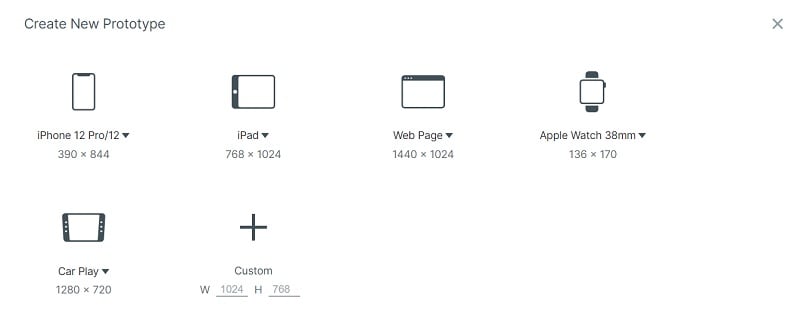
Create a prototype and select an appropriate device or custom canvas size. The original example shows several device presets. Choose the size for the intended review rather than assuming that one preset proves the design works on every phone.
For the workshop example, prepare a Classes screen, an open-drawer state, and a My bookings screen. Keep the Classes content the same in its closed and open states. This makes the effect of the menu easy to compare and avoids changing unrelated content during the review.
Step 3: Add Widgets and Useful Feedback
Choose the widgets you need and drag them onto the canvas. Modify their properties in the editor and reuse the edited elements where appropriate. Add the menu control, its destination labels, and a visible way to close the drawer before choosing an animation.
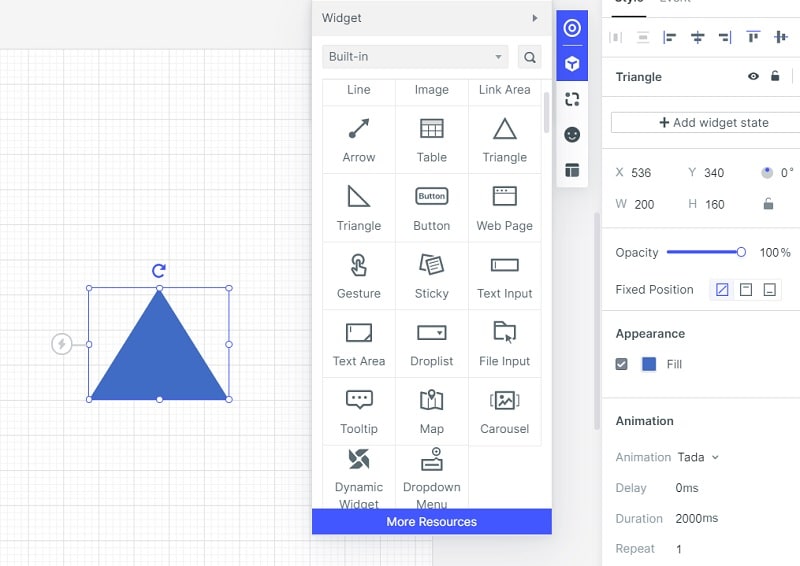
The screenshot shows a Tada effect and a 2000 ms duration as editable properties, not recommended settings for every interaction. Choose motion that clarifies a change and does not hold up the task. Also plan a reduced-motion alternative: W3C's interaction-animation guidance explains why nonessential motion needs consideration. Review both the moving and immediate-change versions of a drawer.
Step 4: Build a Hamburger Menu
With the built-in widget collection, arrange the menu control and the drawer's contents. The original screenshot shows the three-line icon on a canvas. Drawing that icon is only the starting point; the open state needs meaningful destinations, a current-location indicator, and a clear dismissal action.
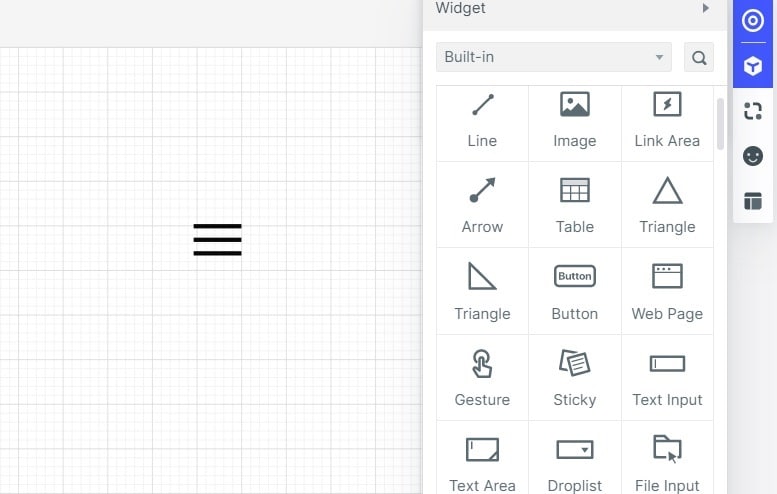
In the workshop app, opening the menu should leave the Classes screen underneath it. Closing without making a choice returns to that screen. Selecting “My bookings” opens a destination whose heading confirms the choice. Keep the destination labels consistent across these states so a reviewer can follow the sequence without an explanation.
Write down the behavior that still needs implementation: keyboard activation, focus movement when the drawer opens, and focus returning to the menu control after dismissal. A clickable visual prototype can communicate these requirements; the finished application's keyboard and assistive-technology behavior needs its own implementation and testing.
Step 5: Make Transitions Between Pages
Connect the relevant control to its destination screen or state. The original example uses a link between a screen element and another page. Check the trigger and destination before adding a transition effect: a convincing animation can still lead to the wrong screen.
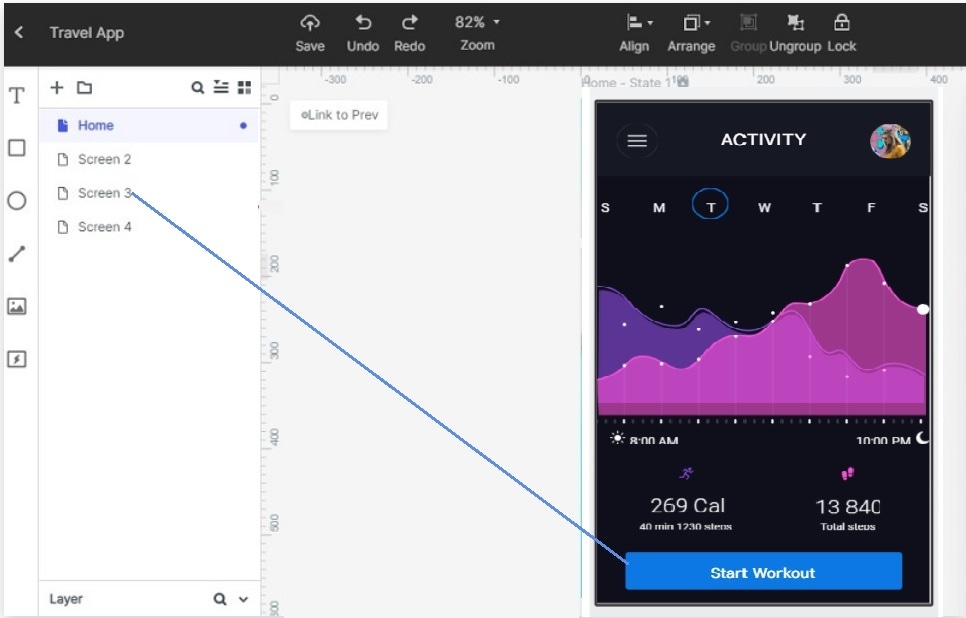
Preview the complete sequence. Start on Classes, open and close the drawer, open it again, select My bookings, and return to Classes. Check the heading after navigation and whether the selected location remains understandable. Then try cancelling the menu instead of choosing a destination. If an action has no result, add the missing state or connection before showing the flow to someone else.
Daily Work as an Interaction Designer
Interaction designers work closely with developers and other designers to explain behavior as well as visual arrangement. They decide how controls, content, and feedback support a task, then make those decisions concrete through flows, prototypes, and notes. The exact responsibilities vary between teams.
A typical day can include reviewing research, sketching alternatives, building a prototype, discussing constraints with developers, and revising a confusing interaction. For the workshop drawer, the discussion might concern whether an unsaved selection survives navigation or how returning to Classes preserves context. These are product decisions, not simply questions of where to place an icon.
Using knowledge of user behavior, the interaction designer helps the team connect the intended experience to implementable states. Record unresolved questions beside the relevant screen so that a visually finished prototype does not hide a missing decision.
Questions to Ask When Reviewing an Interaction
Are interactive elements easy to identify and operate? Review their size, spacing, labels, and location on the intended device. In the drawer, check both the menu icon and the close control; recognizing one does not prove the other is clear.
Do error messages help the user recover? Explain what happened and offer a useful next action. If the My bookings request fails, keep a route back to Classes and show a retry option rather than a blank screen. The prototype can represent that state without making a real network request. Distinguish empty, no-result, and recovery states when planning these responses.
Does appearance give an accurate clue to behavior? Use recognizable controls consistently. A destination label should navigate, while a close control should dismiss the drawer. Observe whether a reviewer can predict each result before you explain it.
Conclusion
Interaction design connects words, visuals, devices, timing, and behavior to a person's task. Apply those dimensions to one complete interaction, including dismissal and return paths. A small prototype with understandable states gives the team more useful information than a polished menu whose behavior remains undecided.