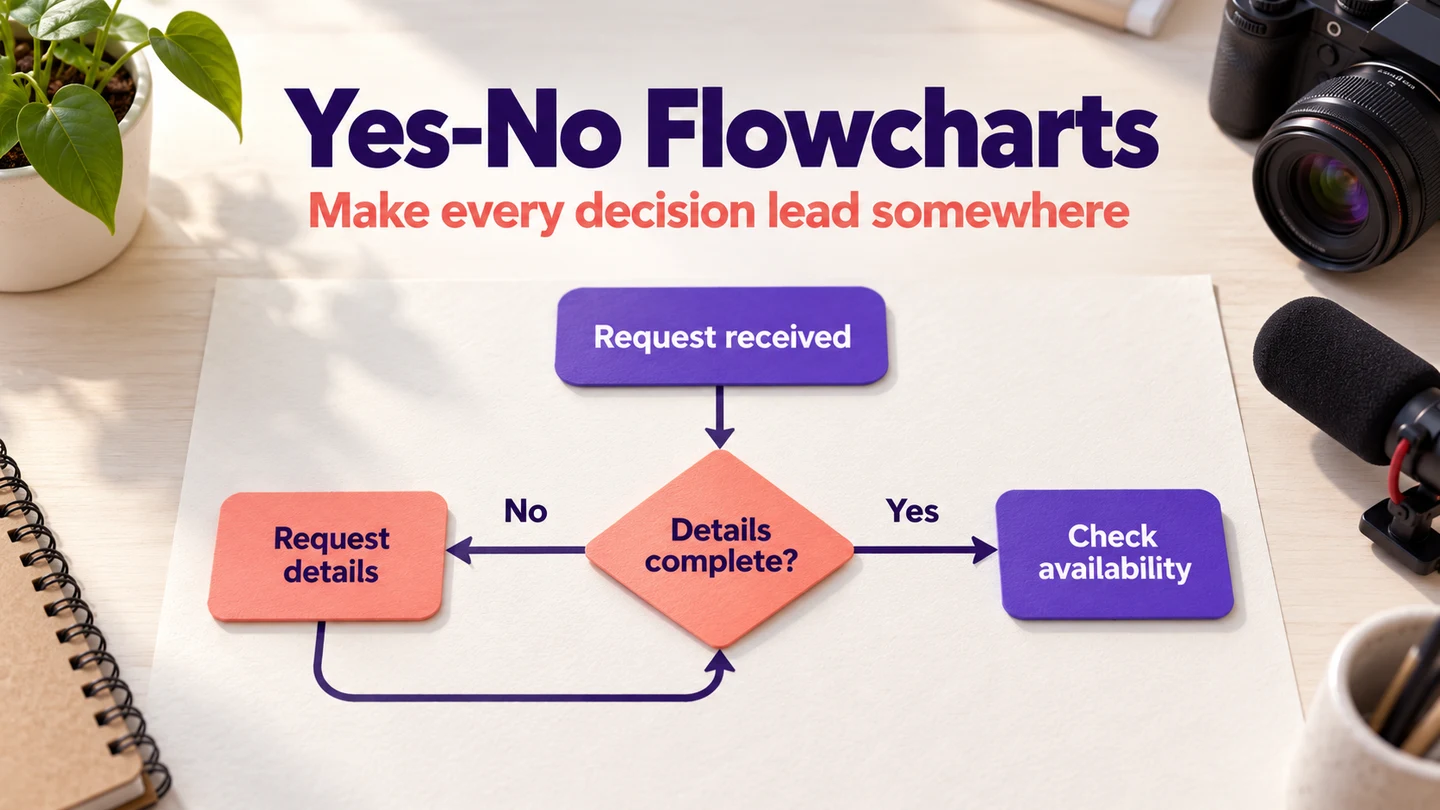
A yes-no flowchart maps a process whose decision points have two labeled outcomes. Put a clear question in each decision diamond, connect its Yes and No branches to the appropriate next steps, and show how each route ends or returns for another attempt. It represents logic, not survey percentages: butterfly and tornado charts are different chart types.
Use Mockitt Flowchart to arrange the questions, actions, and connectors. Follow the symbol guide and drawing walkthrough, then test your logic with an equipment-request example before sharing it.
What Is a Yes-No Flowchart?
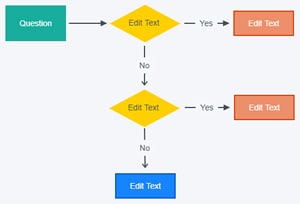
Yes-no decisions appear in business processes, classroom activities, and computer algorithms. The notation is useful when the question really has two outcomes. If a request can be approved, rejected, or sent back for more information, use separate questions or label all three routes rather than squeezing them into an ambiguous Yes/No pair.
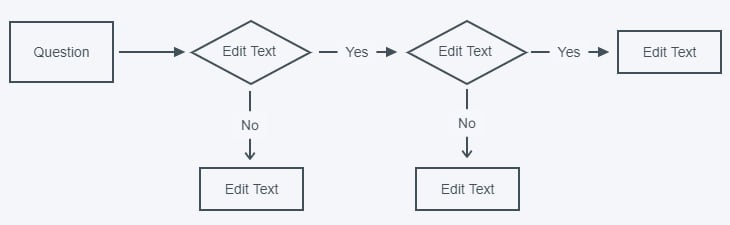
Use consistent symbols so readers can distinguish a question from an action. These basic shapes cover many small decision diagrams:
- Rectangle or box block: Represents an activity or a step
- Rounded box or an oval box: Indicates the start or end
- Diamond-shaped box: Represents the yes-no decision point
- Circle: Represents the point of connection
- Parallelogram: Represents input or output
How to Create a Yes-No Flowchart in Mockitt
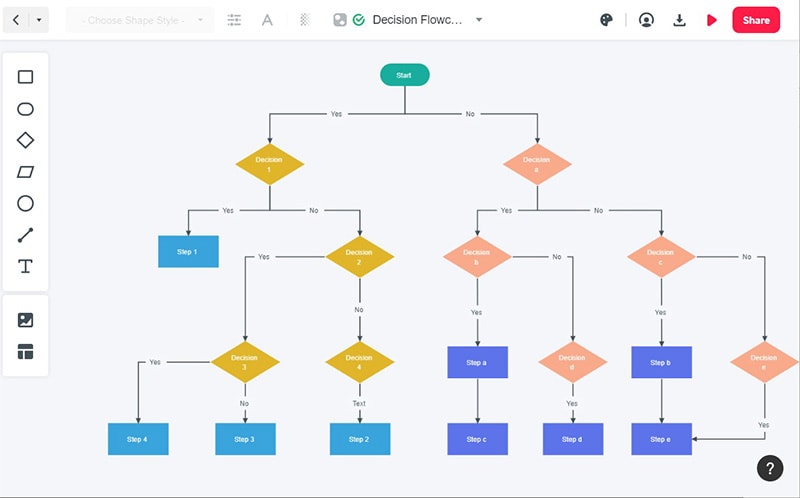
Before opening the editor, write the starting event, the decision questions, and the possible outcomes. The following archived Mockitt examples show editing controls and placeholder diagrams. In your finished chart, replace placeholder labels with complete questions and put Yes/No labels on the branches leaving each decision, not on a Start node.
For the example, an employee requests a piece of equipment. The team must check whether the request is complete, whether the equipment is available, and whether the loan is approved.
Step 1: Create a Flowchart Project
Open Mockitt and create a flowchart project. The original guide image below shows the Create menu and Flowchart option. Begin with a starting event such as “Request received” and an end state such as “Equipment reserved.” Add the other outcomes before polishing the layout.

Step 2: Drag Shapes into Your Canvas
Drag the required shapes onto the canvas. Use rectangles for actions, such as “Review request,” and diamonds for questions, such as “All required details supplied?” Connect shapes in the intended reading direction. Keep space beside a diamond for both outgoing branch labels.
Step 3: Edit Content of Each Shape
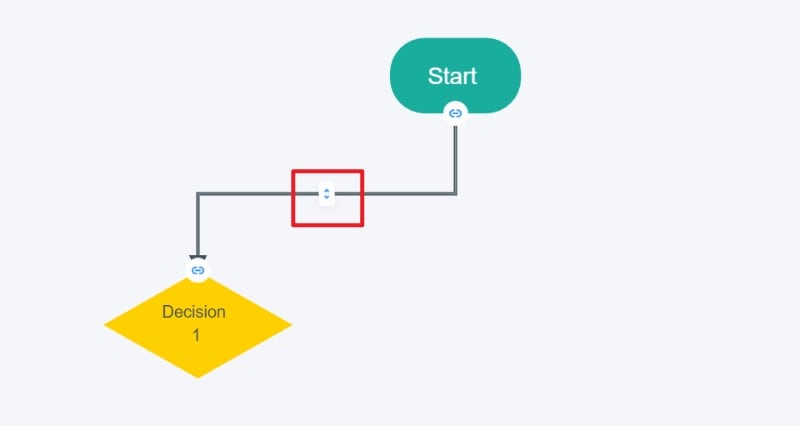
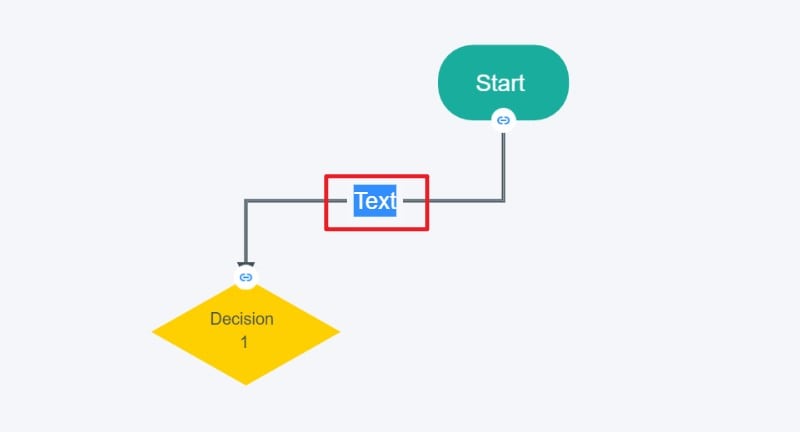
Label the outgoing connectors Yes and No. Place each label close enough to its decision that the answer cannot be mistaken for the next question. The guide example illustrates editing connector text. Use a complete question in the diamond; a vague label such as “Approval” leaves readers guessing what Yes means.
Step 4: Share or Download the Yes-No Flowchart
Trace each route before sharing or downloading the diagram. Check that the correction path returns to the step that actually rechecks the information, and that an approved request reaches the appropriate next action. Choose a sharing or export method that keeps the labels readable for your audience.
Features of Mockitt
Mockitt provides flowchart shapes, connectors, and editing controls for organizing this kind of process. A product team can use the diagram to agree on the decision logic before representing the user-facing parts as prototype screens.
Drawing the diagram does not execute the approval process. Someone still needs to define responsibility, eligibility rules, and the behavior of any implemented system. Keep those rules beside the relevant step so the chart does not conceal an unresolved policy decision.
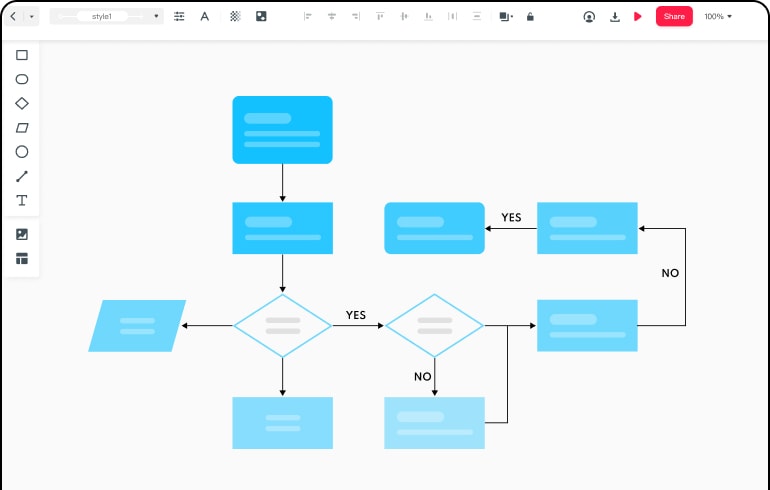
- Use labeled shapes to distinguish actions from decision questions.
- Connect each question to both possible outcomes.
- Keep related notes beside the branch they explain.
- Review the resulting process with the people who perform it.
How to Design a Yes-No Flowchart in SmartDraw
SmartDraw is another diagramming option with flowchart templates and symbols. The following sequence preserves the original tutorial’s approach: set the scope, choose a template, connect the steps, format the chart, and prepare it for the document where it will be used.
1. Define the Process Boundary
Decide what process you want to visualize before choosing a template. A broad subject produces a diagram that is hard to follow. For an equipment request, start when the request arrives and stop when equipment is reserved, the request is declined, or the employee is asked to supply missing information.
The boundary determines which details belong in the diagram. A hamburger-order process, for example, normally starts with an order rather than with farming the ingredients. Similarly, an equipment-loan diagram can assume that the inventory already exists; it does not need to include the entire purchasing process.
2. Begin with a Suitable Flowchart Template
Choose a flowchart template and use its standard shapes consistently. Replace example labels with your own steps and questions. A template provides a starting structure; it does not establish that the decision logic is correct.
Check both outcomes of every decision. Remove template branches that do not apply, and add any missing end state or return path that the actual process requires.
3. Connect the Steps and Decisions
Add or remove steps and connect them in the required order. SmartDraw offers automatic formatting for flowcharts, but still review the reading direction and connector labels after rearranging the diagram.
4. Make the Diagram Easy to Read
Use a restrained visual style. Make the decision text and branch labels readable at the size at which the chart will be shared. Color can reinforce the difference between outcomes, but words and arrows should carry the meaning without color.
5. Share the Chart in Its Working Context
Prepare the chart for its destination, whether that is a shared link, an exported file, or a document supported by your team’s workflow. Confirm the resulting diagram remains readable rather than assuming that a scaled-down export will preserve every label.
Keep the editable version with the people responsible for maintaining the process. When a policy changes, update the relevant question and follow both branches again. A polished diagram with an outdated decision is still misleading.
A worked example: should this equipment request proceed?
Write the questions in the order the team can answer them. This fictional example demonstrates the chart structure; it is not an equipment-loan policy to copy without adapting.
| Decision | Yes route | No route |
|---|---|---|
| Are the requested dates and item specified? | Check availability. | Ask for the missing details, then recheck completeness. |
| Is the item available for those dates? | Review eligibility. | Offer another item or dates; stop if the requester declines. |
| Is the requester eligible for this loan? | Reserve the item and send the collection instructions. | Explain the decision and close the request. |
Do not connect “Item unavailable” straight back to the same availability check without changing anything. That creates a loop with no reason to produce a different answer. Return after new dates or an alternative item have been selected. If the requester does not want an alternative, give the chart a real ending.
Test the drawing with three fictional cases: a complete eligible request, an incomplete request, and an unavailable item. Follow the connectors literally. Every question should have two understandable answers, and each case should reach a next action or a named end state. This simple trace often finds missing branches before a team starts discussing colors.
Use Boardmix when the decision needs a workshop
Boardmix’s flowchart workspace is another option when the diagram needs to sit beside supporting notes and team discussion. Its shared whiteboard supports flowchart shapes and collaboration. Put disputed rules beside the relevant diamond, agree on the question, and then revise both branches together.
Mockitt fits the route from flowchart to product-screen design; Boardmix is useful for a broader process workshop; SmartDraw provides a diagram-focused template workflow. Choose according to the work around the chart, rather than treating any tool as a substitute for clear decisions.