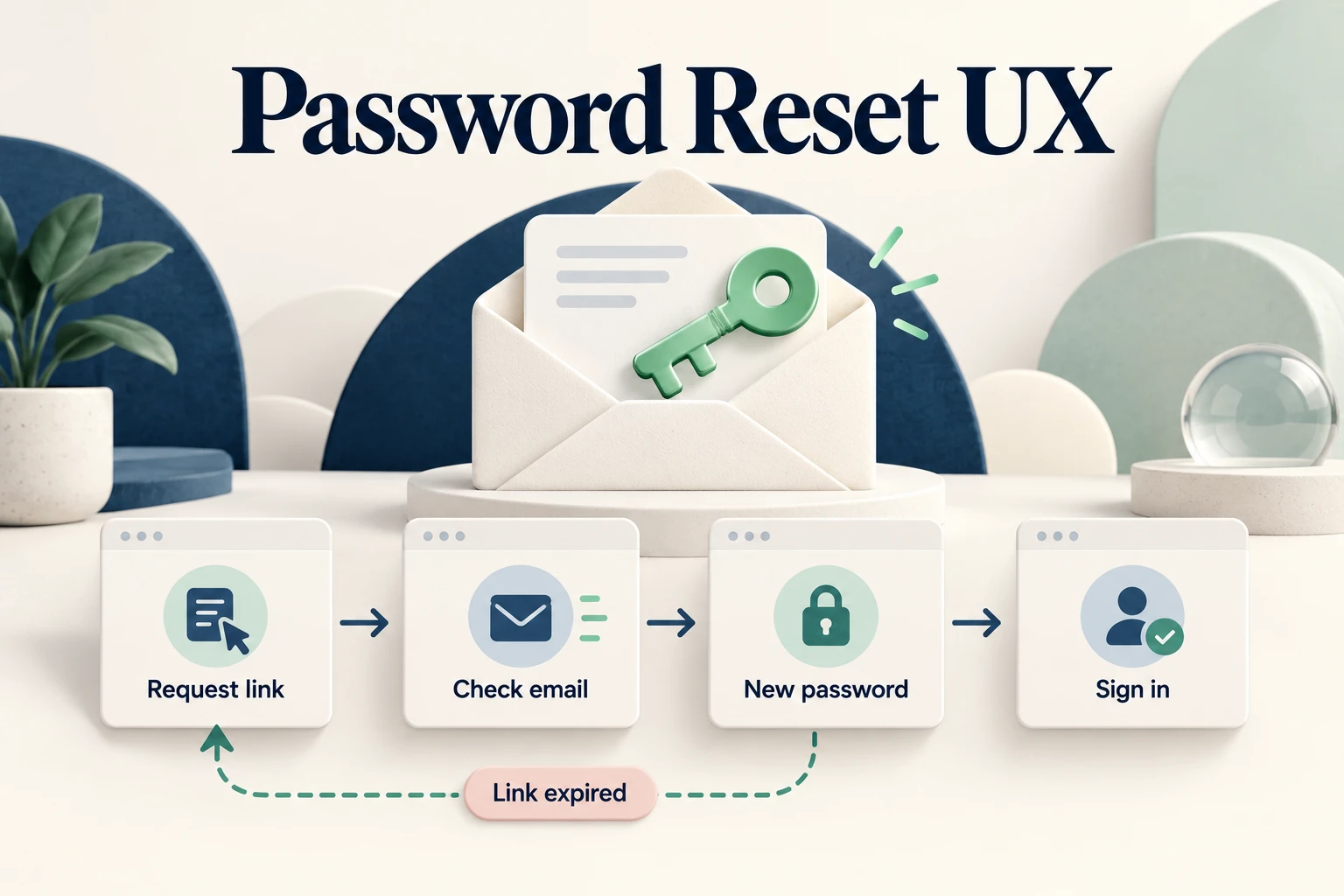
A useful password reset flow has five connected parts: a recognizable recovery entry, a clear request confirmation, an email with one reset action, a way out of an expired link, and confirmation that leads back to sign-in. Design the journey across those surfaces, not just the New password form. In Mockitt's interactive prototype workspace, you can connect the proposed screens before engineering implements the account and email behavior.
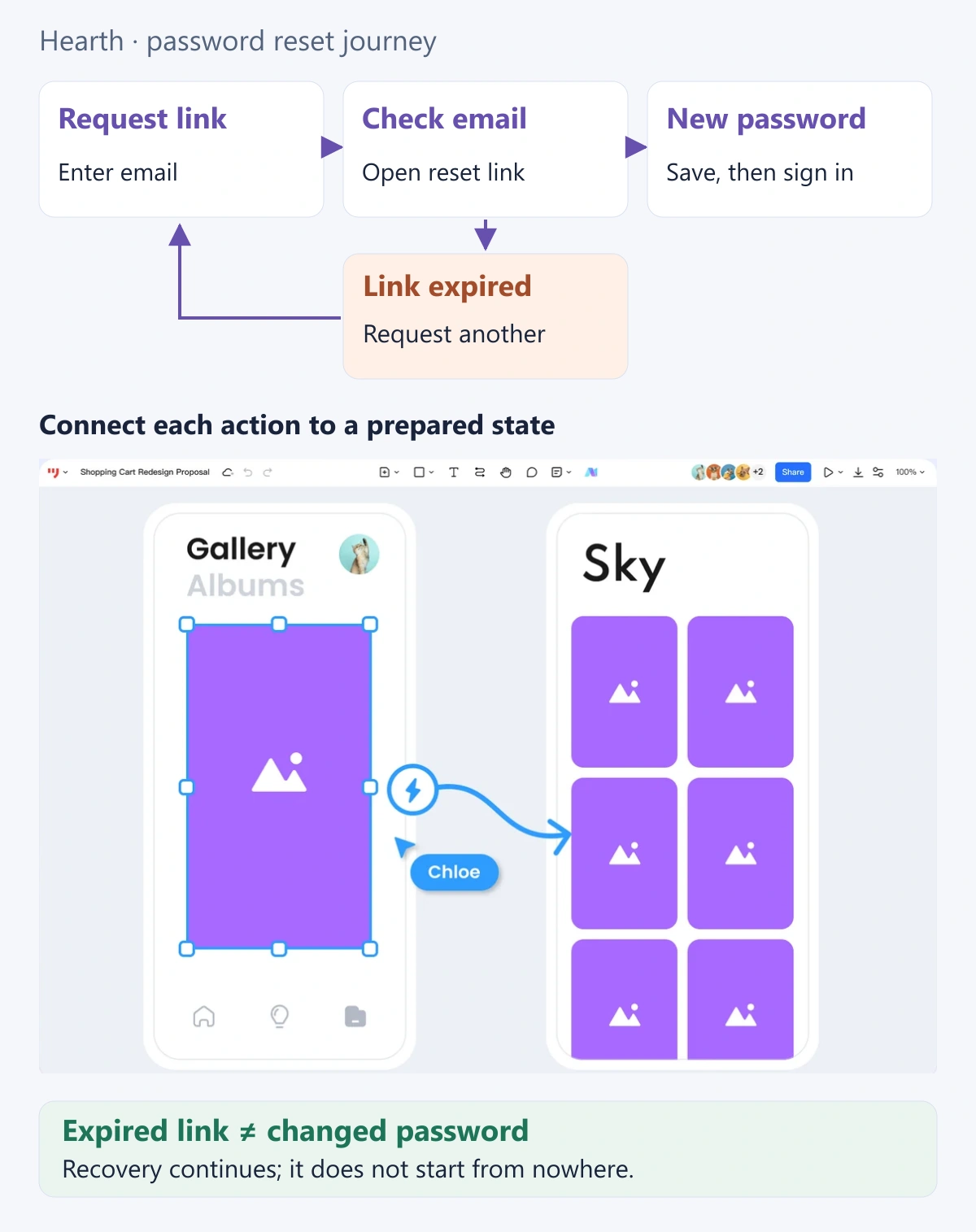
This example follows Hearth, a fictional finance portal. A bookkeeper needs to open an expense report but cannot remember the password. The first reset link expires before they use it. The design must help them obtain a replacement and return to work without implying that the original request already changed the password.
Start with the right recovery route
Put a plainly named “Forgot password?” or “Reset password” link beside the password sign-in method. Do not place it only beneath a generic support menu. A person who is already struggling to enter an account should not need to diagnose the website's navigation first.
Ask for the identifier the service actually uses. Hearth uses an email address, so its request page has an Email label, a short explanation, and a “Send reset link” button. A username-based service would need different wording. Do not ask for a phone number simply because another site's form includes one.
Some people sign in through an organization or external identity provider and have no separate password for your application. Explain the available route without pretending that a local password reset can change a provider-managed credential. Keep the normal sign-in options reachable, particularly when the person may have chosen the wrong method.
The existing login UI design guide covers the surrounding sign-in experience. Here, the starting point is the moment someone chooses recovery.
Confirm the request without exposing account status
After submission, Hearth says: “If an account uses this email address, we'll send a password reset link. Check your inbox and spam folder.” It also offers “Use a different email” and “Back to sign in.” The confirmation acknowledges the request without saying that the address definitely has an account.
OWASP's password-reset guidance recommends consistent responses for existing and nonexistent accounts, with comparable response timing. It also calls for controls against excessive requests and reset tokens that expire and can be used only once. These are implementation responsibilities; neutral wording alone does not prevent account enumeration.
Make the confirmation useful even when an email does not arrive. Let the person correct their entered address, check the relevant mailbox, and follow the service's approved help route. If a resend delay is actually enforced, explain when another request becomes available. Do not display an invented countdown or claim delivery when the service only knows that it accepted a request.
An invalid address format is different from an unknown account. The form can explain “Enter an email address in the format name@example.com” without revealing whether a particular address is registered. Keep those two kinds of feedback separate.
Make the email and browser tell the same story
Hearth's email subject is “Reset your Hearth password.” The message identifies the requested action, presents a single primary “Reset password” link, and explains what to do if the recipient did not make the request. Avoid placing promotional offers or competing product actions above the recovery link.
If the service has an agreed expiry policy, communicate it consistently in the email and on the destination page. Do not borrow a convenient duration from another product. A short-lived token and a message that promises indefinite access would create a misleading journey.
People may request the email on a laptop and open it on a phone. The destination should explain the task on its own rather than assume that the original browser tab is still open. Hearth uses the heading “Set a new password,” a concise account-context cue permitted by its disclosure policy, and a route back to sign-in.
Keep real tokens and credentials out of design files. Use a fictional message preview and prepared destination screens; a clickable prototype does not need to send a reset email to demonstrate this handoff.
Give expired links a useful next step
The bookkeeper opens the first Hearth email after its link has expired. Instead of returning to a blank login form, the page explains: “This reset link has expired. Request a new link to continue.” Its primary action opens the reset-request form, while a secondary action returns to sign-in.
| Situation | Useful response | Do not imply |
|---|---|---|
| The link is valid | Open the New password form. | The password has already changed. |
| The link has expired | Explain expiry and offer another request. | The account is blocked or deleted. |
| The link cannot be used | Give the permitted explanation and a safe recovery route. | Every unusable link has the same cause. |
| A password was already changed through this link | Offer normal sign-in or a new reset request, according to the service's policy. | Following an old link restores its previous authority. |
| The status check fails | Explain that the link could not be checked and offer a safe retry. | A network failure proves expiry. |
Define what resending does before writing the email copy. It might issue a replacement that invalidates earlier links, or follow another approved token policy. If only the newest message can be used, tell the recipient that clearly. Otherwise, several similar emails can trap them in an apparently broken loop.
Keep recovery for a lost password separate from recovery of a lost mailbox or suspected account compromise. Those problems can require additional identity checks and different support procedures. A “Contact support” option should point to that real process, not promise that a message automatically restores access.
Make the New password form easy to complete
Show the actual password requirements before submission and keep them consistent with the rest of the application. Use persistent labels, enough room for helpful messages, and a clearly labeled visibility control if one is provided. A second confirmation field, when required by the chosen flow, needs an understandable mismatch message.
Allow password managers and paste. The W3C accessible-authentication guidance identifies these as ways to reduce memory and transcription demands. Check the implemented form with the supported browser and assistive-technology combinations; drawing a visibility icon does not establish that its name and state are exposed correctly.
Use “Save new password” for the primary action. While the request is pending, keep the page from looking finished. If saving fails, explain the known result and preserve appropriate form context. Do not log passwords in analytics or copy a participant's real credentials into prototype notes.
Finish with a clear return to sign-in
Only show “Your password has been changed” after the service confirms the update. Hearth then offers “Sign in.” OWASP recommends normal sign-in after a reset rather than automatic authentication, a notification of the change, and an explicit decision about existing sessions. Do not claim that all devices were signed out unless that actually happened.
After successful sign-in, Hearth can return the bookkeeper to the intended expense report if the destination is valid and the account is authorized to open it. Changing a password does not grant additional report access. When the original destination cannot be restored, provide a sensible account home rather than a broken return link.
Build the Hearth prototype with separate screens for the request, confirmation, expired link, new password, completed change, and sign-in destination. Include the email preview between the confirmation and link destination so reviewers experience the handoff. Ask someone to recover access after discovering that the first email is too old, without naming the controls they should choose.
The useful outcome is a flow in which each screen answers a different question: Was my request accepted? Where should I look? Why did this link fail? Has my password changed? How do I return to work? Clear answers keep a routine recovery task from becoming another access problem.