
A date-range picker should make three things clear: which days are included, whether a selection is complete, and when it changes the results. For a report, label the two fields Start date and End date, show the full interval after applying it, and preserve the previous results while a new range is still being edited. A highlighted calendar alone cannot explain that contract.
Use a UI design workspace for the range and report states to compare the open picker, incomplete selection, validation message, and applied report together. The useful deliverable is a set of screens that agree about one period, with notes describing what implementation must do.
Define the reporting period before drawing the calendar
Consider Northline Returns, a fictional operations report. A manager wants to inspect returns received from 28 September through 4 October 2026. In this example both dates are included, future days are unavailable, and a single-day range is valid. These are product decisions for this report, not universal rules for every date picker.
Write that short contract beside the design. A hotel stay normally has different arrival and departure semantics; a report about completed days differs from a live activity dashboard. Reusing the same calendar appearance does not make those meanings interchangeable.
Northline labels the applied filter 28 Sep–4 Oct 2026 · All 7 days included. Its report caption names the reporting time zone. The table, summary, and download should then refer to the same interval. If you are also arranging the surrounding report, start with the broader dashboard UI design workflow; the picker is one control within that larger information hierarchy.
Offer direct entry alongside calendar selection
Give Start date and End date persistent labels and an explicit input-format hint. Northline's English example uses DD MMM YYYY, such as 28 Sep 2026, to make the month readable. Localize the input and display conventions for the audience rather than treating a numeric format as globally unambiguous.
A calendar helps someone recognize a week or a date across a month boundary. Text entry helps someone who already knows the interval. Carbon's date-picker guidance supports both manual entry and calendar selection for range endpoints, with separate start and end labels. Keep those two routes consistent: typing a date must update the selection, and choosing a day must update the field.
For a known date, do not make the user step through many months. The GOV.UK date-input guidance discusses direct entry for dates people know or can look up, and warns against moving them automatically between day, month, and year fields. If your chosen component uses separate fields, leave that movement under the user's control.
Keep pending dates separate from the applied filter
In Northline, opening the picker begins an edit. Choosing 28 September fills Start date; the control then asks for End date. The existing report remains visible with its previous applied period. Avoid changing that report immediately after the first click: an unfinished range is not a reporting request.
The pending Northline picker contains 28 Sep 2026 and 4 Oct 2026; the applied report displays 28 Sep–4 Oct 2026 with both endpoints included.
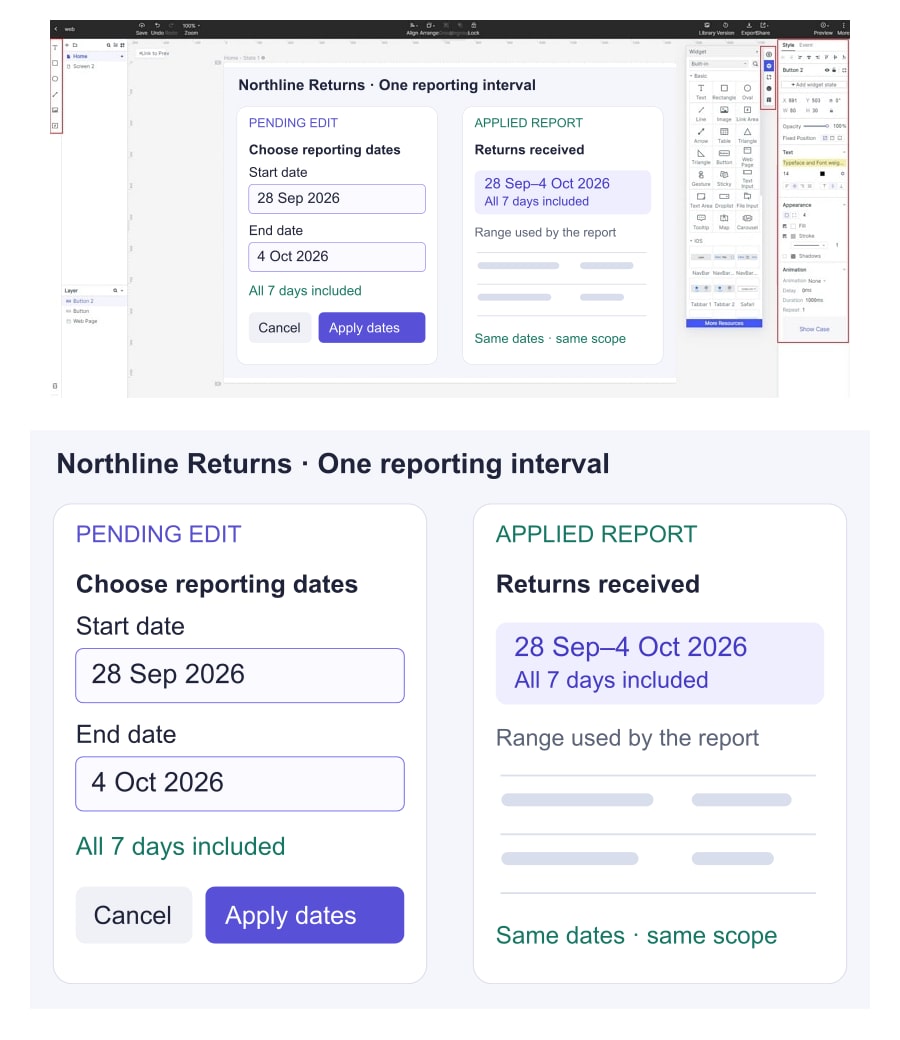
Apply dates commits a valid interval and closes the picker. Cancel closes it without changing the report. Reopening it starts from the applied dates. For this example, Escape or closing the popover also discards pending edits; document that behavior instead of letting different closing routes produce different results.
On a narrow screen, a single visible month is sufficient if both endpoint fields and the pending range remain readable. Selecting a September start must not disappear from the user's understanding when they move to October. A compact text summary can preserve that context without squeezing two calendars into a phone layout.
Resolve incomplete and reversed ranges explicitly
Show the correction next to the relevant fields. An empty report is not a suitable error message for a date entry problem.
| Input in this example | Response | What remains unchanged |
|---|---|---|
| Start date entered; End date empty | Ask for an end date before applying. | The previously applied report. |
| Start 4 Oct; End 28 Sep | Explain that End date must be on or after Start date; keep both entries available to edit. | No silent swap and no new report request. |
| Start and End both 4 Oct | Accept one complete reporting day. | The meaning of inclusive endpoints. |
| A future end date | Explain the latest available reporting day. | The user's valid start date. |
| A valid period with no returns | Apply the filter and show a clear no-results state. | The selected period remains visible. |
A component may offer different range-selection conventions, such as starting a new selection when an earlier calendar day is clicked. Choose and document one behavior; the typed-field correction above should not accidentally contradict the calendar route. Keep validation separate from data availability: “No returns in this period” is a result, while “Choose an end date” is an unfinished input.
Make relative shortcuts explain themselves
Labels such as “Last week” are easy to misread. Does that mean the previous calendar week, the last seven days including today, or seven completed days? Northline uses Last 7 completed days. When the report is opened on 5 October 2026, that shortcut resolves to 28 September–4 October, excluding the current partial day.
Show the resolved dates before applying. If someone edits either endpoint, switch the shortcut label to Custom range; do not leave “Last 7 completed days” attached to nine days of results. A saved relative filter also needs a stated rule: it can reevaluate when opened, whereas a saved fixed interval stays fixed. Product and engineering should agree on that distinction.
If a report can be exported in the background, capture its applied range when the export is requested. The background export workflow explains how to preserve the requested scope while users continue working; changing the on-screen filter should not silently change an export already requested.
Review the keyboard path as well as the highlighted cells
The W3C APG date-picker example illustrates a single-date dialog with keyboard navigation, a format description, and focus returning to the opening control. It is an implementation reference for a single-date example, not a production-ready date-range component. A range design still needs clear start/end announcements and testing with the chosen implementation.
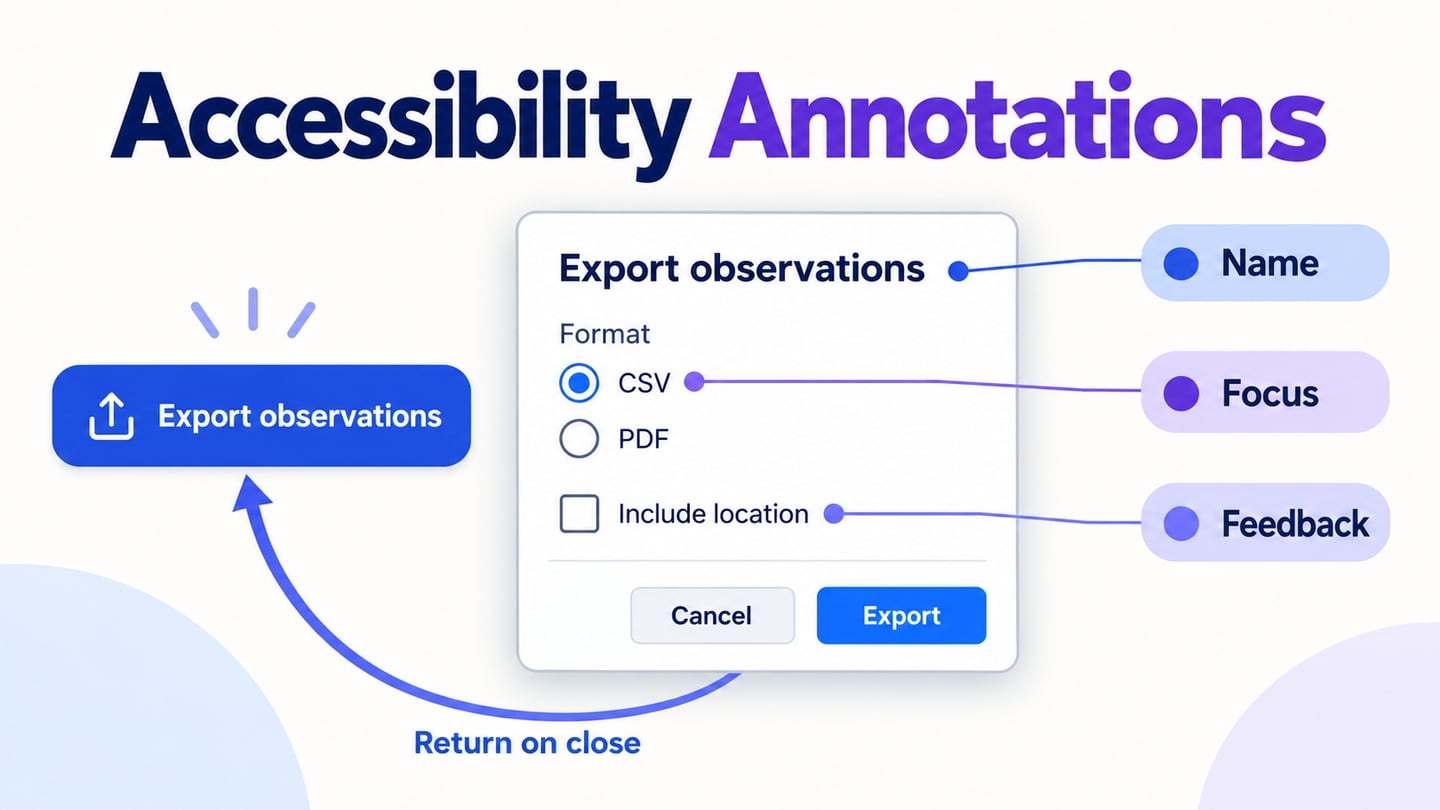
Annotate the opening control, initial focus, movement between days and months, field editing, cancellation, and return focus. Selected endpoints, intervening days, today's date, and keyboard focus have different meanings; they should not collapse into one indistinguishable highlight. Do not rely on color alone to identify the selected range.
Walk through one cross-month report before handoff
Prepare four review screens: the currently applied report, the pending September–October range, a reversed-entry correction, and the new applied report. In a prototype, connect those prepared outcomes so a reviewer can follow the decision. Those screens illustrate the intended behavior; they do not perform a live database query or prove the coded calendar is accessible.
Ask a reviewer to find returns from 28 September through 4 October, then change their mind and cancel a different range. Can they name the currently applied period after each action? Can they enter a single day and recover from a reversed interval? Resolve any uncertainty in the field labels, pending summary, and result caption before handing off the component. That is more useful than polishing a calendar whose reporting meaning is still unclear.