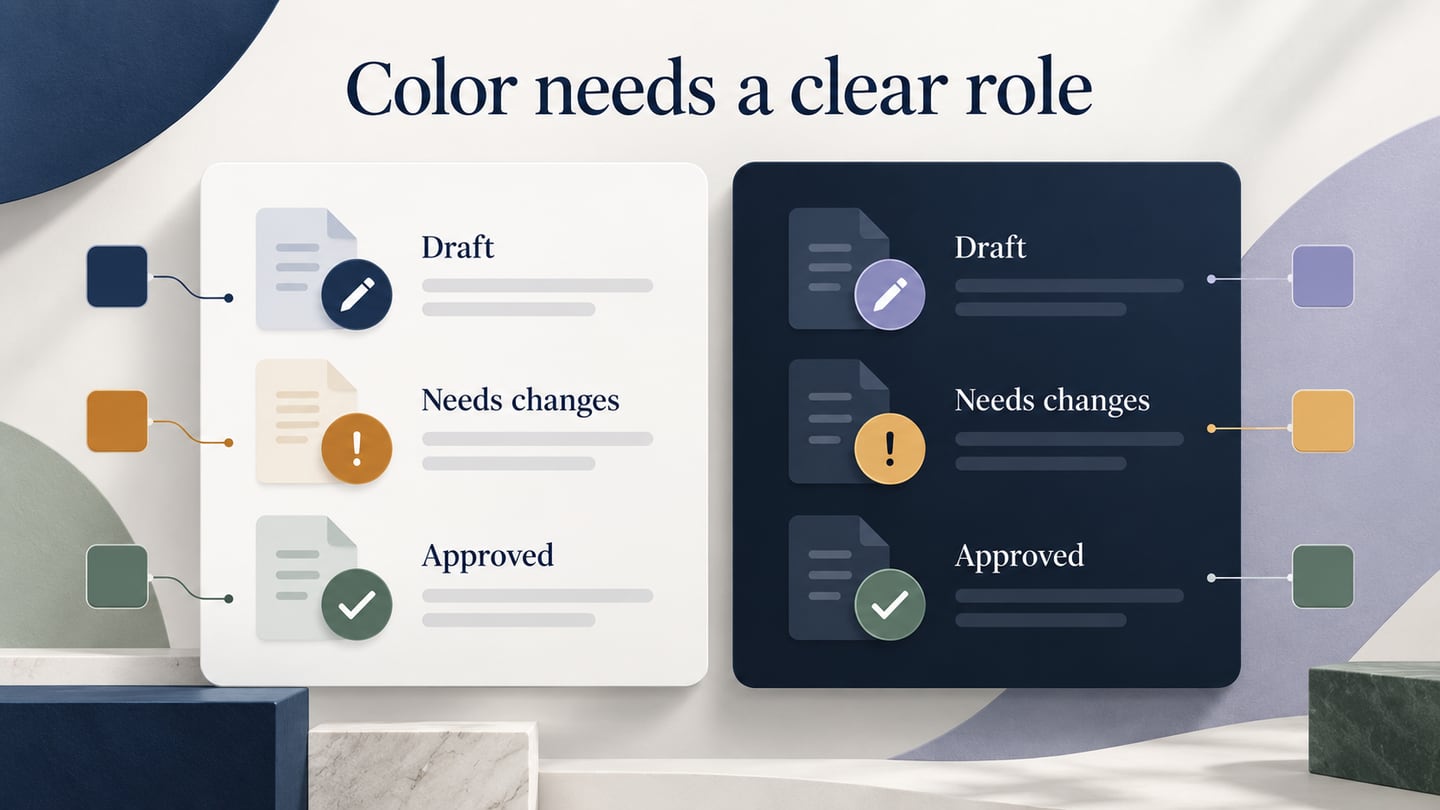
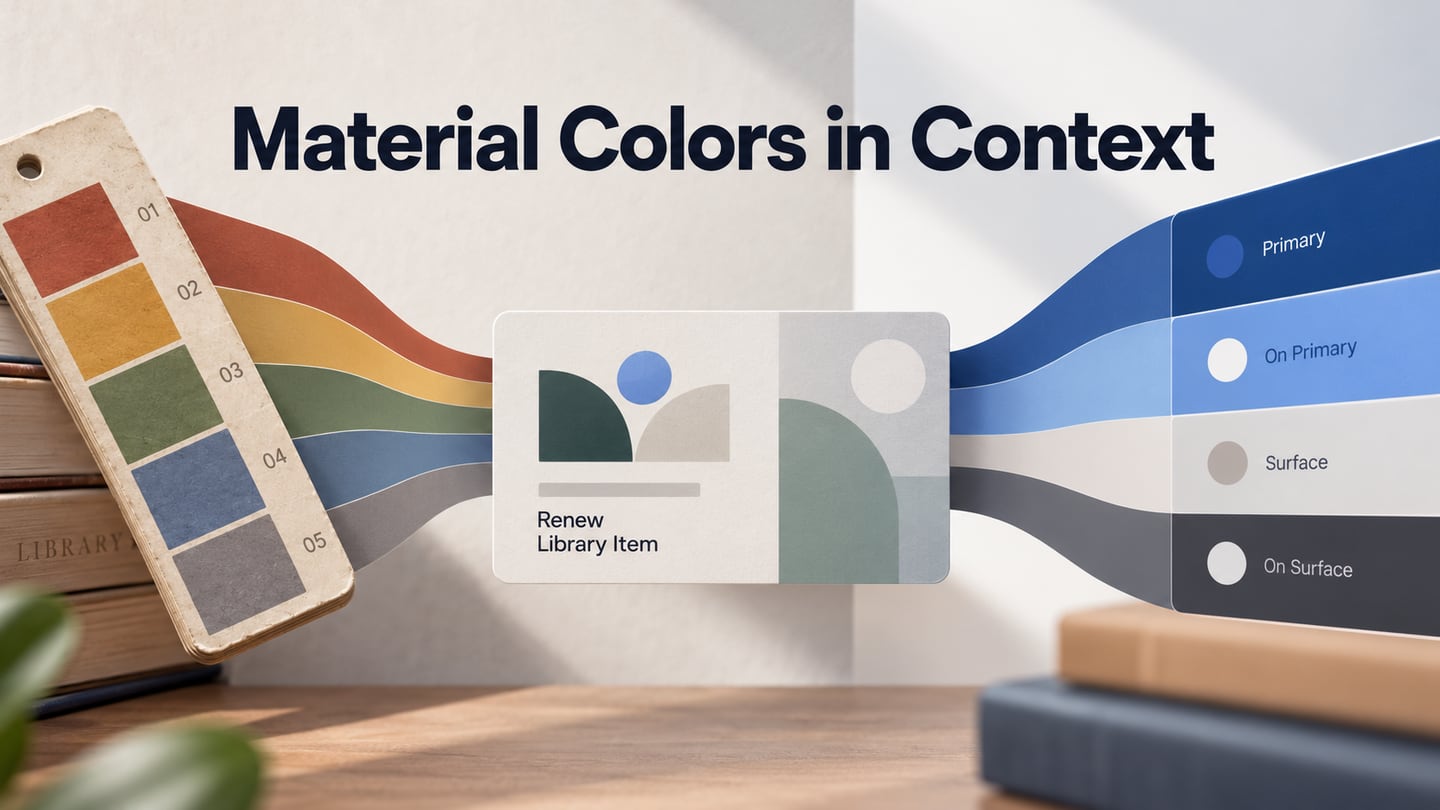
A Material color palette can mean a collection of numbered swatches, a generated tonal range or a set of named interface roles. Those outputs are not interchangeable. Start with the fundamentals of UI palettes, then choose a resource that supplies the values and role information your project actually needs.
The resources below range from official Material guidance to general palette inspiration. Keep the distinction visible: attractive colors do not automatically form a complete Material theme, and a copied hex value does not tell you whether it belongs on a surface, in text or on an action.
Material Palette Resources and Their Outputs
1. Material.io: Official Color Guidance
Google’s Material 2 color documentation includes the familiar numbered palettes and legacy palette-generation guidance. Material 3 color guidance instead describes a broader role system, including primary, secondary, tertiary, surface and error roles with corresponding foreground roles. Check which generation your design system uses before copying values.
For example, on-primary is intended for content on a primary-colored surface. It is not simply another decorative accent. Keep each foreground with its intended background when reviewing the theme. A color scheme can support an implementation, but applying it in an Angular or other component framework is a separate integration task.
2. Material Palette
Material Palette is a separate palette-generation site, not Google’s Material documentation. Use its swatches or previews to explore a starting combination, then record the selected values and inspect them in your own content. Its output should not be assumed to contain every role or state required by a current Material 3 interface.
A two-accent preview can help compare emphasis, but it cannot resolve every text, border, focus or unavailable-state combination. Before relying on a particular download format, inspect the current site’s actual export options and confirm that the result fits the system you are maintaining.
3. Material UI Colors
The Material UI Colors page provides a color-reference collection with Material and other color categories. It is useful for looking up values, but should not be confused with the MUI React component library. A reference swatch does not certify that an entire interface follows Material guidance or meets contrast requirements.
When copying a value, record its intended purpose alongside it. A label such as primary-action is more informative to another designer than an unexplained color code. Check the value on the actual background and at the text size the component uses.
4. Material Design Palette Generators
A custom palette generator can expand an input color into related swatches or tonal values. Evaluate the actual output: does it provide only a grid of colors, or does it also identify a complete role set for the Material version you need? Do not assume that every tool with “Material” in its name implements the same system.
The Material Web color documentation provides a concrete reference for role-based theming and the Material Theme Builder workflow. Compare a generator’s output with that documented model. If it supplies only swatches, the team still needs to choose role assignments and verify the resulting components.
5. ColorDrop
ColorDrop offers palette collections with hex values. Use it as a source of visual direction when a project needs an initial set of hues. A collection intended for a mood, illustration or brand does not automatically supply a Material theme’s surface, foreground and state roles.
Select a small candidate palette, then place it beside a representative screen. A light color might work as a background while needing a much darker foreground for its label. Adapt the values to the interface instead of preserving every swatch simply because the collection looks harmonious.
6. Coolors
Coolors supports palette generation and image-based color selection; its official generator guide explains using chosen colors and an image picker. This is useful for exploring combinations or starting from an image, but the palette still needs role mapping and component checks before becoming part of an interface system.
If you start from a photograph, distinguish inspiration from the final specification. The sampled colors may need changes in lightness or saturation to serve text and controls. Keep the final values with their roles so a later contributor can reproduce the intended relationship.
Check the Palette in an Interface
Use a Mockitt design canvas to put the chosen colors beside the component that uses them. Arrange a typical card, its action and its supporting text. This exposes relationships that an isolated strip of swatches cannot show. The retained editor image is a historical product example, not a ready-made Material theme.

For a fictional Harbor Library card, show “Coastal Atlas,” “Due Friday” and a “Renew loan” action. Assign surface and on-surface to the card background and content, then primary and on-primary to the action background and label. Display those four named roles beside the card so the intended pairing is explicit.
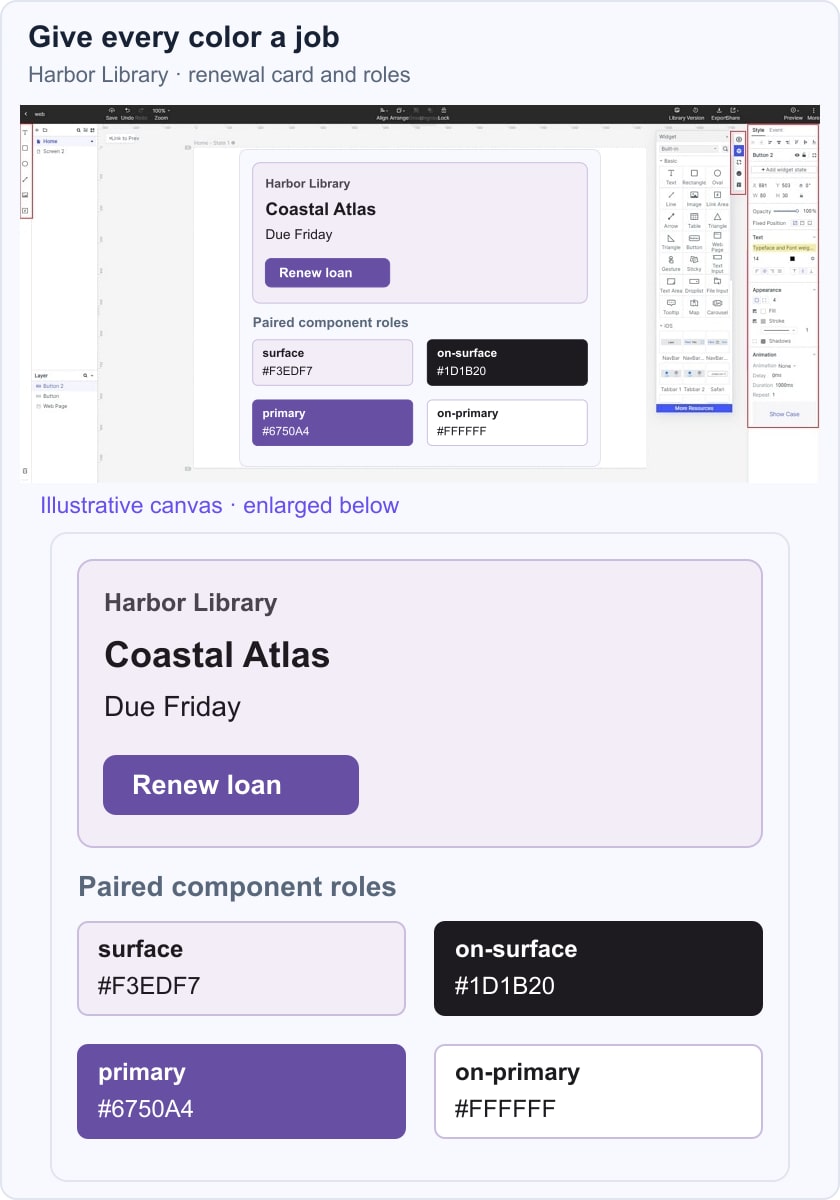
Preview the card at the intended reading size and with a longer title. Check the actual foreground/background contrast using appropriate accessibility tooling, and define focus or unavailable states if the flow needs them. Share the draft to review the hierarchy; verify the implemented colors and behavior separately before making an accessibility claim.
Keep the approved values and usage notes with the design. Use the workspace features available to the account rather than relying on an old free-project or screen quota. The useful outcome is a consistent, reviewable mapping from colors to interface roles, with any unresolved combinations clearly identified.