Analogous colors sit next to one another on a color wheel. They are useful when several interface elements should feel related, but neighboring hues alone will not make text readable or states distinguishable. You can compare those roles in Mockitt’s UI design workspace before applying the palette across a website.
This guide explains the relationship, then revisits five website examples from the original article. Some are useful examples of mixed palettes rather than strict analogous schemes. Learning to tell the difference is more useful than treating every attractive page as proof of one color rule.
What Are Analogous Colors?
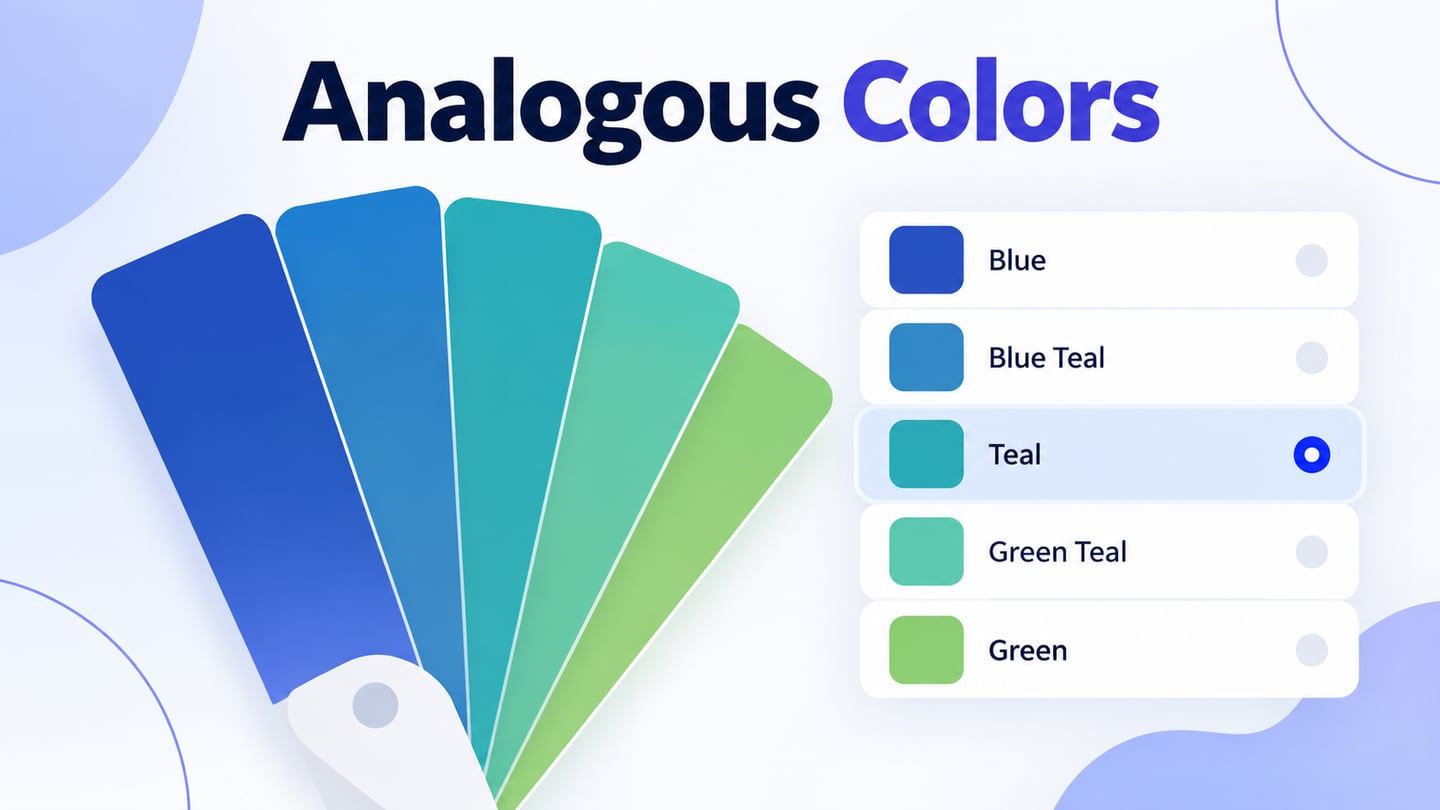
An analogous palette groups neighboring hues, such as blue, blue-green and green. It differs from a monochromatic palette, which varies a single hue. Adobe’s color wheel can help you inspect the relationship; the selected color model and hue positions matter more than the number of swatches.
Designers often use neighboring hues to connect backgrounds, surfaces and illustrations. A viewer may experience the result as cohesive, but color does not reliably produce one emotion across every audience or context.
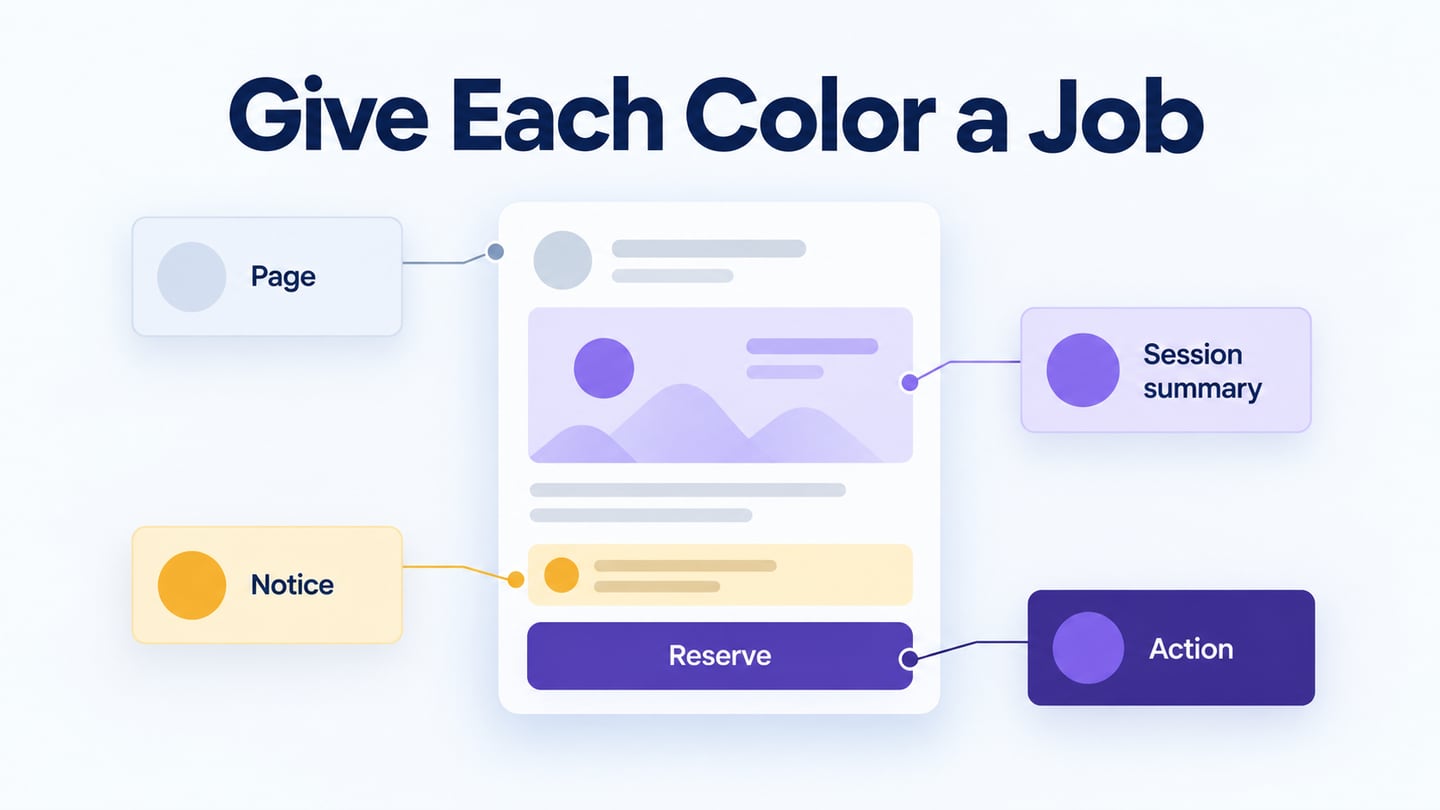
For interface work, separate the harmony from the functional checks. A pale blue surface and pale green label may look harmonious yet be hard to read. Choose foreground and background pairs with enough light–dark contrast, and use text or symbols as well as color for states.
Analogous colors can suit minimal interfaces, editorial pages or expressive illustration. Their usefulness depends on how you assign roles, not on whether the design is described as modern. Reserve a clear primary action and avoid giving every surface the same visual emphasis.
How to Use Analogous Colors in Design
The following archived website captures show how nearby colors and contrasting accents can coexist. They document the designs pictured here, not the current appearance of each website.
Look at the navigation, backgrounds, text and imagery separately. A photograph can introduce hues outside the interface palette, and neutral black or white does not make a palette analogous by itself.
1. Natuur & Milieu
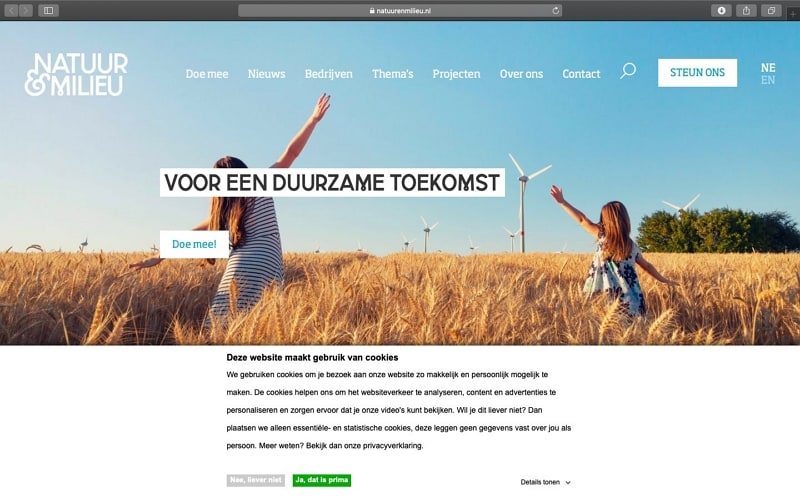
The Natuur & Milieu capture uses blue-green interface accents alongside an outdoor photograph. Those neighboring cool hues connect the navigation and page atmosphere; the warm field in the photograph is a separate visual element.
The useful lesson is to identify which colors belong to the interface and which belong to its content. Keep dark text readable over pale areas instead of relying on a subtle change of hue to define the reading order.
2. Libenar
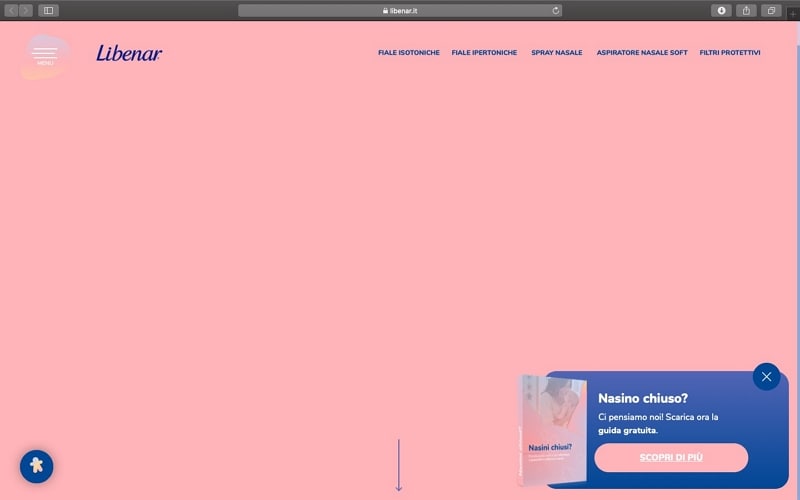
The Libenar capture combines a large pink surface with a darker blue support panel. Pink and blue are not automatically an analogous pair. Treat this as an example of contrasting interface regions, and check their actual hue positions before assigning a harmony label.
A pale background lets the darker panel stand out. The panel still needs readable text and clear controls. Use this example to distinguish a small palette from an analogous palette: a design can use only a few colors without those colors sitting next to one another on the wheel.
3. Lobster
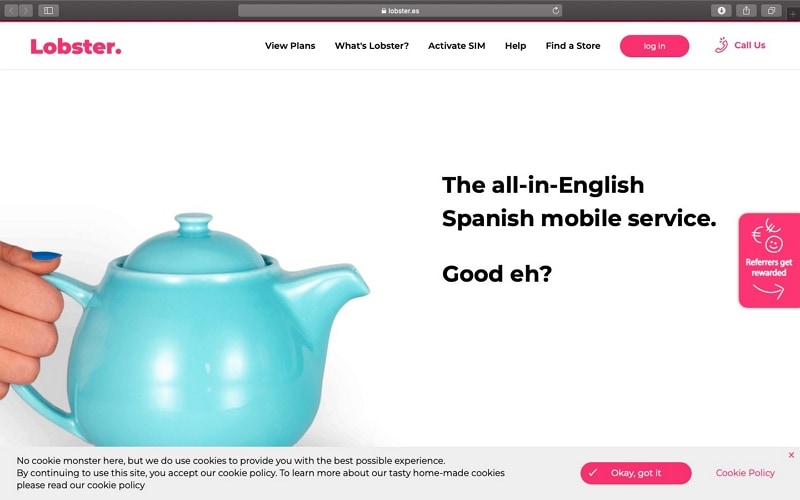
The Lobster capture shows a mobile-service landing page with pink branding and a turquoise object. It is useful as a mixed-palette example, rather than evidence that all pink-and-blue combinations are analogous.
Pink appears in navigation and action elements, while the pale background gives the product illustration room. The dark headline provides a separate reading anchor.
The practical idea is to let imagery and interface accents do different jobs. If a photograph already contains several strong colors, simplify surrounding surfaces and preserve one obvious next action.
4. Campesino
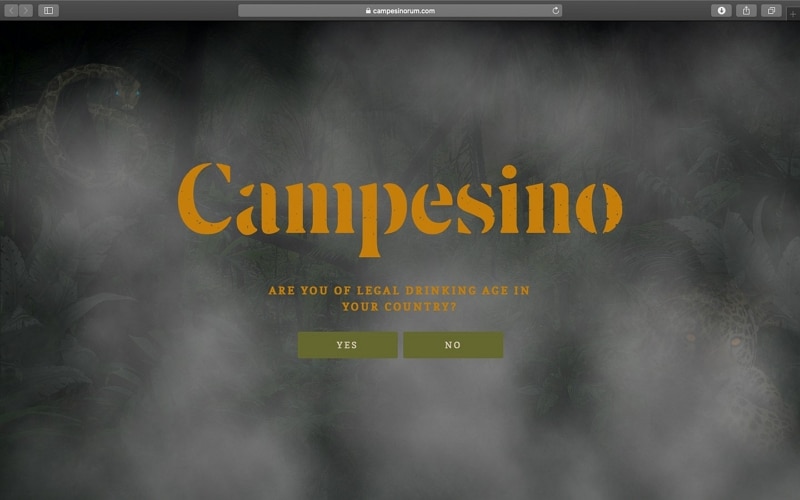
The Campesino capture uses a dark botanical background with warm gold-brown lettering and muted green controls. Brown and green alone are not enough to establish an analogous scheme; their underlying hues and the rest of the palette need inspection.
This example is more useful for studying dark-background legibility. Check the small control labels and low-contrast details, not only the large decorative title.
5. Brain Bakery
The Brain Bakery capture uses neighboring orange and red areas, with darker and cooler elements alongside them. The warm neighboring hues illustrate the analogous relationship, while the other colors support the wider layout.
A dark region can create separation from the warm surfaces. The example is not a reason to use red and orange for distinct error states: readers still need labels that explain what happened.

Create a Website Design in Mockitt
To apply the idea, start with one real screen in Mockitt rather than a row of swatches alone. Set a base hue, select one or two neighboring hues, then give each a role such as navigation, selected surface or supporting illustration.
For a coastal-activity settings screen, use dark blue for the navigation, a pale teal selected row and a small green informational chip. Keep the option text dark, add a checkmark to the selected row and label the chip “Optional.” The state remains understandable even when the hues look similar.
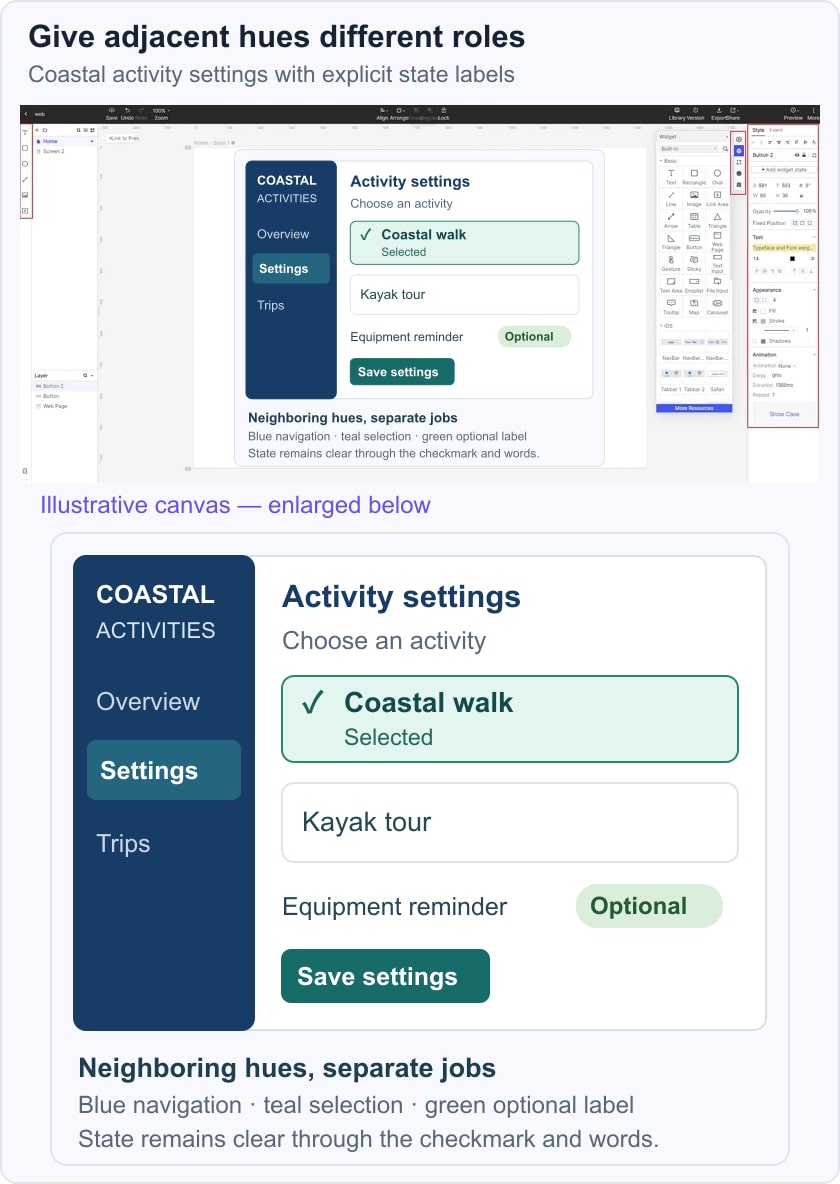
WCAG’s text contrast guidance assesses foreground/background pairs, not whether a palette is harmonious. If stronger separation is needed, compare a complementary accent or a single-hue tonal palette rather than adding colors at random.

Review the palette on both a wide and narrow version of the screen. Check these three practical points:
- Start from a suitable component or layout, then replace its content with the settings task rather than keeping unrelated template labels.
- Keep palette roles consistent across the default, selected and disabled states; do not use a slight hue shift as their only distinction.
- Share the design for review and ask whether another person can identify the selected option and the primary action without an explanation.