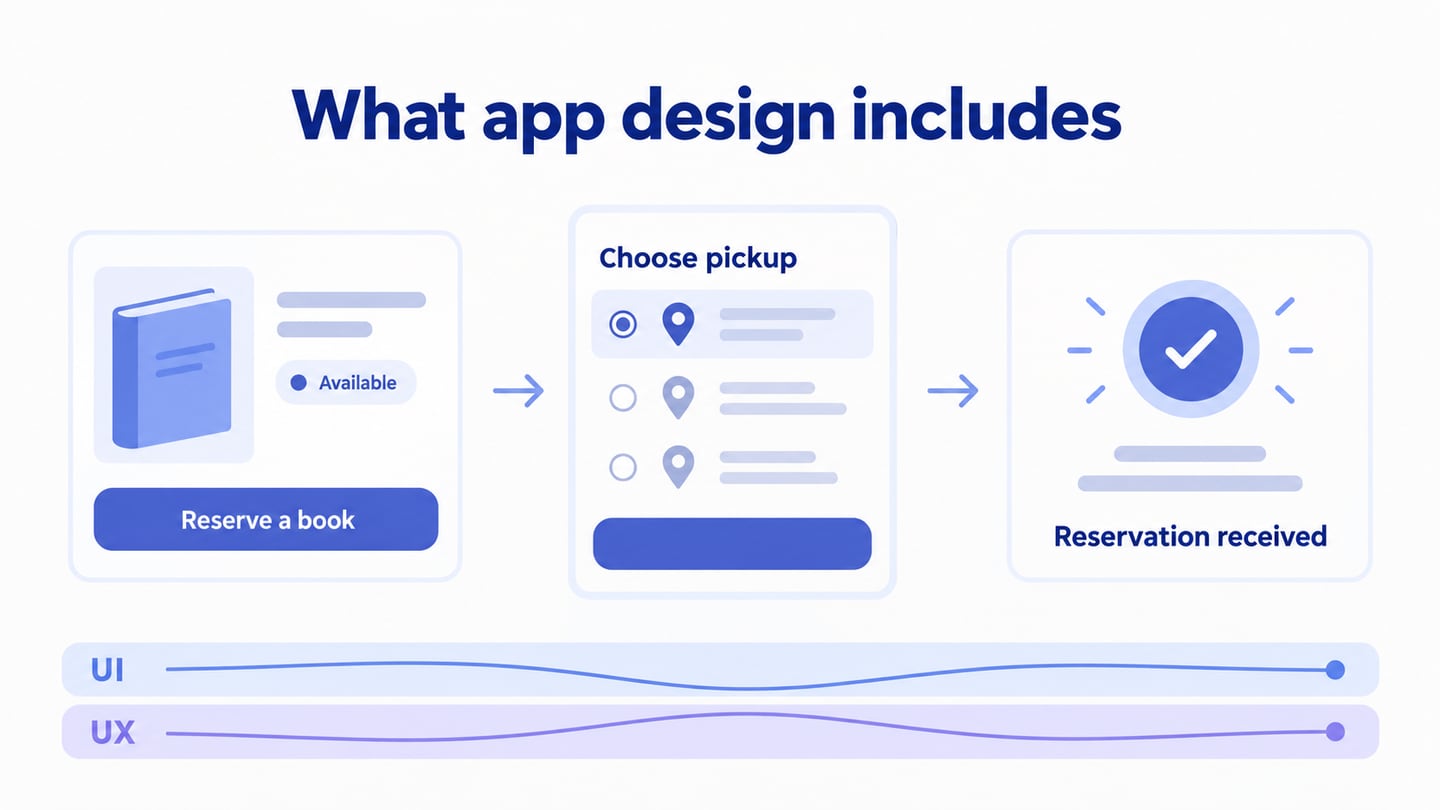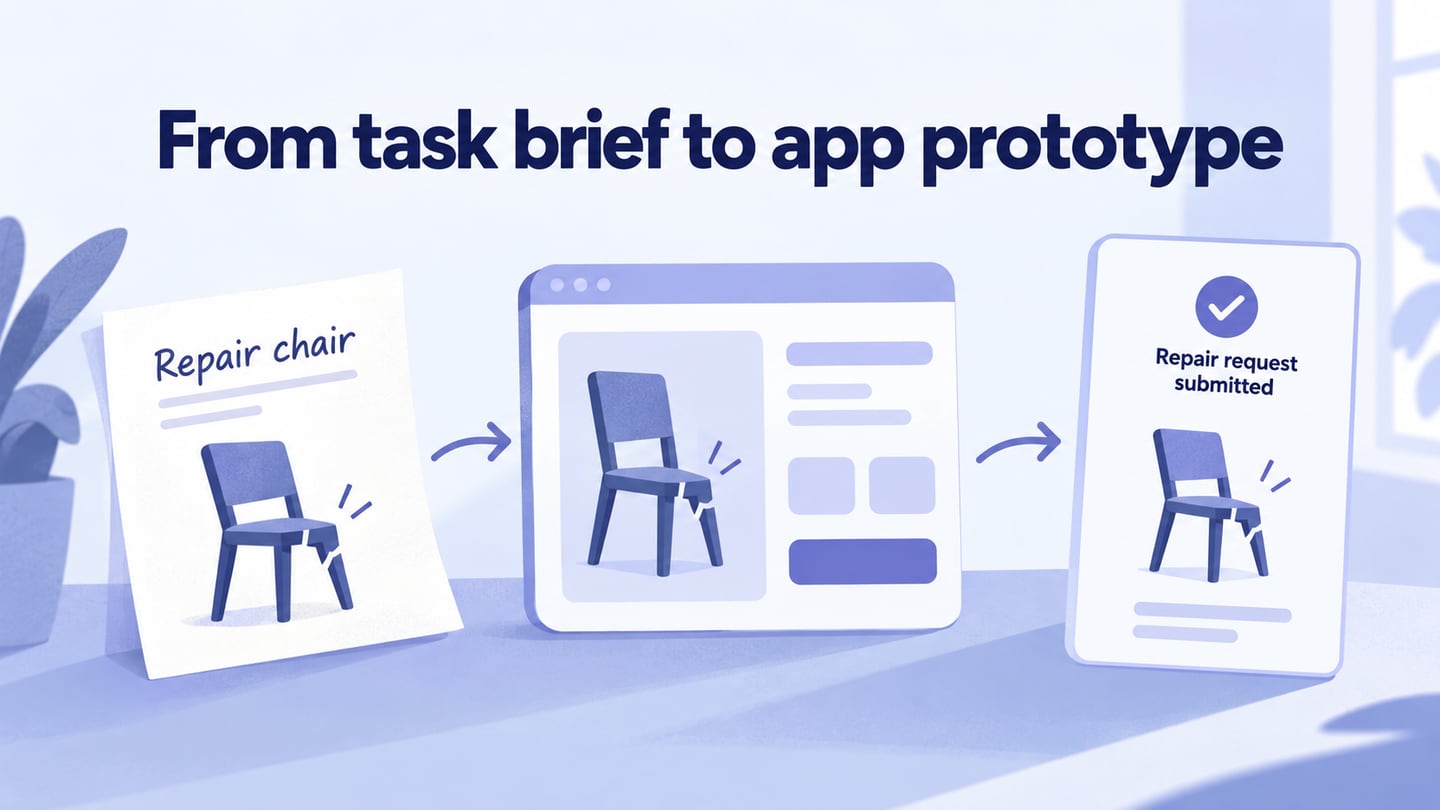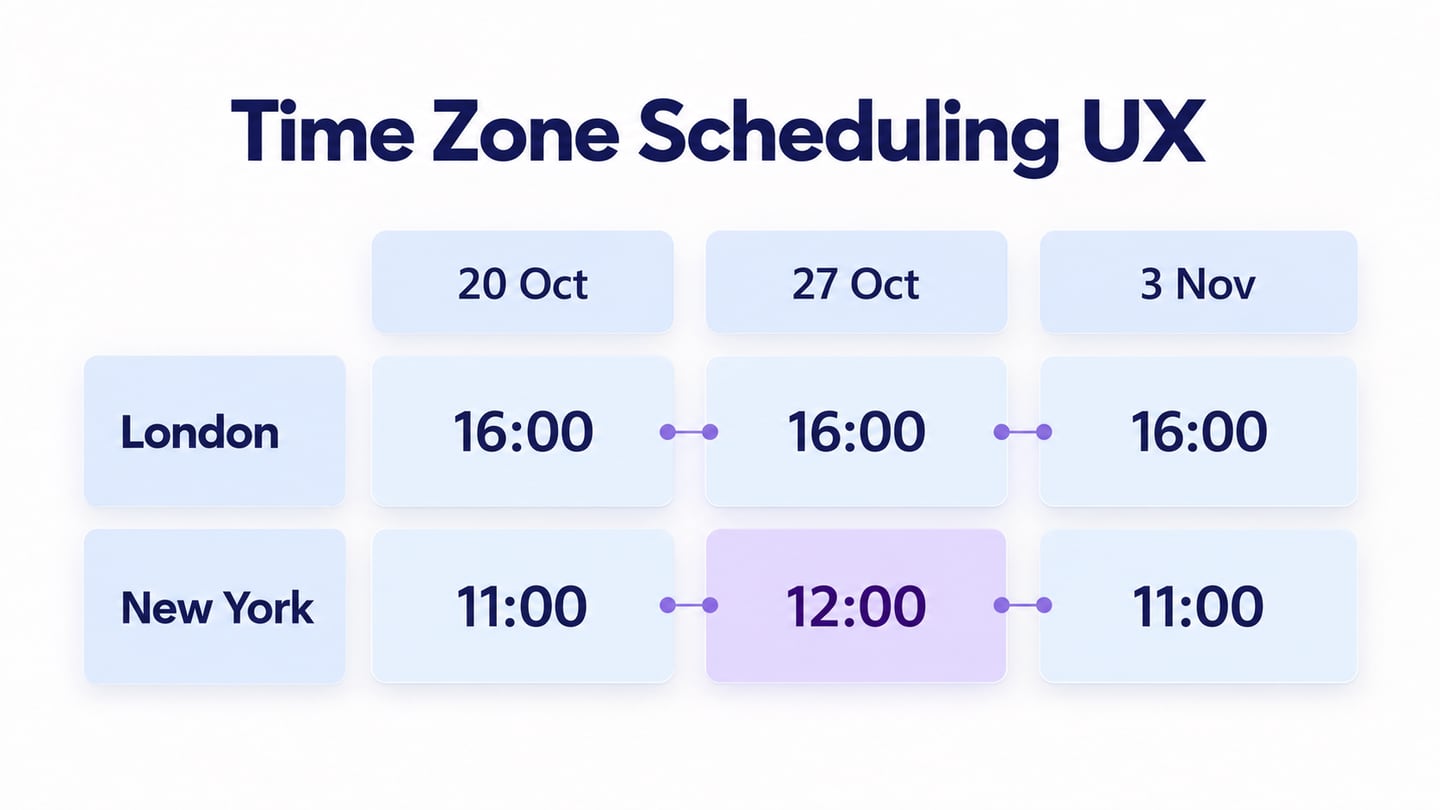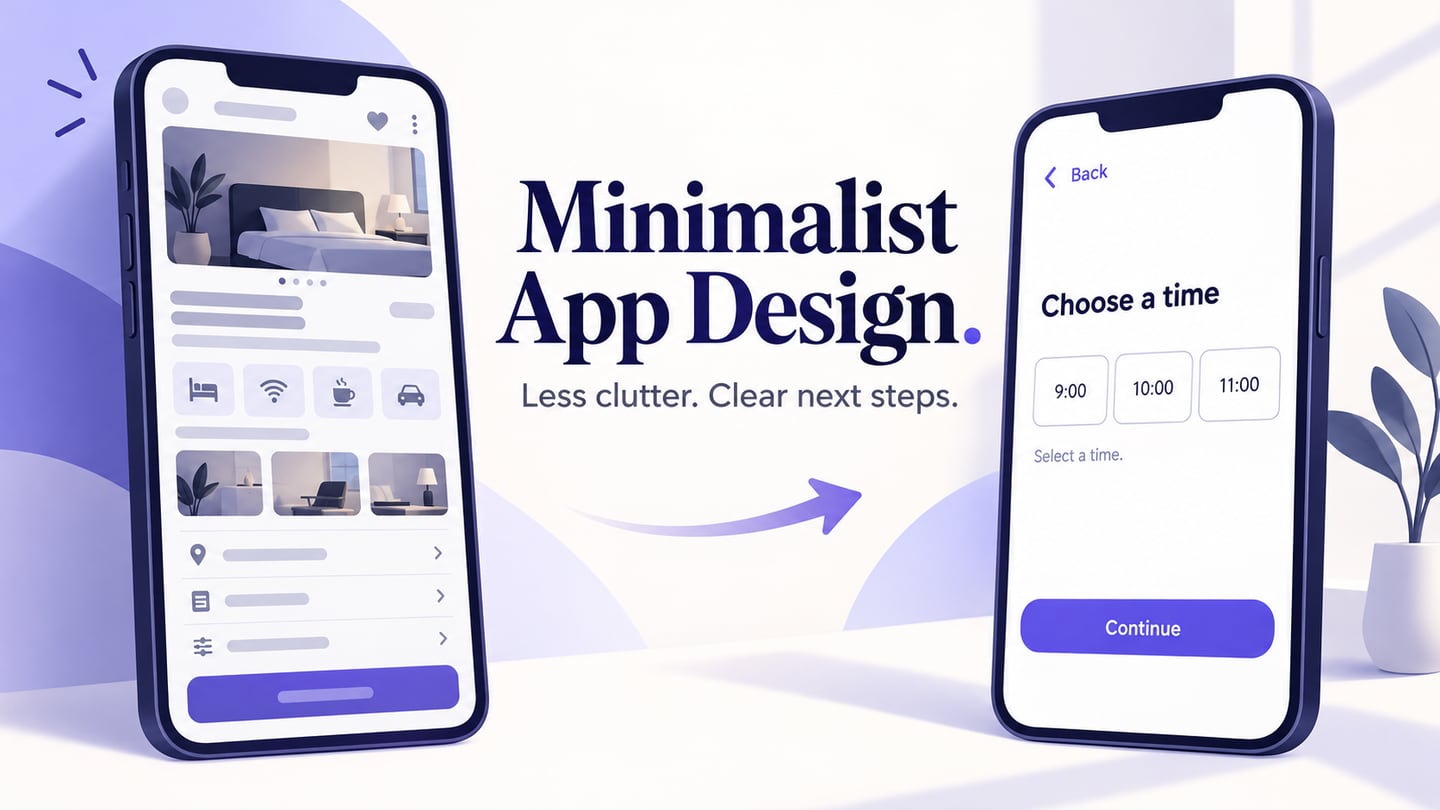
Minimalism in app design means keeping the information and controls needed for the user's task while removing distractions. A minimalist app design can look simple without leaving people to guess what to do next. Start with one task, sketch its screens, and use Mockitt's interactive prototype workspace to check the flow before development. The example below uses appointment booking: choose a time, review the details and confirm the booking.
A Tool for Prototyping a Simple App
Mockitt lets you create interactive prototypes for mobile applications or websites. Use its screen and component tools to lay out the booking flow, connect the screens, and share the result for review. A prototype helps people discuss the proposed experience; it does not by itself create a working appointment service or prove that the final app will be fast.
Icons and reusable widgets can help keep repeated controls consistent. For this example, use the same time-slot treatment on the selection and review screens, then collect feedback on whether the next action is clear. Share a preview with reviewers and choose any export format according to the options available for that project; do not treat an exported prototype as an installable production app.

How to Design a Simple App
Use the following create, design and preview sequence to build a small mobile flow. The screenshots below show an earlier Mockitt interface; they illustrate the underlying project, widget, linking and preview operations. Follow the current workspace labels when carrying out the steps.
Step 1: Create a New Project
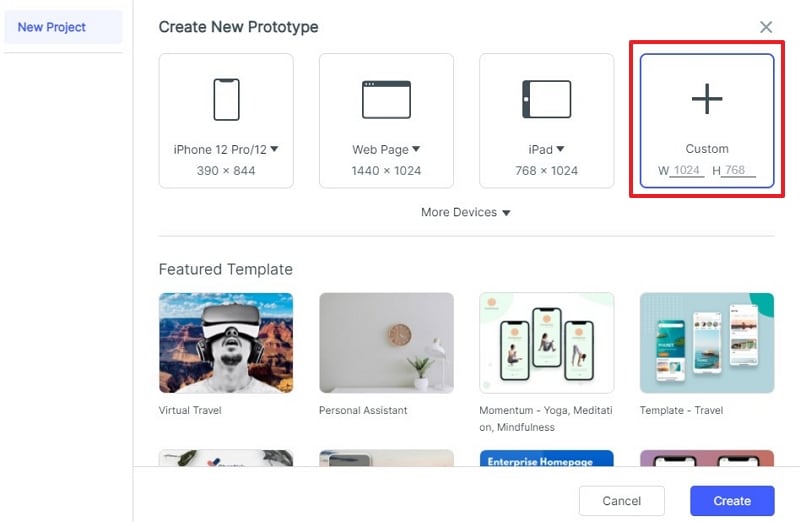
- Create a new prototype project and choose an appropriate mobile canvas or device preset. Give the project a task-based name, such as Appointment booking, so reviewers understand its purpose.

- Choose the canvas size, name the first screen Choose a time, and save the project. Use one realistic viewport for the first pass; check other sizes after the flow works.
Step 2: Design the App
Build the first version around one booking decision. On Choose a time, display the service and available slots. On Review booking, repeat the selected service, date and time so the person can check them before committing. On Booking confirmed, explain the next step and how to find the booking again. This is a design example using sample availability, not a connection to a scheduling service.
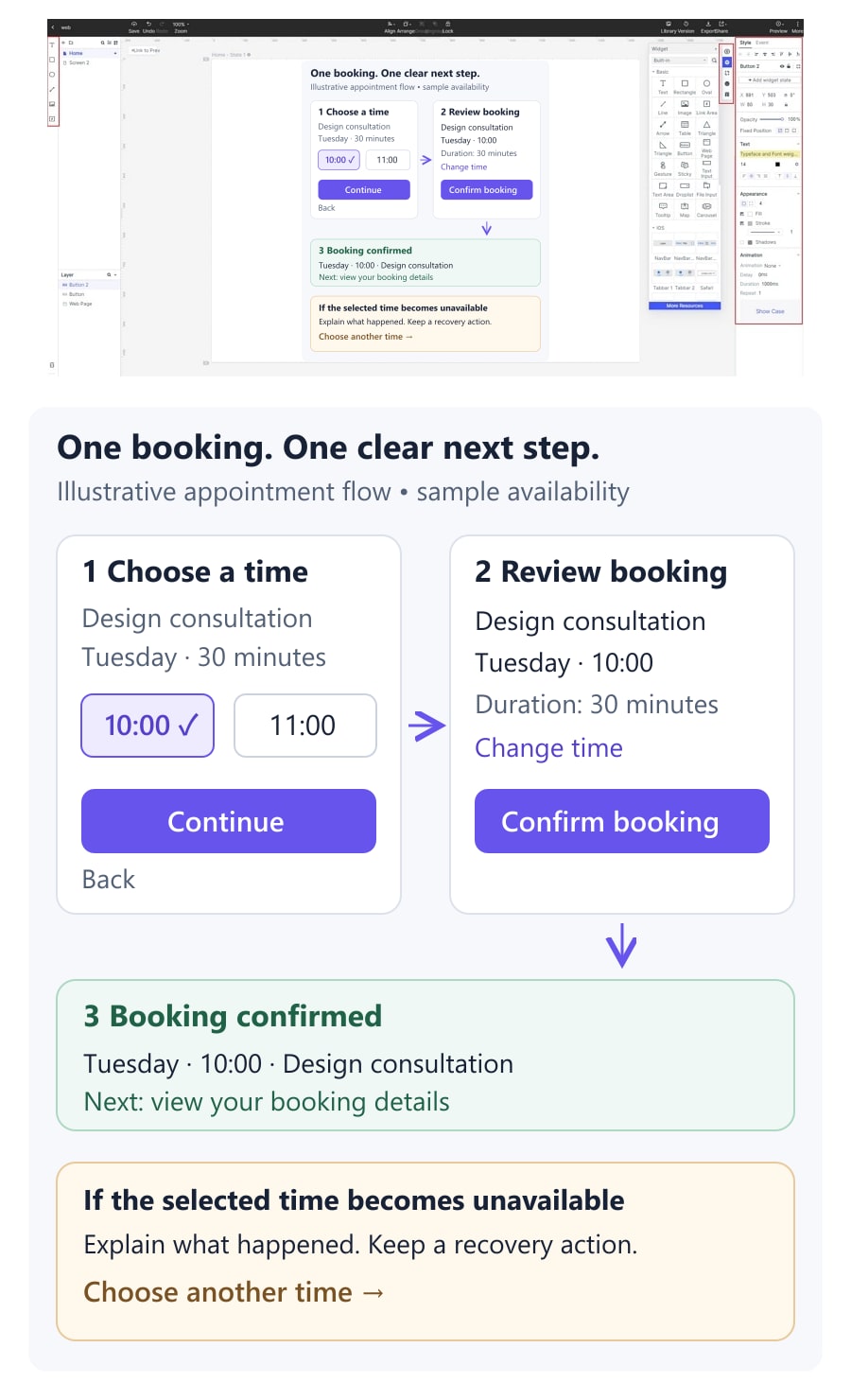
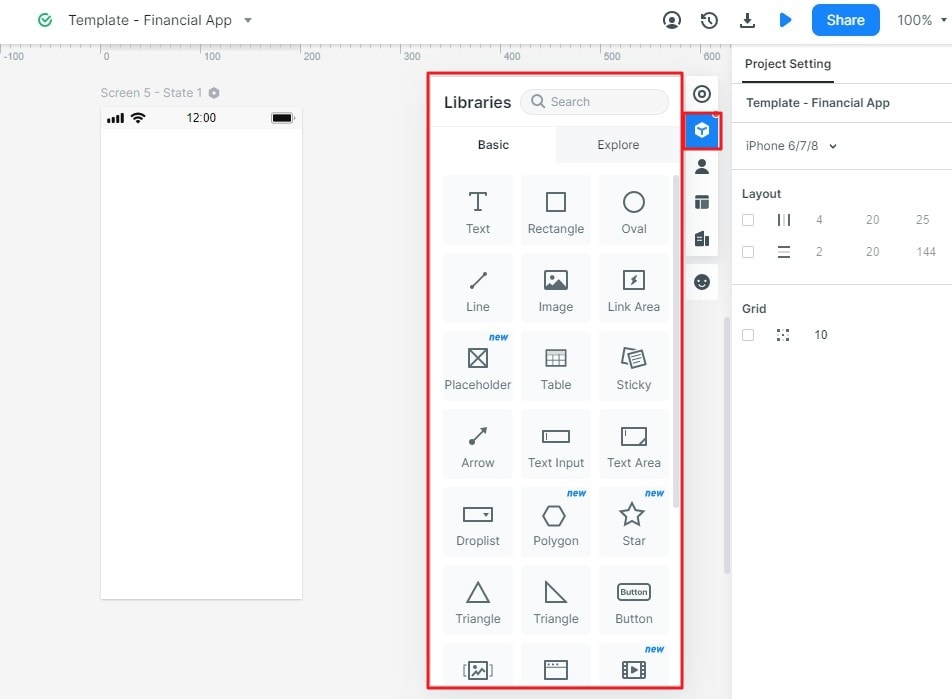
- Add the text, buttons and selection controls your screen needs from the widget library. Set their properties in the inspector, then reuse the same styles for repeated controls. For the booking example, start with three screens: Choose a time, Review booking and Booking confirmed. Keep the first screen focused on available times rather than surrounding it with offers, news or unrelated account settings.
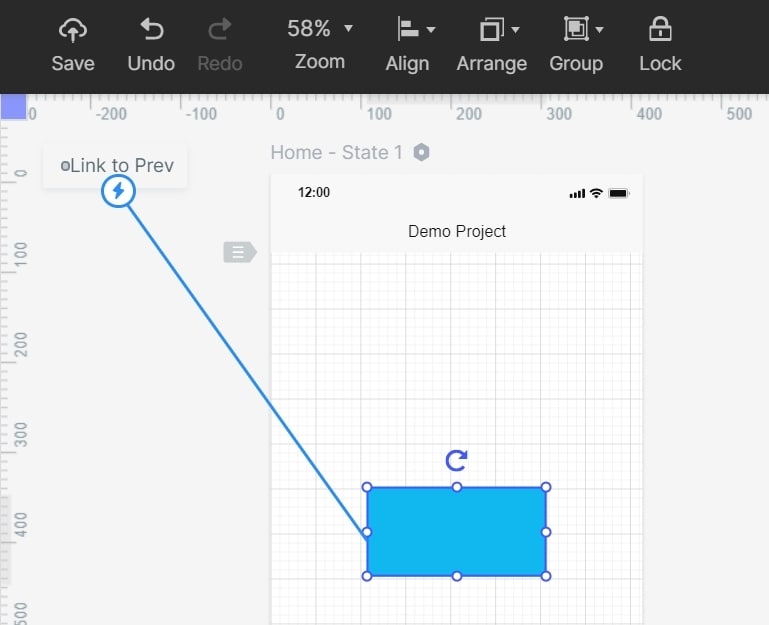
- Connect the primary action on each screen to the next screen, then add a return path for changing the selection. In the example, Continue opens Review booking, Confirm booking opens the confirmation state, and Change time returns to the available slots. Add motion only when it clarifies the transition.
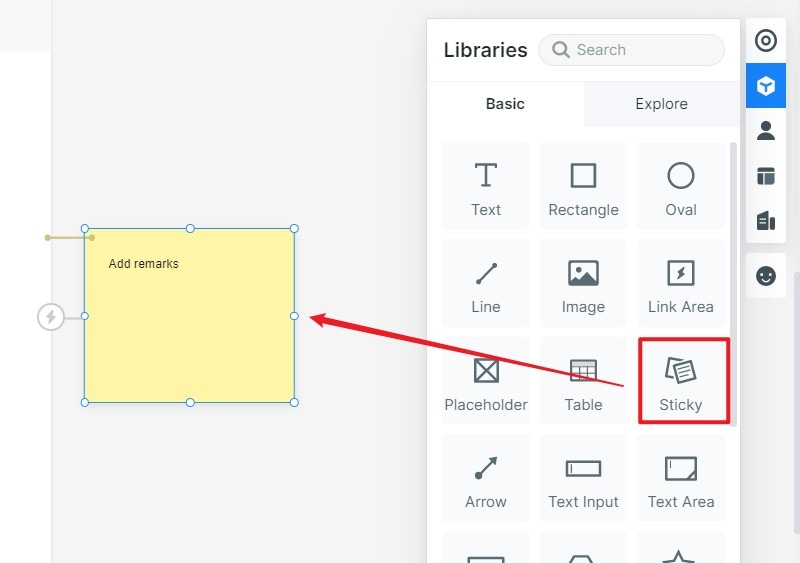
- Add notes beside the relevant screen to explain behavior that the prototype does not implement. For example, mark the selected time as sample data and note what should happen if that time becomes unavailable before confirmation. A visible recovery action, such as Choose another time, is part of the simple experience rather than extra clutter.
Step 3: Preview the App
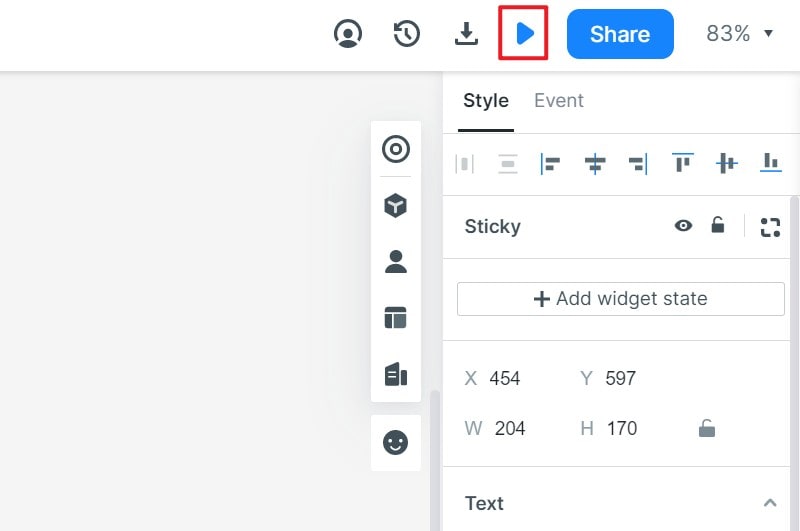
Preview the flow on the intended screen size before sharing its review link. Ask someone to book a time, change that time and explain the confirmation message without coaching. Check that every link works and that a return action preserves the intended choice. For a wider review, use the same task and sample data with each participant so feedback is comparable.
Useful Tips to Create a Minimalist App Design
Use the following tips to decide what to remove and what to keep. The aim is a clear task, not the fewest possible controls. Nielsen Norman Group's minimalist-design guidance emphasizes preserving the information people need to complete their work.
Do Not Include Unnecessary Elements
Avoid elements that compete with the current task. In the booking screen, a seasonal promotion can move elsewhere; the service name, available time and price may be necessary for an informed choice. Before removing an element, ask what decision it supports and whether users can still complete that decision without it.
Include White Space
Use white space to separate groups and show which labels belong to which controls. Keep the service and its details together, then leave a clearer gap before the next action. Space should support scanning without pushing the primary button so far down that people overlook it on a smaller screen.
Limit Number of Colors
Use a restrained palette with consistent roles for primary actions, supporting text and status messages. A selected time can use an accent color, but also give it a check mark or text label. An unavailable time needs an explanation, not just a different shade. The WCAG guidance on using color explains why meaning should not depend on color alone.
Keep Typography Consistent
A single type family is a useful starting point, not a requirement for every app. Establish a small hierarchy for screen titles, field labels, body text and secondary notes. Test realistic long service names and larger text sizes; a clean-looking screen is not successful if labels are clipped or important details become unreadable.
Allow for Simple Navigation
Keep navigation visible and predictable. Show where the person is in the booking flow and provide a clear way to change a choice or go back. Do not replace useful labels with unfamiliar icons merely to save space. If the task is a first-run experience, the onboarding-flow guide explains how to decide which questions belong before the first useful action.
Before calling the screen finished, compare a normal booking with two less convenient cases: no times are available, and the selected time is no longer available. A blank panel gives the person no useful next step. An explanation with a Change date or Choose another time action keeps the interface simple while helping someone recover. Preserve that feedback even when reducing the number of visible elements.