Web UI testing examines whether a website’s visible controls, layout and navigation work under defined browser conditions. It covers more than screenshots: input, history, loading, errors and responsive behaviour all matter. Start with a prototype of the web flow for design review, then test the implemented site in the browsers and environments your audience actually needs.
Test as the relevant functionality becomes available. A design review can expose a confusing label before coding, while a browser test can reveal a focus or data problem that a visual prototype cannot reproduce. Neither replaces the other.
Separate three questions: does the interface behave as specified, can people accomplish the task, and can people with relevant disabilities operate it? Automated checks, usability research and accessibility evaluation contribute different evidence. Define the question before selecting a method.
Use Mockitt for the Design-review Stage
Mockitt can help build and share a visual web flow with realistic screens and interactions. Use reviewers’ observations to clarify requirements and states before implementation. It does not automatically test browser compatibility, guarantee data recovery, or prove the production website is secure.

How to Review and Test a Web UI
Step 1: Create the Relevant Web Flow
Create a project for the task and choose the initial viewport. Include at least a narrow layout when the audience uses mobile devices. Record what should change as the available width changes.
- Add the controls, content and messages required by the task. Test long labels and realistic data before assuming that a short placeholder layout will work.
- Connect navigation to meaningful destinations and include a route back. Define what should happen to search terms, filters and unfinished input when someone leaves and returns.
- Annotate rules that the visual model cannot execute, such as authentication expiry, server validation or an unavailable result. Keep these notes out of the interface copy.
- Add states for progress, success and failure where the task needs them. Motion should explain a change rather than conceal a slow or uncertain response.
Step 2: Preview the Proposed Experience
Inspect the flow at relevant widths and ask reviewers to attempt a specific task. Note unclear labels, missing states, clipped content and controls hidden behind overlays. Avoid coaching the person through every step. Record what the prototype cannot reproduce so that a successful preview is not treated as a passed browser test.
Step 3: Test the Implemented Site and Share Findings
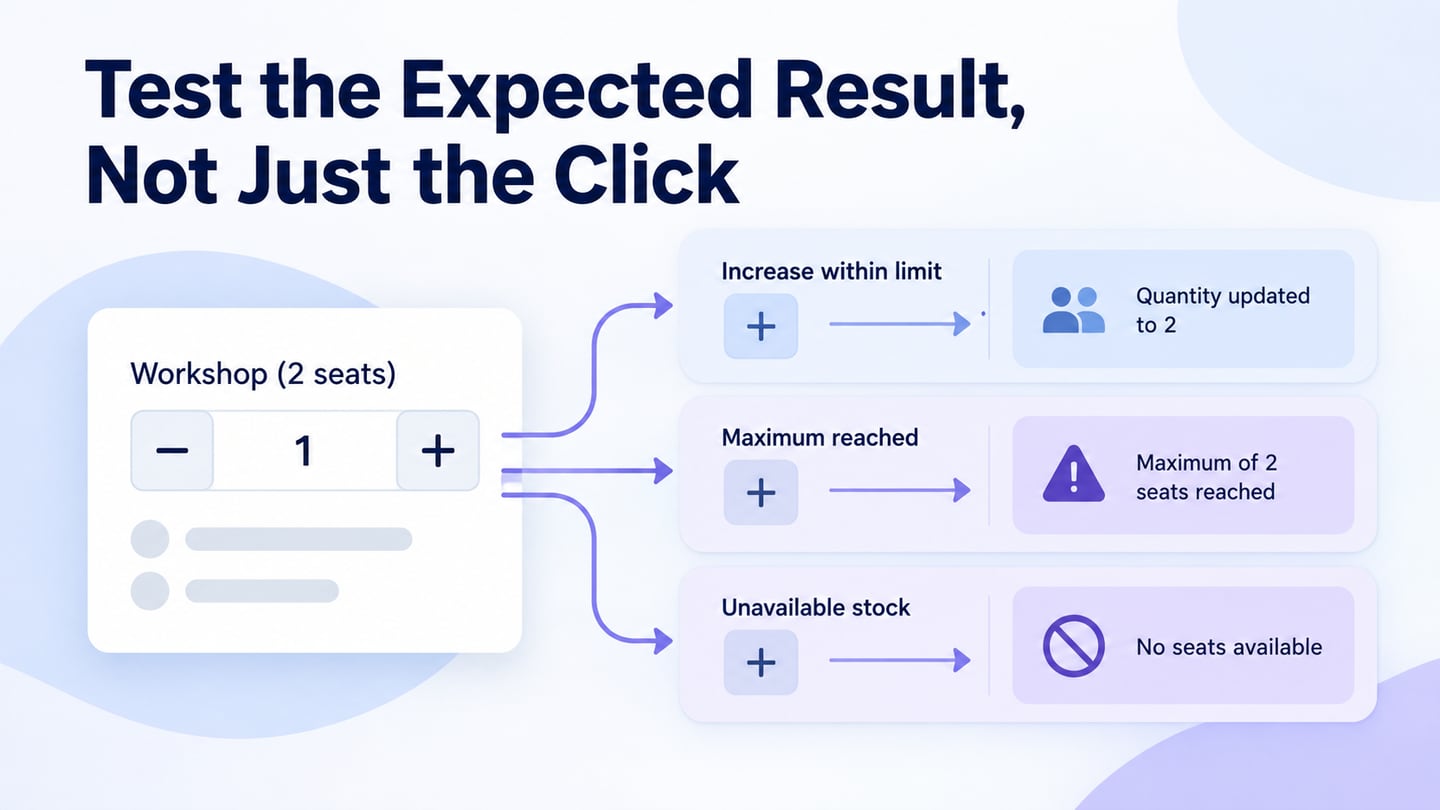
Run the same critical journey in the agreed browser and input matrix, using controlled test data. Compare expected and actual results, capture a reproducible failure, and share the relevant evidence with the team. Retest the changed behaviour and nearby regressions after a fix.
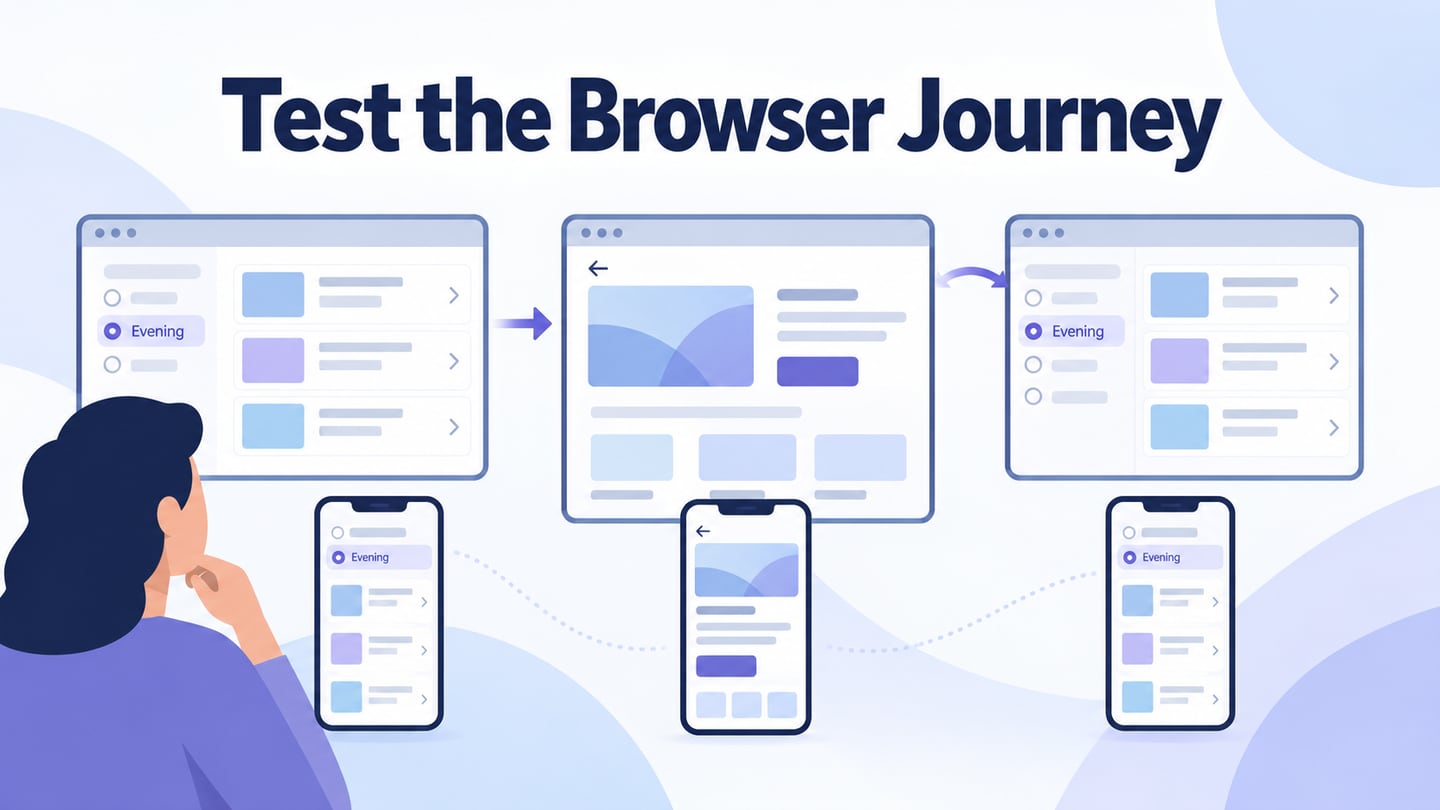
Test a filter, detail, and return journey
For a fictional course directory, select the Evening filter, open Introduction to Pottery on Tuesday at 18:00, then use browser Back. The requirement for this example is to return to the Evening results with the filter still selected. Agree on that expectation before writing the test; another service may intentionally define a different return behaviour.
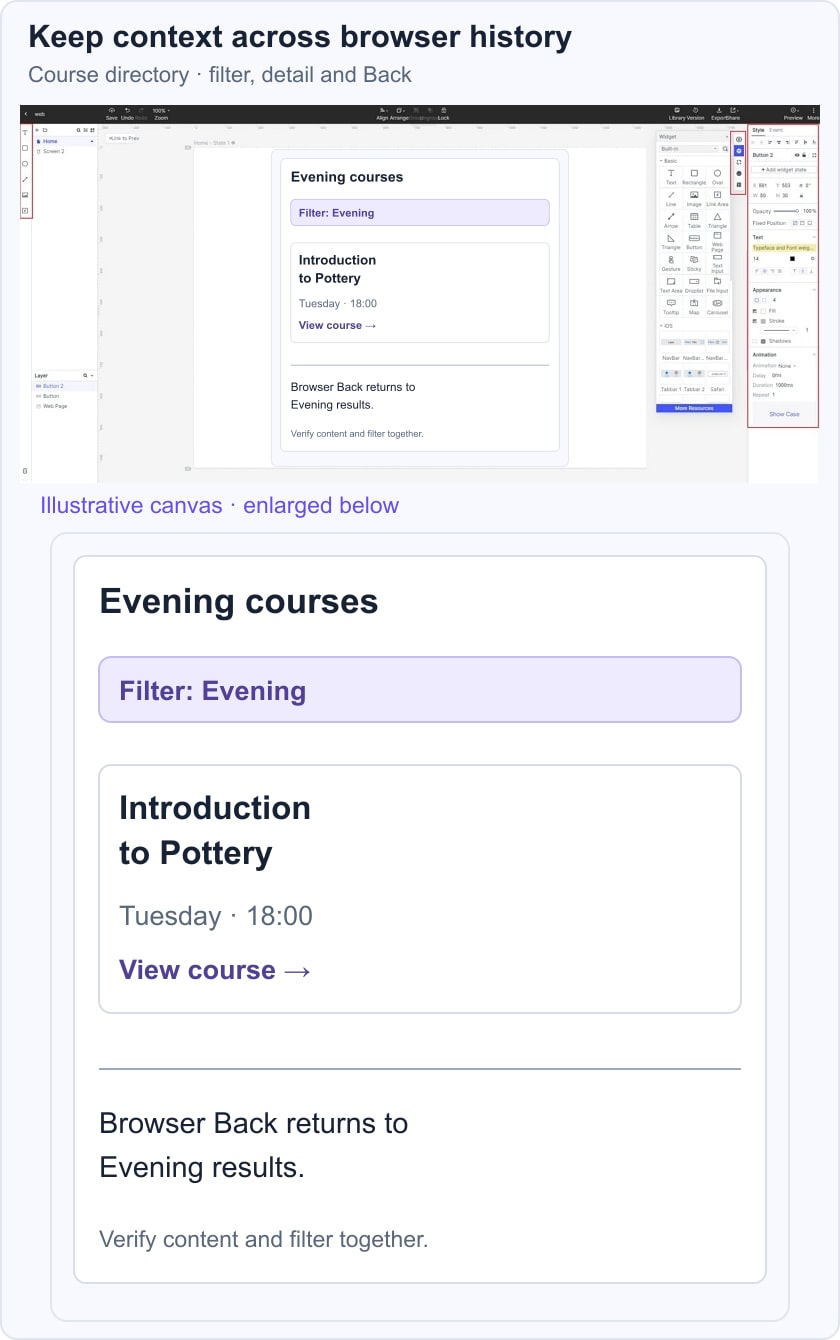
Check the journey with pointer and keyboard input, at a narrow and wide viewport, and in the supported browser engines. Verify the result content as well as the highlighted filter. A selected-looking control with unfiltered results is still a failure. Use a known dataset so a changing course catalogue does not obscure the result.
Add relevant exceptions: no matching course, failed results request, expired session, and direct navigation to the detail page. These cases exercise browser state and recovery beyond the first successful click.
Tips for Web UI Testing
Use this checklist to make web UI testing focused and repeatable.
Plan the Browser and Input Matrix
Record browser/version, operating system, viewport, zoom or text-size needs, input method and test data. Prioritize combinations using audience evidence and risk. Browser emulation is useful, but it does not reproduce every feature of a physical device. Keep tests focused enough that a failure identifies a meaningful behaviour.
Check How Components Work Together
Inspect the complete journey as well as individual controls. A filter may work in isolation yet lose its state after navigation. A dialog may open correctly but leave focus behind it. A sticky header can hide an anchor destination even when the link points to the right section.
Test Changes Early and Keep Evidence
Run relevant checks when the affected behaviour changes. Save the precondition, steps, expected result and observed failure with the environment. A screenshot helps show a visual problem; interaction traces or a clear description may be needed to explain what produced it.
Use Tools for Their Actual Capabilities
Playwright’s official guidance recommends user-facing locators, isolated test setup and assertions that wait for the expected state. Use such checks for implemented browser behaviour. Add manual keyboard, visual and assistive-technology review as appropriate; accessibility tools cannot establish conformance alone. Keep performance measurements separate from the fact that a control eventually responded.
Make Findings Part of the Team’s Work
Assign an owner and impact to each issue, clarify ambiguous requirements, and document what was retested. Track known limitations as well as passing cases. Shared responsibility helps, but a broad statement that everyone tested the site is less useful than evidence tied to the supported tasks and environments.