Sign-up creates a new account; login gives a returning person access to an existing one. A useful sign-up UI explains why the account is needed, asks for the necessary information and shows what happens next. The flow also needs to handle verification, existing accounts and interrupted attempts—not just a polished first screen.
Prototype the Registration Flow
Use Mockitt to represent account-creation screens and linked states for review. Sketch or Axure may also fit a team’s process, but the important choice is whether the tool lets you explain the relevant behavior. The prototype does not create a working identity service.
What the Prototype Should Help You Review
- Confirm current plan and sharing limits before starting a team project; do not assume every feature or template is free.
- Reuse suitable widgets for fields, buttons and messages, and keep the same component consistent across states.
- Arrange the form on the canvas in a clear reading order.
- Link registration to verification and completion, as well as error and recovery paths.
- Use synthetic account information and set appropriate sharing permissions for the design.
- Review the flow with designers, developers and the people responsible for account policies before implementation.
How to Create a Sign-Up UI
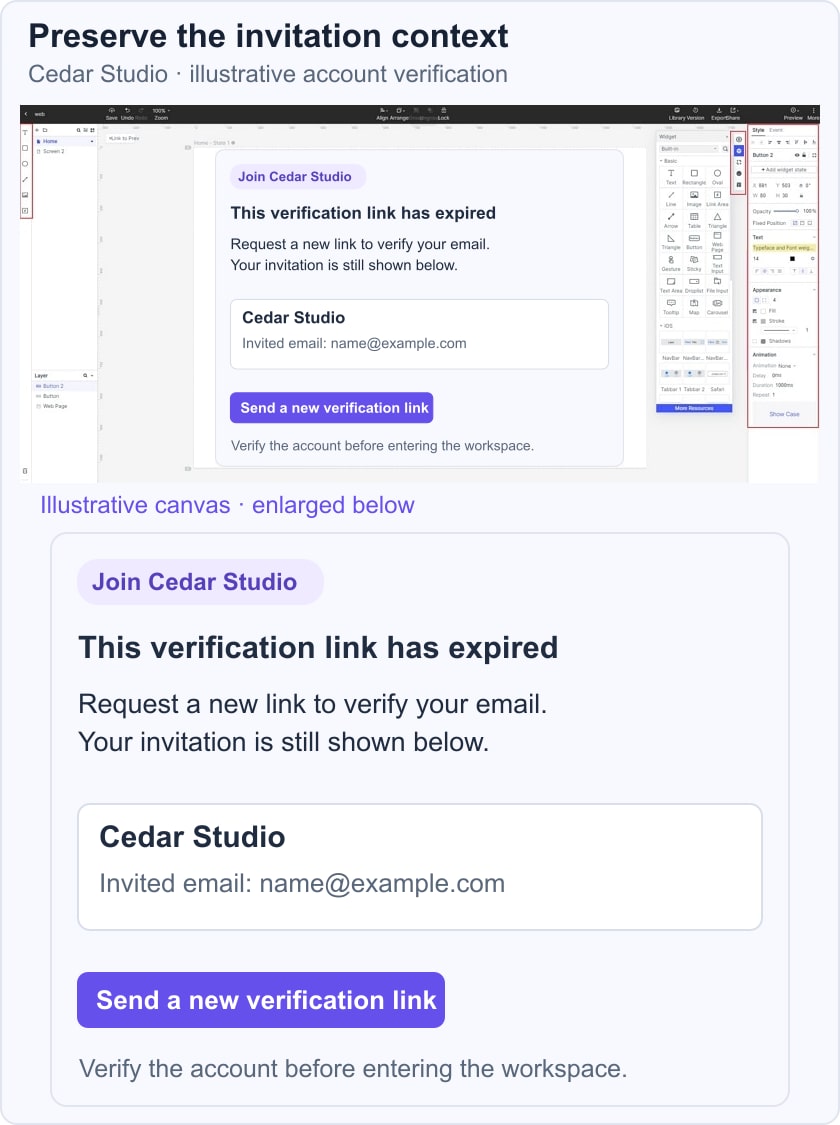
Follow these steps from project setup through design, preview and sharing. The retained screenshot shows an earlier Mockitt workspace; current controls may be arranged differently.
Step 1: Create a blank new project
- Sign in to your workspace and create a project for the account-creation flow.
- Choose a canvas size for the intended device and include a narrow-screen layout for review.
Step 2: Design Your Sign-Up UI
Add the Fields and Actions
- Select widgets for the minimum information your service needs. Explain any field whose purpose is not obvious, and keep labels visible after typing.
- Place the form controls and action button on the canvas. Include a clear path for someone who already has an account.
- Reuse field and button components where possible. Check longer labels, error text and password-visibility states rather than testing only empty inputs.
Connect the Verification and Recovery Steps
For an invitation to Cedar Studio, preserve the workspace name and invited email throughout registration. If the verification link expires, explain the problem and offer Send a new link without losing the invitation context. Represent the pending and completed states separately; an email-sent message is not proof that the account has been verified.
- Link the primary action to the next required step. Include the branch for an existing account and a way to return from verification instructions.
- If an external identity provider is supported, show the return path and a cancelled or failed attempt. The provider integration itself must be implemented and tested separately.
Document Account Rules
- Record which fields are required, how invitations expire and how verification is confirmed. The security team should define what account information error messages may reveal.
Represent Useful States
- Show default, pending, error and completion states. Keep entered information when it is safe and relevant, rather than making someone restart after every error.
- Use linked screens or widget states to demonstrate the proposed behavior. Nonessential animation should not delay the next action or hide an explanation.
Step 3: Preview your UI design
- Preview the whole task, including an expired verification link. Check whether a reviewer understands what account and workspace they are joining. In implementation, also verify keyboard use, password-manager support and accessible authentication.
Step 4: Share your UI design
- Share the prototype with developers alongside the unresolved account rules. A visual flow is a specification aid, not a secure registration system.
- Review the implemented flow using test accounts before release, including duplicate submissions, email-delivery delays and a person returning on another device.
Five Sign-Up Examples and Their Design Lessons
These five services illustrate different account-creation decisions. Public forms and methods may vary by platform or region. The observations are based on official public pages and help, rather than a completed signup or a claim about conversion performance.
1. Facebook
Facebook provides a familiar account-creation example. Its scale does not establish that a particular form is best for every service, and it should not be described as receiving billions of new signups each day.
The useful question is which identity information a service actually needs and how it explains that request. Check the current official flow before adopting any particular fields; this review could not independently verify the complete current Facebook registration flow.
2. Medium
Medium’s official help describes social-account and email-based access. It is not limited to the two provider options named in the old article. An email-link approach reduces password entry but introduces a different task: finding the message and returning to the intended page. Design that handoff explicitly.
3. Reddit
Reddit’s signup guidance describes email, external accounts and phone availability in certain regions. It includes steps beyond a single email field. Progressive collection can keep each stage focused, but people still need to understand the remaining steps and any decisions they cannot change later.
4. Mailchimp
The Mailchimp signup page presents business email, username and password fields, including password visibility and requirements. These are useful elements to inspect for their placement and clarity, not proof that a three-field form is always sufficient.
Explain password requirements before submission and let people use supported password-manager assistance. Showing a password can help someone check an entry, but it does not replace secure storage or account recovery. Keep any marketing preference distinct from what is necessary to create the account.
5. Google
Google’s account-creation instructions vary by account type and request different information according to the chosen route. A person may also use an existing email address. The lesson is to explain choices and their consequences rather than equate fewer visible fields with a better flow. For your own design, start with the user’s reason for creating an account and make the path to that task clear.