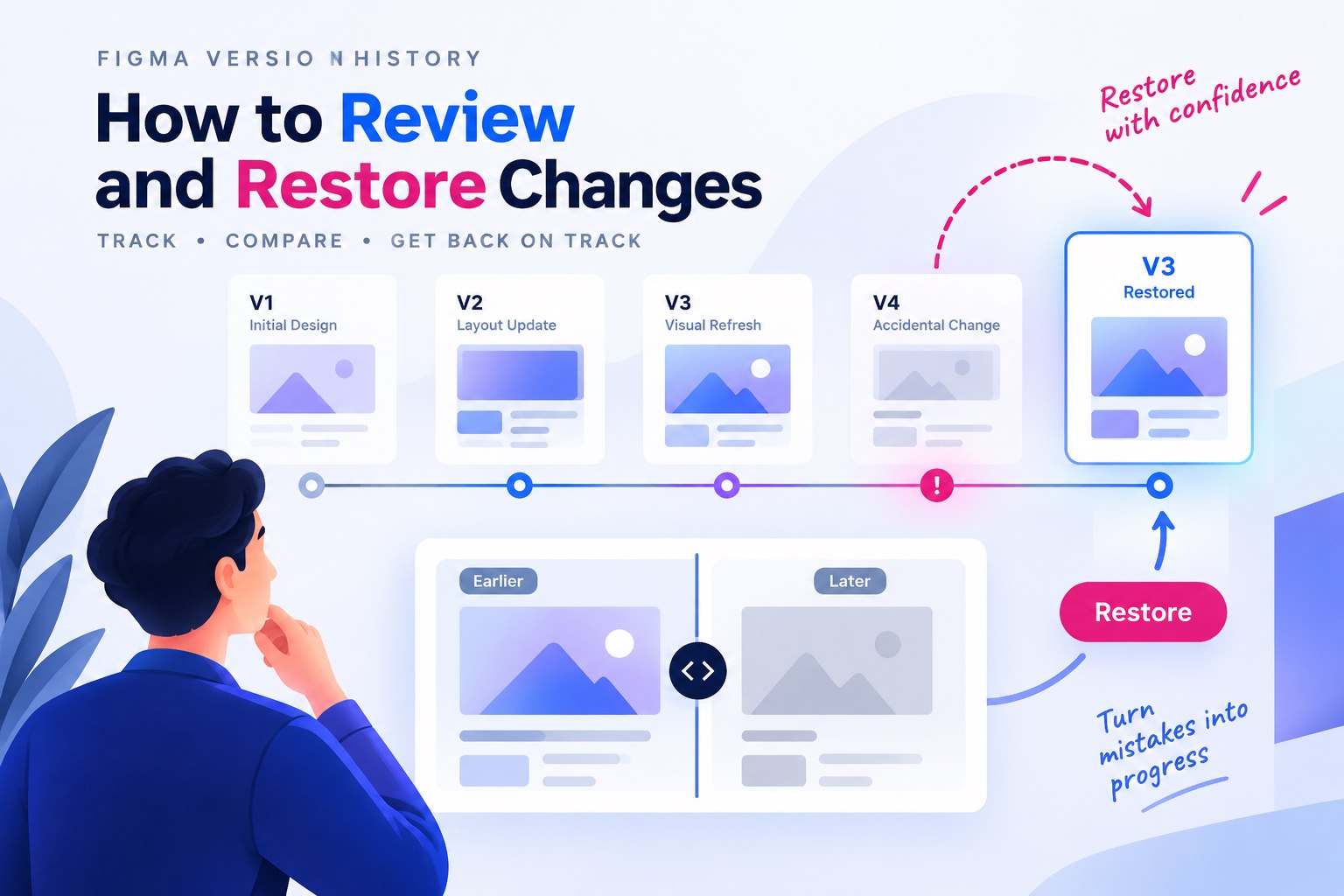
Design is an iterative process, with every version of design being at least slightly different than its previous version. Designers often go back and forth across these versions based on feedback and requirements. It is no doubt that any interface design tool must allow the tracking of various versions and designers must have the flexibility to move across these versions with ease. Figma version control certainly comes in handy for designers. Further, with software design and development teams being more remote and geographically dispersed than ever, designers need a version control system that allows the tracking and management of various versions from various designers on the team. Indeed, Figma version control comes to the designers' rescue on Linux, macOS, Windows & ChromeOS.
How to View and Manage Figma Version History
Figma’s version history records snapshots of a design file. Name a version at a meaningful checkpoint and add a description of what changed, such as an approved navigation structure or revised form flow. This is file history, not the same workflow as a source-code version-control system. The accessible history depends on the plan and permissions, so check those limits before relying on a retention period. Here is the original workflow for finding and reviewing versions.
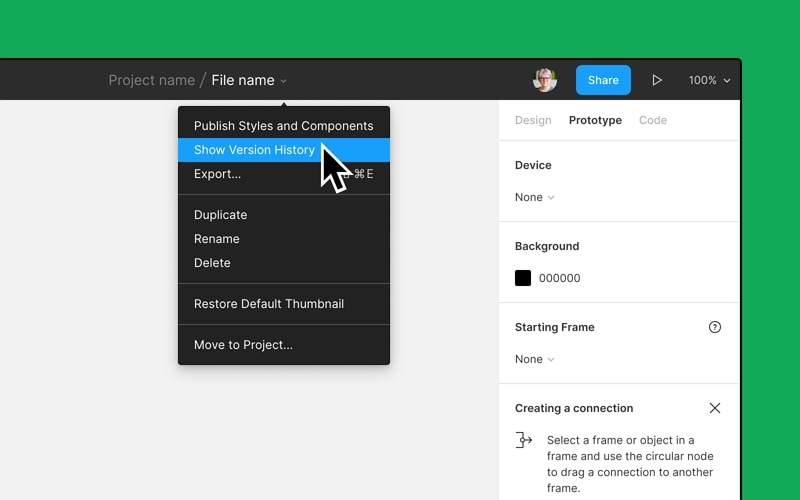
Source: Figma
- To view any file's version history, you need to have the 'can view' access. If you wish to make any changes to the version history, you will require 'can edit' access as well to create, remove or restore version history.
- Click on the file name menu and select show version history from the list of options. Figma will show the file's version history towards the right sidebar.
- In the version history, you can view a timeline of versions from the current date and time by exploring the various versions you have created. Next to each version you will observe the name, description, date and time, name of the contributor.
- In Figma version history you can even view the checkpoints of the date and time saved by Figma automatically. Sometimes if you forget to save the version, Figma automatically autosaves it for you. When you check the version history, it shows which data was autosaved with the date and time.
- Select “Show older” to browse earlier versions within the history available to your account.
To restore a Figma version, you need edit access. Select the checkpoint in version history and inspect its contents, then open that version’s menu and choose “Restore This Version.” Figma saves checkpoints for the current and restored states. Choose “Edit current version” to return to editing, then name the restored checkpoint so teammates understand the change. Existing comments remain when a version is restored; deleted comments are not recovered.
Version History in Mockitt
For a team already working in Mockitt, the relevant question is how to record, inspect, and restore a project checkpoint. Compare the current plans against the editing roles, collaboration, history, and handoff features your team needs; price alone does not establish which tool is more suitable. The original workflow below shows how a Mockitt design version can preserve a named point in the review process.
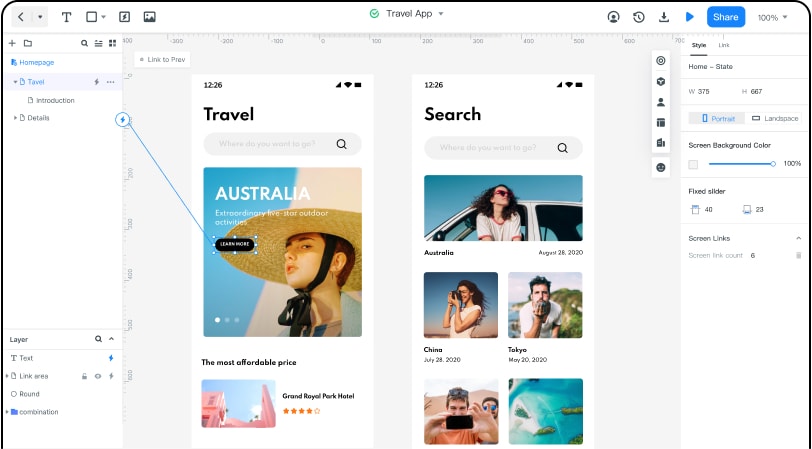
Mockitt also offers an easy-to-use alternative for Figma Version control. Below is a quick guide to managing version history with Mockitt:
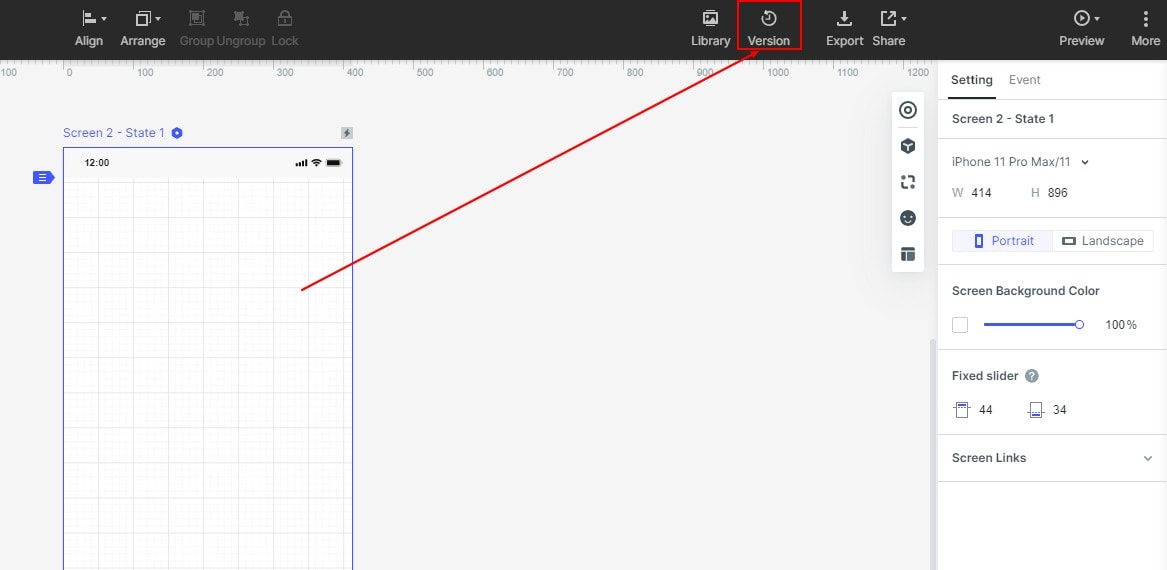
Step 1.Build the first version of your prototype and click on the "Version" option highlighted below.
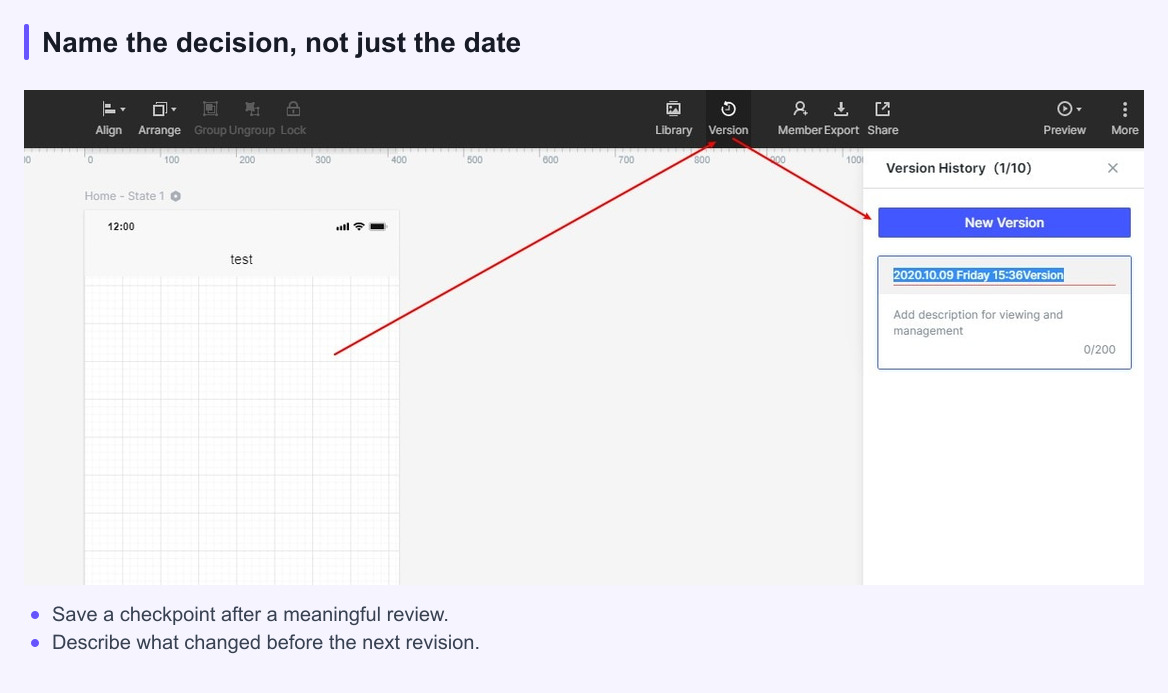
Step 2.You can create a version at any time during the editing process of the project. Click "Version History" > "New Version", enter the corresponding version title and description. Click "Finish" to create the version.
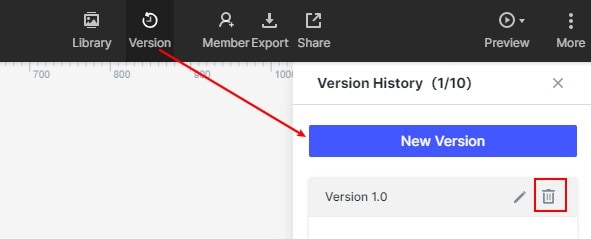
Step 3.To delete a project version, click "Version History" to find the saved version, and click the delete button on the right. At the same time, there will be a pop-up window to confirm the deletion.
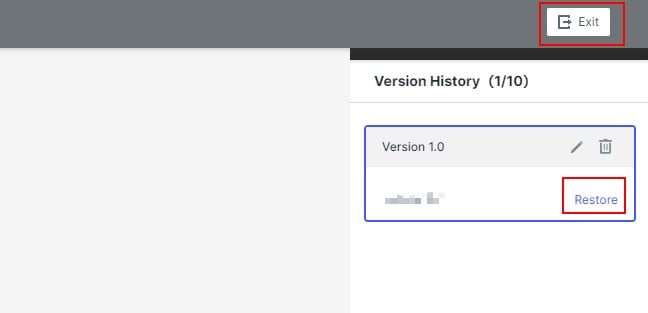
Step 4.To view and restore the project version, click "Version History", select the corresponding version data, and click to view (switch between two versions to view). After viewing, you can click to exit to view and return to the page editing area. If you want to restore the version you just viewed, click "Restore to this version". At the same time, a pop-up window will prompt you whether to save the current content version of the workspace.
Use meaningful names and descriptions so a reviewer can tell why a version matters. Before restoring a checkpoint, compare it with the current design and preserve any later work that should remain. Available history and permissions depend on the workspace; do not assume that every edit is retained indefinitely.
A useful version-history habit is to name a checkpoint before a major change, record the reason, and inspect the result before restoring it. Choose the workspace that supports the team’s existing design and review process.
Make version history part of the review habit
Name meaningful checkpoints after a review or a major decision instead of relying on a long list of unnamed edits. A short note about what changed helps the team understand why a version matters.
Before restoring an older version, check which comments, assets, and linked screens were added later. Preserve the useful decision record even when the visual state needs to move back.