Want to Change to Another Easy-to-Use UI Design Tool than Figma? Try This Out!
Use a Mockitt design workspace to keep screens, review notes and handoff decisions together while you prepare a static PDF.

PDF is a fixed-layout way to share a snapshot of a design with project members and stakeholders. It can preserve page boundaries for review, but it does not carry the prototype's live interactions.
If you're working in Figma, follow the two export methods below and check the PDF before it reaches a stakeholder. The comparison section then shows where an online workspace can keep the editable prototype and review context alongside the static handoff.
Part 1: Advantages of Using PDF Exports from Figma
- PDF is an excellent format for sharing designs because it renders the content the same way on any device, which makes for a consistent experience.
- PDF is easily sharable via email, chat messaging, and other channels.
- PDF allows annotations and commenting to provide feedback.
- PDF can be converted to other formats for editing, or edited directly in a PDF editor.
Part 2: 2 Methods to Export from Figma to PDF
Method 1: Export Layers from Figma to PDF
Select the layers, frames or sections that should appear in the handoff, then use the Export section in the right sidebar. The exact controls can vary by file permissions and mode, so verify the result after export.
Step 1: Select the Figma layers, frames, components, groups or sections that you want to export. Export only the states needed for the handoff; a PDF is a static snapshot and will not reproduce a transition.
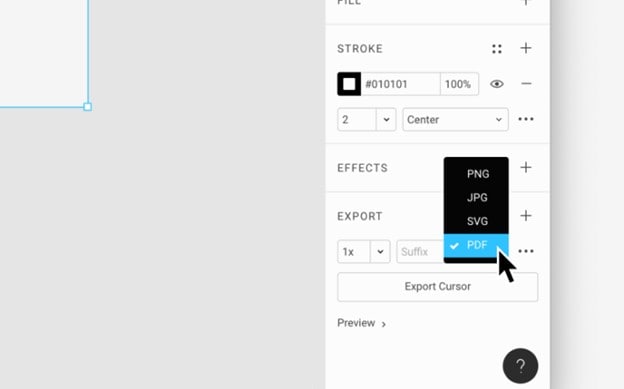
Step 2: In the right sidebar, open the Export section and choose PDF, then export the selected content. Check the downloaded file rather than relying on the preview alone.
Step 3: Save the file to your desktop with an appropriate name.
Looking for a beginner-friendly yet cost-effective UI/Prototype design tool than Figma?
Mockitt
UI/UX/Prototype Designer
Method 2: Export Figma Frames to PDF
You can also export a set of Figma frames as PDF if you need to. The Figma PDF export will be a single file with several pages, each of which contains a frame. The process is slightly different for this:
Step 1: With the frames arranged in the intended order, use Figma's frame-to-PDF export command and save the resulting multi-page file.
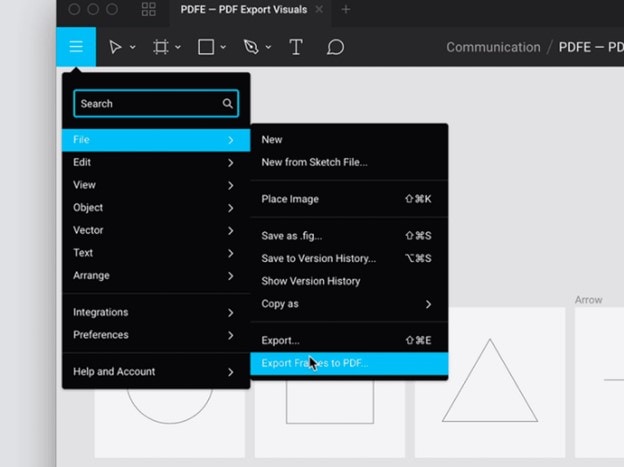
Step 2: Before exporting, confirm the frame order and names in the file. Open the PDF and check page order, clipping and text rendering before sharing it.
Step 3: Save the PDF file with an appropriate name.
Sum Up: Using these two methods described above, you'll be able to extract your Figma design layers and frames to PDF. It might seem a little confusing at first but once you start using the feature it gets easier. Take special note of layer selection and sequence of frames prior to performing the Figma to PDF action. You can also take the help of a Figma PDF export plugin like Pitchdeck, which supports PDF and will give you the output in the form of presentation slides.
Tips for Exporting to PDF from Figma
- Make sure your images are either vector images or high-resolution raster images. This is important when printing to a full-page format.
- When printing, choose the appropriate mode in the Print settings - landscape vs. portrait. Choose portrait or landscape based on the design's actual ratio. A 9:16 layout is portrait; do not describe it as a wider-than-tall design.
- Secure the PDF with a password before sharing if it contains confidential information - you don't want it getting into the wrong hands! But make sure you send the password separately to all the authorized viewers for that document so they can access it.
Part 3: How to Export to PDF with a Figma Alternative
Figma and Mockitt serve different handoff workflows. Keep the editable prototype available for review, and use a static PDF when the recipient needs a fixed page record.
Mockitt is an online design and prototyping workspace. Use the current workspace to prepare editable screens, review the flow and decide which fixed assets should be included in the PDF handoff. Existing resources such as Material Design, iOS and Web examples can remain part of the planning context.
Mockitt can keep linked screens, interactions and review in the same project before you export a static record. Verify the current options for dynamic widgets and interactive prototypes in the workspace.

Let's see how to export a design to PDF step-by-step:
Step 1: Complete your design by creating a new project and adding screens, into which you can drag and drop design elements to create the basic layout and additional page states for interactions.
Step 2: Rapidly prototype the design by dragging links from widgets and dropping them to their respective page states or screen states in the navigation panel on the left.
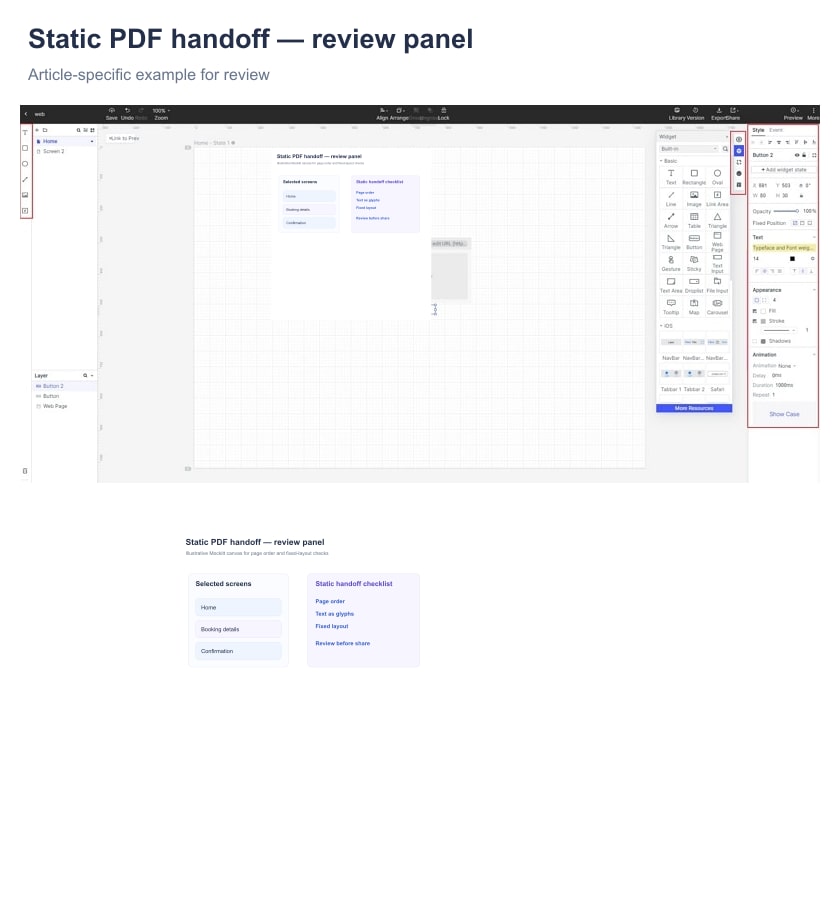
Step 3: Export the selected screen or fixed layout as PDF only after checking the intended bounds. If content falls outside the canvas, decide whether it belongs in the handoff or should remain part of the interactive prototype.
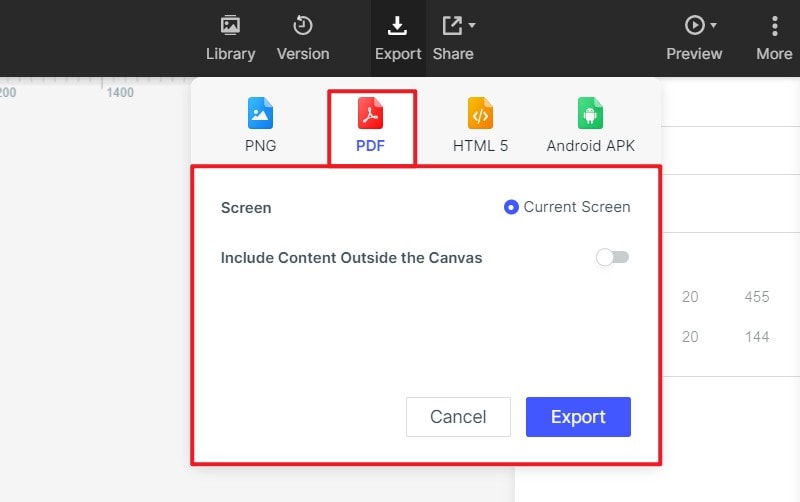
Use the current Share and export controls in Mockitt to choose a static handoff or a preview link. Confirm the available file formats and access settings in the workspace before distribution.
Before exporting, collect comments in the shared preview and keep the approved notes with the handoff. A PDF records the visual state; implementation, accessibility and production code still need engineering review.