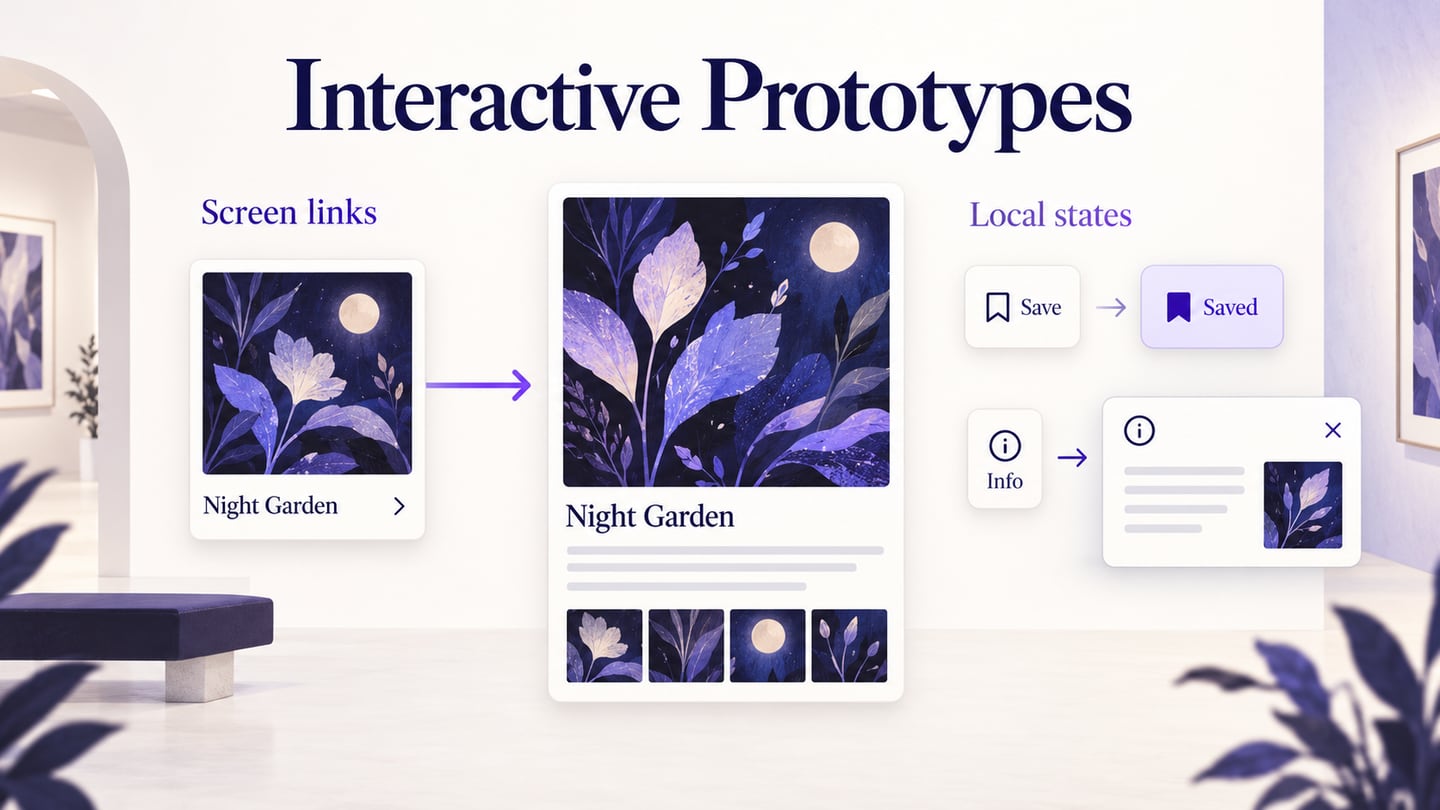
To make that behavior reviewable without building the product, connect the flow in Mockitt's interactive prototyping workspace and preview it from a known starting screen.
Write an interaction contract before wiring screens
For each important control, write three short lines: “When the person does…”, “the interface shows…”, and “they can return by…”. For a booking form, submitting an incomplete date might show an inline message and preserve the selected destination; a successful submission might show confirmation and a link back to the itinerary. This small contract reveals missing states before the team spends time on animation.
| Part of the interaction | Question to answer | Review evidence |
|---|---|---|
| Action | What control is used and what input is valid? | Label, focus state, and invalid input |
| State | What changes immediately after the action? | Updated content, message, or loading state |
| Return path | How does the person continue, undo, or recover? | Back, cancel, retry, or preserved work |
An interactive prototype lets someone try a proposed interface: select an item, move to another screen, open a panel or change a local state. With an interactive prototyping tool, you can connect those responses before development. This guide uses a small exhibition-discovery example to show when a screen link is enough, when a local state is clearer, and how to check the return path.
An interactive prototype makes the connected states available for review.
Use Mockitt to Create an Interactive Prototype
Mockitt supports arranging editable screens, connecting interactions and sharing a preview for review. For this exercise, start with an exhibition list and one exhibition-detail screen. A visitor should be able to open the details, save the exhibition, open and close an information panel, and return to the list. The actions give you something specific to build and inspect.

Use widgets and reusable elements for the exhibition cards, labels and buttons. Start from a template only if it helps express the task. Keep the exhibition title consistent across the list, detail screen and saved state so a reviewer can tell which item is affected. The screenshots below show an earlier Mockitt editor and remain useful for understanding the operations.
Capabilities Used in This Example
- Editable screens for the exhibition list and detail view.
- A shareable preview for reviewing the proposed behavior with another person.
- Reusable widgets for repeated cards, labels and controls.
- Screen links and local states for navigation, selection and open/close behavior.
How to Create an Interactive Prototype
Step 1. Create a Project
Create a prototype project and choose the canvas size for the intended review device. Name the project “Exhibition explorer — interaction draft.” Write the starting task beside your working notes: “Open the printmaking exhibition, save it, check the venue information, then return to the list.” This gives the prototype a clear starting point and result.

Step 2. Add Screens and Decide What Stays Local
Create an Exhibition list screen and an Exhibition details screen. Name them before connecting anything. A new screen represents a different destination; a state represents a change while the visitor remains in the same place. For example, opening the detail view is navigation, while changing Save to Saved should leave the exhibition details visible.
- Screen transition: select a card in the list to open Exhibition details.
- Widget state: show the save control as unselected or selected while the rest of the detail page stays the same.
- Panel state: show venue information, then close it and reveal the same detail view.
Mockitt’s interaction guide distinguishes screen transitions, screen states and widget states. Choose the smallest change that communicates the response; an animation alone does not define the destination or the state.
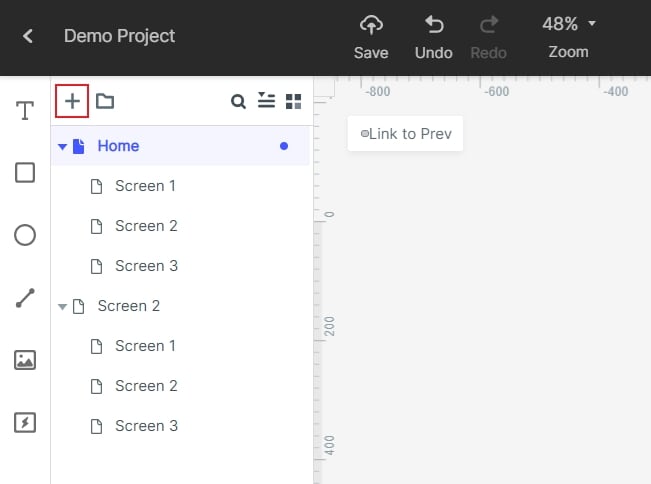
Step 3. Add Widgets and Label the Actions
Add the exhibition title, image, date and venue to the detail screen. Use visible Save, Venue information and Back to exhibitions controls rather than asking reviewers to guess which decoration is clickable. Reuse the same card and button styles where appropriate. Give the saved state a clear label as well as a visual difference, so the result does not depend on color alone.
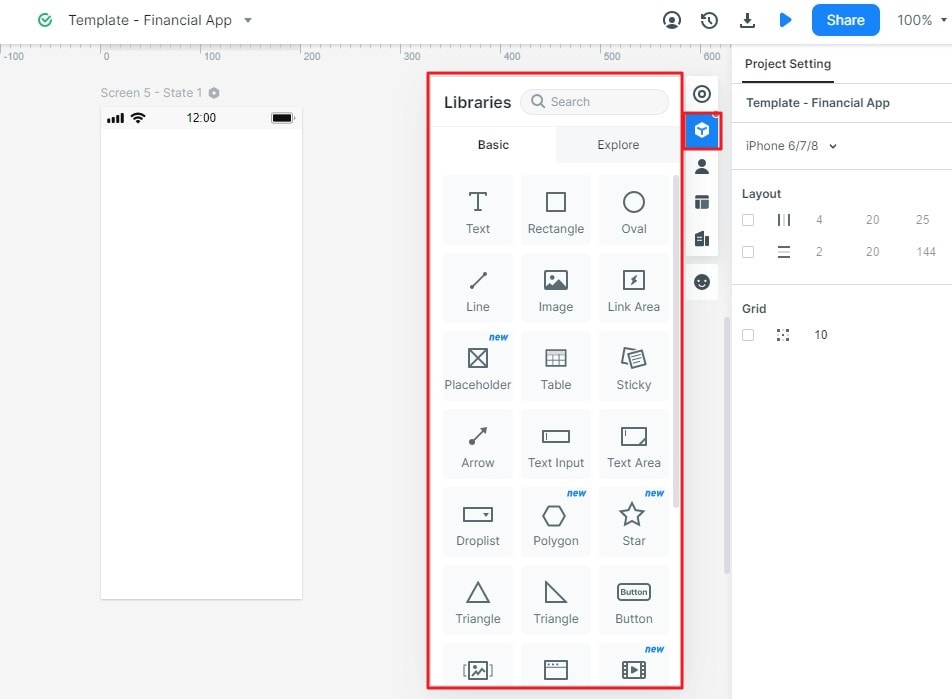
Step 4. Connect Screens and Local States
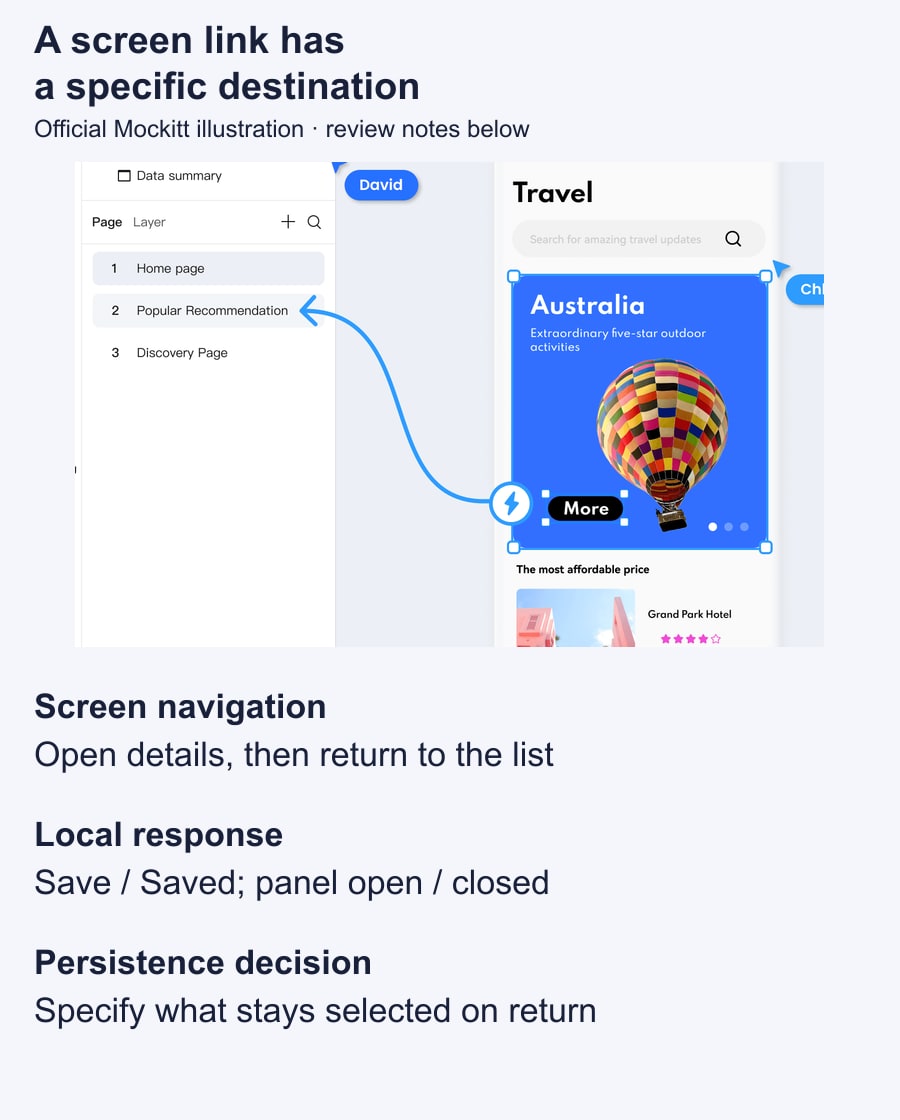
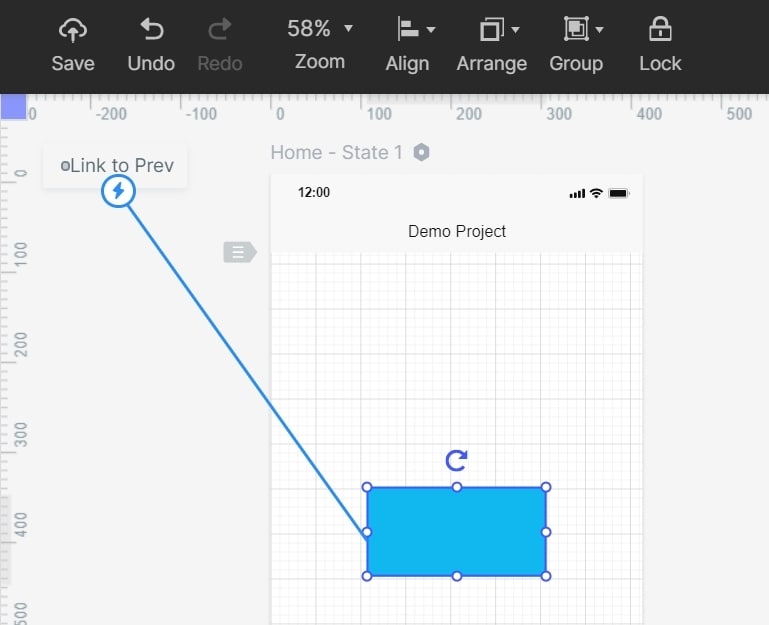
Select the exhibition card and connect it to the detail screen. The archived screenshot shows a drag-to-link connector. Use the interaction controls to choose the intended trigger and destination, then add Back to exhibitions as an explicit return route. A working forward link does not automatically give the prototype a usable way back.
For Save, create distinct unselected and selected appearances, then connect the intended action to the selected result. The widget-state guide explains how a local component can change without changing the whole screen. Keep the exhibition title, date and venue stable while that control changes.
For Venue information, define both the open and closed appearances. Connect the visible Close action to the closed result; do not leave the panel as a dead end. If you use separate screens to represent these states, label the destinations clearly and duplicate the same exhibition details so the simulated return is consistent.
Decide what Save should mean after leaving the detail view and opening it again. For a simple walkthrough, prepare a second visible saved result if that is the behavior you want to discuss. Do not assume that a screen link will preserve a selection automatically. Record persistence as a design requirement for the implementation team.
Step 5. Preview from a Known Starting State
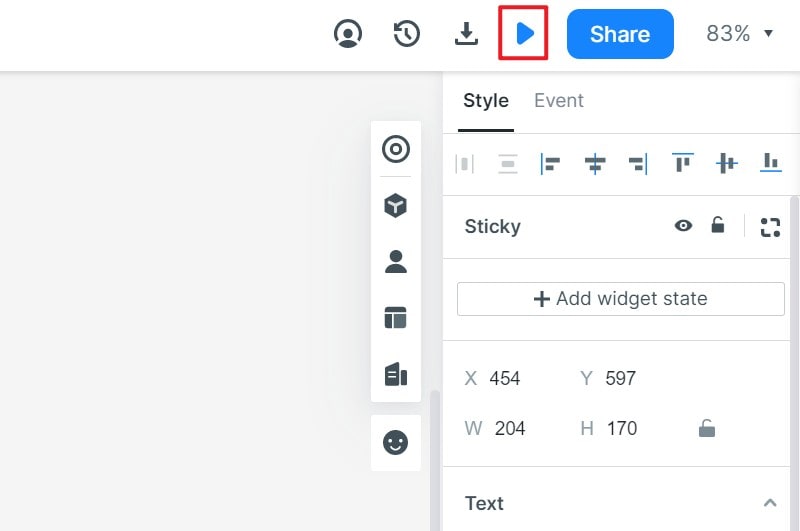
Open the prototype preview from Exhibition list, with the exhibition initially unsaved and its information panel closed. Follow the task without selecting screens in the editor. Check that the visible controls, rather than knowledge of the file structure, are enough to complete the route.
Run the same sequence after each interaction change: open the exhibition, choose Save, open Venue information, choose Close, then go Back to exhibitions. Record the result at each stop. If Close opens the list instead of restoring the details, note the action, expected destination and actual destination before correcting the connection.
Use a second pass to try the alternate route: open the details and return without saving. This helps distinguish a wrong link from a wrong starting state. For the preview controls themselves, refer to the prototype preview guide.
Video Guides to Prototype Interactions
These earlier guide videos illustrate screen transitions and states. Use them to understand the relationship between an action and its result; the screenshots in this article and the videos may show different editor versions.
Screen Transitions
Interactive States
Tips for Reviewing an Interactive Prototype
Once the links work, review whether the prototype answers the intended question. In the exhibition example, the question is whether a visitor can move between the list and detail view while understanding saved status and closing temporary information. Keep feedback tied to those decisions.
1. Use Templates Selectively
A template can supply a useful starting layout, but remove screens and controls that are unrelated to the exhibition task. Keep a control only when its action is represented or its role is clear. A polished but inactive button can mislead a reviewer about what the prototype supports.
2. Choose the Tool Around the Behavior
Choose the tool around the behavior you need to review: separate destinations, local selection, temporary panels such as a mobile bottom sheet, and a shareable preview. Check the access needed by both the author and reviewer. More effects do not make a prototype more useful if the next action or result remains unclear.
3. Repeat the Same Paths
Use the same starting screen and state when repeating a check. Note a defect as a reproducible sequence, such as “From Exhibition details with the panel open, choose Close; expected the same details, but reached the list.” After fixing it, repeat that route and one neighboring route so a corrected connection does not hide another broken one.
4. Turn Feedback into a Specific Revision
Ask a reviewer to describe what they expected before explaining the interface. Separate an observed problem, such as not finding Close, from a preferred visual style. Keep the screen, action and decision with the comment so the next revision addresses the same issue. The prototype usability testing plan can help you turn a working preview into a focused review session.