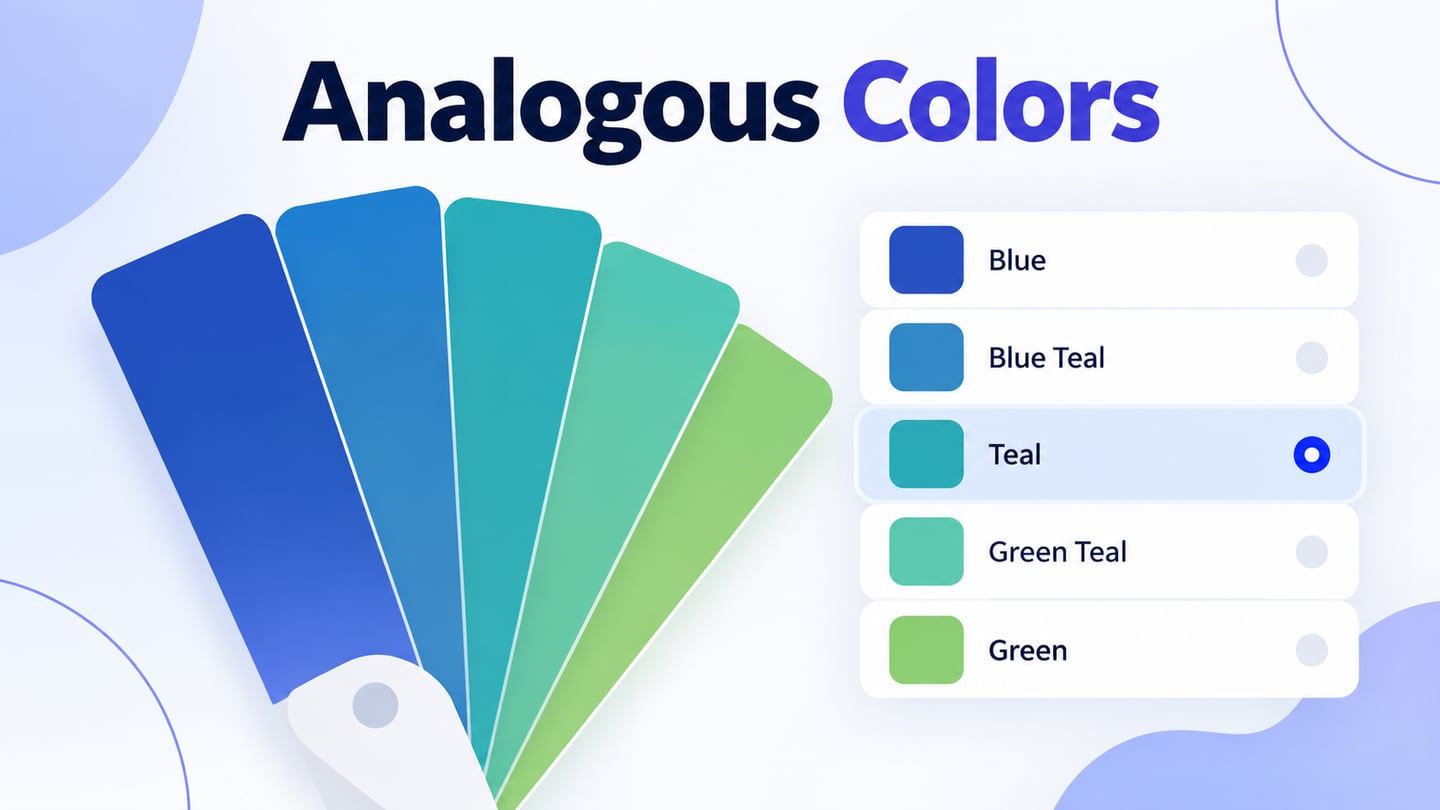
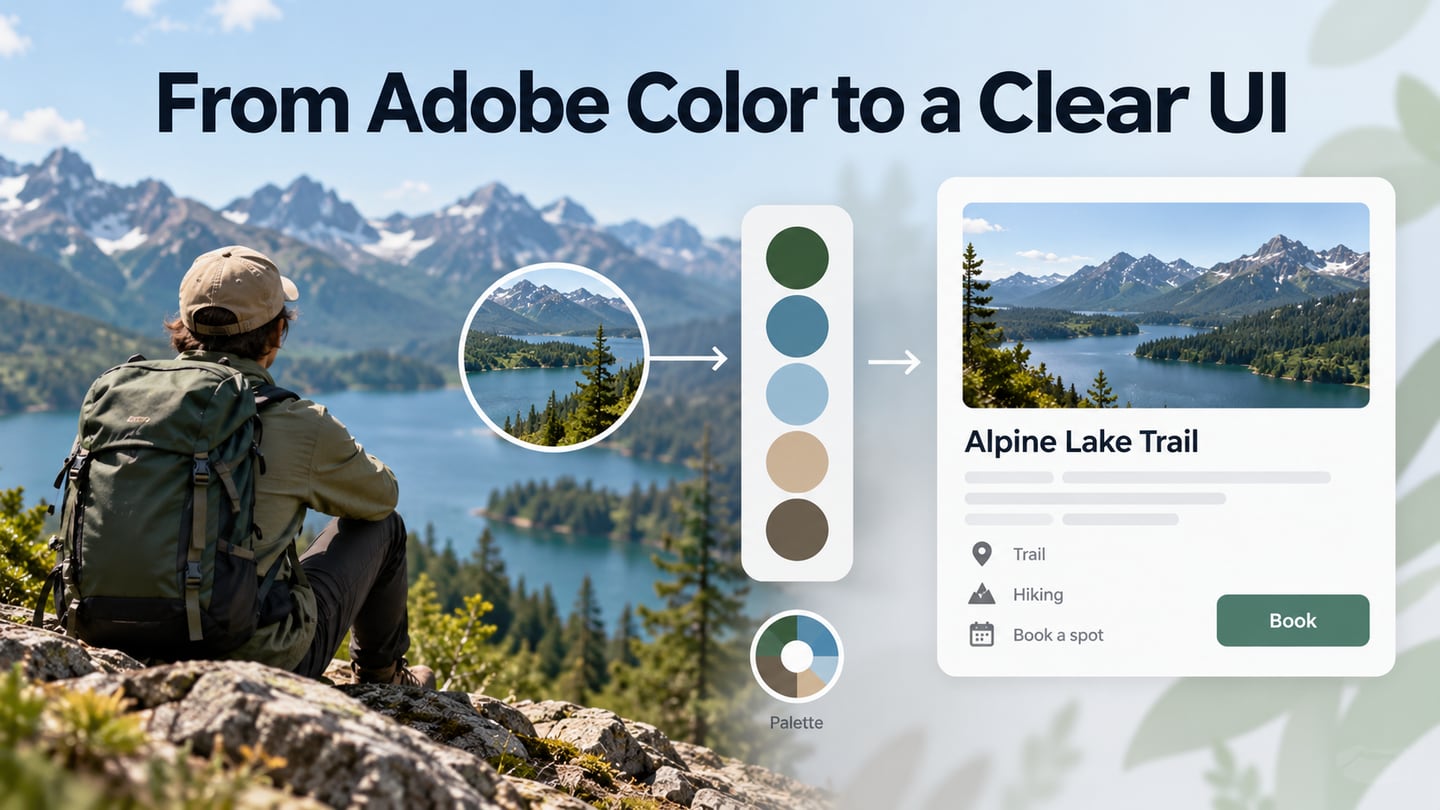
Adobe’s color wheel helps you start with a base color and explore related colors for a palette. For a website, the next question is how those colors will function: text, surfaces, actions and feedback need clear roles. Treat the tool as a starting point for UI color decisions, then inspect the colors together in the interface.
This guide follows a practical route from wheel or image-derived inspiration to a website palette. It keeps palette creation separate from accessibility checks and from applying the colors in a prototype. A pleasing set of swatches alone does not establish that a page is readable or usable.
What Is the Adobe Color Wheel?
The Adobe color wheel generates a palette from a base color and a selected harmony. You can refine the result instead of accepting the first combination. The current color.adobe.com pages describe these tools within Adobe Express; the workflow still centers on choosing, adjusting and saving colors. It is a palette tool, not a complete website builder.
You can begin in the browser without installing a separate color-wheel application. If you plan to use saved palettes in another Adobe application, check its current library and account workflow. Do not assume that every feature, automatic application option or integration is included in every plan.
The current Adobe pages provide several related ways to explore color:
- Wheel and harmonies: Choose a base hue and a relationship such as analogous, complementary or triadic, then refine the generated colors.
- Explore palettes: Browse existing combinations for inspiration. A palette provides colors, not a complete website template or a tested interface.
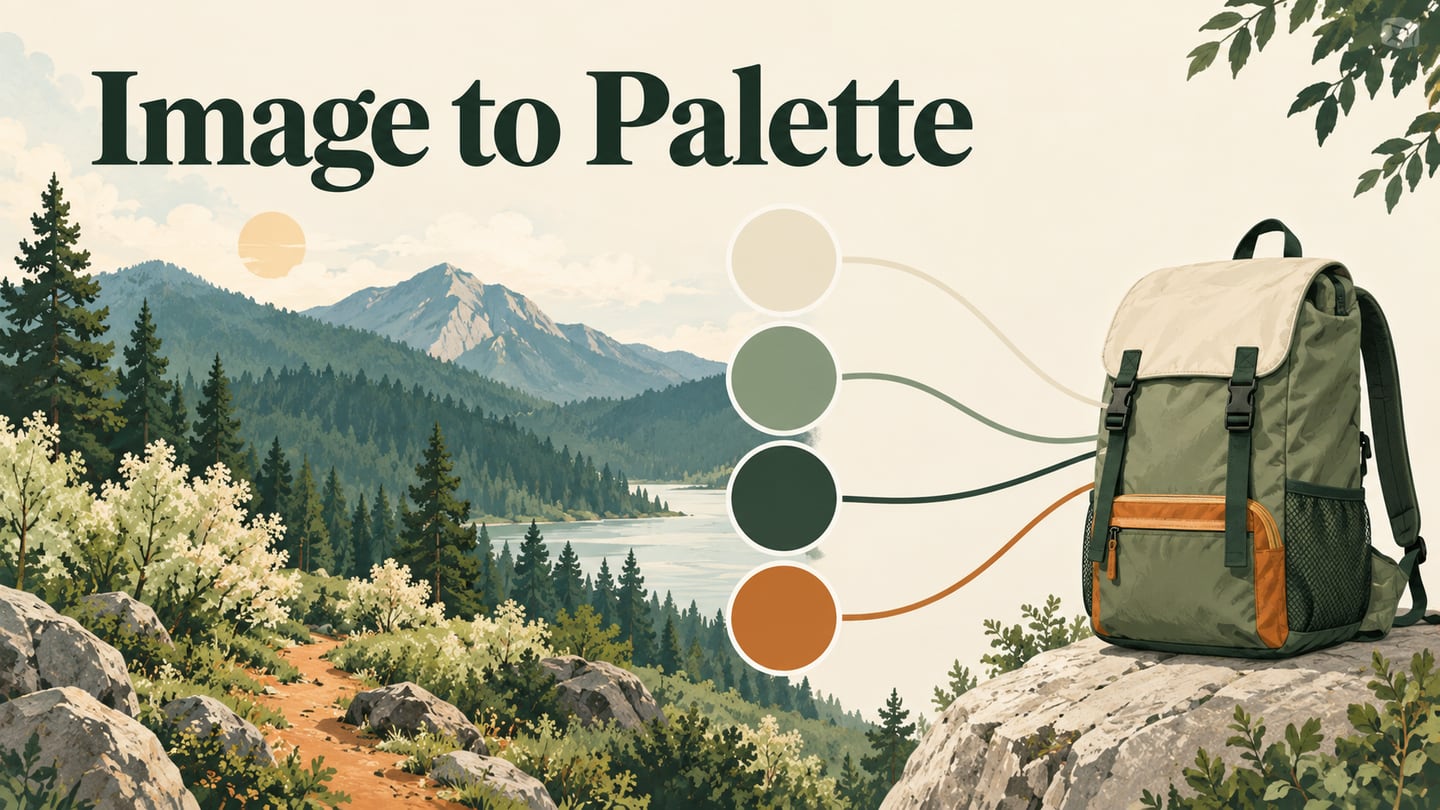
- Extract palette or gradient: Start with an image and inspect the selected colors. Use an image you have permission to upload, and adjust colors that do not fit the intended role.
- Contrast and color-vision tools: Check foreground/background pairs and explore how combinations may appear under simulated color-vision conditions. These tools support design judgment rather than certify an entire website.
Adobe’s current color-tool overview also explains saving palettes to a Creative Cloud library and using them in Adobe Express. It states that automatically applying palettes to Express designs requires a paid plan. Stock-image discovery and image licensing are separate matters; finding a color theme does not grant rights to an associated photograph.
Use Adobe Color for Website Design
Begin with a purpose for the palette. For a trail-booking page, a photograph may suggest green and warm neutral colors, but the interface still needs a readable text color and a clear action. The color-wheel guide explains the underlying relationships; here, use the tool to turn that relationship into actual color choices.
Choose a base color or upload a suitable reference image, select a harmony, and adjust the proposed swatches. Then test the colors in pairs and assign roles before transferring them to the design. The following checks make that sequence useful for a website rather than leaving it as an attractive row of colors.
- Start with the audience and message: Consider the site’s purpose, existing identity and context. Color associations vary; do not assume that a particular hue causes trust, sales or profit. Write down the job of the palette—for example, a calm reading surface and a clearly distinguishable booking action—so the choices have a reason.
- Refine image-derived colors: An outdoor photo can provide a useful starting set, but a pale sampled green may fail as text on a light background. Keep the inspiration while changing lightness or saturation for the actual use. Inspect the crop and image content separately; extracting a palette does not decide where the photograph belongs in the page.
- Check pairs, not only harmonies: Assign a foreground and background, then use the contrast checker. WCAG’s text contrast criterion requires at least 4.5:1 for ordinary text and 3:1 for qualifying large text, with specified exceptions. Do not round a failing ratio up. Contrast is one check; labels, focus indicators, non-color cues and the rest of the interface still need review.
- Explore, save and document: Browse palette collections when you need alternatives, but use trends as inspiration rather than evidence of effectiveness. Save the selected palette using the available account options, and record each hex value with its role. For example, distinguish the background green from the action green so another designer does not apply either one indiscriminately.
Apply the Palette in a Prototype
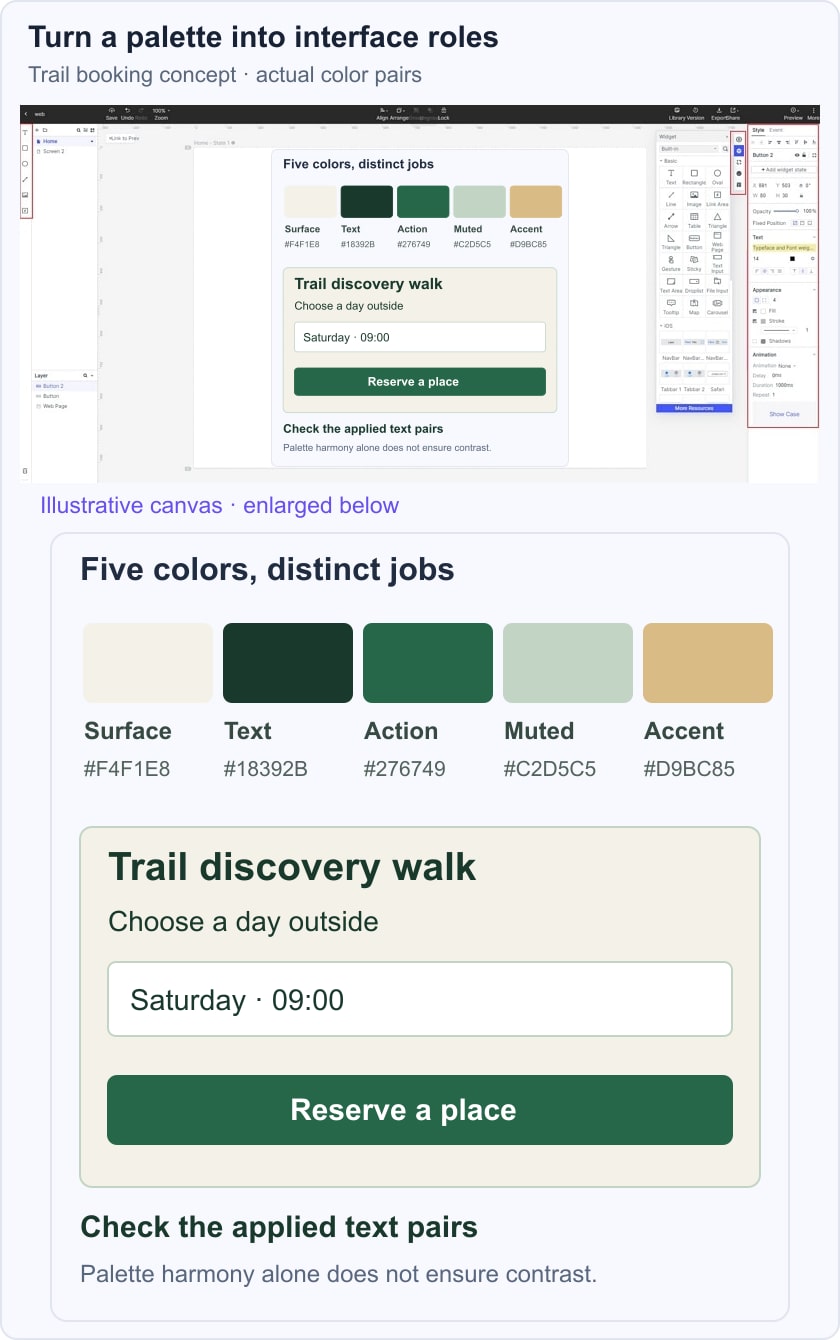
In Mockitt’s design workspace, place the colors in a realistic interface so the team can discuss the result. A trail-booking card could use a light warm surface, dark green text, a stronger green action and a muted accent. Apply the values deliberately; the example does not rely on a direct Adobe-to-Mockitt import feature.

The illustrative trail-booking card below maps a palette to surface, text and action roles. Keep the same content while comparing an alternative pair, and inspect the actual size of labels and buttons. This is a design review example, not proof that a live page meets every accessibility requirement.
- Adapt the layout: A template can provide structure, but replace its sample colors and content with the values and labels chosen for the task. Check whether the action remains distinct without adding unnecessary accent colors.
- Keep the decisions available: Store the palette values, intended roles and review notes with the project information. Confirm the current workspace’s access and saving options, and keep the original image or source attribution where it is needed.
- Review the complete screen: Check the palette with photographs, icons, longer labels and alternate states. Share specific observations such as “the secondary text is too faint on this surface,” then verify the implemented colors and contrast after handoff. A harmonious palette is most useful when it helps people read and act.