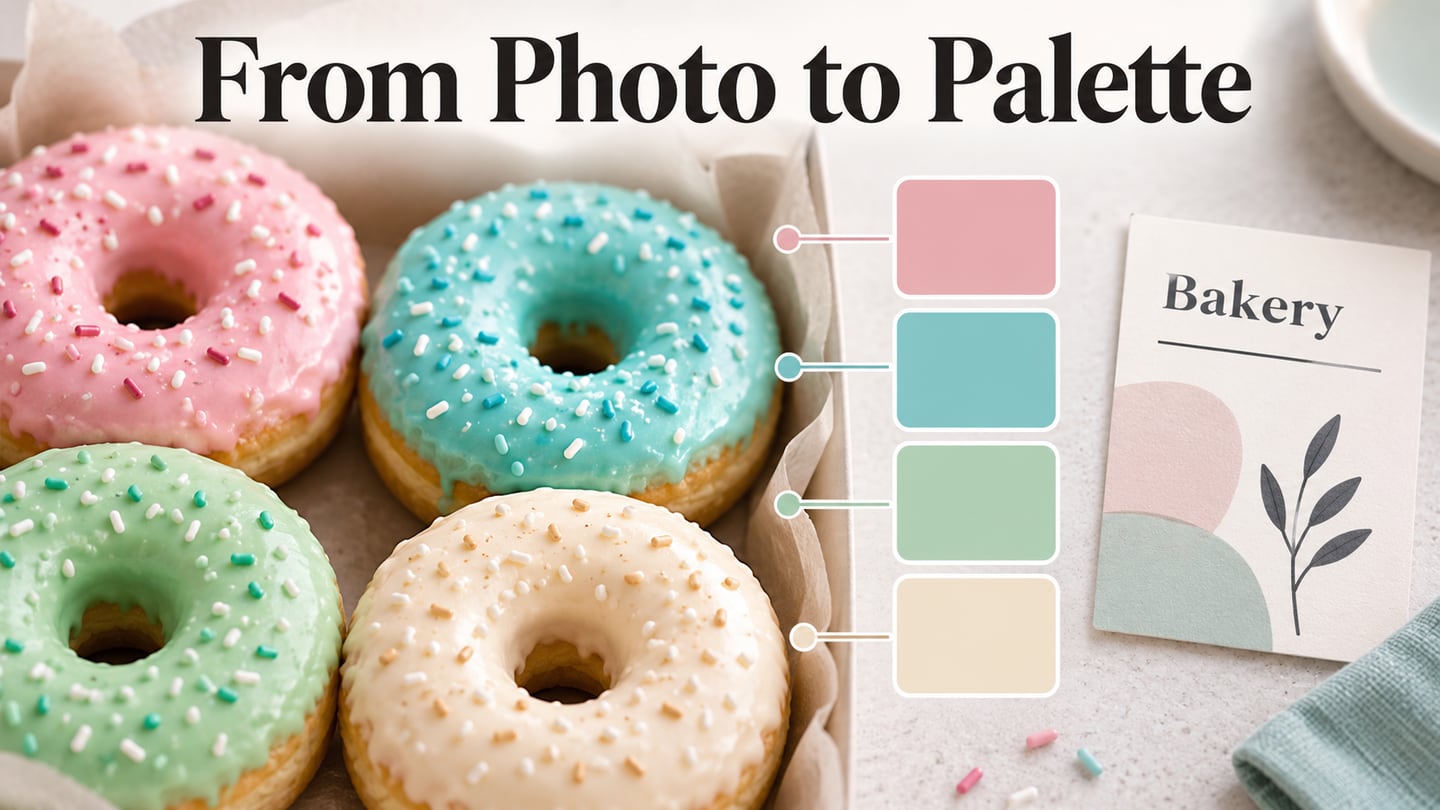
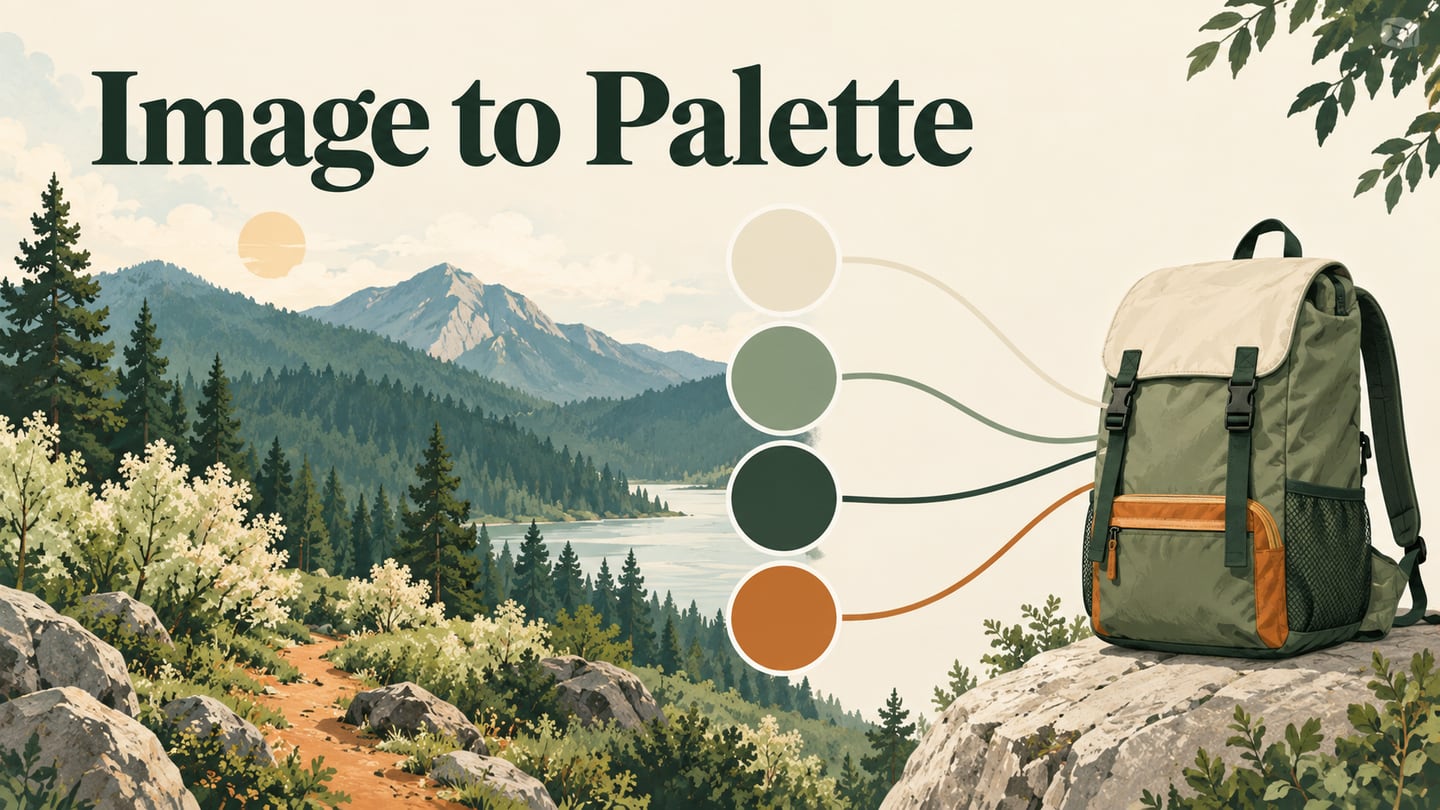
Creating a color palette from an image gives a design a concrete visual starting point. A forest photograph, for example, may suggest deep greens, pale foliage and warm earth tones for an outdoor brand. Select representative colors, record their values, then decide what each will do in the design. To choose a usable UI color scheme, check the actual text, surface and control combinations as well as the appearance of the swatches.
How to get a color palette from an image
A recorded palette helps you reproduce the same colors across a website, product interface, social post or business card. Start with an image that fits the intended identity, then use manual sampling or an extraction tool. The steps below also work with an illustration you own; a palette need not come from a photograph.
- Pick a source image for your color palette: Choose a photograph or a small group of pictures you have permission to use. For an outdoor outfitter, compare green landscape images with enough light and dark detail to offer useful choices. Avoid selecting a picture only because it is attractive: identify which subject, material or atmosphere connects it to the brand.
- Open your image in an editor or image picker: If you are comparing several pictures, a collage can keep the references together. Leave room beside them for swatches and their values. The exact controls depend on the application, so choose a tool with an eyedropper or documented image-palette extraction workflow.
- Sample representative colors: Use the eyedropper to select a point on the image, then record its color value. Sample a broad area of the intended color rather than an edge where neighboring pixels blend. A six-digit hex value such as
#173D32records red, green and blue channel values for the design. Different sample points can produce different shades. - Finish choosing the palette: Three to five colors can be a manageable starting set. Include a dark value, a light value and one or more intermediate or accent colors. Remove near-duplicates that serve no separate role. Assign provisional uses such as page surface, text and action, and adjust a sampled shade when the required pairing is not readable.
Three tools for extraction and palette exploration
Adobe’s image tool and Coolors extract colors from a source picture. Khroma takes a different approach: it generates combinations from your preferences. Choose according to whether you need reproducible image samples or new combinations to explore.
- Adobe Color / Adobe Express: extract a palette
The tool formerly known as Kuler is associated with Adobe Color; its current public palette page is branded Adobe Express. Adobe’s image-palette tool lets you upload an image, refine swatches by moving the selectors and obtain HEX or RGB values. The color wheel remains a separate way to explore relationships between hues. Save the chosen values so you can reproduce them in your design tool.
- Khroma: combinations based on your preferences
Khroma learns from a set of colors you like and generates combinations that you can inspect as typography, gradients, palettes or custom-image treatments. You can search by color characteristics or values and save favorites. This is useful when you want alternatives to a sampled palette. Its custom-image display should not be confused with extracting the original colors from an uploaded photograph.
- Coolors: an image picker and a palette generator
Coolors documents a photo-to-palette workflow in its Image Picker: upload a photo, inspect suggested palettes, move sample points and reorder the colors before saving or exporting. Its generator also offers combinations you can explore independently of an image. Keep a copy of your selected values so a later random palette does not replace the reference you meant to use.
After sampling, color-wheel relationships can help you evaluate whether the selected hues work together. Harmony and readability answer different questions: an attractive set of swatches still needs checks in its actual layout.
Apply the palette to an interface in Mockitt
Once you have the values, use Mockitt’s design workspace to apply the palette to text, surfaces and controls. Mockitt supports the interface-design stage of this workflow; use the image picker or editor for sampling. The historical product overview shows a travel-prototype workspace, while the example below applies a different palette to an outdoor-equipment task.
For a reproducible illustrated example, use a forest image containing #173D32 dark green, #D9E4CC pale green, #F7F4E9 cream and #A85B32 earth orange. In an original “Trail Supply” daypack-rental card, assign cream to the surface and dark green to the text and “Check sizes” button. Keep pale green for a supporting area and earth orange for a small decorative accent. The authored source illustration and swatches make those choices explicit.
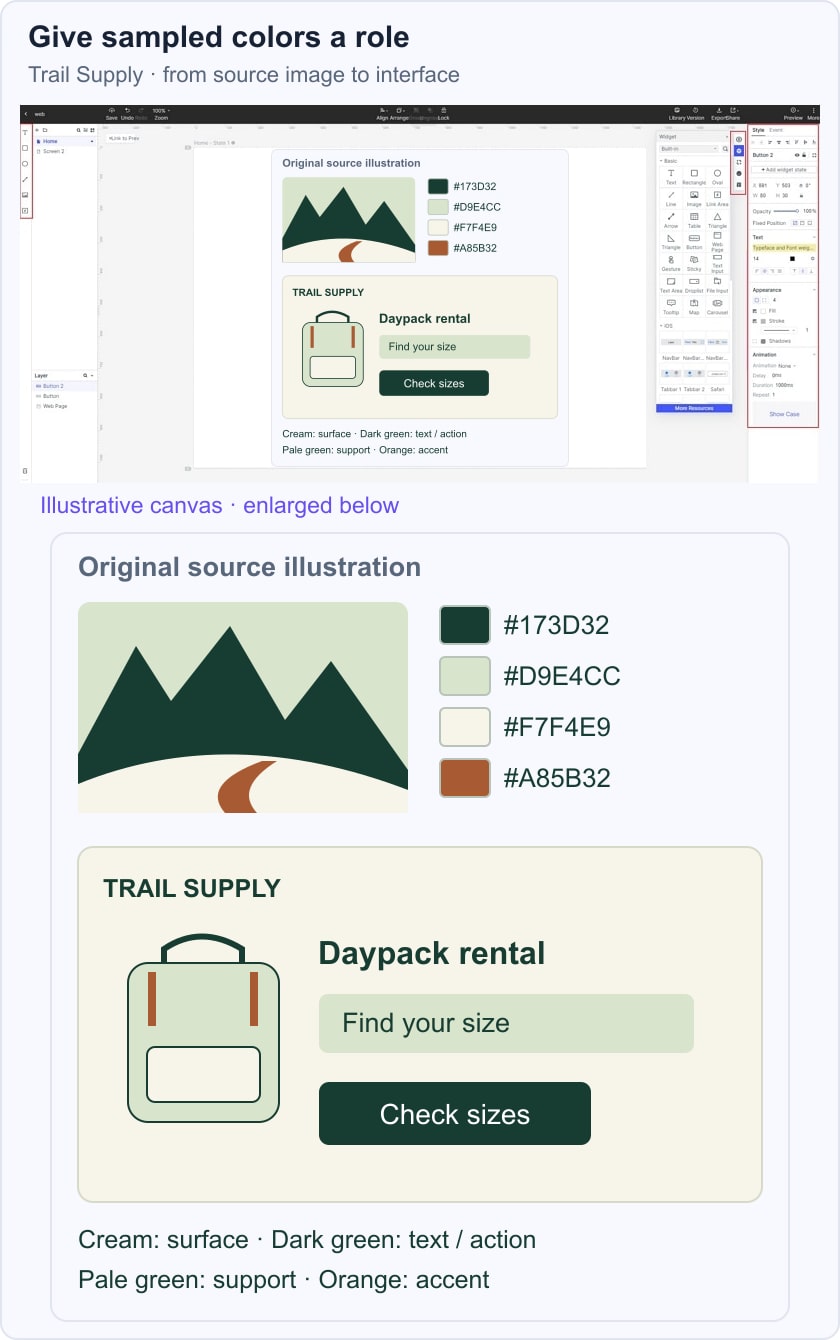
Measure contrast for each foreground/background pair, including button text. WCAG’s minimum text-contrast criterion generally requires 4.5:1 for normal text and 3:1 for qualifying large text, with stated exceptions. Color sampling alone does not establish accessibility; also make states understandable without relying on color alone.

Build and preview the color roles
- Use interface widgets to place text, cards and controls, then apply the recorded color values consistently.
- Connect the relevant screens or states in a prototype so you can review the color choices where the task changes, rather than only on a static palette strip.
- Work in the browser workspace and preview the design at the sizes needed for the project.
- Share the design for review, with the source image, color values and proposed roles available to the team.
Keep the palette useful as the design changes
- Reuse the same surface and text colors across related cards instead of sampling a slightly different green each time.
- Ask reviewers about specific pairings: can they read the button label, distinguish a selected state and identify the next action?
- Keep a small reference of approved color values and roles so new components can follow the same decisions.
- When you adjust a shade for contrast, update the reference and affected components together. Preview the revised combinations before handing them off.
An image-derived palette is a starting set of choices. The finished interface should show why each color is present, what it communicates and whether its actual combinations are readable.