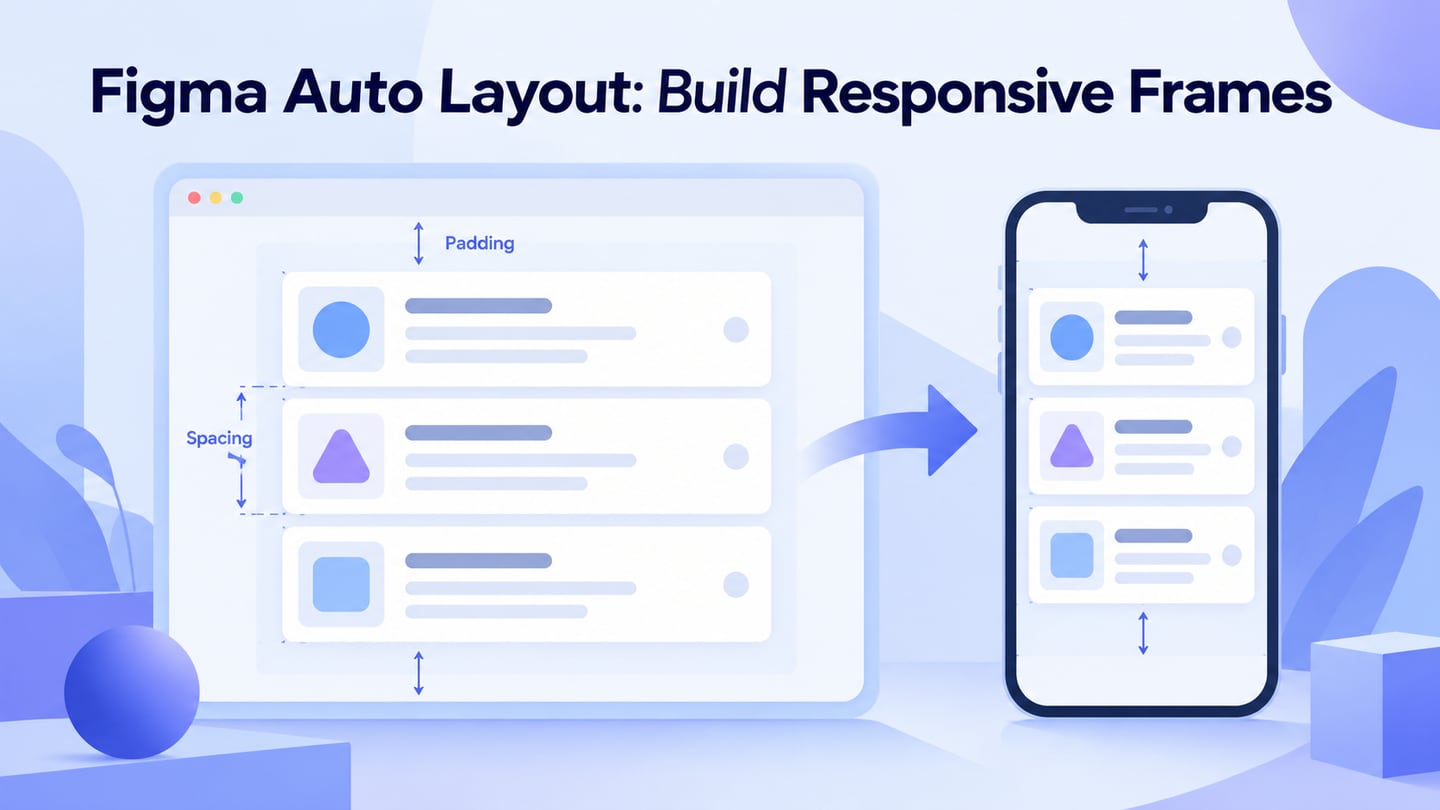
Figma Auto Layout lets a frame respond to changes in its children through direction, spacing, padding and resizing. This guide preserves the original workflow and checks the current options before comparing the task with Mockitt's UI design workspace.
What is the Figma Auto Layout Feature
Auto Layout is a dedicated feature in Figma that can be applied to components or frames in your projects. Once the auto layout feature in Figma is applied, it will let the frame and its components fit dynamically (shrink or expand).
As content changes, Auto Layout applies the direction, gap, padding and resizing choices you set. The following examples show where the feature is useful:
- You can add the auto layout feature to new or existing components
- It can be implemented to an entire frame to create an interface
- You can also manually make a list to adopt auto layout in Figma.
- It can help you create buttons and text fields that can expand or shrink as you design.
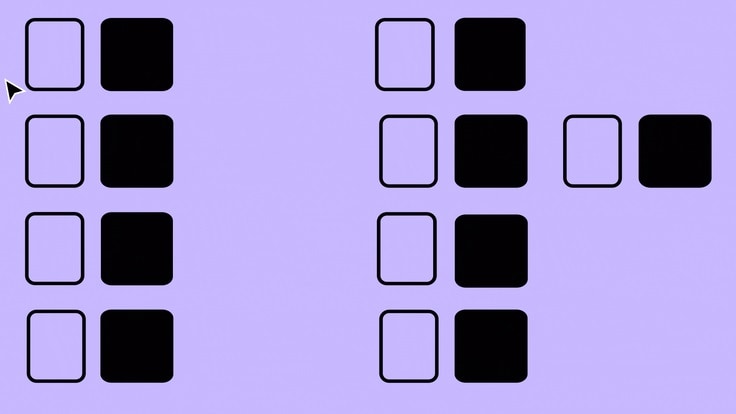
While working on the smart layout in Figma, please note that auto layouts would have their padding, strokes, radius, and other properties that you can customize as well.
How to Apply and Work on Auto Layout in Figma
Now when you know the benefits of the Figma auto layout feature, let's learn how to work on it. I have considered a simple example of implementing auto layout in Figma, but you can further explore the feature and apply it in your designs the way you like.
Step 1: Add Design Elements and Components
To begin with, you can just launch the Figma interface and add any component to your canvas. You can use the inbuilt feature of Figma to add multiple components if you want.
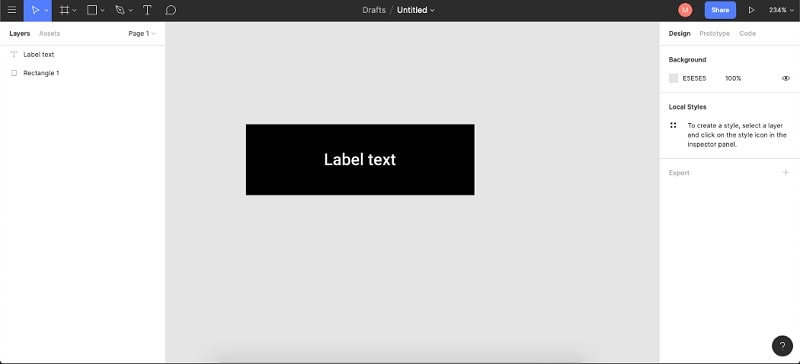
Step 2: Enable the Auto Layout Feature
Select one or more layers, then press Shift+A or choose Add auto layout in the right sidebar. Figma applies auto layout to the selected frame or layers; the available resizing and alignment controls depend on the selected structure.
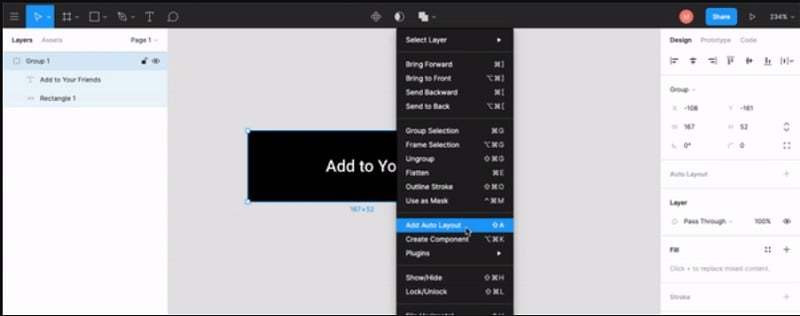
Step 3: Customize the Figma Auto Layout options
Once the Figma auto layout feature is enabled, you can view its dedicated options on the sidebar. If you want, you can use the arrow icons to adjust the placement of the components and find numerous other options here.
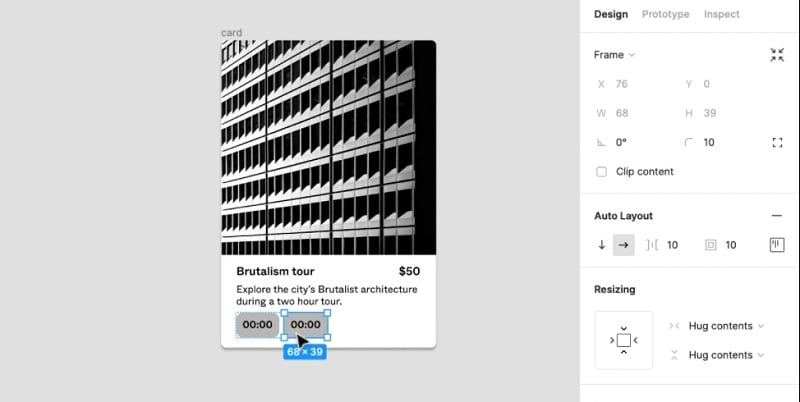
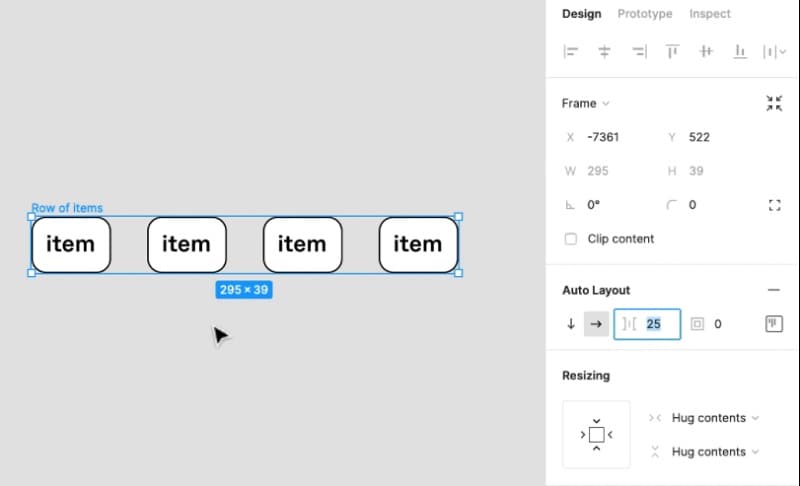
In case multiple objects are selected, you can go to the spacing field in the smart layout section in Figma. Here, you can manually enter the spacing value to shrink or expand the frame.
Apart from that, you can also adjust the padding options from the Figma auto layout section. There are different preset options that you choose or can do it manually as well.
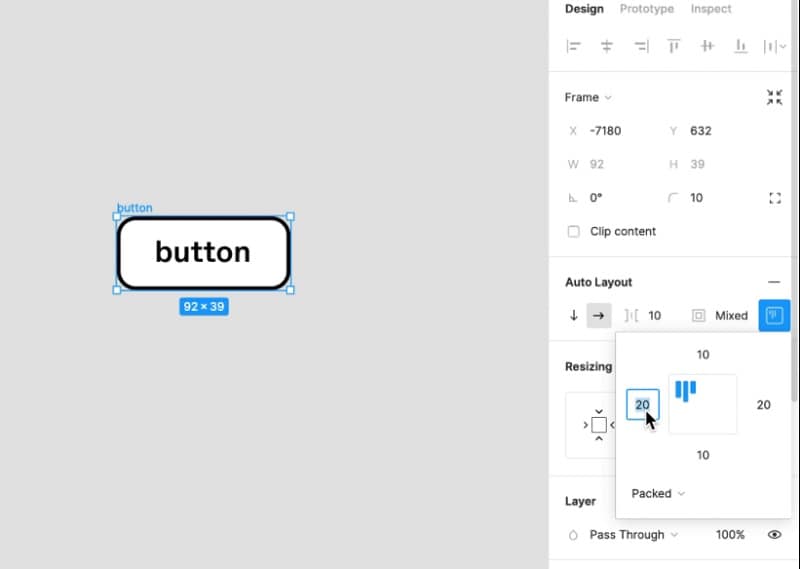
In the auto layout section, check alignment, spacing, padding and resizing together. If the frame no longer needs the behavior, remove Auto Layout and confirm the resulting dimensions before sharing the file.
The Best Alternative to Figma
Auto Layout controls responsive arrangement and resizing in Figma; a reusable widget or master component in another tool should not be described as the same feature. Mockitt is an online UI design and prototyping workspace that can help teams create reusable visual patterns and review linked screens.
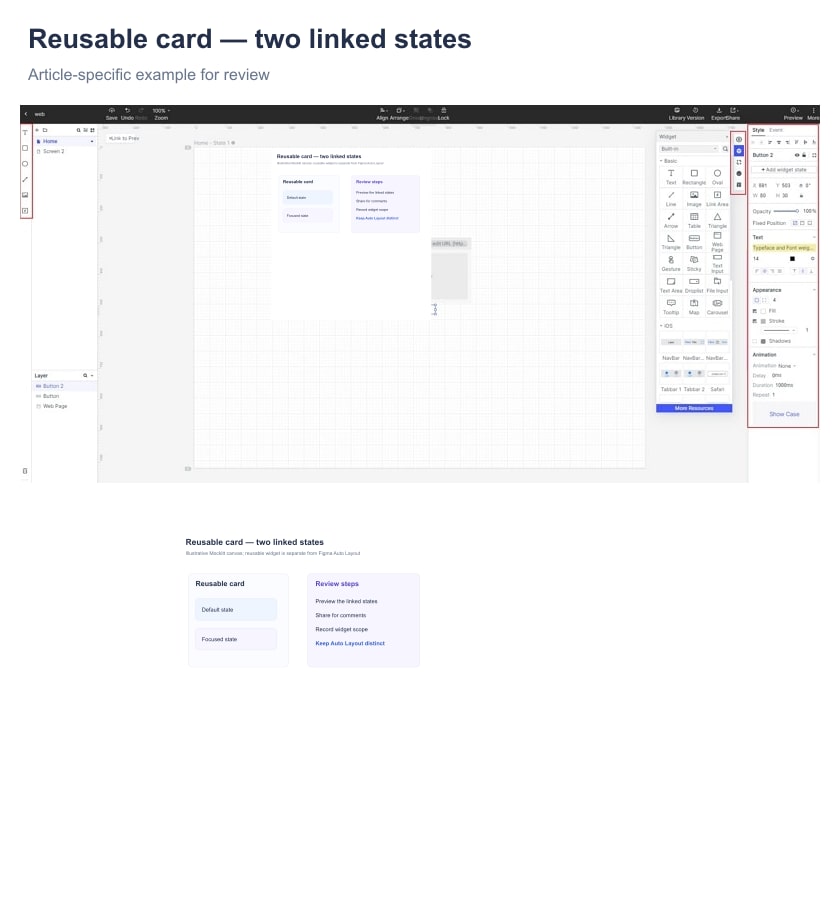

- With the Master widget tool, you can easily modify the linked components. The other components would automatically inherit the changes made in the master widget.
- On Mockitt, you can also find an extensive library of vectors, icons, and even ready-made templates.
- There are options to include transitions, animations, and other dynamic components to make prototypes with high fidelity.
- Using its collaborative features, you can work together with your team, and even get a preview of your designs.
- There are also features to instantly share your work with others or export your designs in different formats.
You can start working on the master widget in Mockitt and save your efforts in the following way:
Step 1: Start working on your project
To begin with, you can just go to your Mockitt "Personal Space" or "Enterprise Space" and click on the "Create" button. Choose to create a new project and add a screen to work on your canvas.

Step 2: Add Master Widgets
There are different ways to use the master widgets in Mockitt. Go to the floating sidebar on the right and select "Master" (the fourth option). This will display various master widgets that you can drag and drop to the canvas.
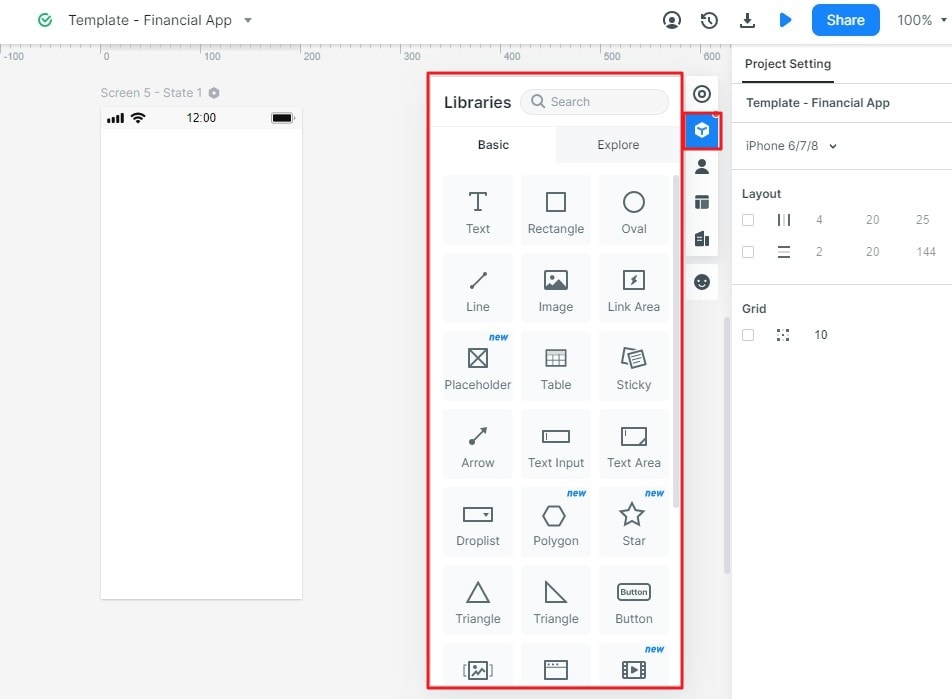
Apart from that, you can find numerous other components and widgets in Mockitt that can be included in your design. You can select any component, right-click, and choose to make it a master widget.
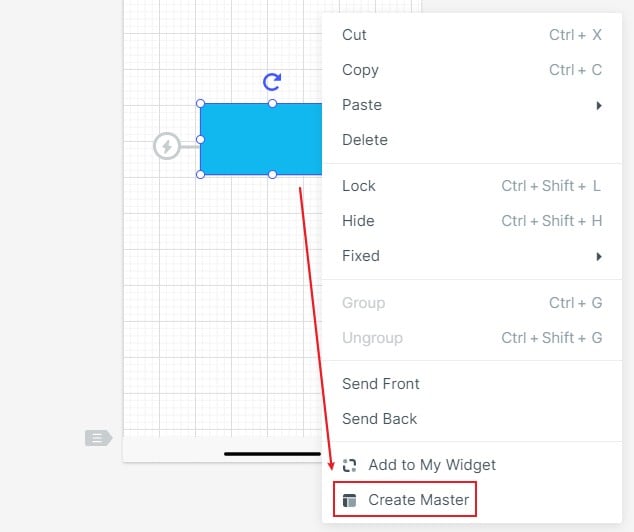
That's it! You can now hover your mouse on the master widget to get the edit option and can link other components to it as well.
Step 3: Preview and Share your designs
After editing the reusable widget, preview the linked screens and check the states that should be shared. Use the current Share controls to create the review link or other available handoff option.
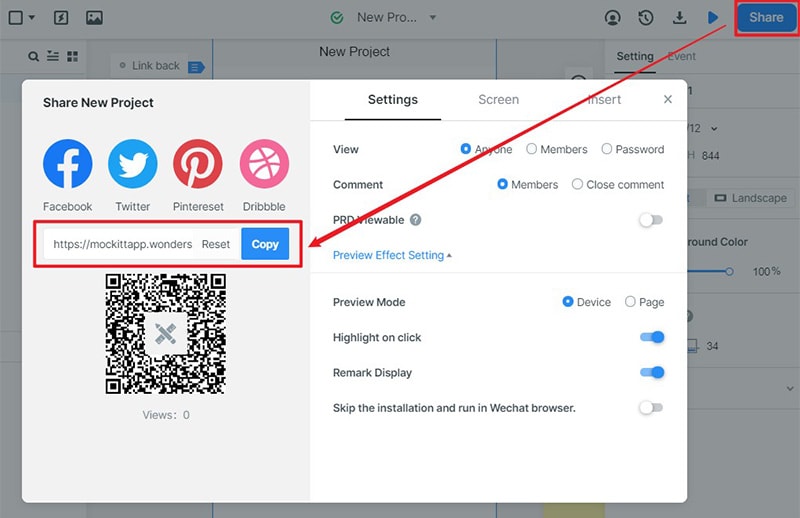
Use the Figma example to confirm which elements should resize, wrap or stay fixed. In Mockitt, use reusable widgets when the goal is consistent visual structure, then review each linked screen and interaction before implementation.