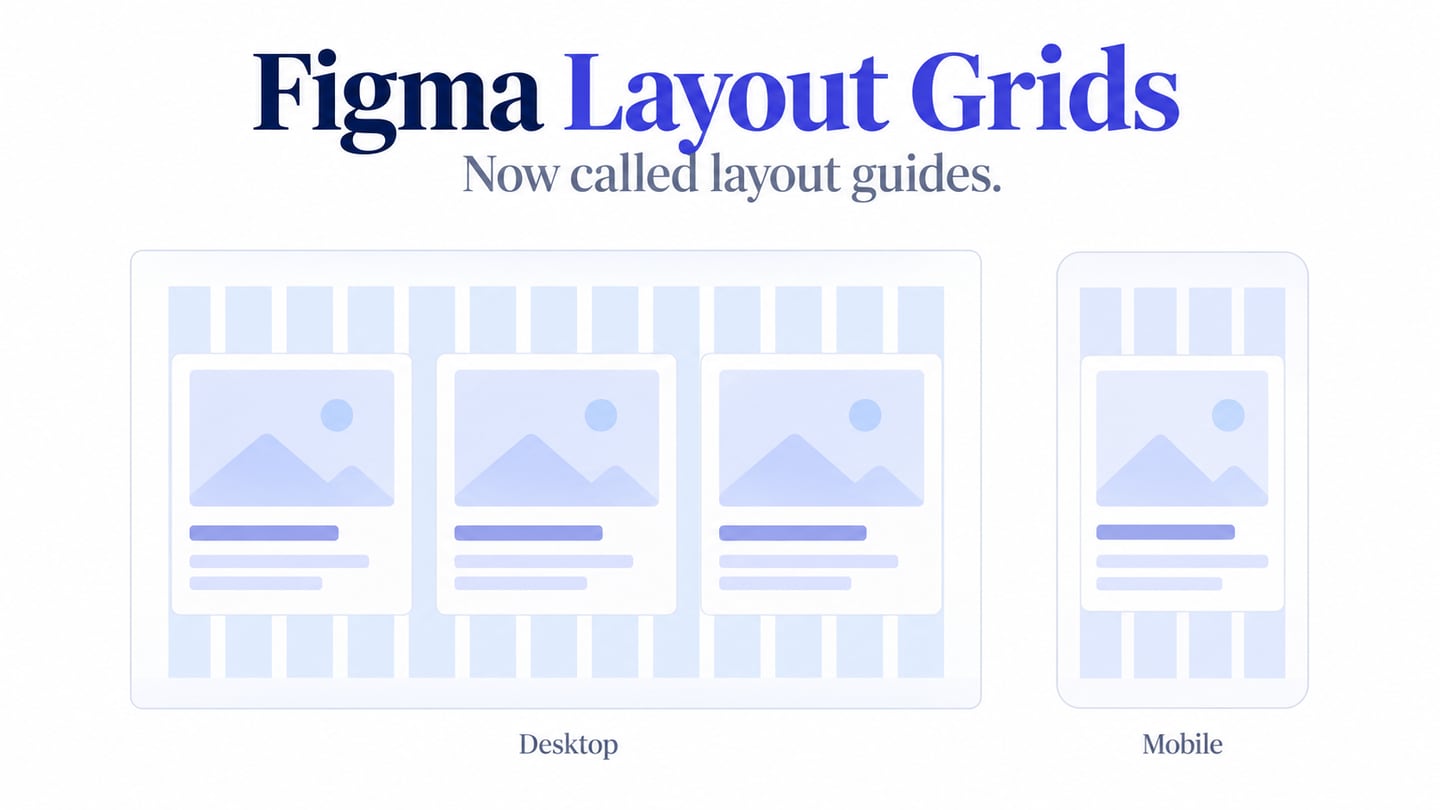
A Figma layout grid helps align the content inside a frame. Figma now calls this feature Layout guide; it is different from the grid option in Auto Layout. This tutorial keeps the familiar grid, row and column workflow and explains how to choose its settings. The same alignment decisions can inform a review in Mockitt's UI design workspace, without assuming that the two tools use identical controls.
What Is a Layout Guide in Figma?
Layout guides are visual alignment aids on a frame, not containers that automatically arrange its contents. Figma's current documentation uses the name Layout guide, introduced in May 2025. Keep this distinction in mind when following an older tutorial or looking at the screenshot below.
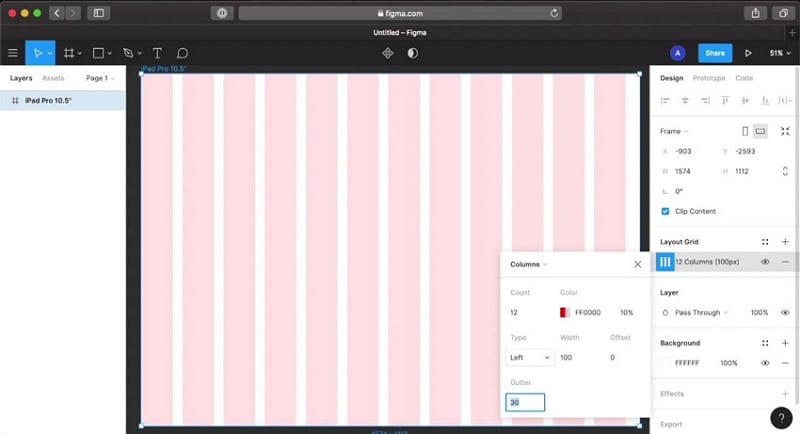
Historical Figma column-grid screenshot; image source: laptrinhX. The current interface uses the name Layout guide.
Guides are useful for aligning card edges, text columns and repeated elements. Add them to the relevant frame or component, then compare the content against those lines. If your goal is automatic spacing or resizing as content changes, read the separate Figma Auto Layout guide rather than expecting a visual guide to move layers for you.
How to Create a Layout Guide in Figma
Start with the frame whose content you want to align:
- Select the frame on the canvas or in the Layers panel.
- In the right sidebar, choose Add layout guide.
- Figma adds a uniform grid by default.
- Open Layout guide settings to choose the type and adjust its properties.
Choose a uniform grid for square alignment, columns for vertical divisions or rows for horizontal divisions. A frame can use more than one guide. For example, a card listing may need columns for card edges and rows for consistent section starts.
To change the guide after adding it:
- Open the guide settings for the selected frame.
- Choose a uniform grid, column or row guide.
- Adjust the settings, then inspect the actual content rather than judging the guide lines alone.
A uniform grid uses a chosen square size. For columns and rows, Count sets the number of divisions. Stretch adjusts their size with the frame: Margin is the outside space and Gutter is the gap between divisions. Fixed guides instead use a specified width or height; Offset positions them relative to the relevant frame edge. Choose these settings deliberately rather than mixing a fixed-column assumption with a stretch calculation.
Combining rows and columns can help you inspect both axes, but the guide is only a reference. Moving or resizing a frame does not automatically prove that every child has the right resizing behavior. Check the content after each change, especially long labels, images and groups with a fixed width.
Example: choose columns for a card listing
Suppose an events page uses a 1,440px frame, 120px outside margins, 12 columns and 24px gutters. The space available for the columns is 1,440 − 240 − (11 × 24) = 936px, so each column is 78px wide. A card spanning four columns occupies (4 × 78) + (3 × 24) = 384px. Three such cards plus two 24px gaps fit the 1,200px content area.
These numbers are an example, not a required standard. Start from the content: if a long event title becomes cramped, reduce the number of cards per row or change the frame and spacing choices. Do not solve the problem by making every label smaller.
For a 390px mobile frame, try 16px outside margins and four columns with 16px gaps. The content area is 358px; each column is 77.5px wide. A full-width card spans that area. Comparing this with the desktop frame helps you decide what should stack and what should remain aligned. A written spacing-token convention can keep those choices consistent across screens.
Check the result, not just the lines
- Check long titles and button labels at each intended size.
- Look for elements that accidentally sit outside the shared content edge.
- Hide the guides temporarily and confirm the hierarchy still reads clearly.
- If content must rearrange automatically, configure that behavior separately and test it.
Reviewing a Layout in Mockitt
When reviewing the same layout idea in Mockitt, prepare the important screen sizes and compare alignment, text wrapping and the route to the primary action. The point is to review the design decision, not to reproduce a Figma feature name in another product. Keep the agreed dimensions and spacing with the design so the team can discuss the same example.
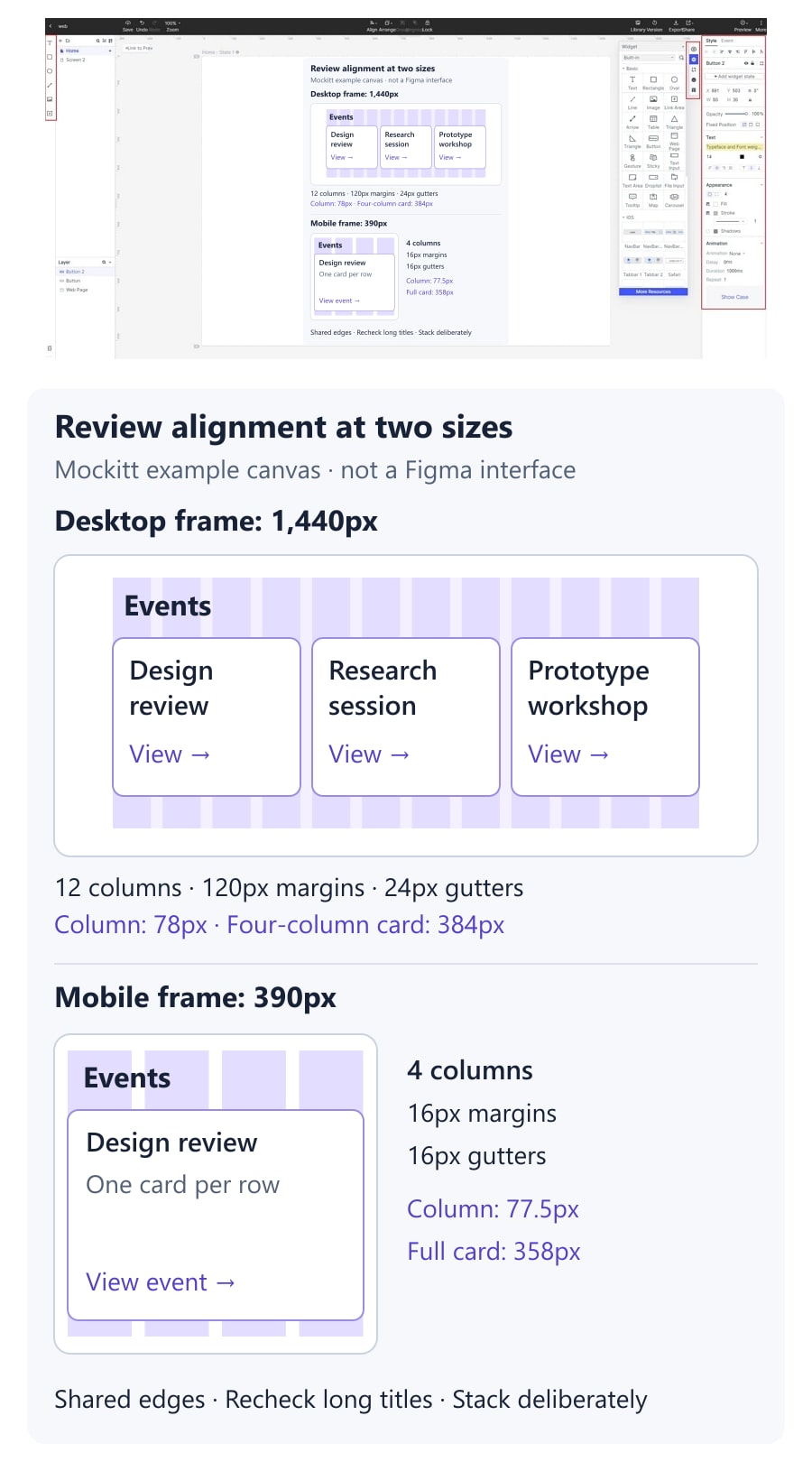

Mockitt supports editable interface design, reusable visual elements and team review. Use those capabilities to compare the event-card layout at desktop and mobile sizes. The screenshot below shows an earlier Mockitt prototype editor; it illustrates a design workspace rather than a Figma grid setting.
What to Compare in the Review
- Do the card edges and headings share a deliberate alignment?
- Can teammates identify the intended dimensions and spacing?
- Does the prototype show the route from a card to its details?
- Do long labels and images remain readable at each reviewed size?
- Are reusable elements consistent where the same pattern appears?
- Can the team access the shared review and connect feedback to the relevant screen?