Canva Color Palette Generator extracts a small set of colors from an image and displays their hex values. It is a convenient starting point when a photograph needs to inform a design, but the result still needs practical roles: background, text, accent and action. Those decisions are part of a usable UI color scheme, especially when pale colors from a photograph become backgrounds behind text.
What Canva Color Palette Generator Does
Canva’s broader design platform includes templates, images, fonts and editing tools for many kinds of visual content. Its palette generator is a more focused page: you supply an image and use the resulting colors as references. You do not need to choose a poster or presentation template simply to understand that palette.
A palette extracted from an image reflects the supplied source. A small bright object or a large pale background can influence the result differently. Choose a photograph that represents the intended visual direction, rather than assuming any image associated with a brand will produce the same colors.
Keep the palette task separate from the rest of Canva’s design workflow:
- The generator page is publicly accessible; account and plan requirements for editing, storing or reusing a design are separate questions.
- Templates and preset formats help with a finished Canva design, but they are not required to read the displayed color values.
- Copy the values you need so another designer can reproduce the selected colors.
- Record the source image and the chosen values; do not assume a temporary palette view is a saved project.
- Use an image you have permission to upload, especially when it contains a person, a client asset or unpublished work.
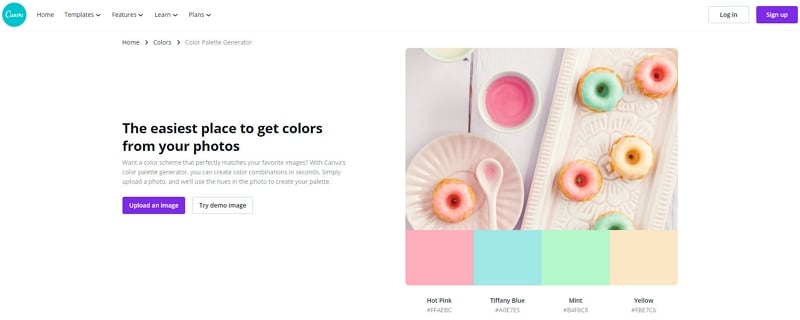
The original generator capture below shows pastel iced doughnuts and four swatches. It is an earlier view of the page, so its navigation and example image may differ from the current version. The relationship remains useful: one photograph supplies a starting palette, while the designer decides how the colors should work together.
How to Use the Canva Color Palette Generator
A palette gives a design some visual continuity, but it cannot decide whether a label is readable or an action is easy to distinguish. Before extracting colors, choose a specific task: for example, use a pastry photograph to guide the colors of a bakery collection card. That is easier to evaluate than trying to find one “perfect” palette for every screen.
Open the official Canva Color Palette Generator directly. The current public page presents an Upload an image action and a four-color example. It is not necessary to begin these instructions by creating a design project or locating a sidebar from an older screenshot.
If you later choose to use the palette in a Canva design, follow the account or plan requirements shown for that operation. Viewing a public generator page and saving a design are different activities.
Use this sequence to obtain a palette and carry it into your design notes:
Step 1: Prepare the source image. Choose a clear image with the colors you want to explore. Crop out unrelated material if it dominates the photograph, while retaining enough context to explain the design direction.
Step 2: Open the generator page. Use its direct URL rather than searching for a particular left-hand menu. Check that you are on the image-to-palette page, not the separate gallery of pre-made color palettes.
Step 3: Choose Upload an image. Select the intended file and wait for the page to display its palette. If the file is not accepted, follow the page’s current format or size guidance rather than repeatedly submitting the same file.
The earlier capture includes a Try demo image action. That label is not needed for the workflow: the current page’s own example already shows how an image and swatches relate. Treat old button positions as historical context, not a requirement for finding the current tool.
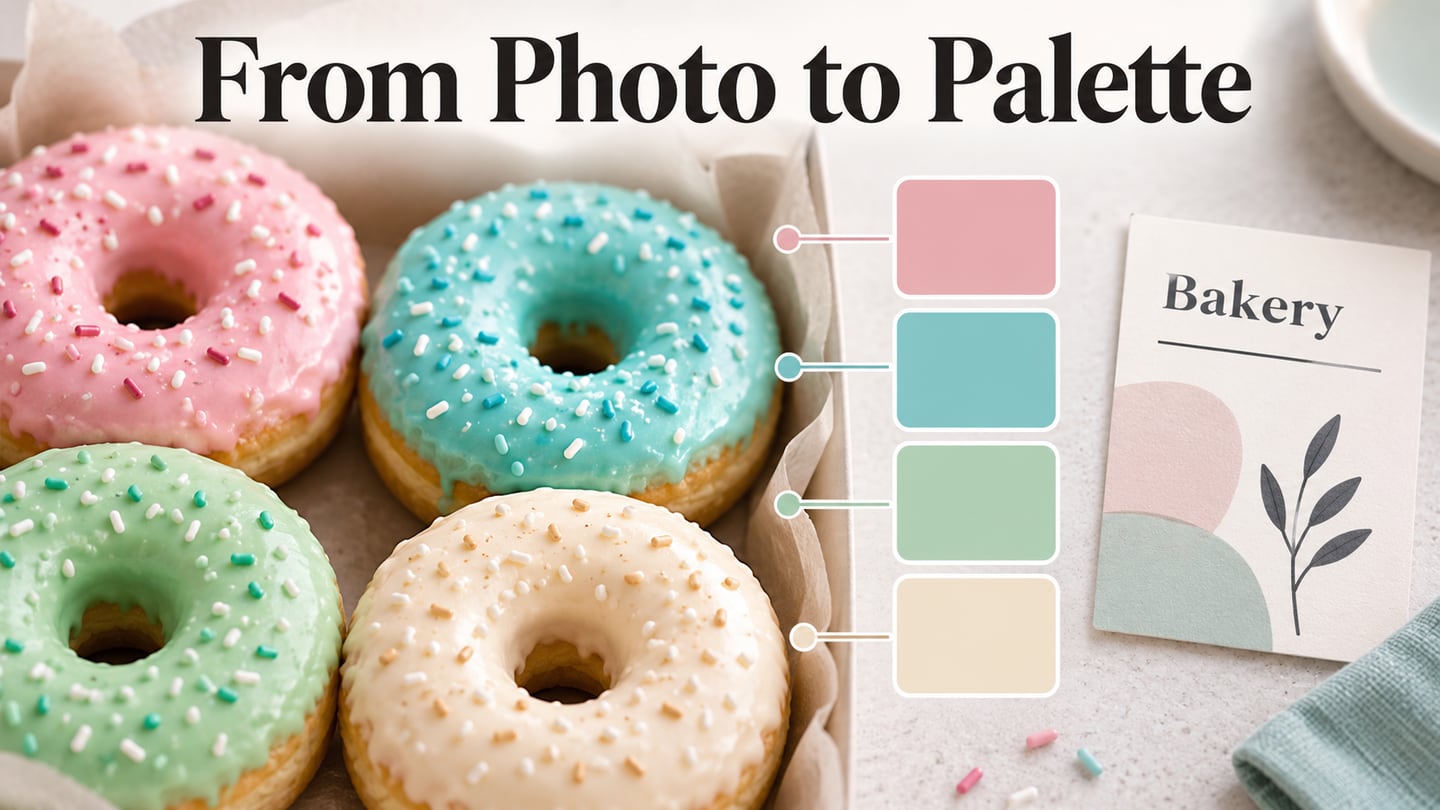
In the preserved doughnut example, the swatches are pale pink, turquoise, mint and cream. The photograph makes a cheerful starting point for a bakery identity. It does not provide a sufficiently dark body-text color merely because those four swatches look coordinated.
Step 4: Read the colors and copy their values. Inspect the generated swatches, names and hex values. Copy each required value to your design notes or the destination color field. A hex value is more useful for reproduction than a color name alone.
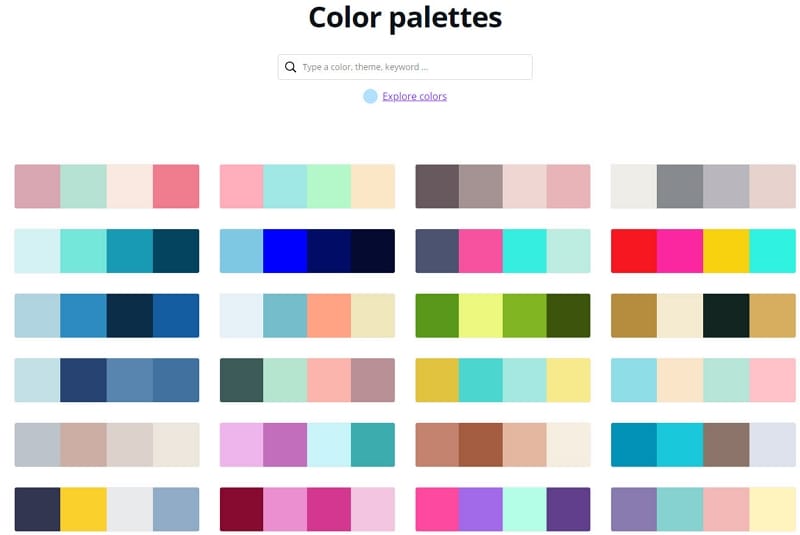
The public generator displays four colors. Keep the selected values together with the image so later changes are deliberate. The palette gallery shown below is a separate source of inspiration; browsing another combination is not the same as extracting the colors from your own photograph.
Copy a value to the clipboard, then paste it into a supported hex field and check the resulting swatch. Confirm whether the field accepts a leading # and whether opacity is controlled separately; the same base color can look different when transparency or a background changes.
For text, the WCAG contrast guidance uses a minimum of 4.5:1 for ordinary text and 3:1 for large text, with specified exceptions. Check the actual foreground/background pair. A palette can be attractive while a particular label on it is hard to read.
Apply the Palette in an Interface
In Mockitt’s UI design workspace, translate the palette into specific interface roles. A bakery collection card might use cream for the surface, mint as a small accent and dark brown for the heading and action. The dark supporting color is a deliberate addition for the interface, not a claim that Canva extracted it from the original photograph.
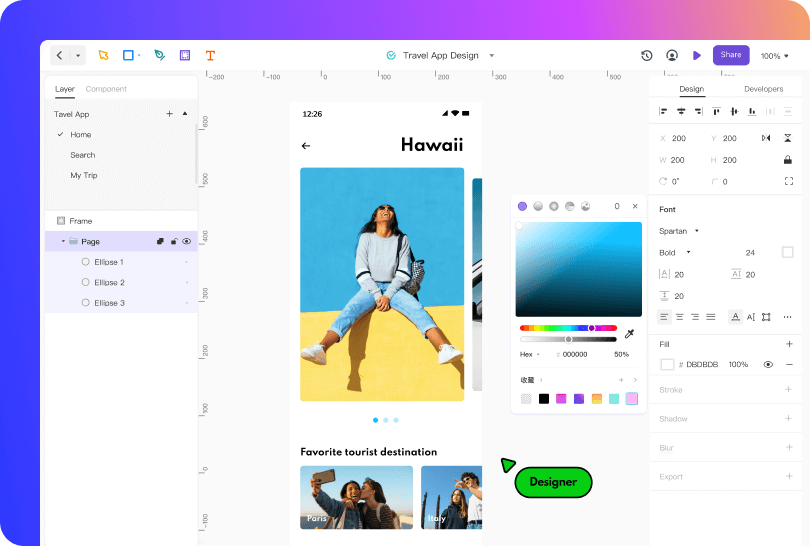
- Use vector shapes and text to arrange the card before introducing decorative effects.
- Keep the shapes simple enough that the palette remains the main variable you are evaluating.
- Apply fills consistently: the same action should not change color merely because it appears on another screen.
- Share the design with collaborators and ask which information and action they notice first.
- Reuse components or color variables where available so an agreed palette change can be applied consistently.
- When the color decision affects selection, focus or another state, include that state in the prototype instead of judging only a static card.
Steps for Applying the Colors
Step 1. Create a Design Project
Create a design project and name it for the interface task. The retained setup capture shows Design under an earlier Create menu. Start with the card’s actual heading, product image and action text so you can judge the colors against realistic content.
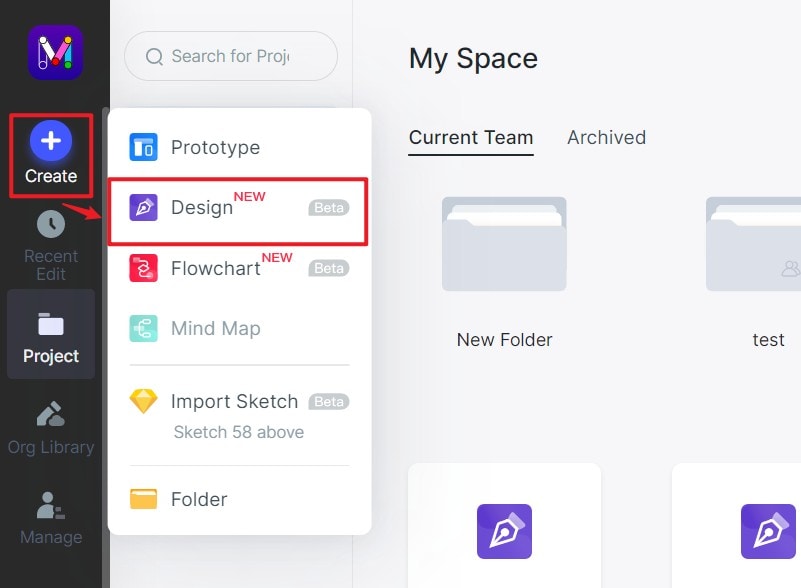
Step 2. Use the Color Palette
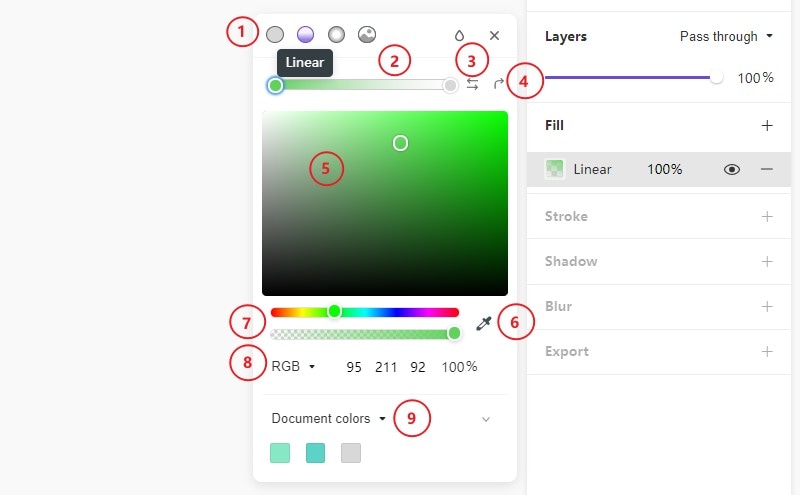
Create an artboard, add the required text and shapes, and select the shape whose fill should change. In the preserved interface, the Fill area opens the color picker. Enter the chosen value and inspect it beside the other elements at the size a reader will see.
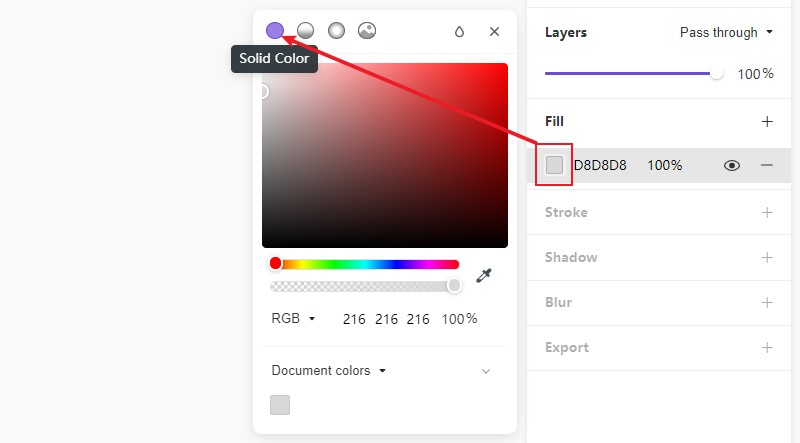
The retained controls illustrate a solid fill and a linear gradient; the picker also exposes other fill options. A solid surface is a useful baseline before adding gradients or layered fills. For the bakery card, keep the pale surface and decorative swatches separate from the dark text and action so their roles remain clear.
The illustrative card uses the doughnut palette as inspiration while giving text its own dark supporting color. Compare the card with the swatches visible, then hide the swatches and judge whether the card still communicates its title and next action. That second view is closer to the reader’s actual experience.
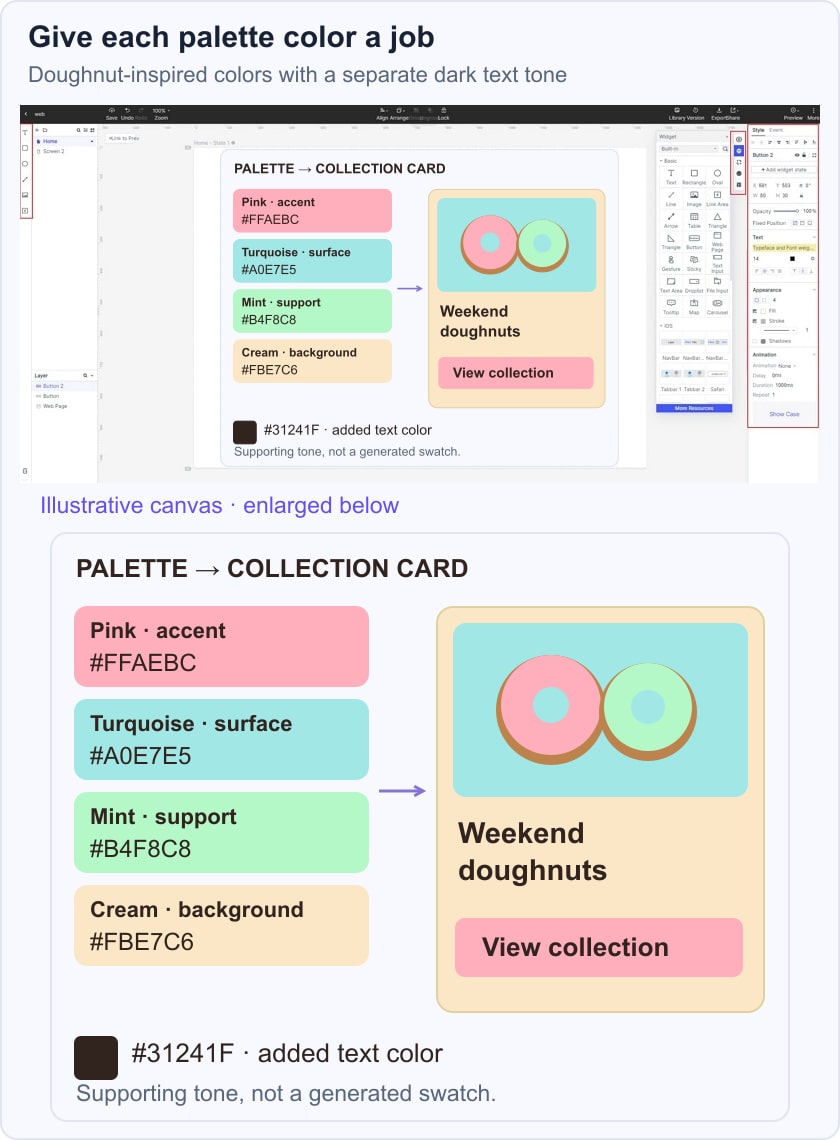
Save the chosen values, their roles and the checked color pairs with the design. Revisit them when imagery, text size or background changes. The useful result is a small, explainable interface palette—not a guarantee that every extracted color can be used for every element.