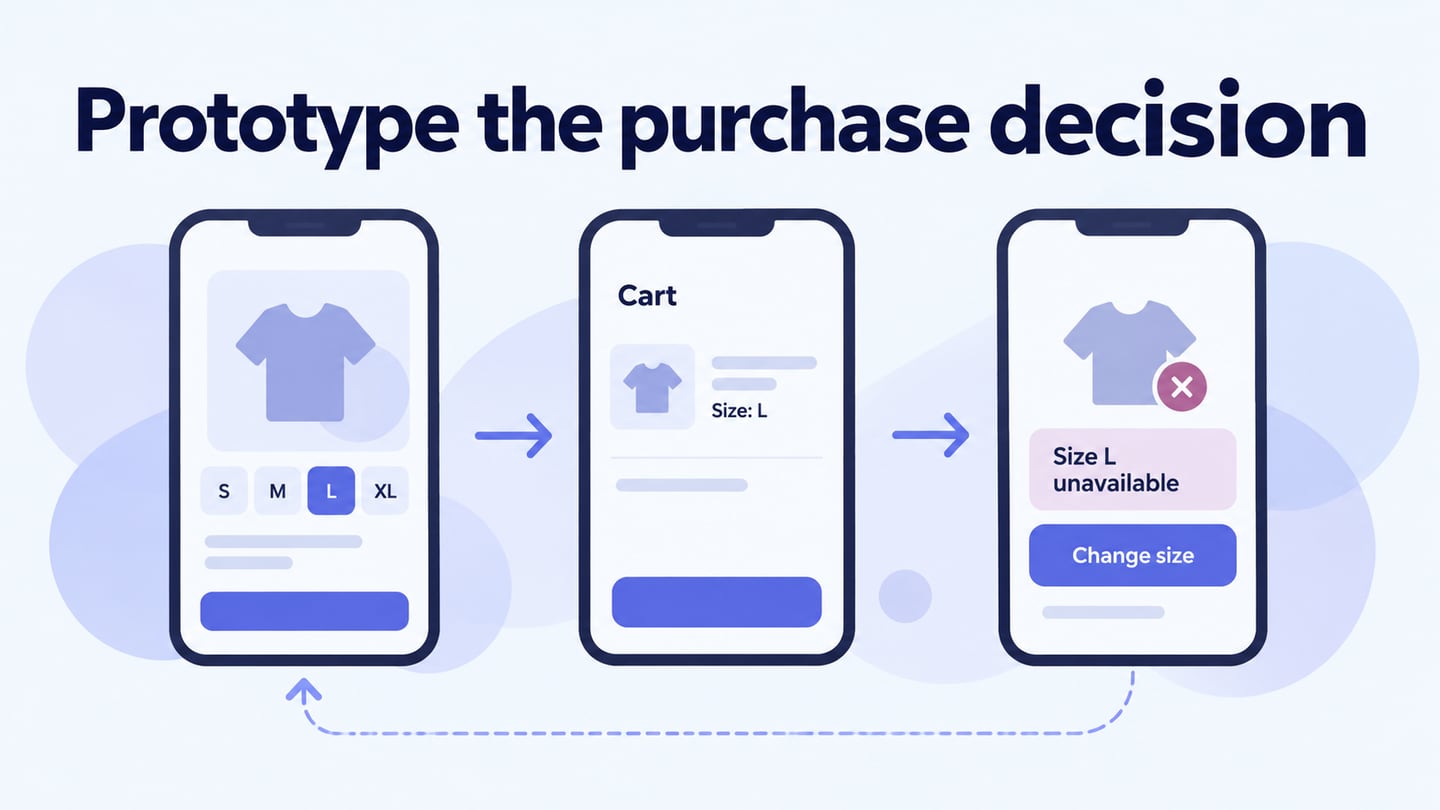
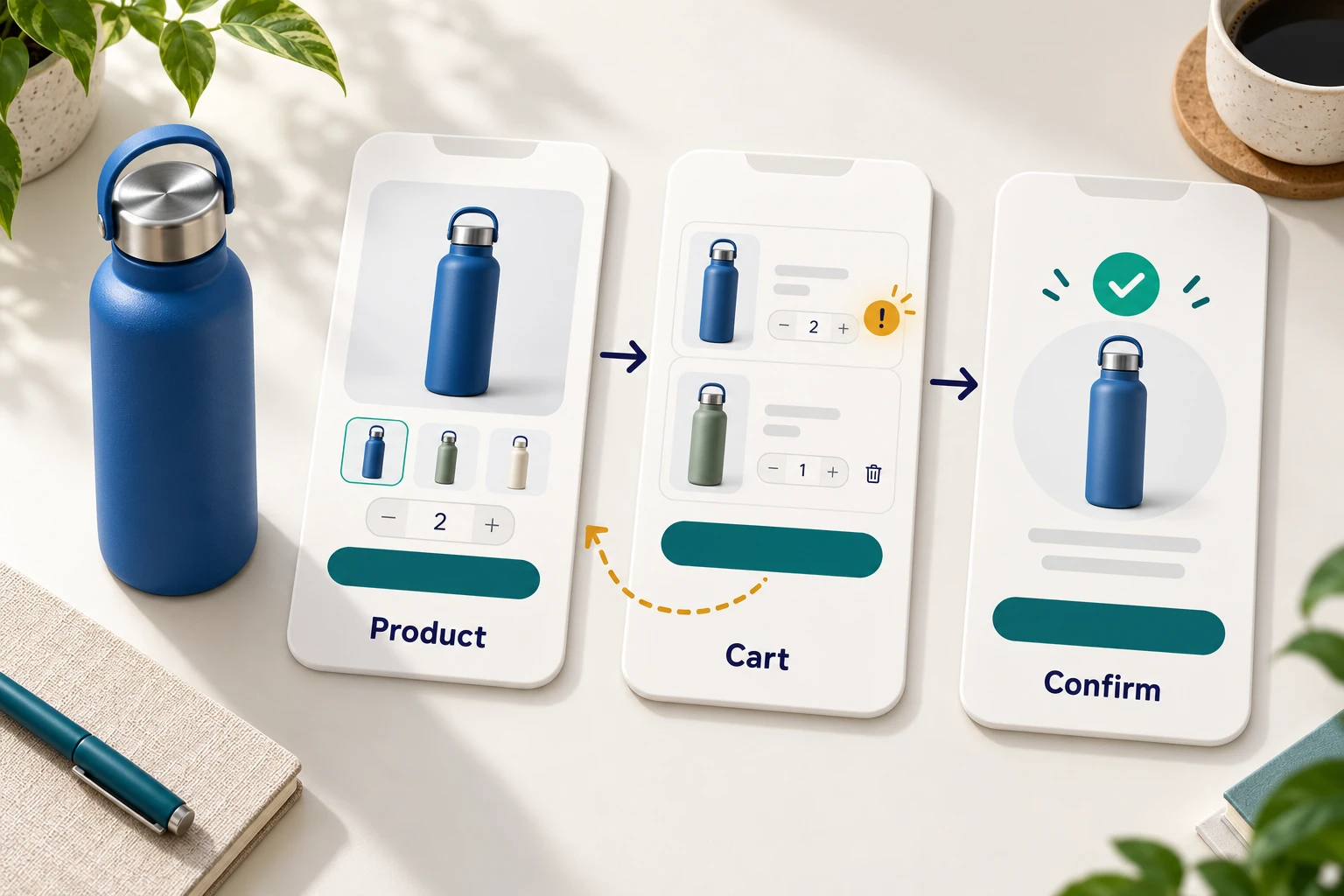
To develop an ecommerce app, first define the purchase journey, prototype it, and resolve the checkout decisions before building the production system. Start with one product, one cart and one successful order, then add an unavailable item and a payment failure. A Mockitt ecommerce prototype lets your team review these screens and interactions before developers connect inventory, payments and fulfilment.
This guide covers the design and prototype stage. A clickable checkout demonstrates a proposed experience; it does not charge a card, reserve stock or create a real order. Those operations need an implemented backend and the appropriate services.
Use Mockitt to design the ecommerce app
Mockitt lets you assemble screens, connect interactions and share the design with teammates or clients for feedback. You can keep the project in the cloud so reviewers discuss the same version. Use it to decide what shoppers see and what each action should do, then hand the agreed flow to the development team.
For the example below, imagine a small shop called Fern selling a reusable bottle in blue and green. A shopper wants two blue bottles, but only one is available. The design must help them change the quantity without losing the selected colour, delivery address or other cart items. The example is a fictional design exercise.

Steps to prototype an ecommerce app
Keep the first prototype small enough to review end to end. The four steps below take the Fern shop from a blank project to a shared purchase flow.
Step 1: Create a new project
Create a prototype project and choose the target screen size. Begin with the mobile journey if that is the experience you need to decide; add a desktop version when its layout or behaviour needs a separate review. Give the project a clear task name, such as “Fern: buy a bottle”, rather than a list of every feature the shop might eventually offer.
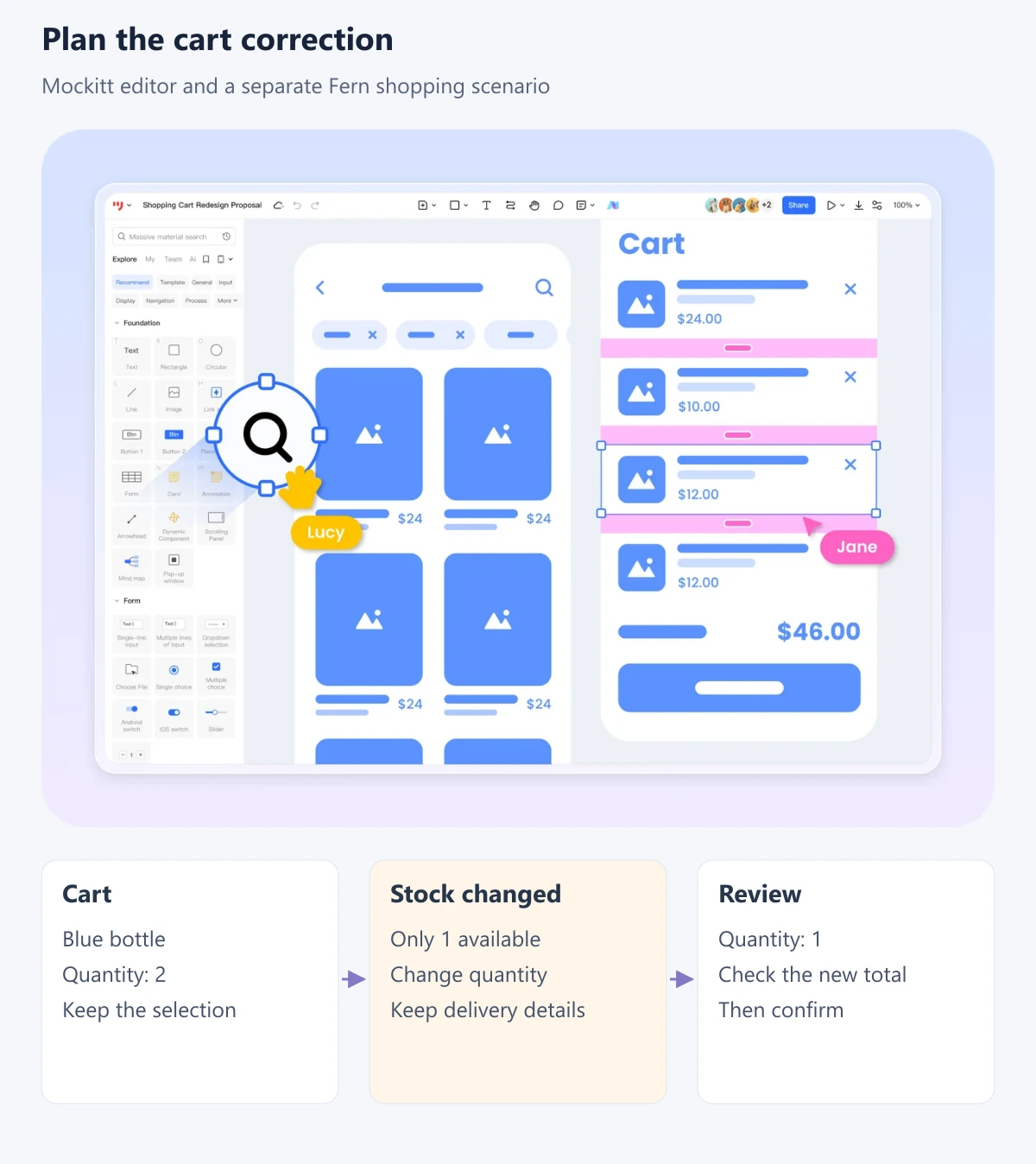
Create screens for the product, cart, delivery details, order review and confirmation. Add a stock-change state and a payment-failure state. Use one consistent set of sample information: a blue bottle priced at $24, quantity two in the first cart, and quantity one after the stock correction. These are illustrative values, not real prices or inventory.
Step 2: Design the app
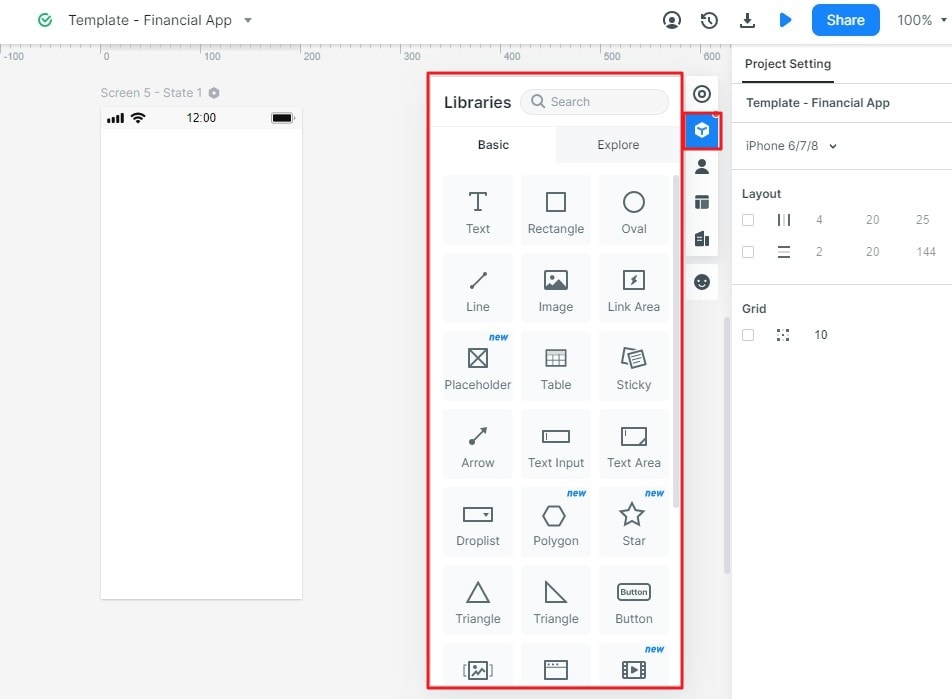
Use widgets and reusable components for product cards, quantity controls, totals and buttons. Start with the information needed to buy the item: name, image, variant, quantity, price and availability. Add promotional content only after the purchase route is understandable.
Add widgets and icons. Reuse the same button and input patterns across the cart and checkout. Give important controls visible labels; a basket icon alone does not explain whether it opens the cart or adds the current item.
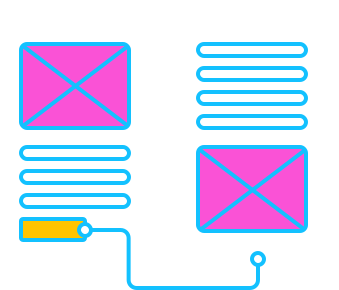
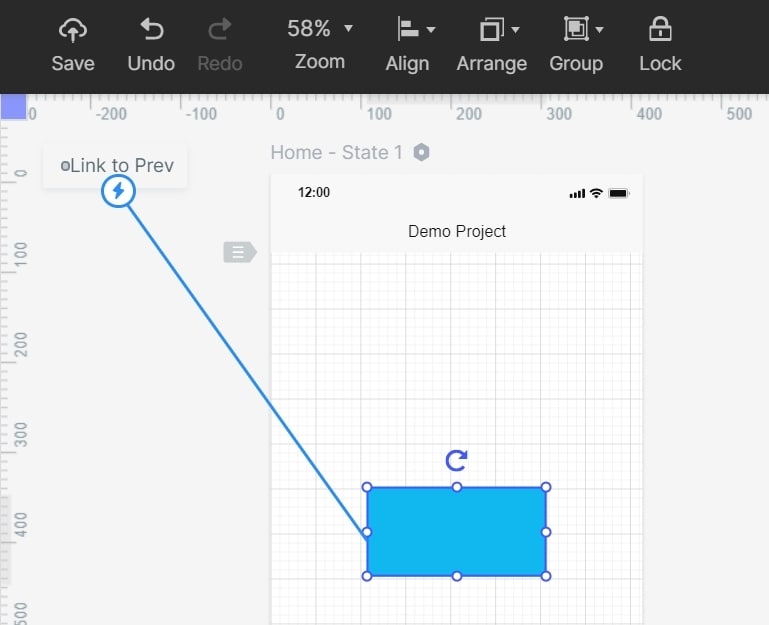
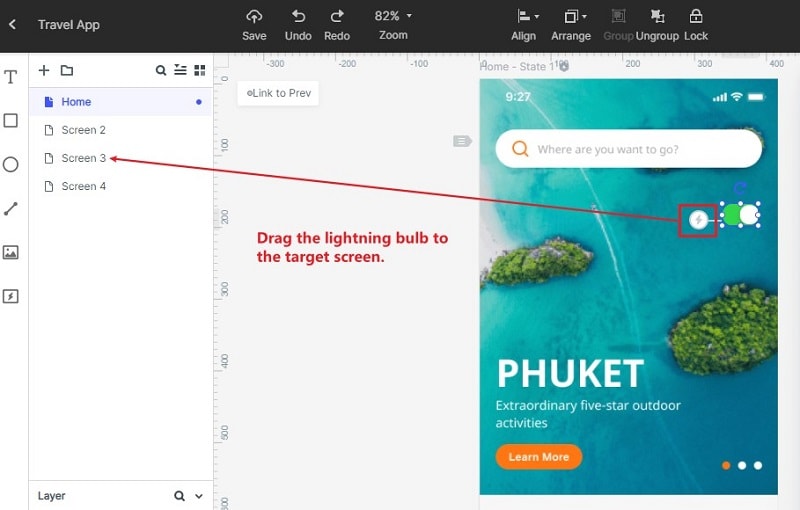
Add links between screens. Connect the product's Add to cart action to the cart, then continue through delivery and review to confirmation. Make Back preserve the selected bottle and quantity. Include a route from the cart to edit the product instead of forcing shoppers to start again.
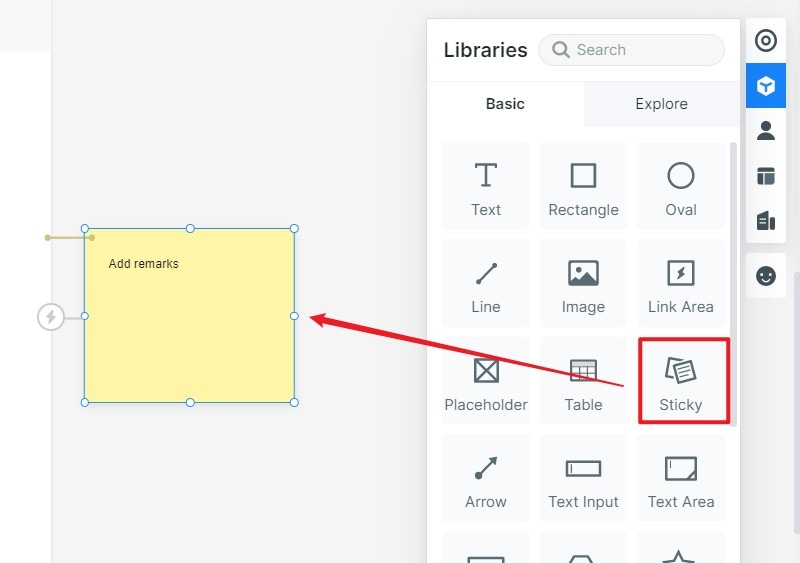
Add notes. Describe the behaviour that a static screen cannot demonstrate. For Fern, note that availability is checked again before an order is accepted, that the server determines the final total, and that a displayed confirmation requires a successful order response. Separate decisions the team has agreed from questions still awaiting an owner.
Create useful interactions. Use transitions to explain a change, such as opening the cart or returning from delivery details. Keep the quantity and total consistent across the connected screens. Animation should make the purchase state understandable, not conceal an unexplained jump.
Model the stock correction before adding more screens
When the shopper tries to continue with two blue bottles, show: “Only 1 blue bottle is available. Change the quantity to continue.” Offer a clear way to update the cart or return to the product. Keep the blue variant and all valid delivery information. After the shopper chooses one bottle, update the quantity and total together.
| State | What the shopper sees | Next action |
|---|---|---|
| Product | Blue bottle, $24, quantity two | Add to cart |
| Stock changed | One available; current selection preserved | Change quantity to one |
| Review | One bottle, $24 subtotal, delivery and any applicable charges shown separately | Confirm the order |
| Payment declined | A definite rejection; cart remains available | Review payment details or choose another payment method |
| Order status unknown | The response was interrupted; acceptance is not yet known | Check the order outcome before offering another submission |
| Confirmed | Order reference and the next fulfilment step | View order details |
A missing confirmation is not proof that payment failed. If a request times out, the design should explain that the order status is being checked and preserve the shopper's context. Define how the implemented service resolves that uncertainty before inviting a new payment attempt.
Step 3: Preview the ecommerce prototype
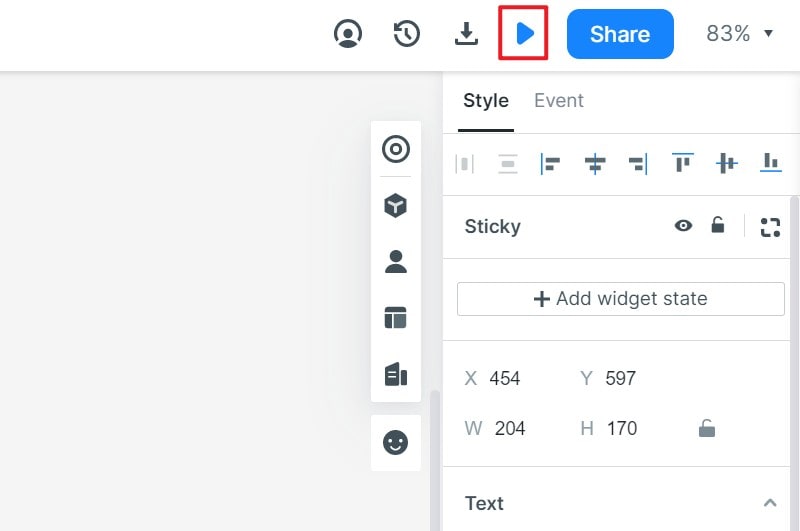
Open Preview and follow the purchase route from its intended starting screen. Ask a reviewer to buy two blue bottles, then observe how they respond when only one is available. Do not tell them to change the quantity. Watch whether they understand what changed, can choose a way forward, and can return from delivery details without losing their selection. Review the payment-declined and unknown-order-status routes separately.
Record the screen and action where a reviewer becomes uncertain. Fix that step before adding another product category. A linked prototype can reveal unclear wording and navigation; it cannot establish whether real payments, accessibility semantics, inventory updates or network recovery work in the implemented app.
Step 4: Share the prototype and prepare development
Share the preview link with the intended reviewers using the project's access settings. Include the task, the starting screen and the decision you need: for example, whether the stock correction is clear enough to proceed. Collect feedback against the same version.
Before implementation, document the screen states, input requirements, totals, service responses and ownership of unresolved decisions. A prototype documentation record can keep those rules next to the reviewed flow. Developers then implement the interface and integrate the commerce backend, payments, order management and delivery services. Test those connections in the implementation before releasing the app.
Features that support the design work
1. Multi-platform prototyping
Use different screen sizes to explore mobile and desktop layouts. For Fern, keep the item, quantity and total easy to find on each size rather than shrinking the desktop checkout into a narrow screen.
2. Widgets and icons
Text, images, buttons and reusable components give the shop a consistent interface. Reuse the same product and price treatment across the product page, cart and review screen so changes are easy to spot.
3. Drag-and-drop design and interactions
Arrange the layout visually and connect the actions that matter to the purchase. Use a small number of purposeful transitions; a complete correction route is more useful than an elaborate animation with no way back.
4. Sharing and preview
A shared preview gives reviewers a route to follow instead of a folder of disconnected screenshots. Check the access setting and starting screen before sending the link.
5. Collaboration
Use team feedback to resolve specific decisions, such as when the stock warning appears and whether an unsuccessful payment preserves the cart. Give open decisions an owner so comments turn into changes.
6. Cloud projects
Keeping the design in a shared project helps the team review a consistent version. Record the version used for a development handoff and manage access to the project as the team changes.