Creating a prototype lets your team preview a concept and review a mobile-app or website flow before development. This guide is for people who already have access to Adobe XD. Adobe states that XD is in maintenance mode: it continues support for existing customers but is not adding new features. The screenshots show an earlier XD interface. For a browser-based alternative, explore Mockitt’s prototyping workspace.
- Part 1: How to Create a Prototype in Adobe XD
- Part 2: A Browser-Based Alternative to Adobe XD
- Part 3: How the Archived Mockitt Example Is Organized
How to Create a Prototype in Adobe XD
Step 1: Open the XD file and switch to Prototype mode
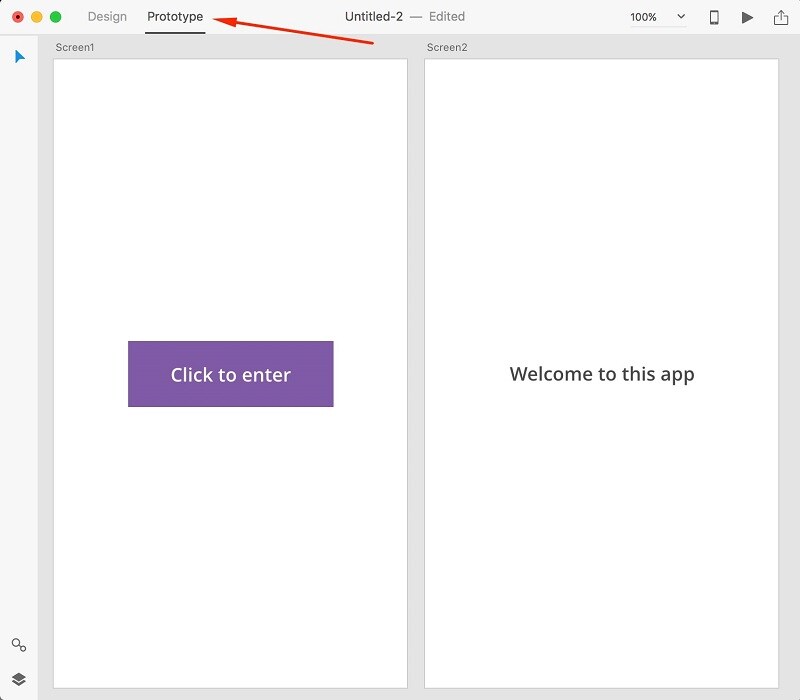
Open the design file in the Adobe XD desktop app. Select Prototype at the top of the window to connect the artboards. The example below uses two screens: a starting screen with a button and a destination screen.
Step 2: Editing the Artboard for Your Adobe XD Prototype
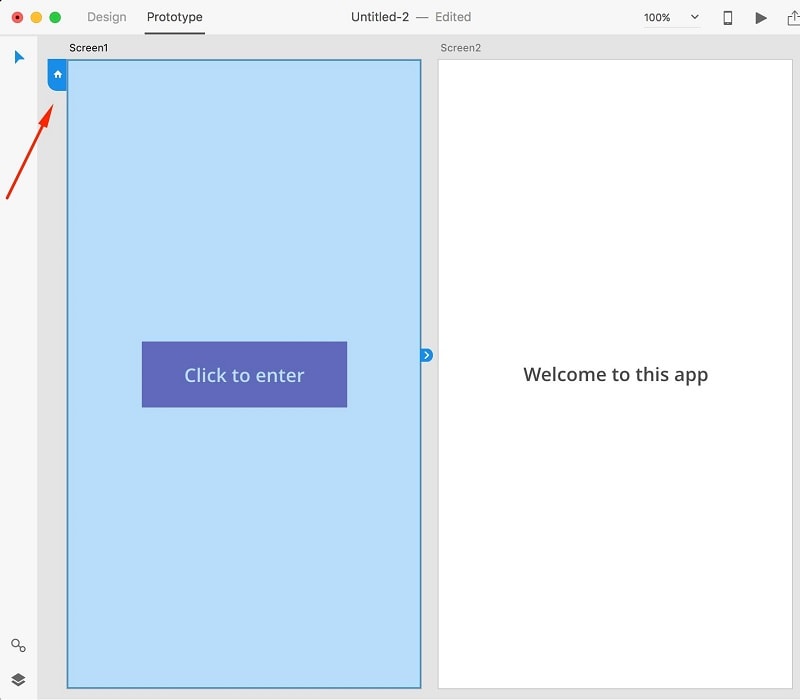
Select the artboard that should start the flow. In the archived interface shown below, the home icon appears beside the selected artboard.
Select the home icon to make this the starting artboard for the flow. Preview from that starting point so reviewers do not begin in the middle of the interaction.
Step 3: Connecting Buttons
Select the button on the starting artboard, then drag its connector to the destination artboard. This creates a navigation connection; it does not implement a working application backend.
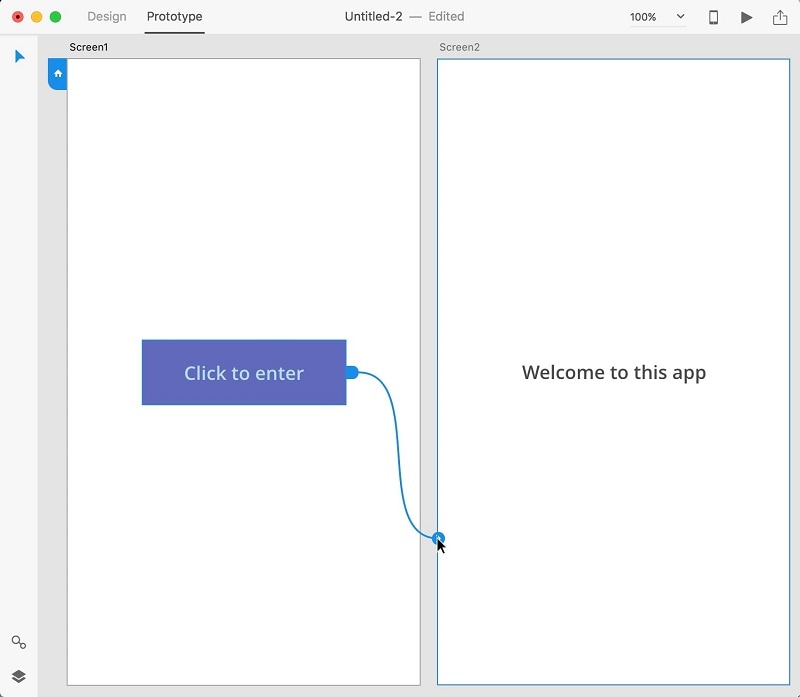
Step 4: Editing the Screen
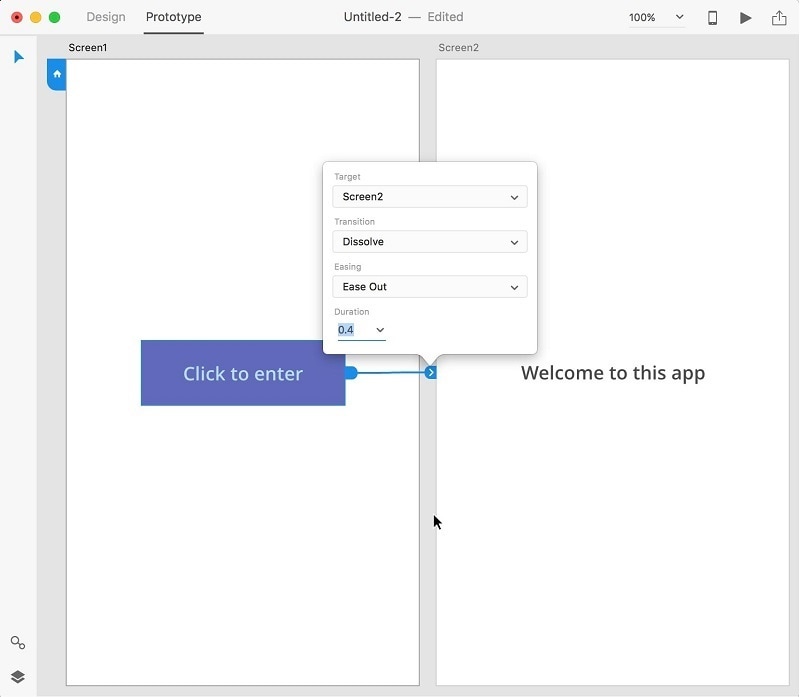
Target: The destination artboard opened by the interaction. Check that the connector points to the intended screen.
Transition: The visual change between the two artboards. Choose an effect that makes the navigation understandable.
Duration: The time taken by the transition animation, not how long the destination screen remains visible.
After changing the interaction settings, click away from the connector to continue editing. Keep the trigger, destination and animation settings consistent with the flow you want to demonstrate.
Step 5: Previewing the Prototype
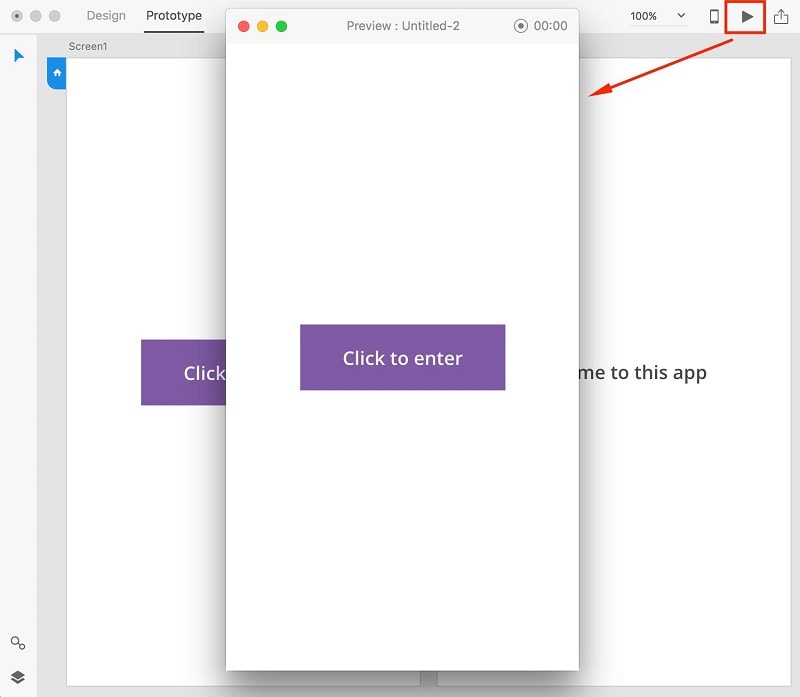
Select the desktop preview/play control near the top-right of XD. Activate the button and check that it opens the intended destination. Add and test a return route if the task requires one.
A Browser-Based Alternative to Adobe XD
For a new browser-based prototype, Mockitt provides an alternative workflow based on screens, reusable components and interactions. The following sections describe the older interface shown in this article, rather than promising that every historical control has the same name or position today.

- Asset library: Reuse widgets, icons and images across screens. Shared assets can help a team keep its design consistent.
- Design assets: Reusable widgets, images and linked screens help assemble a prototype. The archived screenshots below illustrate these concepts; they do not establish the current number of gestures or transitions.
- Presentation and review: Preview the connected screens and share a review link with the appropriate access permissions. Confirm the starting screen and test the link before sending it to reviewers.
- Browser editing: Mockitt supports browser-based prototyping. Open the same authorized workspace to continue a project, and confirm that changes have saved before closing the editor.
- Team collaboration: Shared projects let teammates review and work on the design according to their permissions. Decide who can edit and who should only review.
How the Archived Mockitt Example Is Organized
The retained screenshots document project creation, widget editing, screen connections and reusable components in an earlier Mockitt release. For a current task-focused walkthrough, follow the prototype-making tutorial; use the examples below to understand the underlying concepts.
Step 1: Create a project
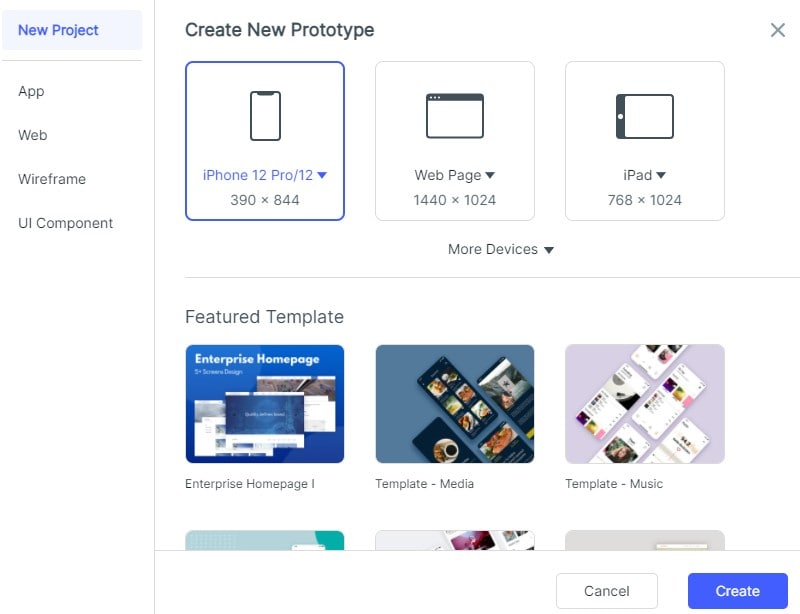
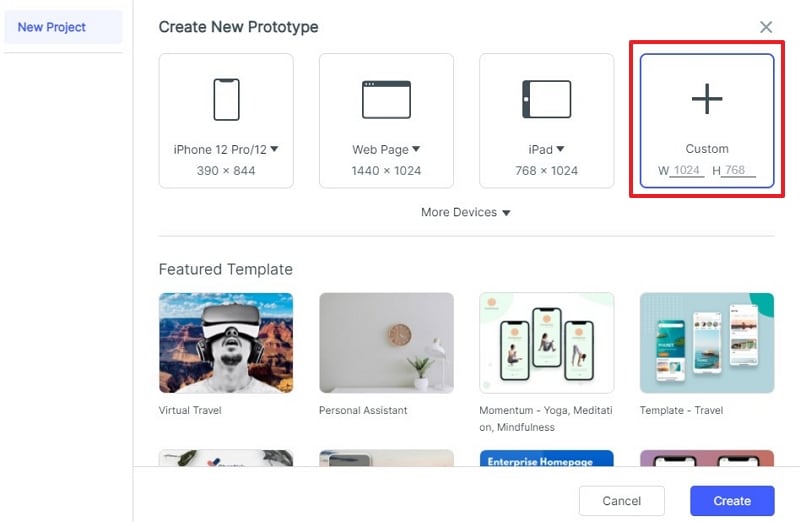
After creating your account on official website of Mockitt, select the type of project and device on which you want to work.
Step 2: Customizing the Project Size and Shape
In the archived project list, select the three-dot menu (...) beside the project and open its settings to adjust its dimensions.
Step 3: Adding Widgets
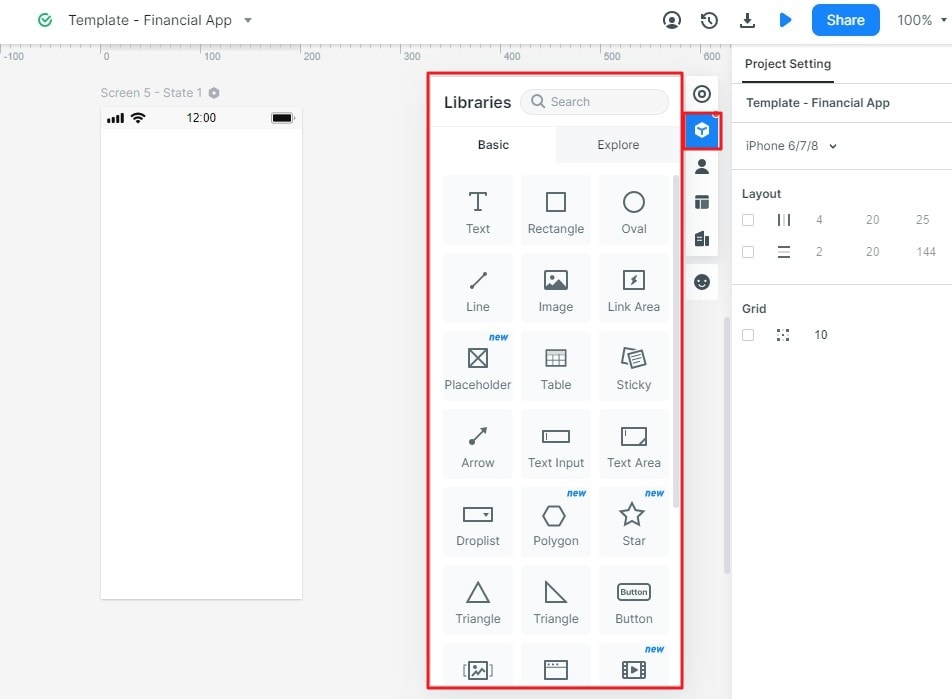
In the archived interface, select a widget from the left panel, then drag it onto the canvas or double-click it. The example also shows the Built-in widgets, My widgets and Icon categories.
You can also add some Built-in widgets, My widgets and Icon given on the right side.
Step 4: Editing Widgets
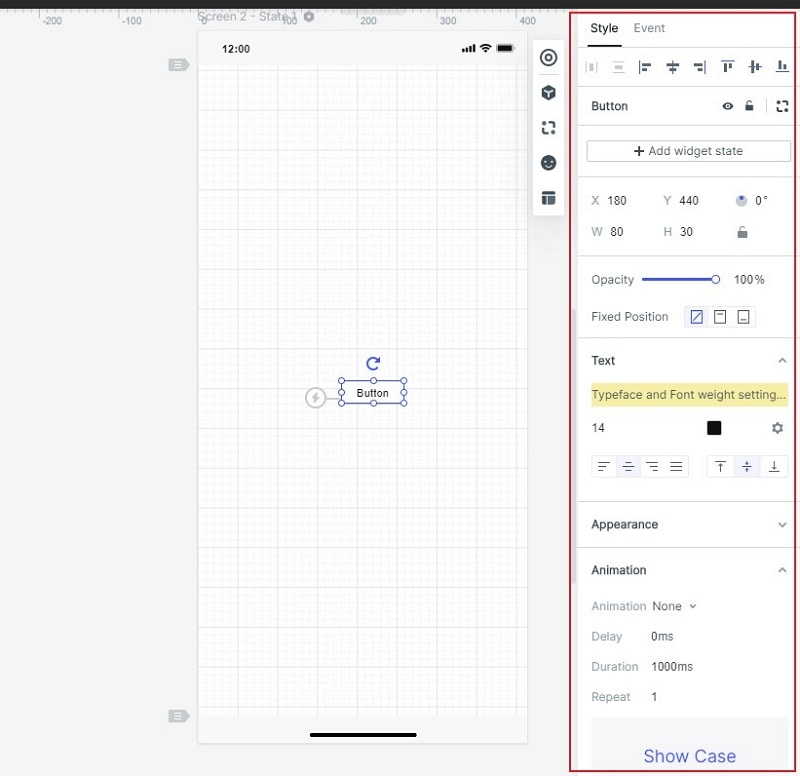
It allows you to change the property directly after entering the widgets in the canvas.
Step 5: Saving Widgets for Further Use
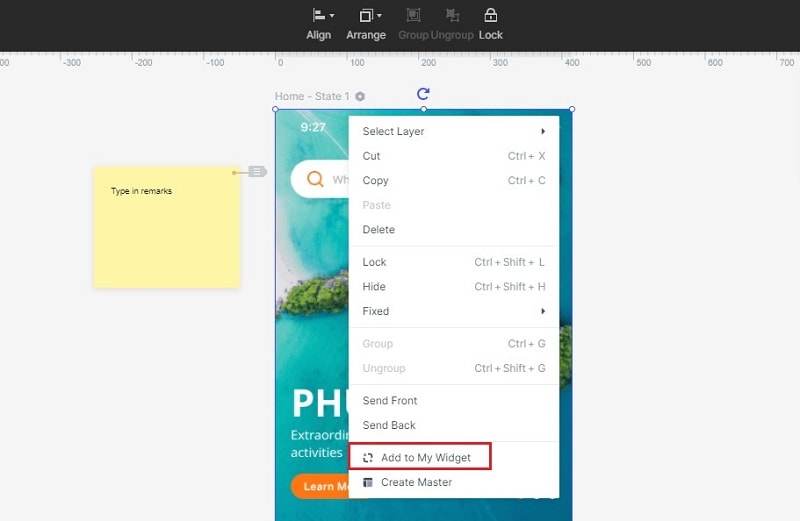
Save a reusable widget in the library by dragging it to My Widgets or selecting Add to Widgets.
Step 6: Adding Links Between 2 Screens
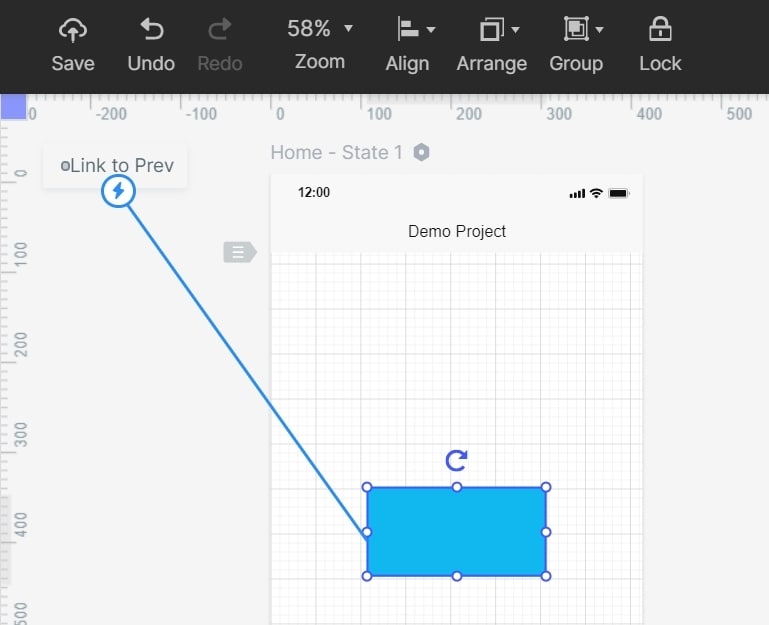
To add link between 2 screens select the widgets and click "New Link" option in the panel given on the right. After that set the action, target, gesture, state and screen also the animation for the desired widgets.
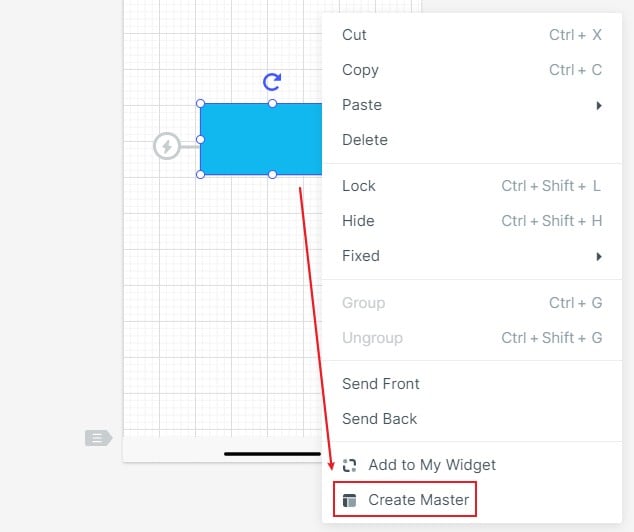
Step 7: Converting Widgets into Master for Bulk Editing
Select the widget by pressing the right click to "Create Master". As soon as you click on the option, it will be saved into the master library of the software.
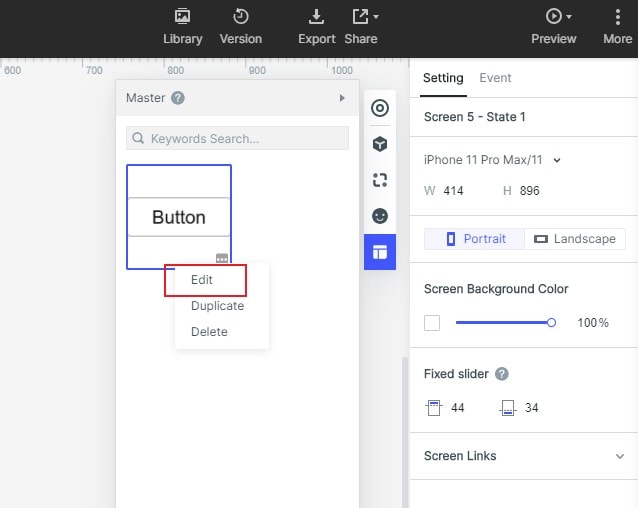
To change the master setting, hit the edit option.
Step 8: Adding Notes for Widgets and Design
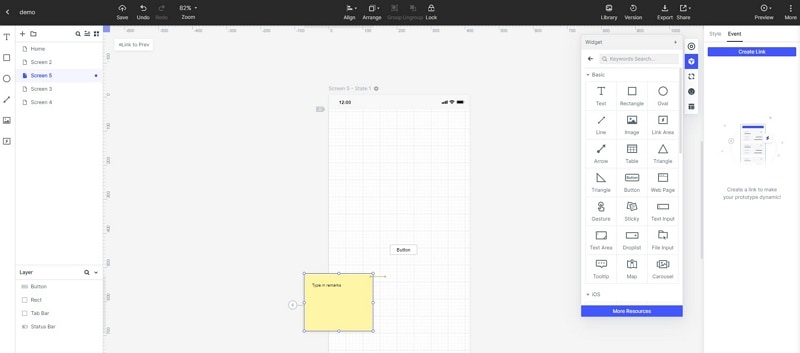
You can also add the notes by selecting the "Sticky" option of the widget library.
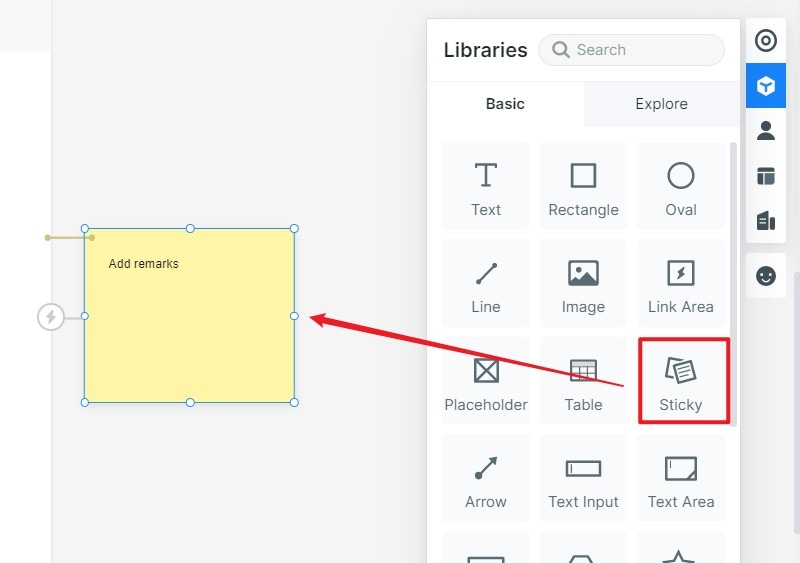
As soon as you hit the Sticky option it allows you to enter your desired text without any problem.
Step 9: Using Screen Widgets from Templates
In the archived template library, the Use Demo action opened an example project. Reuse only the screens and components that fit the task you are rebuilding.
To select your desired screen for making prototype click on the option "Move to" to the targeted project.
To use desired widget in the template press the right-button on the widget and select "Add to Widgets" and it will get added in my widgets library.
Step 10: Managing the Assets Library
You can delete, add and create folder easily in the software without any problem. For adding images in the canvas, you can directly drag and drop or select the image by labelling in the blank area.
Batch management can be done by just pressing shift or ctrl key to select multiple widgets or images.
Step 11: Adding Interactive Animation to the Project
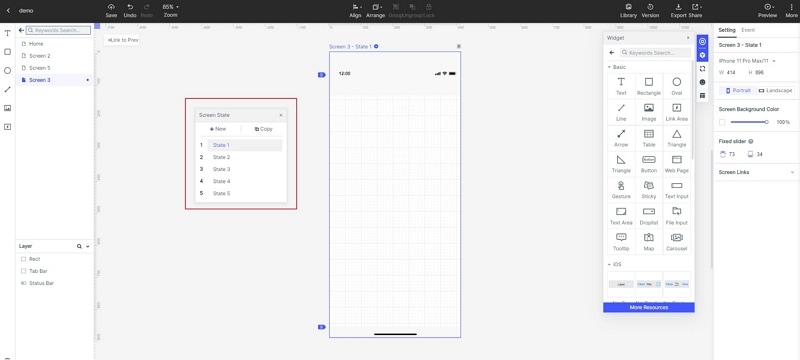
Screen state can be used to add engaging and interactive content in the project easily. It also allows you to change color, shape and size of the image.