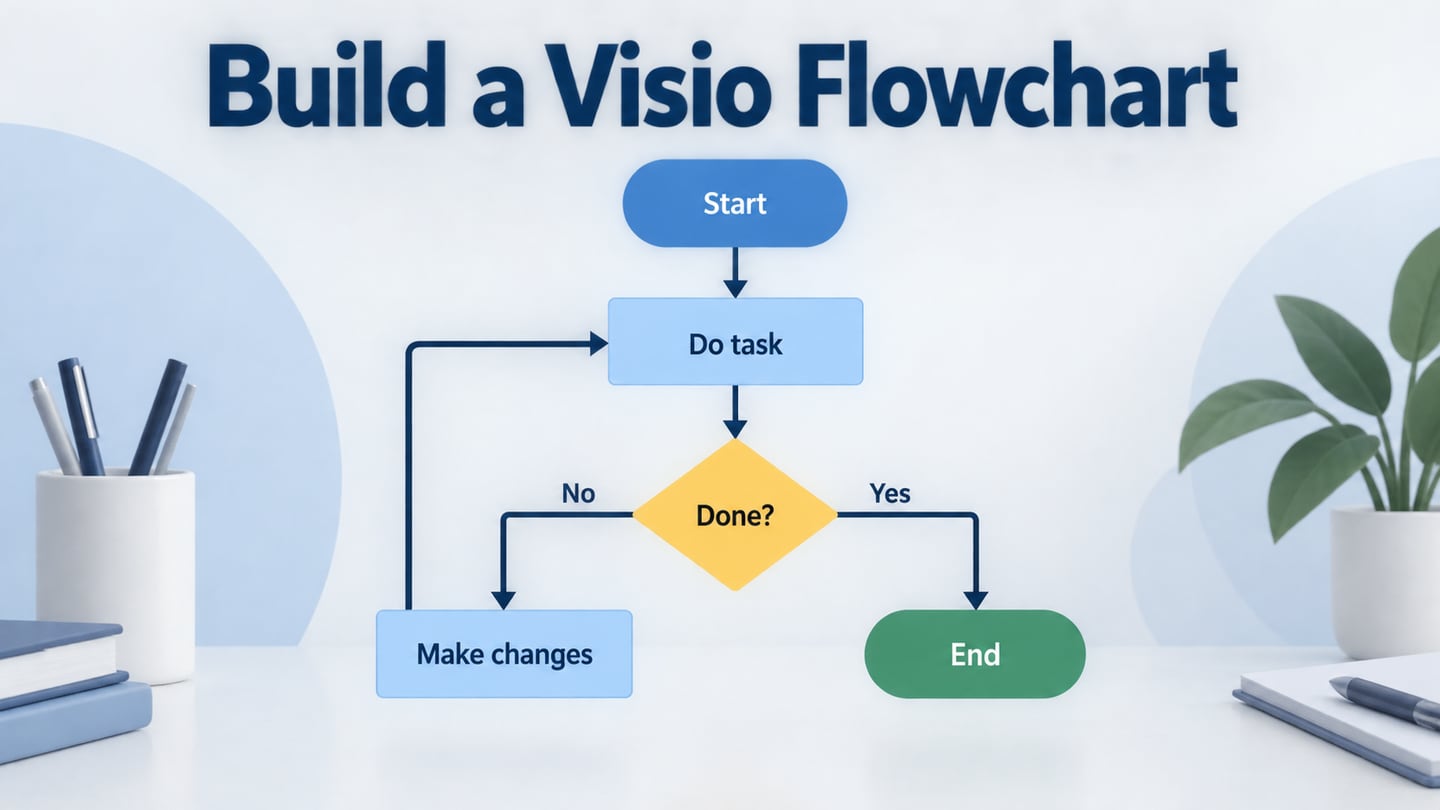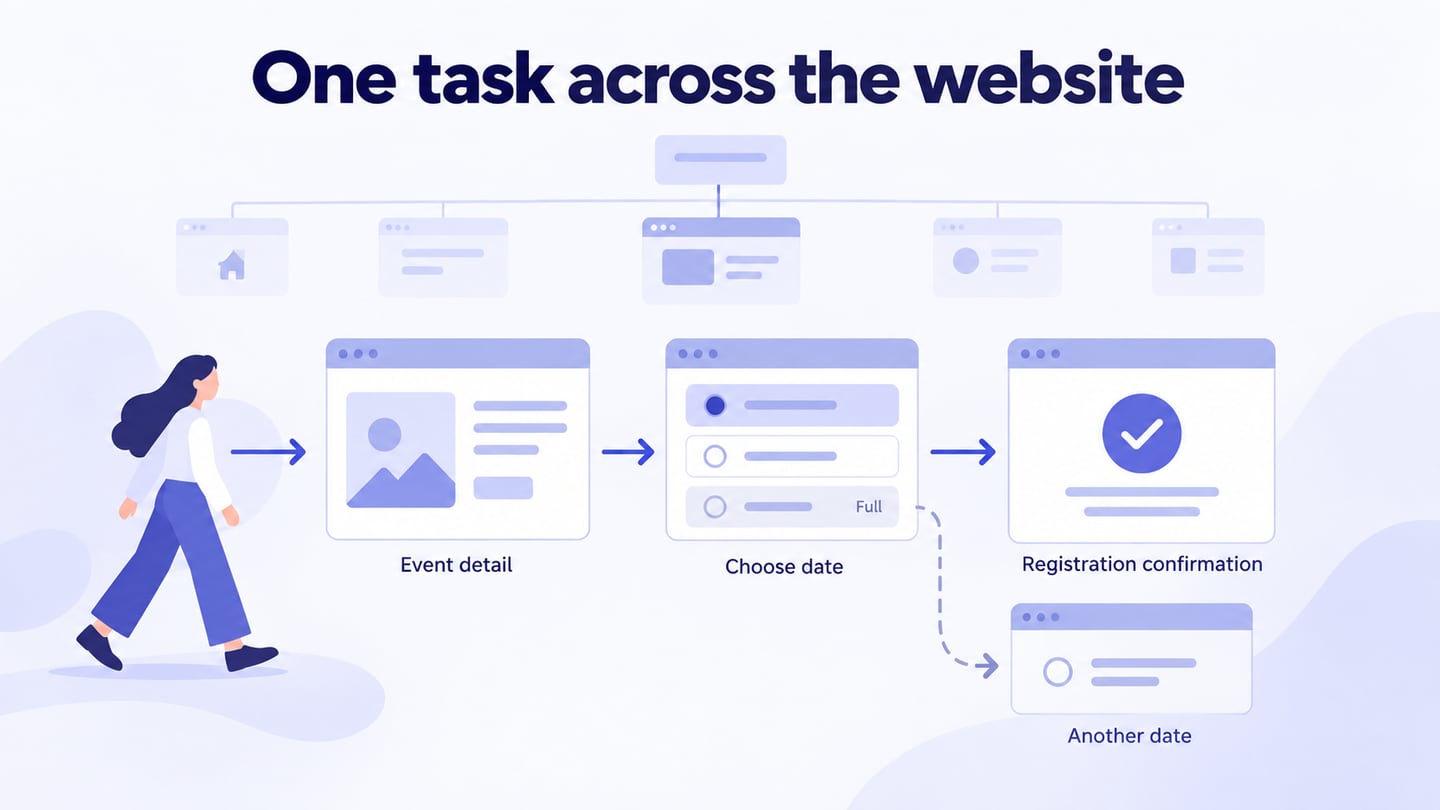
A website flowchart can describe a visitor’s task, the hierarchy of pages, or a process behind the interface. These are different diagrams. Use a website flowchart workspace to make the intended relationship clear before designing screens. This guide focuses on a user task while explaining how the original examples differ.
A visual sitemap shows where pages belong; a user flow shows how someone moves through actions and decisions; a backend process shows work that may not be visible on a page. Label the diagram’s purpose so a reader does not mistake one for another.
Part 1: Preparation and Basic Steps You need to Make a Website Flowchart
Start with a concrete task and an entry point. A visitor may arrive on an article, product page, or event detail rather than the homepage. Keep the task flow separate from the complete page inventory.
When and Why You Need to Create a Website Flowchart?
A user-flow diagram can help the team:
- Explain the path from an entry point to a meaningful outcome.
- Find a missing step, decision, or recovery route.
- Discuss assumptions before investing in detailed screen design.
- Gather focused feedback from people responsible for the task.
The diagram supports those discussions but does not prove that the implemented website is usable.
Use research and existing evidence to understand the task. For a new site, mark assumptions explicitly; for an existing site, compare the proposed path with observed behavior.
Basic Preparation and Information for Making a Flowchart of Website
Gather enough information to define the task, entry conditions, and completion criteria.
1. Discover the User Objectives
Identify what visitors are trying to accomplish and what information they need. Interviews, task observation, and relevant feedback can help; a social-media poll alone may not explain a complex journey.
2. Discover How User Find Your Website
For an existing site, review available entry-page and journey evidence. For a new site, document plausible entry points and plan how to test them; do not skip the question simply because analytics do not yet exist.
3. Identify What Your User Want from Your Website
Define a meaningful outcome, such as a completed registration or an understood product comparison. Listing pages without the actions between them does not describe how the person completes the task.
4. Shape Your Website Flowchart
Draw the steps, decisions, and outcomes using consistent labels. Include the route for a likely obstacle and explain where a visitor can recover.
For example, map a visitor registering for a workshop. The person arrives at the workshop detail, chooses a date, enters the required information, and receives confirmation after submission succeeds. If the chosen session is full, show another date and preserve the workshop context instead of sending the person back to the homepage.
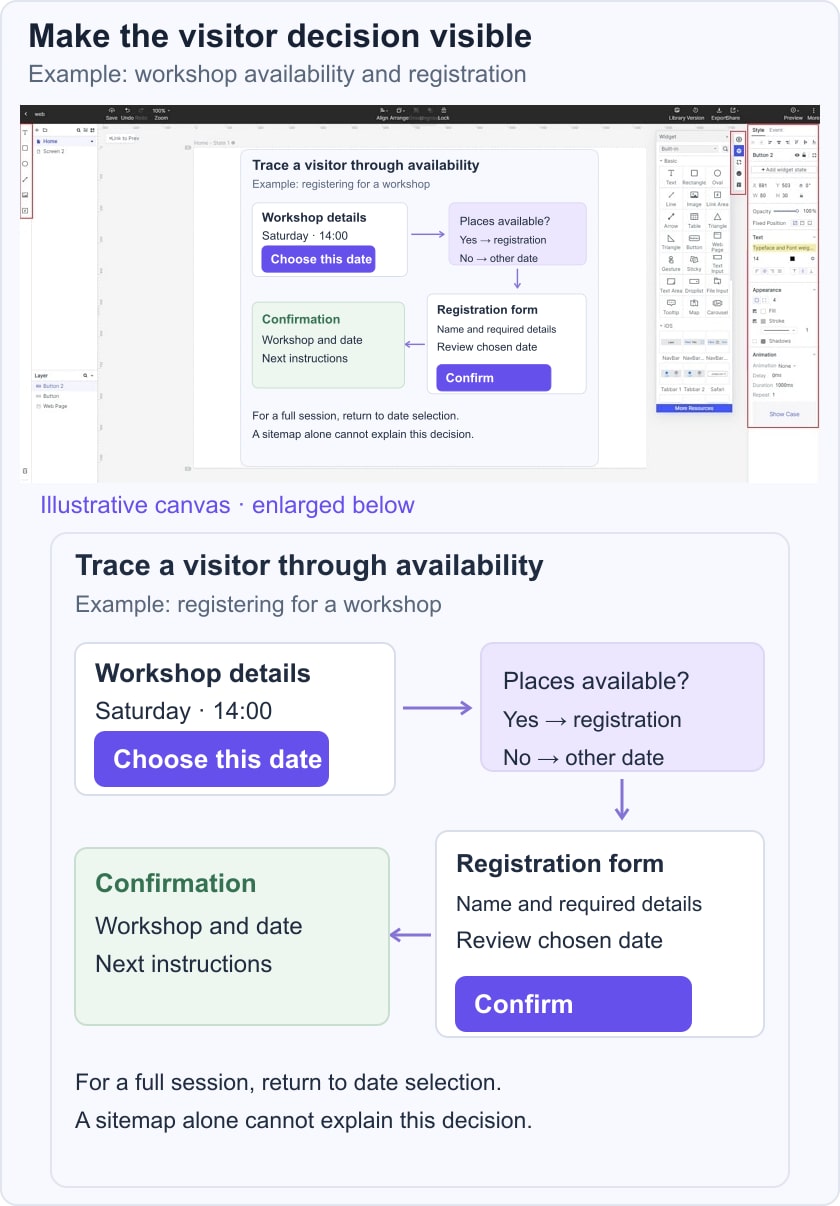
Use the examples later in this article to compare structures, not as a substitute for the task and rules you have just defined.
Part 2: Create a Website Flowchart Online
Build the chart from the reviewed task notes, then refine the layout until the normal and exception paths are easy to follow.
Mockitt provides shapes, connectors, and shared review for this work. The retained interface screenshots show an earlier version of the drawing workflow.
Keep page names distinct from actions and decisions. “Workshop detail” is a page; “Choose a date” is an action; “Session available?” is a decision.
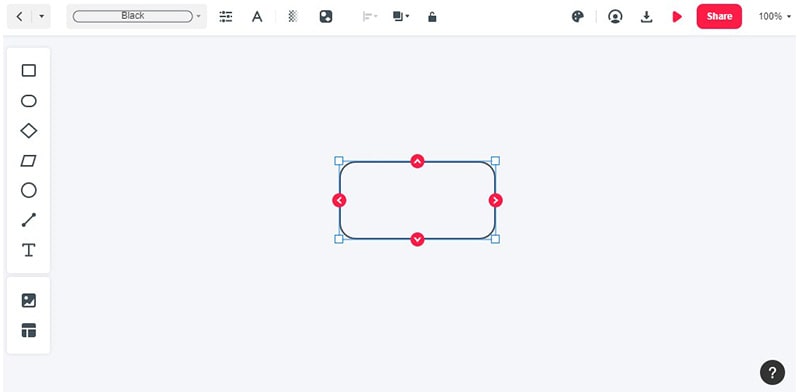
Steps for How to Create a Flowchart
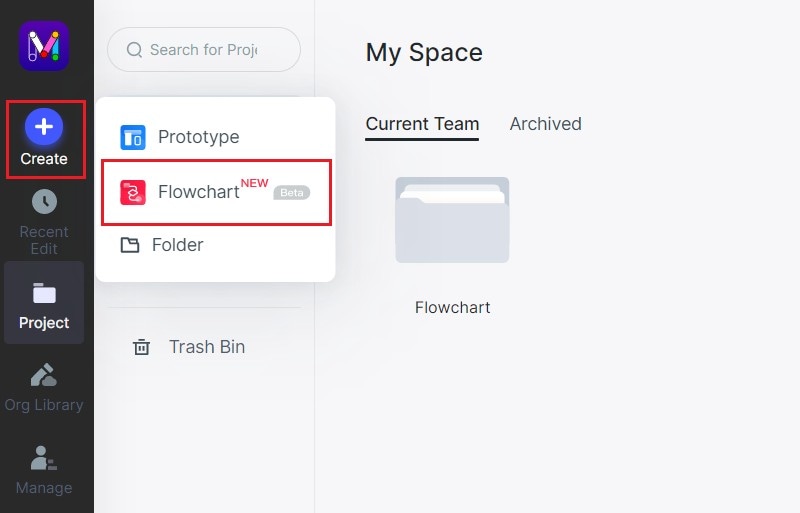
Step 1: Create a Flowchart
Open the current workspace and create a flowchart project or suitable canvas.
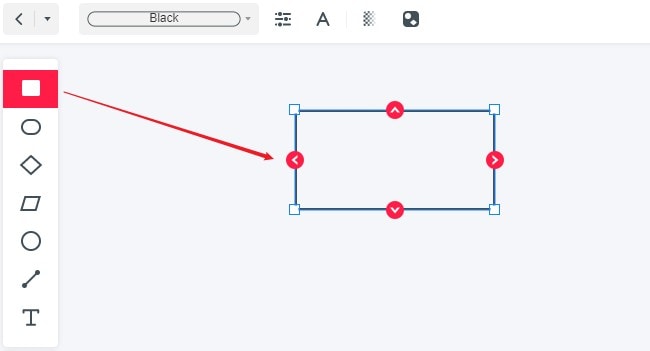
Step 2: Start Drawing the Flowchart
Add the entry point, actions, decisions, and outcomes. Keep shapes readable and use consistent wording.
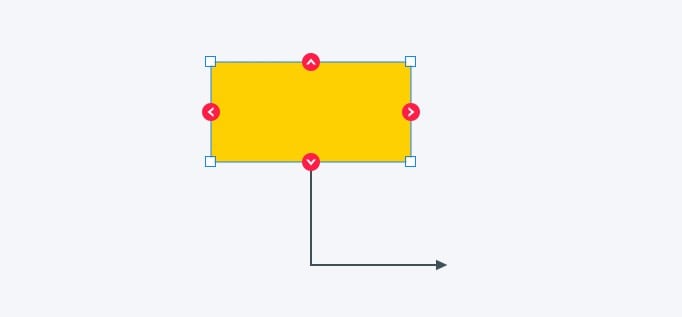
Connect the paths and label each decision outcome. A full session and an available session should not lead to the same unexplained next step.
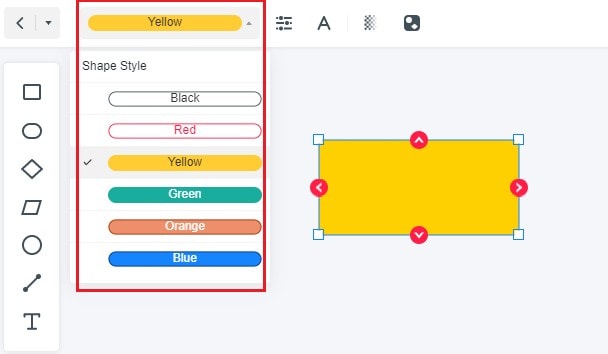
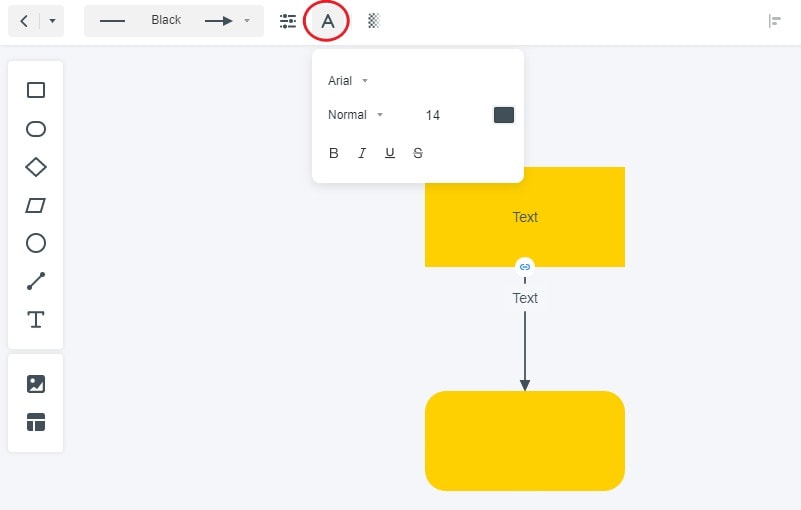
Step 3: Change the Properties of the Flowchart
Use color consistently, with text labels that remain meaningful without it.
Keep the same shape convention for the same kind of element.
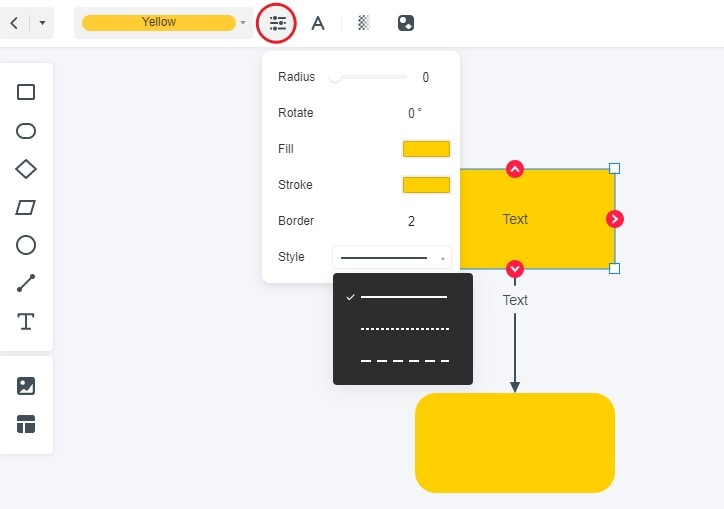
Use a text size that can be read at the expected review size.
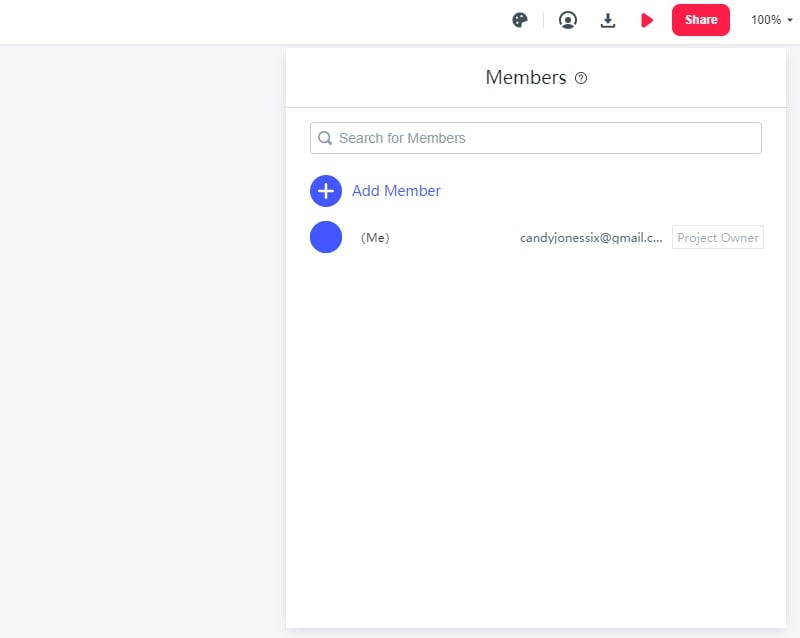
Step 4: Invite Your Team Members to Co-edit
Invite the people responsible for the content, interface, and implementation to inspect the flow. Ask them to trace both success and recovery paths.
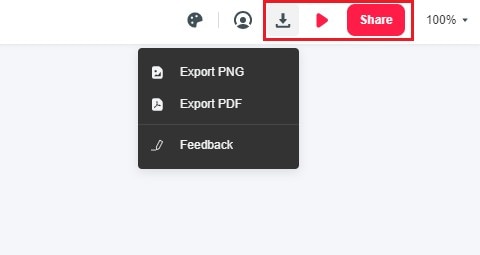
Step 5: Download, Preview and Share the Flowchart
Preview the chart and check the supported export if one is needed. Confirm that the shared version preserves labels and connector direction.
Once the path is clear, a linked website prototype can make the proposed screens reviewable. The flowchart describes the route; the prototype helps people inspect the interface along it.
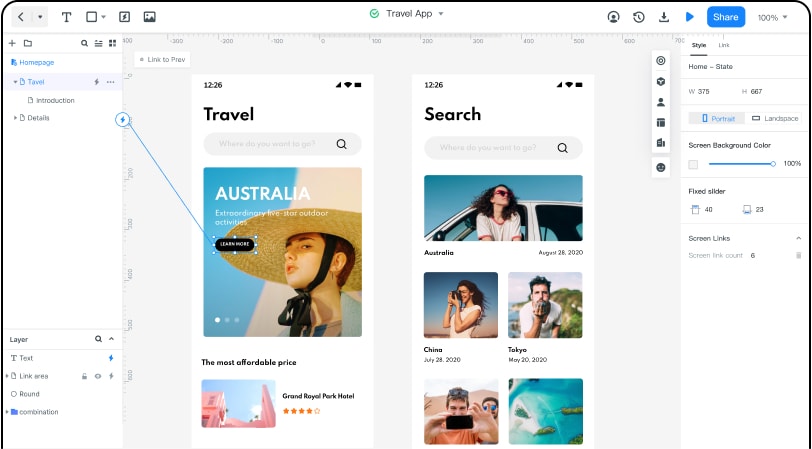
Features of Mockitt
1. Widgets and Icons
Use shapes and connectors to explain the task. Decorative icons are optional and should not substitute for a clear label.
2. Collaboration
Use comments to record questions, then resolve important decisions in the process or requirement record.
3. Access and Maintenance
Set appropriate access permissions and identify the diagram’s owner. Keep the flow aligned with approved changes to the site.
For the screen-level structure that follows the flow, see the web app wireframe workflow. Do not assume a flowchart or design template automatically implements a responsive website.
Part 3: Five Website Diagram Examples
The five original examples illustrate different diagram purposes. Their source credits are retained; the images do not establish current template availability or licence terms.
1. Website Page Hierarchy
The Lucidchart example organizes pages and sections beneath a home node. This is a visual sitemap or page hierarchy, not a complete user flow. It is useful for discussing content organization.
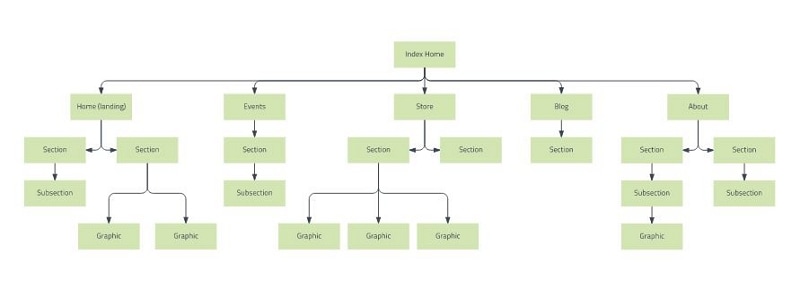
Template Source: Lucidchart
A hierarchy can reveal where a page belongs, but it does not show every task or decision a visitor makes. Do not assume that connecting pages establishes usable navigation.
2. Decision-Flow Structure
This Creately example illustrates a branching decision structure. Its generic labels need replacement with a real question, actions, and outcomes before it can describe a website task.
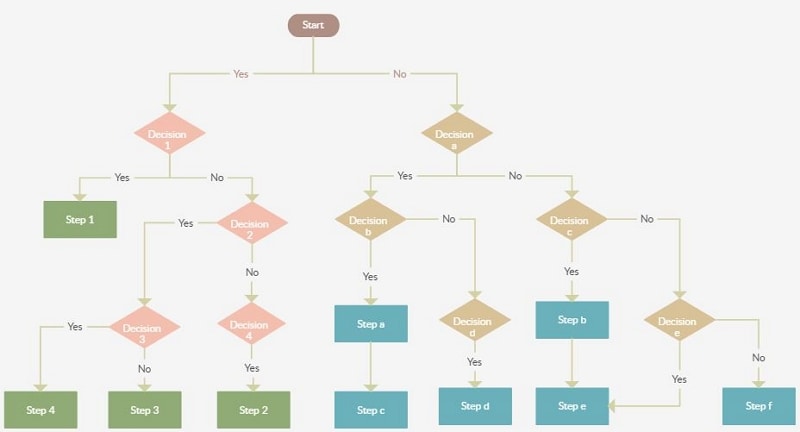
Template Source: Creately
Review whether each outcome is meaningful from the visitor’s perspective and whether a recovery route is needed.
3. Decision Flow with Multiple End States
The second Creately example shows how different decisions can lead to different endings. The people icons are decorative context; they do not define who owns each action.
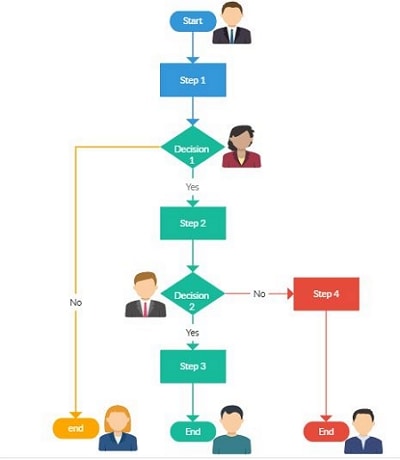
Template Source: Creately
Use explicit role or outcome labels if responsibility matters. Keep the visitor’s task visible rather than copying the example’s appearance alone.
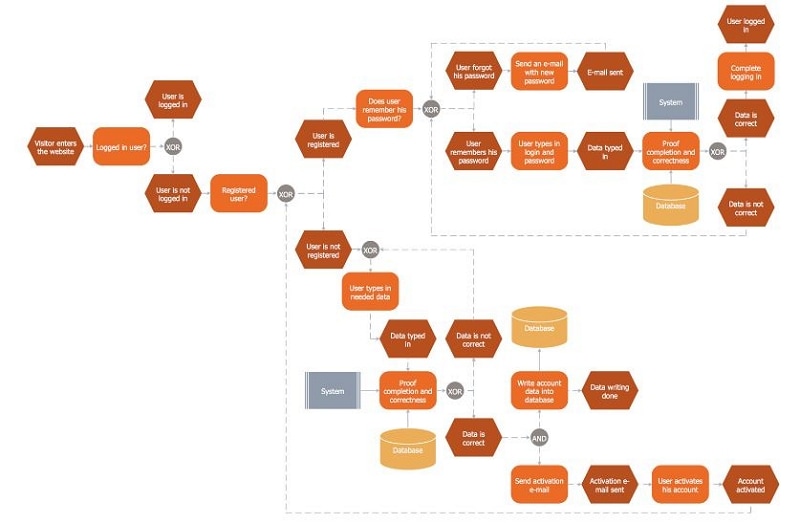
4. Detailed Sign-In and Registration Logic
The ConceptDraw example includes sign-in, registration, and data-handling logic. It combines work visible to the visitor with system behavior that may require a separate detailed view.
Template Source: Conceptdraw
Explain the notation and system boundary to the intended audience. If the question is specifically about data entering and leaving the system, the data flow diagram guide covers that distinct model.
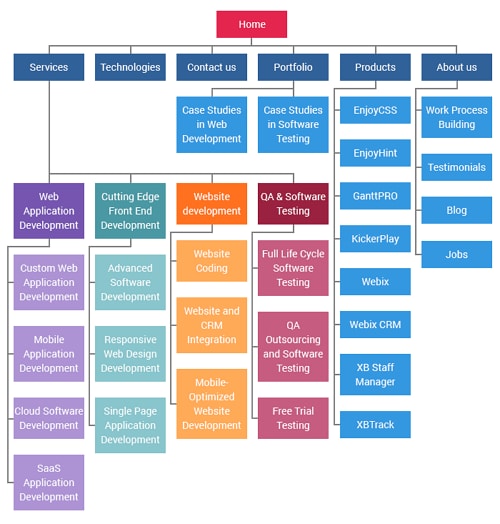
5. Website Content Structure
The final example from XB Software organizes service and product pages into a hierarchy. It is not a complete step-by-step website development process.
Template Source: Xbsoftware
Choose the example type that matches your question. A sitemap, user flow, and backend process can complement each other without being combined into one overcrowded diagram.
Part 4: You May Want to Know More About Flowchart
1. What is a flow chart?
A flowchart uses actions, decisions, and directional connections to describe a process. Its notation and level of detail should fit the question and audience.
For a website task, include the entry point, relevant actions, decision outcomes, and completion or recovery routes. Keep the model consistent with the proposed interface.
2. Can I Draw a Flowchart in Google Docs?
Google’s drawing tools support shapes, lines, and text within a drawing workflow. Use those controls for a simple diagram if they fit the task. Check the current product options rather than relying on an old blanket claim about template availability.