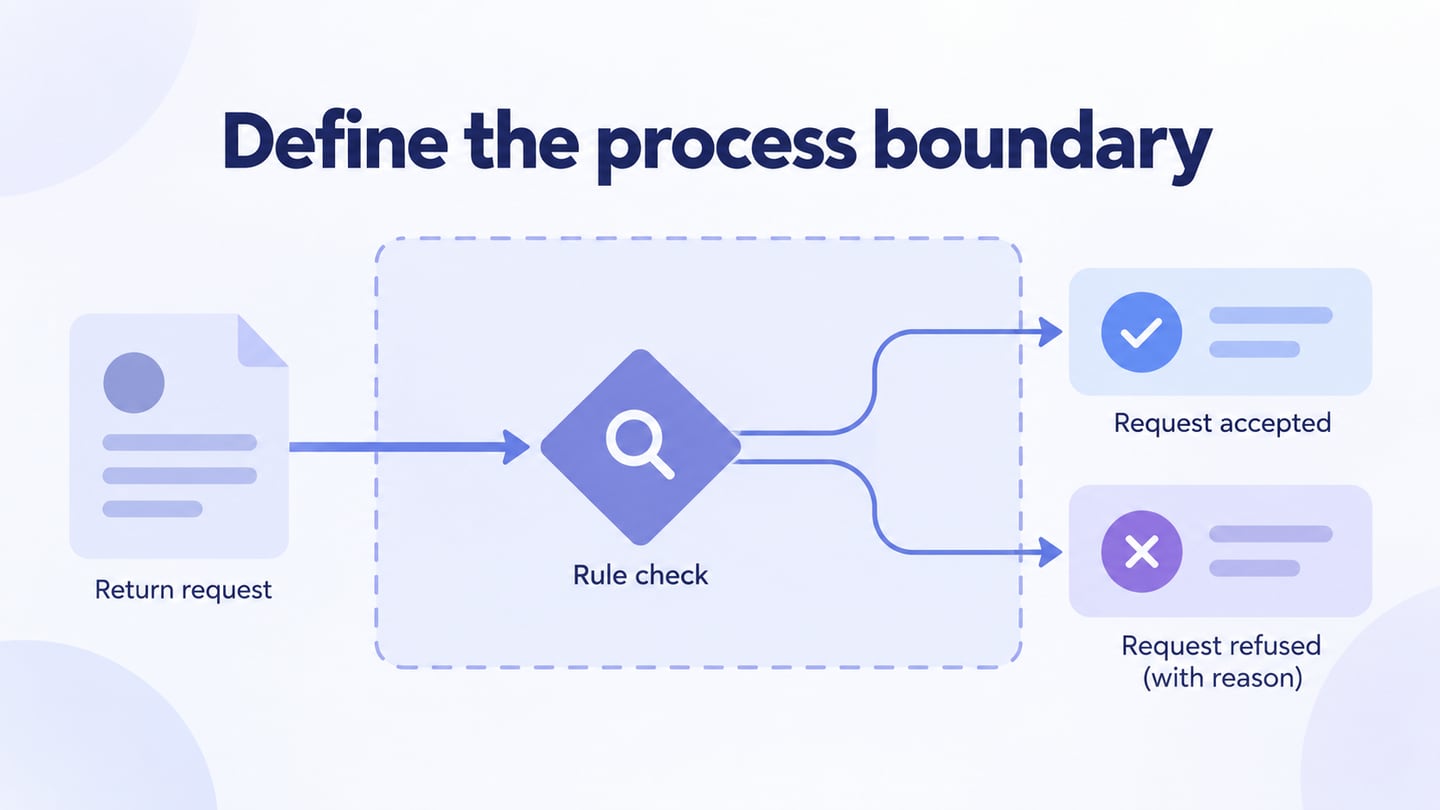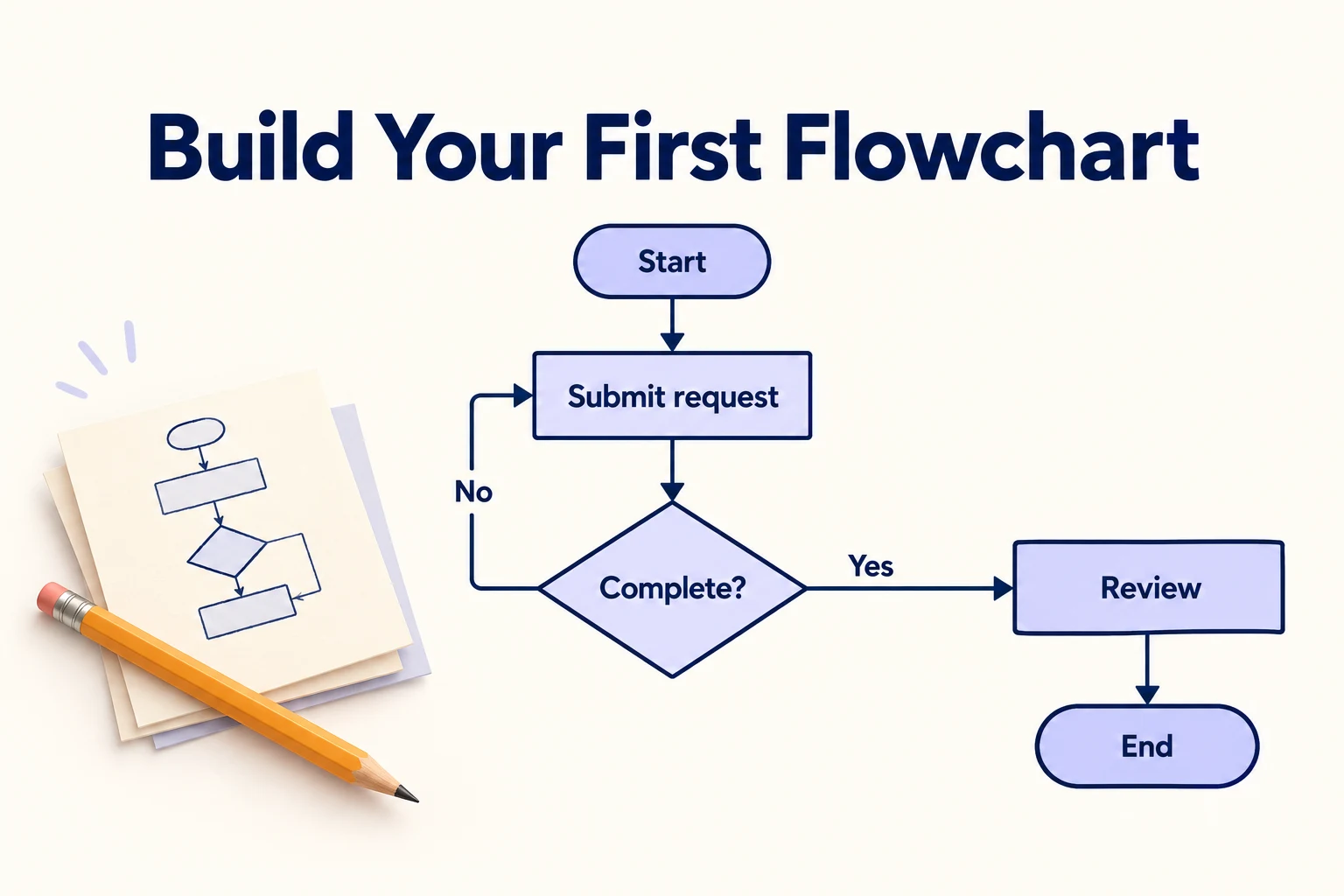
A flowchart shows the steps in a process, the decisions that change its direction, and the outcome of each path. Use one when a written procedure leaves people unsure about what happens next. You can draw a small chart in Google Docs or use Mockitt's online flowchart maker when the diagram needs its own editable canvas.
This guide keeps the process simple: define the start and end, add actions and decisions, connect and label the paths, then walk through realistic examples. A fictional equipment-loan request provides a complete example you can adapt to an approval, customer-support, or operations workflow.
- Part 1. The Definition of a Flowchart
- Part 2. 4 Steps to Make a Simple Flowchart
- Part 3. Create a Simple Flowchart Online
The Definition of a Flowchart
A flowchart is a diagram that represents a process or workflow. Shapes represent actions, decisions, inputs, or outcomes; connecting arrows show the direction in which the process proceeds. Its purpose is to give people a shared way to understand and discuss a procedure.
A flowchart is useful for analyzing a process, explaining a business rule, documenting a program's logic, or finding a missing exception path. An organizational chart answers a different question: who reports to whom. A flowchart can identify responsible roles, but its central subject is what happens and in what order.
Flowcharts can emphasize different parts of a system. Common descriptions include:
- Document flowchart: follows a document through preparation, review, approval, and storage.
- Data-oriented flowchart: shows how information is processed. A formal data flow diagram uses its own notation and is not interchangeable with a sequence of process steps.
- System flowchart: shows how parts of a system participate in a process.
- Program flowchart: describes the sequence and branching logic of a program.
The most appropriate chart is the one that answers your reader's question. To explain a simple approval, begin with actions and decisions. When ownership is the problem, arrange those steps into swimlanes. Do not add database, network, or organizational detail unless it helps explain the process.
4 Steps to Make a Simple Flowchart
Before drawing, write a one-sentence boundary. Our example begins when a staff member submits an equipment request and ends when equipment is issued or the request is cancelled. Returning the equipment belongs to a separate process; including it here would make the first chart harder to follow.
Step 1: Map out Process Highlights
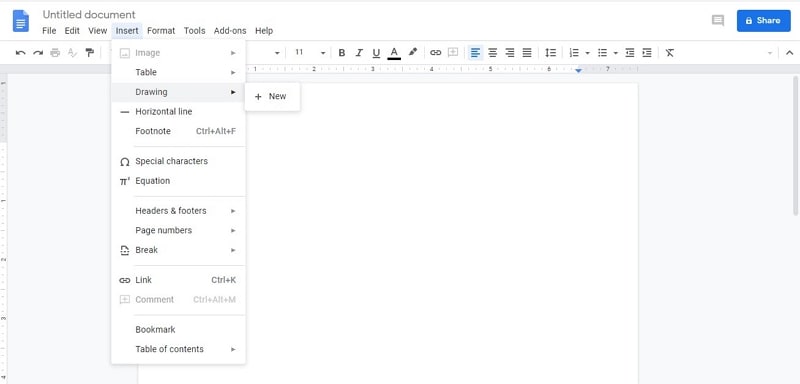
In a Google document on a computer, select Insert → Drawing → New, then add shapes and lines. This is the drawing route documented in Google's drawing instructions. Begin with the start, the main actions, and the end before applying colors or decorative elements.
For the equipment example, place these labels in order: Request received → Review request → Check availability → Issue equipment → Equipment issued. This is the main path. Use short verb phrases for actions so readers can tell what someone does. “Review request” is clearer than the vague label “Request processing.”
The output of this step is a rough sequence with a clear beginning and end. If the team disagrees about the order, settle that before refining the layout.
Step 2: Fill Key Details
Gather the rules that change the path. In this example, a request must contain an item, date, and borrower; the equipment must also be available. These are two different questions and need two decision points.
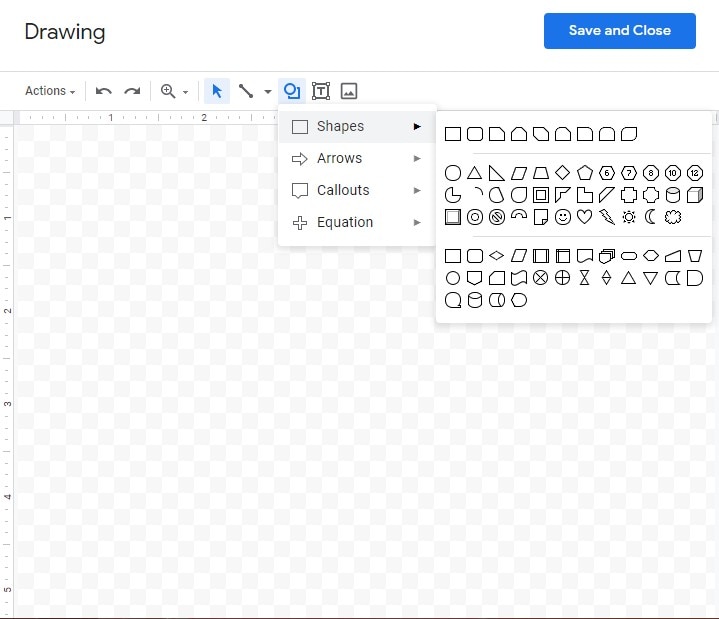
Use a rounded start/end shape, rectangles for actions, diamonds for decisions, and arrows for sequence. A parallelogram can identify an input or output when that distinction matters. The guide to flowchart symbols and meanings explains these shapes with examples. Keep shape meanings consistent and label decision exits with the condition they represent.
- Request complete? Yes leads to Check availability. No leads to Request missing details, then back to Review request once the borrower supplies them.
- Equipment available? Yes leads to Issue equipment. No leads to Offer alternative date or item.
- Alternative accepted? Yes returns to Check availability for the revised request. No leads to Request cancelled.
These labels expose a useful rule: accepting an alternative does not immediately issue equipment; availability must be checked again. Note who owns each action if a handoff is unclear. For a larger team, a swimlane can separate the borrower from the equipment coordinator without changing the decision logic.
Step 3: Test Results & Gather Feedback
Walk through the chart with someone who performs the process. Do not ask only whether it looks correct. Give them a concrete request and ask them to follow every arrow until they reach an outcome.
- Complete, available request: review, check availability, issue equipment, finish at Equipment issued.
- Missing date: request details, receive the date, return to review, then check availability. The incomplete request must not skip directly to issue.
- Unavailable item, alternative accepted: offer another item, recheck availability, then issue only if available.
- No acceptable alternative: end at Request cancelled. Do not leave the branch without an outcome.
Check for unlabeled decisions, arrows that point nowhere, and loops without a condition for leaving them. If the real process permits a borrower to abandon an incomplete request, record the cancellation or expiry rule rather than inventing a deadline. The output is an agreed path for the common case and each meaningful exception.
Step 4: Publish or Export Flowchart
Give the chart a descriptive title such as “Equipment request: submission to issue,” and keep the process owner and revision date beside it. Use one reading direction, align related shapes, and avoid crossings where an elbow connector or a different layout would be clearer. Do not rely on color alone to distinguish Yes and No.
In Google Docs, use Save and Close to insert the drawing in the document. Share the editable document when collaborators need to revise it; choose a suitable document export when the recipient only needs a reference. Inspect the result at its actual reading size so labels remain legible and no arrows are cropped.
Create a Simple Flowchart Online
Mockitt Diagram provides an online canvas for shapes, connectors, templates, and flowchart editing. Its product page describes drag-and-drop placement, alignment and snapping, cloud-saved diagrams, and exports. For the equipment example, start with a blank flowchart or a suitable template and replace its sample steps with your agreed process.
Step 1: Add Request received and the two possible end states. Lay out Review request, Check availability, and Issue equipment between them. Leave space for the missing-details loop and the alternative branch before connecting everything.
Step 2: Add the three decision questions and connect their labeled exits. Move a shape to check that its relationships remain understandable. Use consistent spacing so the reader can distinguish a branch from the main sequence.
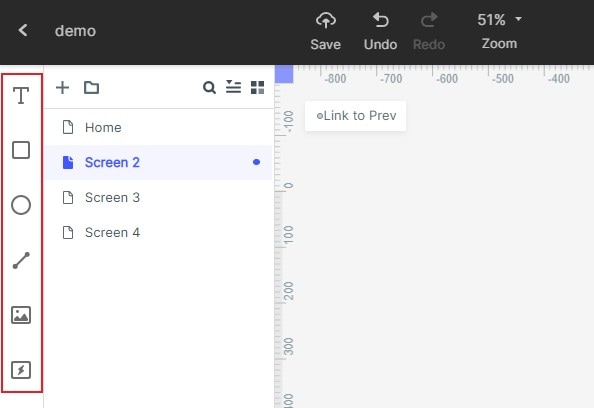
Step 3: Add any required explanatory notes beside the relevant step, then review the four sample requests above. Keep the diagram editable for the process owner. Share or export the version intended for readers after checking that labels and exception paths survive the output format.
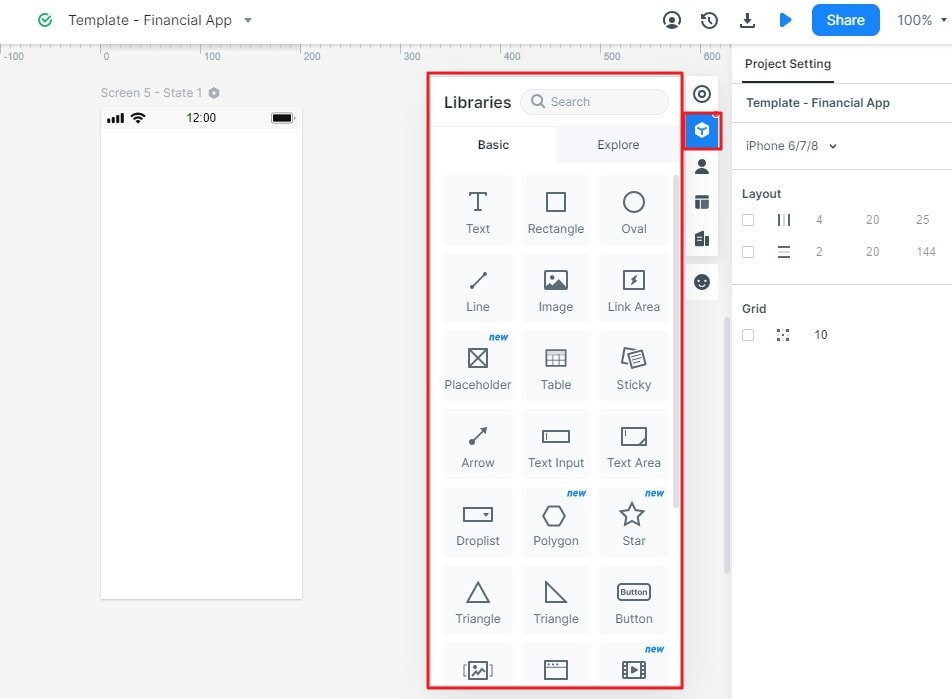
Choose the working surface around the review. Google Docs is practical when a small diagram belongs inside an existing document. Mockitt suits an editable diagram connected to product work. Boardmix's collaborative whiteboard is another option when the team wants to collect sticky notes, discuss handoffs, and keep supporting material beside the flowchart. These are workflow choices; no tool can supply a missing business rule on the team's behalf.
Final Words
A useful flowchart explains what happens, why the path changes, and where each route ends. Start with a bounded process, use consistent symbols, label decisions, and trace both the ordinary and exception paths. The equipment example becomes complete when a reader can follow a valid request, correct missing details, handle unavailable stock, and identify the final outcome without guessing.