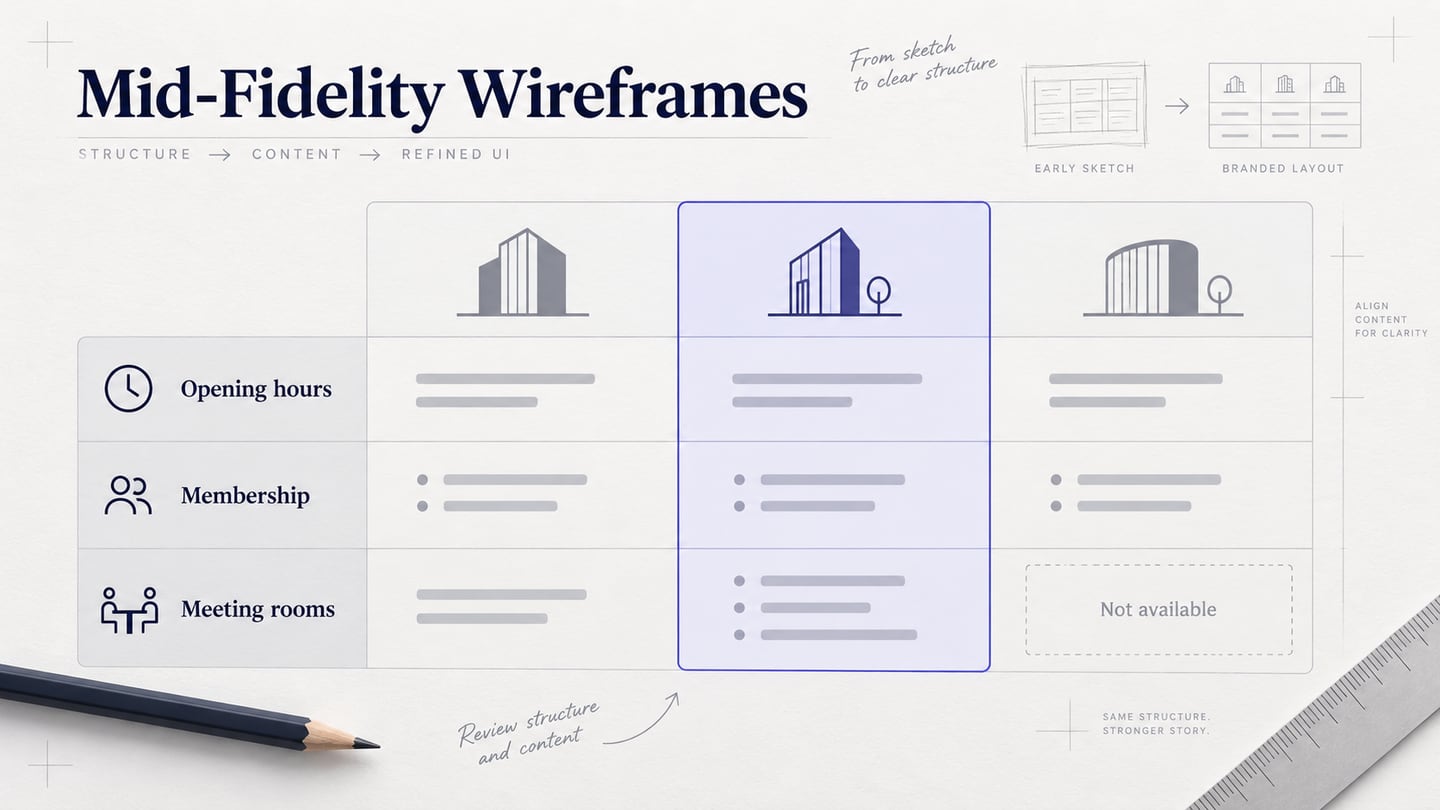
Mid-fidelity wireframes add enough structure and realistic content to discuss a design in detail without treating the visual style as final. Fidelity is not simply the number of pictures on a screen: content, appearance and interaction can each be more or less complete. This guide explains when the middle level is useful and follows a five-step workflow with a fictional coworking-space comparison screen.
What Is a Mid-Fidelity Wireframe?
A mid-fidelity wireframe usually has a more deliberate layout and clearer components than an early sketch. It may include real labels, sample values and distinct controls, while keeping typography and color restrained. The boundaries are practical rather than fixed: a detailed comparison table can sit inside a visually plain screen.
Distinguish links from buttons and headings from body text. Use realistic content where it changes the decision, such as the price period, included facilities or opening hours in a coworking comparison. Grayscale is useful when visual branding is outside the review, but it is not a mandatory definition of mid-fidelity.
Reasons to use this level of detail include:
- It makes spacing and hierarchy easier to inspect with realistic content, including long labels and missing values.
- It leaves room to revise the layout without maintaining a complete visual system.
- Connected screens can demonstrate selected interactions; a static mid-fidelity wireframe does not automatically show behavior.
- It can support discussion with clients, colleagues or users when the task is clear. Low-fidelity sketches can also be used in research; formality does not determine usefulness.
When Should You Use Mid-Fidelity Wireframes?
Use this level when the task is clear enough to choose meaningful content but questions about structure remain. For the coworking example, the team knows people must compare locations, hours and membership terms. It does not yet know whether a side-by-side table or a list of cards makes those differences easier to inspect.
If the main question is which user problem to solve, more detailed screens may create premature commitment. If the question depends on final typography, motion or exact brand treatment, increase fidelity only in those dimensions. A technically experienced audience does not automatically require a high-fidelity prototype.
How to Create a Mid-Fidelity Wireframe
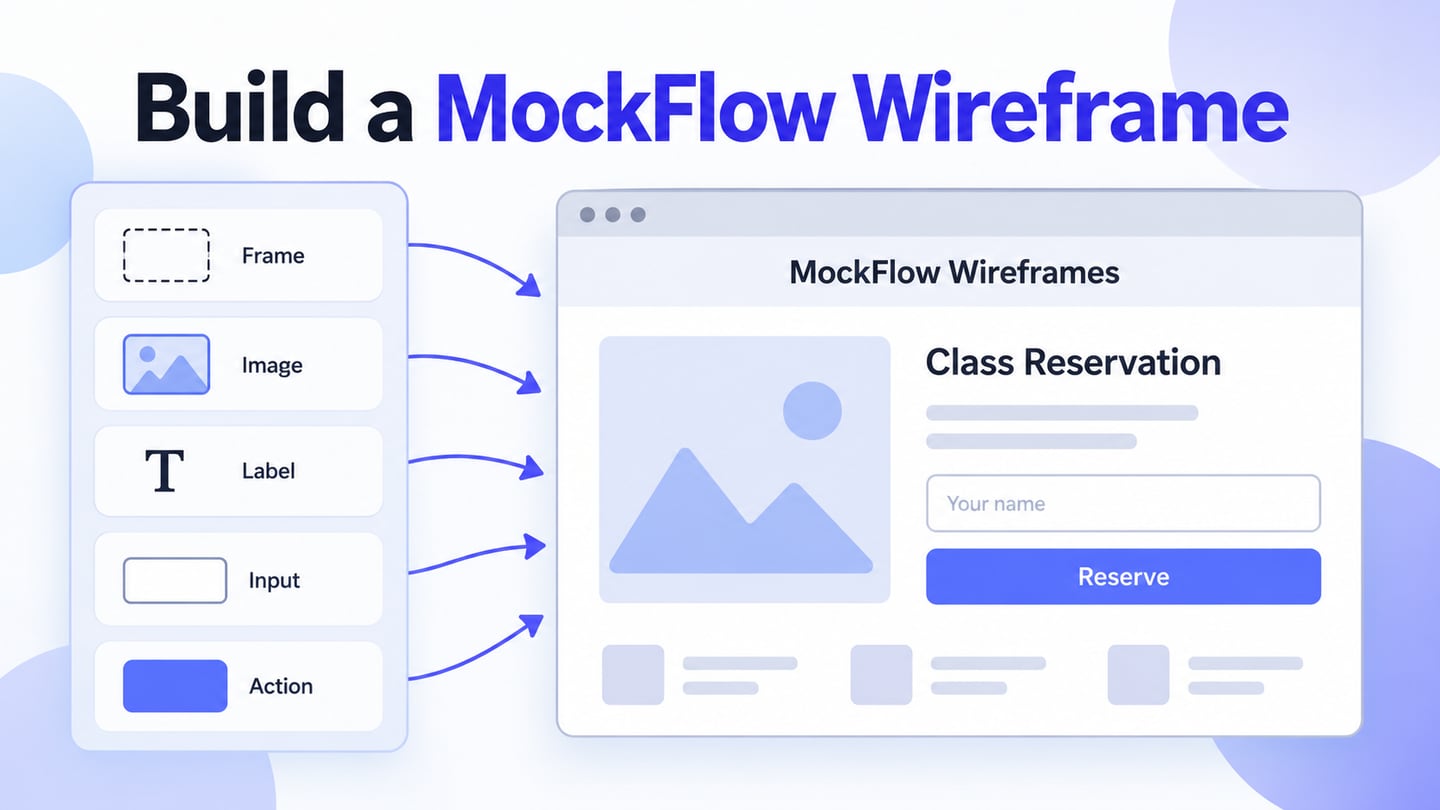
Use Mockitt to arrange content and link the few states needed for the review. The following process builds “Compare coworking spaces” with three fictional locations. Keep the same data in each layout alternative so the review concerns presentation rather than different offers.
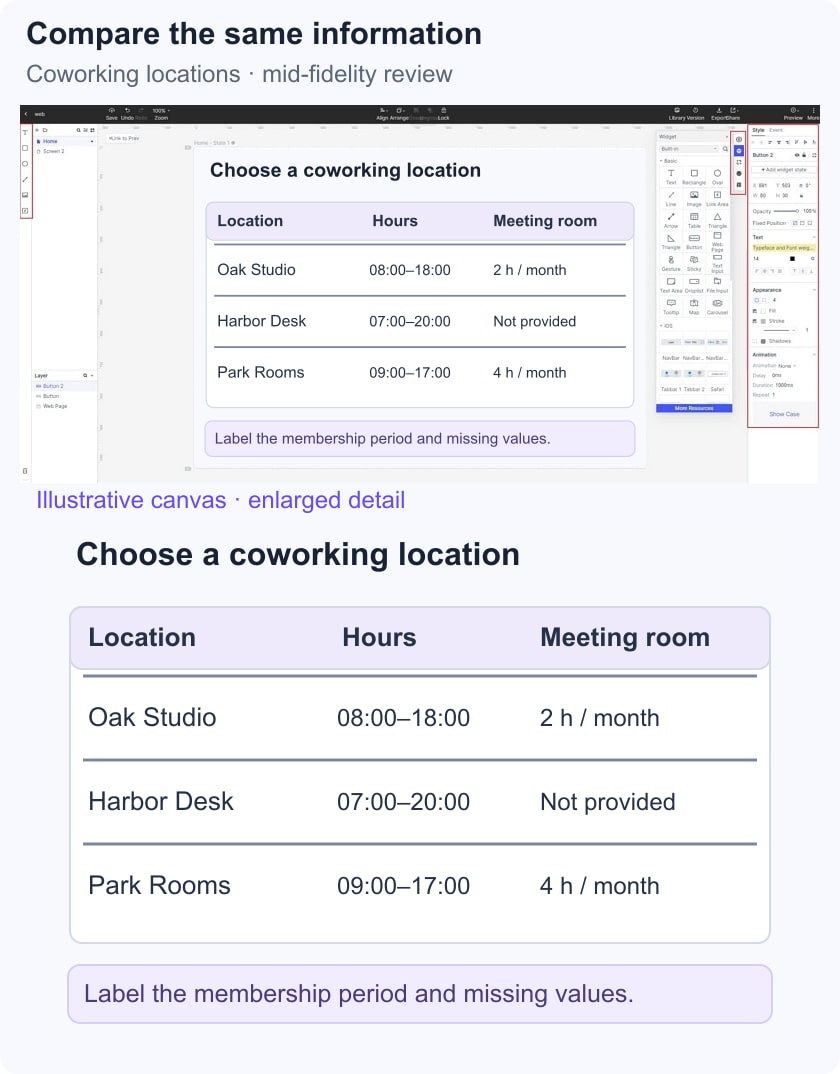
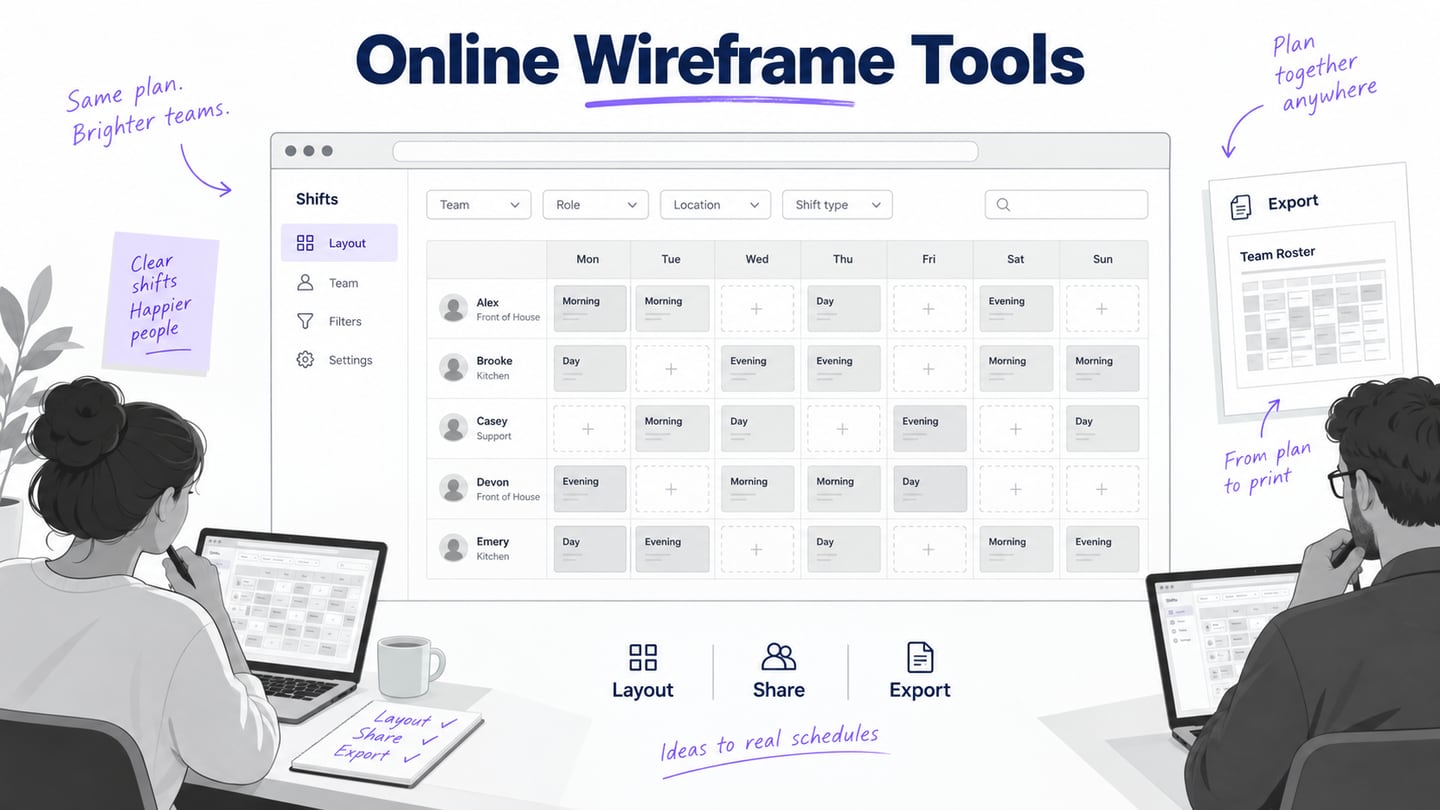
Use the workspace to support the comparison:
- Apply a small, consistent palette and text hierarchy. Reserve emphasis for selected locations and the next action rather than adding decorative color to every cell.
- Share a defined starting screen and check recipient access. Do not assume every review link bypasses login or access restrictions.
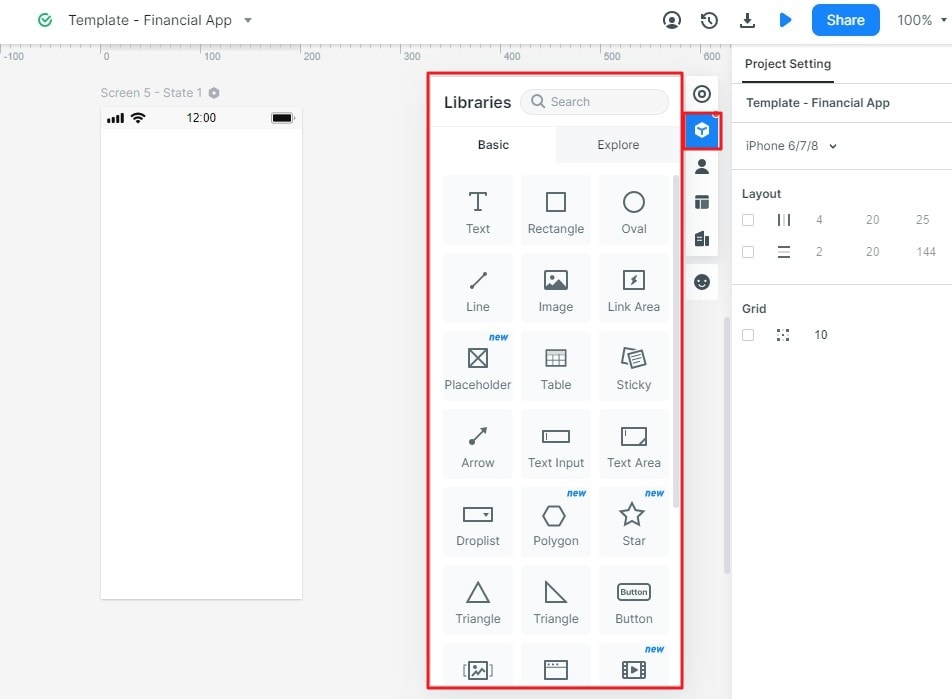
- Reuse location cards, labels and comparison rows so repeated information appears consistently.
- Choose a supported review or export format after checking the current workspace options; a static export and an interactive preview are not interchangeable.
- Keep the source project and reviewed version together so feedback can be traced to the right layout.
Build the comparison in five steps:
Step 1: Create Project
Create a prototype project named “Coworking comparison.” Define the review task: choose a space that opens before 8 a.m. and includes a meeting-room allowance. These are fictional criteria used to examine the layout.
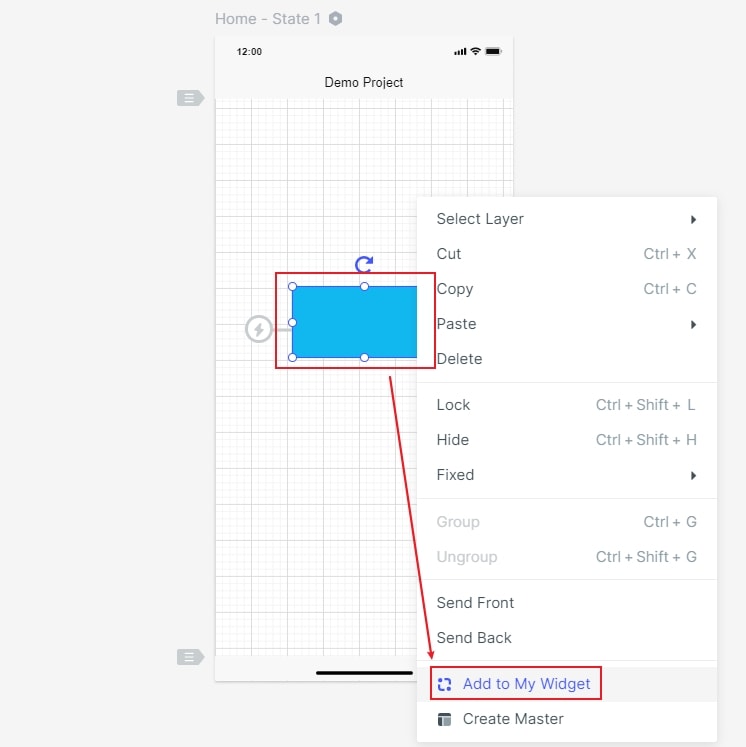
Start from a blank canvas or a relevant template. Remove unrelated modules and create a list screen, comparison screen and location-detail screen. The retained setup images are historical editor references.

Step 2: Choose the Review Size
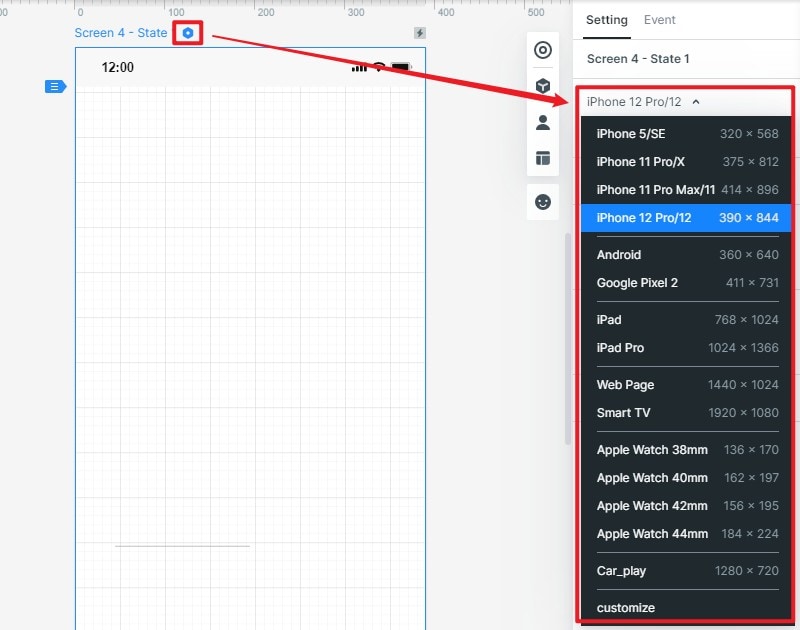
Choose the intended screen size for the person comparing locations. The canvas size describes the target interface, not necessarily the device used to design it. Add a narrow version when that context affects how the comparison can be read.
Decide what happens when three comparison columns no longer fit. You might stack attributes or offer a deliberate horizontal comparison region; explain the chosen behavior and test it rather than shrinking the text.
Step 3: Add Meaningful Content and Controls
Place location names, opening hours, membership period and meeting-room allowance in aligned rows. Distinguish “not included” from “information unavailable.” Add controls for selecting locations and an explicit “View location” action. Use a long location name and one unavailable value to reveal layout weaknesses.
Step 4: Reuse the Comparison Components
Edit row labels, spacing and selection states consistently. Reuse the same components in the list and comparison views where their roles match. Keep notes about missing data and the selected-location limit beside the design, rather than implying that the prototype fetches live membership information.
Step 5: Preview the Comparison Task
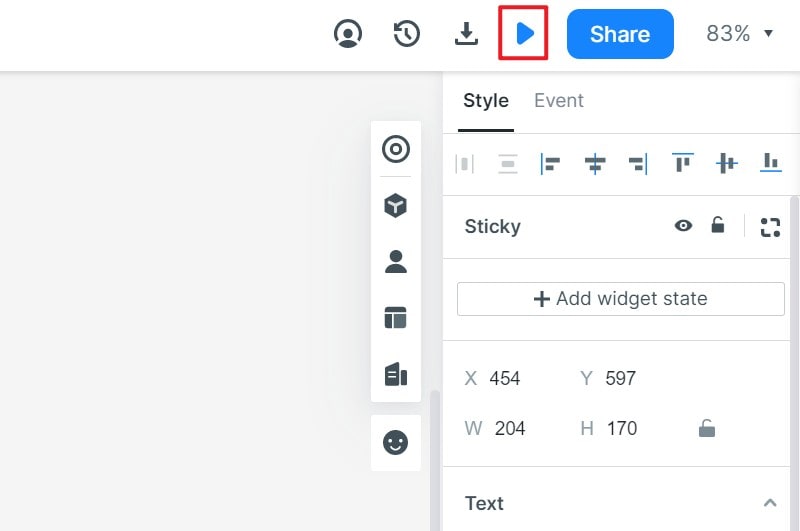
Preview the sequence and ask a reviewer to find a location that meets the stated hours and meeting-room requirement. Record which information they checked, whether they understood the billing period and where they looked for a missing value.
Share the same version for a second review context if needed. Keep the layout decision separate from the fictional business data: a successful walkthrough does not establish that a location exists or that a real membership purchase works. Carry the unresolved comparison questions into the next design iteration.