Google's Imagen research explores how text descriptions can guide image generation. This article explains the difference between the original Imagen text-to-image model, the Imagen Editor research system, and EditBench, then outlines how to try Google's currently available image tools alongside a design workflow.
Research demonstrations are useful for understanding the technology, but they are not all publicly available generators. For an accessible starting point, Google's Gemini app supports image generation and editing for eligible accounts; availability depends on account, age, language and region.
- Part I: Understanding Google's Text-to-Image AI Generator
- Part II: Potential Applications of Google's Text-to-Image AI Generator
- Part III: Using Mockitt and Mockitt AI for Your Design Process
- Part IV: Integrating Google's Text-to-Image AI Generator with Mockitt AI
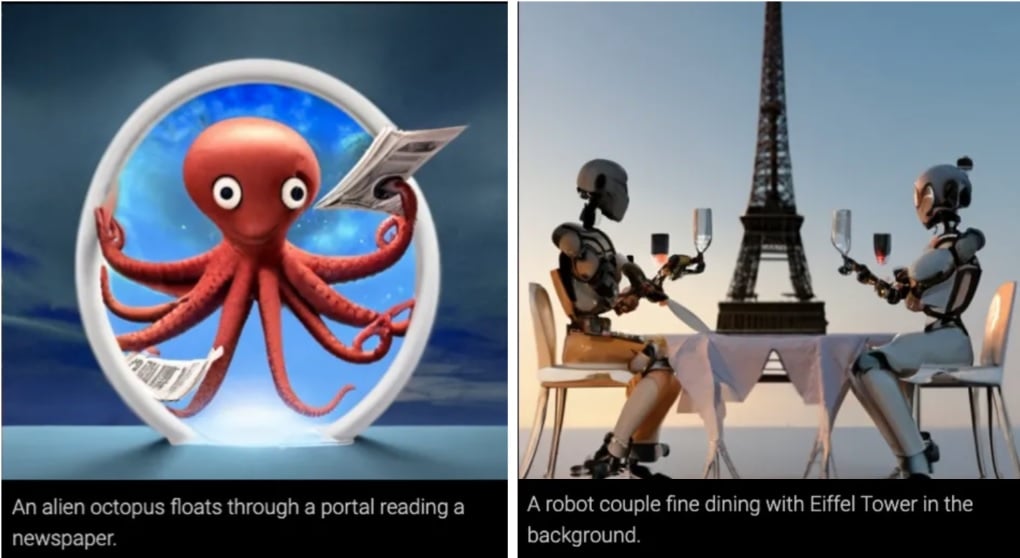
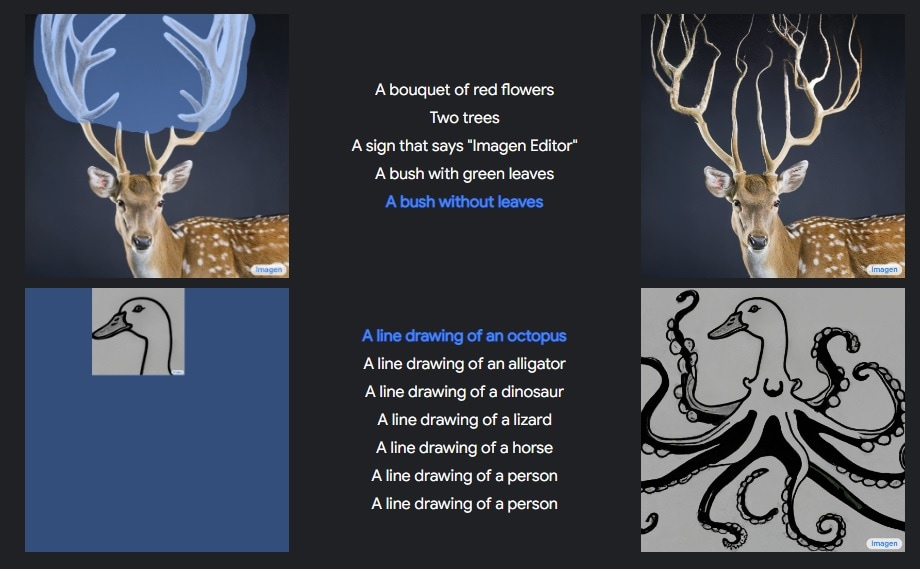
Imagen Editor is a research system for text-guided image inpainting: it takes an image, a mask identifying the area to change, and a text prompt. EditBench is an evaluation benchmark used to assess editing performance, not a separate image generator. The examples below illustrate Imagen research rather than a step-by-step public app.
- Generating Images From Textual Descriptions
The original Imagen research demonstrated text-to-image generation. The sample below pairs prompts with generated images; it does not show the masked-image editing workflow of Imagen Editor.
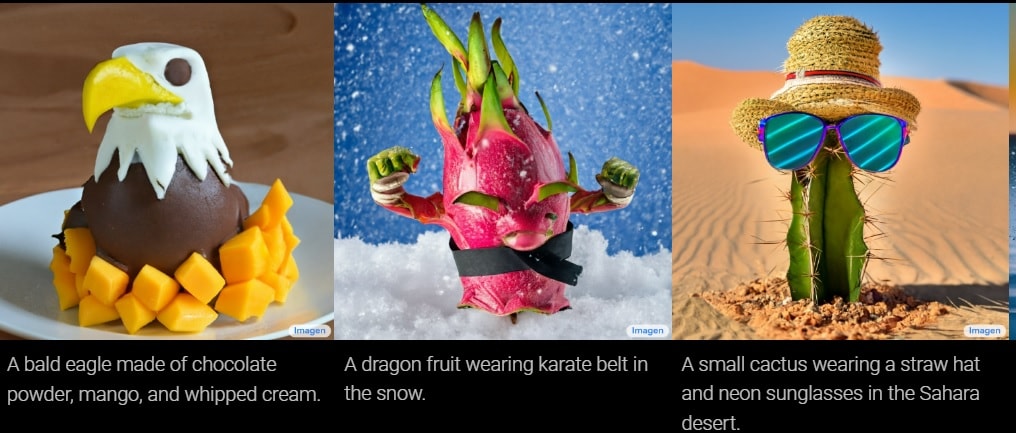
- Understanding the Research Model and Its Examples
The diagram below illustrates a text-conditioned image-generation pipeline, with stages that increase image resolution. It explains the research model; supported output formats and controls in a public app must be checked separately.
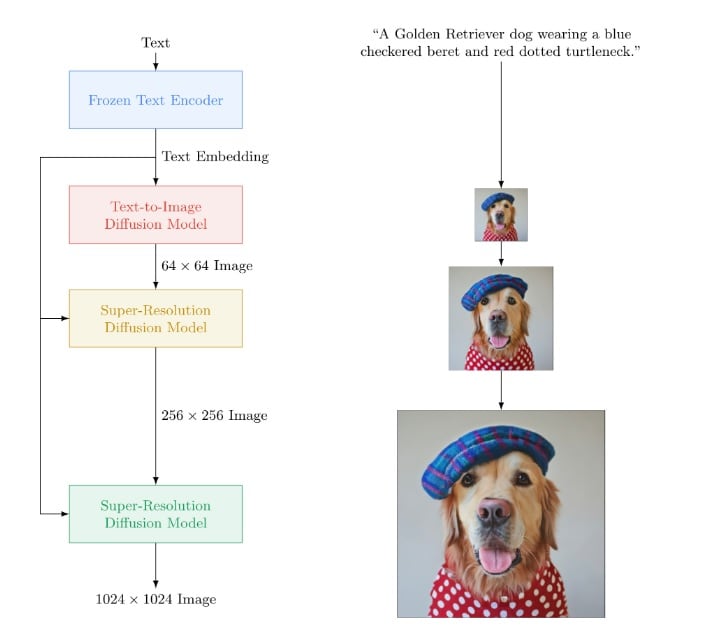
- Modifying Generated Images Through Text Prompts
Imagen Editor changes a selected region of an existing image according to a prompt while preserving the unmasked area. The example below shows how the mask and the requested object guide that edit.
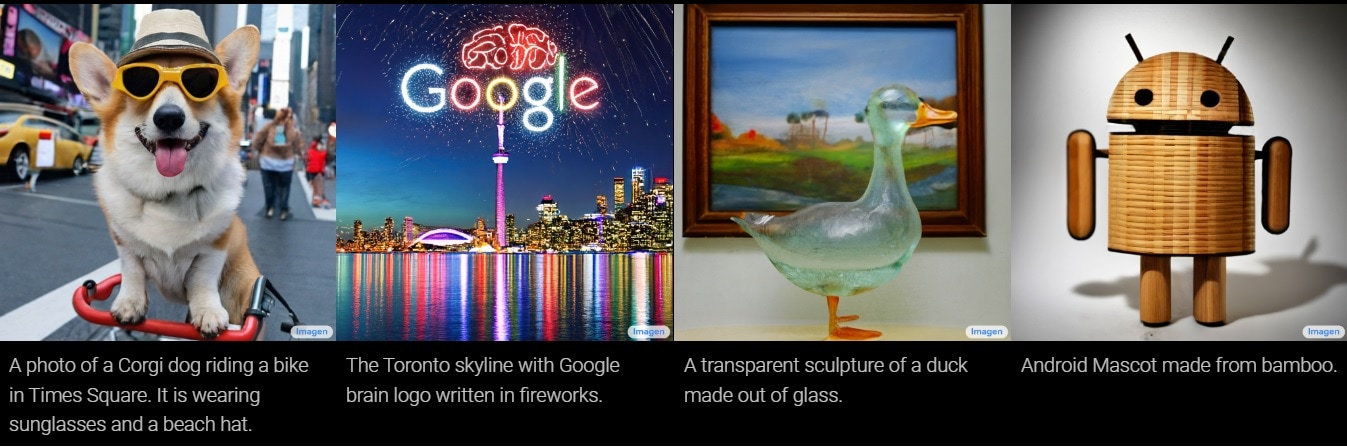
Other Imagen research examples show combinations of subjects, materials and settings described in prompts. These examples demonstrate research outputs, not an assurance that every prompt will produce an accurate or usable result.
Here are a few samples showcasing some exciting prospects for artistic expression.
Text-to-image systems can support the following creative tasks. These are potential uses, not evidence that a particular company has deployed Imagen Editor or EditBench in production.
Enhancing Visual Storytelling and Content Creation
It empowers creators to convey ideas more. Text-to-Image AI content can engage audiences with compelling narratives coupled with images to tell the story.
Improving E-Commerce and Product Visualization
Text-to-image generators can help a team explore product settings or campaign concepts. For e-commerce, keep concept images separate from factual product photographs and check that generated details do not misrepresent the item being sold.
Assisting in Graphic Design and Marketing Materials
Text-to-image generators can provide drafts for graphic design and marketing materials. Review brand fit, visual errors and usage terms before using an output in a campaign; time savings depend on the task and the amount of revision.
Supporting Virtual and Augmented Reality Experiences
Generated images can serve as concept art or textures in a virtual- or augmented-reality project. A two-dimensional image does not by itself create an interactive AR overlay or a working VR experience; those require a separate implementation.
Mockitt supports interface prototyping and team review. The screenshots in this section document an earlier Mockitt AI interface and are retained to explain the original workflow; menu positions and available features may differ in the current workspace.
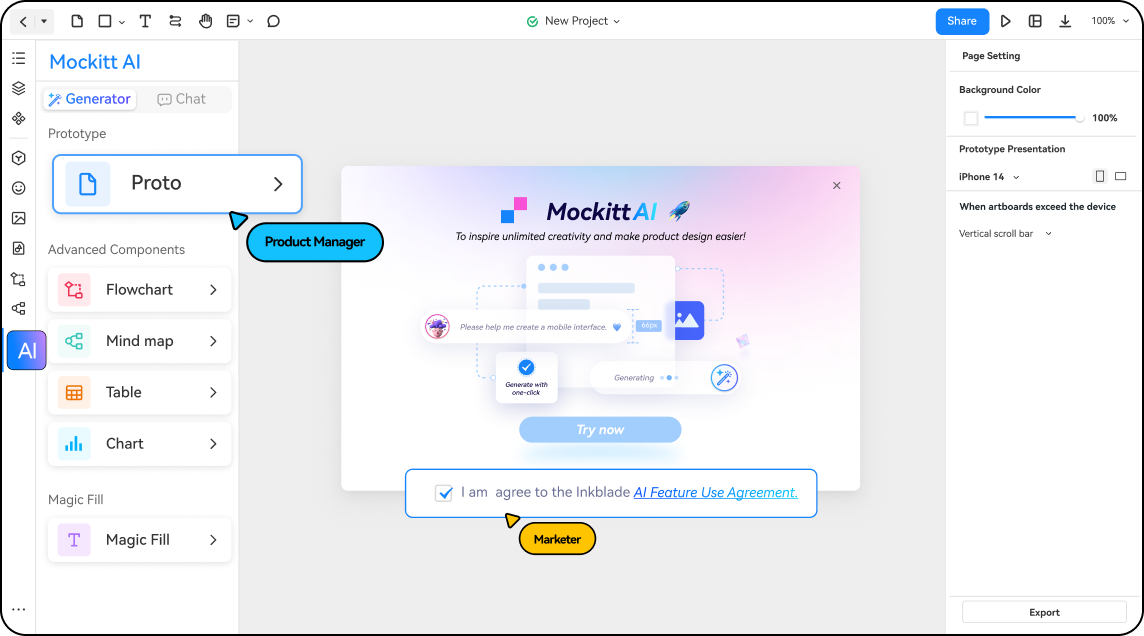
Key Features
The earlier interface shown below included the following AI-assisted tasks. Check the features and access available in your current account before relying on a particular workflow.
- AI Chat. The illustrated chat interface accepts questions or drafting requests. Its replies still need review for accuracy and relevance.
- AI Component Generator. The illustrated interface includes table, chart, flowchart and mind-map options. Treat generated content as a draft to check and adapt to your design.
- AI Prototype Generator. The earlier interface includes a prototype-generation option. Review the resulting structure and interactions before using a generated draft for a design review.
- Magic Fill. The earlier interface includes an option for drafting text content. Check names, figures and other factual details before placing that content in a prototype.
Comparison Between Google's Text-to-Image AI Generator and Mockitt AI
While both tools come with a powerful AI, there are some intrinsic differences between the two tools. Below are a couple of distinct features that really set them apart.
- Purpose. Imagen generates images from text, while Imagen Editor researches edits to selected image regions. EditBench evaluates editing performance. Mockitt is used to assemble and review interface prototypes.
- Inputs and outputs. A text-to-image request produces an image. Imagen Editor additionally needs an input image and mask. A prototype combines screens, content and interactions, so it requires a different workflow from generating an illustration.
- Editing and collaboration. Imagen Editor is specifically an image-editing research system. Gemini offers image generation and editing in a user-facing app; Mockitt supports prototype design and review. These are complementary tasks, not interchangeable feature sets.
The workflow below uses a text prompt as the connection between the tools. It does not require a direct integration or access to the Imagen Editor research model.
Step 1: Sign in to your Mockitt workspace and open the project you are working on. Check the features and plan available to your account.
Step 2: If an AI chat or drafting feature is available in your workspace, use it to develop a prompt. You can also write the prompt yourself. The screenshot below shows the older interface, so its lower-left menu location is not a current navigation instruction.
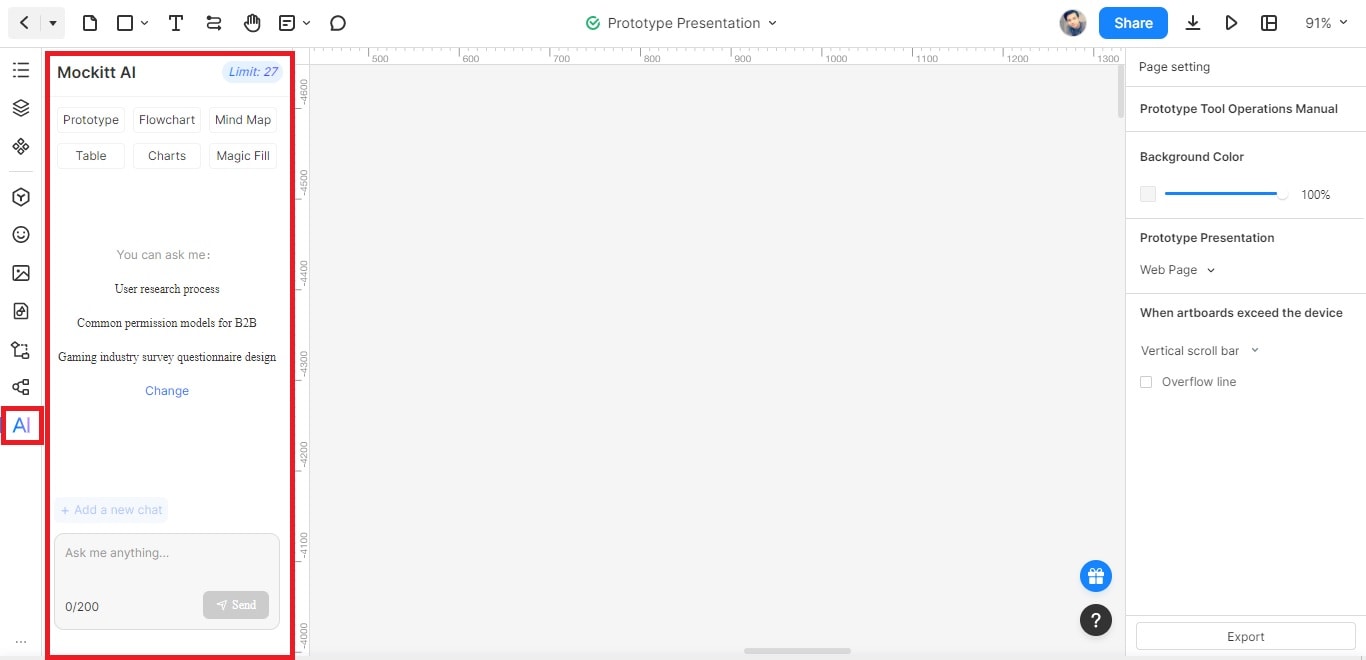
Step 3: Review and copy the prompt. Include the subject, setting, composition and desired style. The example below illustrates prompt drafting; send the finished prompt to an available image-generation app such as Gemini, not to EditBench.
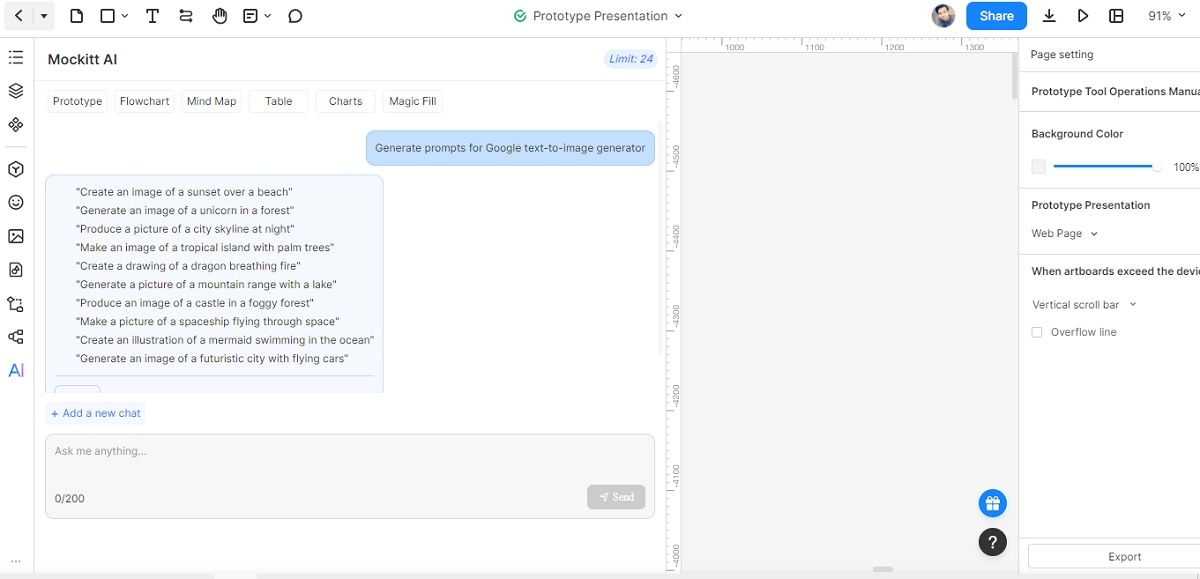
Access Google's Text-to-Image AI Generator
For the current consumer workflow, follow Google's Gemini image-generation help. The research site remains useful for examples, but it does not provide the general-purpose generator described in the original instructions.
Step 1: Open Gemini and sign in with an eligible account. If image generation is unavailable, check Google's current account, age, language and regional requirements.
Step 2: Enter a prompt asking Gemini to create an image. Review the result and request changes if needed.
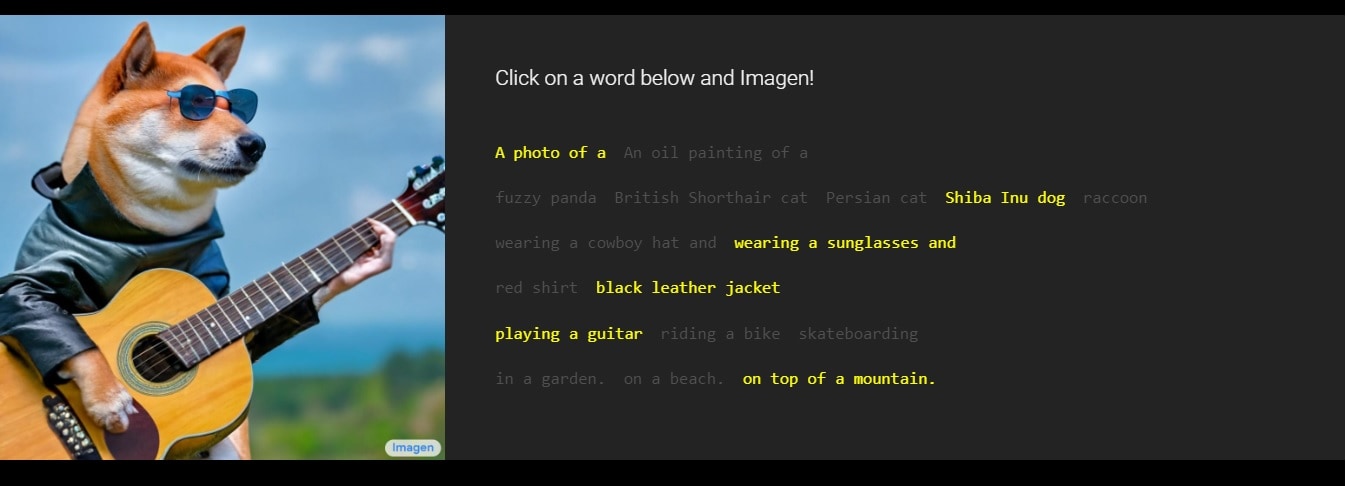
Try one change at a time, such as composition or background, so you can judge its effect. The image below is an older Imagen research demonstration, not a screenshot of the Gemini interface.
Step 3: Download an image you have reviewed using the options available in Gemini. If you plan to use it in a mockup, add the saved image to the design as an image asset.
This is a manual handoff between tools. Check image quality, product accuracy and usage terms before sharing it as part of a design.
The Advantages of Collaborative Design Workflows Using Both Tools
Google's AI Generator and Mockitt AI open up possibilities in collaborative design workflows. These are some of the advantages.
- Enhanced Visual Representation. The combination allows you to create high-quality and diverse visual assets. You can improve your representation of design concepts using textual descriptions.
- Design iteration. A saved image can be placed in a prototype and reviewed in context. Changes to the original generated image may require a new download and replacement in the design; this workflow does not automatically synchronize the two tools.
- Improved Collaboration. By combining these tools, you can easily share AI-generated images with stakeholders. This fosters better collaboration and communication throughout the design process.
Examples of Collaborative Design Workflows
Achieving visually stunning design using both tools has an extensive use case.
- Content creation. Generate and review an image in the chosen image tool, then place it in a Mockitt prototype to discuss its layout and suitability with the team. A generated image is a draft, not evidence of how the finished product will perform.
- Product Design. You can use text prompts to generate AI images. It can represent different product variations or features. You can integrate it into Mockitt prototypes to test different design concepts. It allows for quick iterations and data-driven decision-making.
- Marketing Collateral. Marketers can leverage AI-generated images in their marketing materials. This includes materials for social media posts or advertisements. Combining these visuals with Mockitt's design capabilities creates compelling and targeted marketing campaigns.
Conclusion
Google’s Imagen research helps explain text-to-image generation and image editing. Imagen Editor is an editing research system, and EditBench is its evaluation benchmark. For a user-facing image-generation workflow, start with an available app such as Gemini and follow its current access requirements.
Mockitt can provide the design context in which a team reviews an image. Keep that prototype workflow separate from the image-generation step, and check current product controls when following the older screenshots in this article.