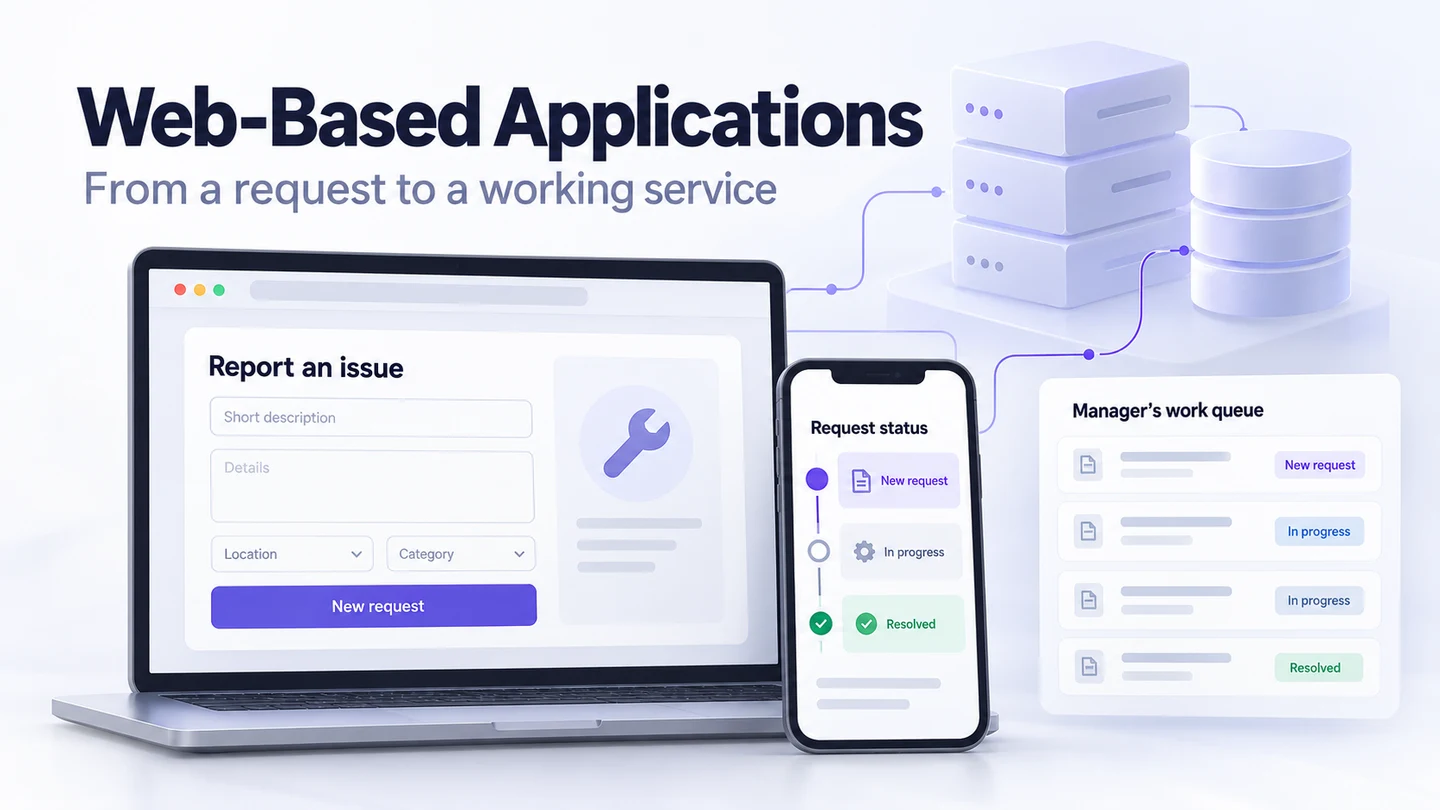
A web-based application is software you use through a web browser to complete tasks, such as editing a document, submitting a request, or managing shared records. You can usually open it without installing a separate desktop or mobile app. A web-based system may include the application plus the servers, databases, and integrations behind it.
This guide explains the definition, benefits, and development steps. Before implementing a new workflow, you can use Mockitt's browser-based prototype editor to explore its screens and interactions. A clickable prototype helps you review the experience; a deployed application also needs working data, permissions, and operational support.
What is a Web-Based Application?
A web-based application runs in a browser. People may use it on a computer, tablet, or phone, depending on the application's supported browsers, layout, and device requirements. Many tasks need an internet connection, although some applications provide selected offline functions.
A website and a web application are not opposing categories, and an app is not simply a “better” website. A website can explain a service and also contain interactive application features. The useful distinction is what the person is trying to do and whether the software processes their input or maintains task state.
| Example | Main task | What happens to information? |
|---|---|---|
| A building's maintenance information page | Read opening hours and contact instructions | The visitor mainly reads published information |
| A maintenance request application | Submit a fault, check its status, and respond to a question | The system stores and updates a request record |
| A maintenance interface prototype | Try the proposed request flow before it is built | Sample states illustrate behavior; they do not prove a request was saved |
Some web applications update content without loading a whole new page. That is a feature of a single-page application architecture, not a requirement for every web app. Other applications navigate between server-rendered pages. Either approach can support an interactive service.
Browser access also does not rule out installation. Progressive web apps can provide installation and offline capabilities when implemented and supported. Do not assume that every browser-based app works offline or offers the same features as its native counterpart.
Examples of web-based applications:
- Google Docs for creating and editing documents.
- Google Slides for preparing presentations.
- Google Sheets for working with spreadsheets.
- Microsoft 365's web apps, including browser versions of Word, Excel, and PowerPoint.
These products illustrate browser-based work. Their web, mobile, and desktop versions can have different features and access requirements.
Benefits of Web-Based Application and Software
Web applications can simplify access and deployment for a team that works across devices. The benefits depend on how the application is designed and operated; browser delivery alone does not guarantee compatibility, security, or a good mobile experience.
1. Access across supported devices: A person can often use the same service from a laptop or phone without installing different native apps. For the maintenance example, an employee could report a faulty light from a phone while a facilities coordinator reviews the queue on a desktop.
The browser version still matters. New web features, assistive technology, and organization-managed devices can introduce compatibility constraints. Define the browsers you support and test the important tasks on them instead of assuming that every old browser will run the latest application correctly.
2. Adaptable layouts: A shared web application can support different screen sizes, but its content does not automatically resize into a usable interface. Responsive design requires deliberate layout and content decisions. A desktop request table might become individual cards on a phone, with the status and next action still easy to find.
3. Centralized data management: Keeping records in a shared service can make access control, backups, and administration easier to coordinate. It does not make recovery instant or data inherently safer. The team must implement and test appropriate permissions, secure transport, backup restoration, and monitoring. The OWASP Top 10 provides an overview of major web-application security risks to consider.
4. Easier maintenance and upgrades: Teams can deploy changes to the hosted service without asking everyone to install a new native application package. Users usually receive updated resources through the browser, but caching, an open session, or offline behavior can affect when a change appears. Plan updates so an older open form does not unexpectedly lose a person's work.
These advantages are useful for many business workflows. A native application may still be preferable when a task depends on specific device capabilities or demanding offline behavior. Choose around the task and environment rather than the delivery label alone.
How to Create a Web-Based Application?
1. Figure Out the Purpose
Define the purpose of your application and the problem it solves. Then outline the people involved, the information they need, and the workflow from start to finish.
For a fictional maintenance-request application, an employee reports a flickering light in Meeting Room B. The facilities coordinator needs a location, a description, and a way to assign the request. The employee needs to distinguish “Submitted” from “In progress” and “Resolved.” Start with that exchange rather than a complete facilities-management suite.
2. Wireframing and Prototyping
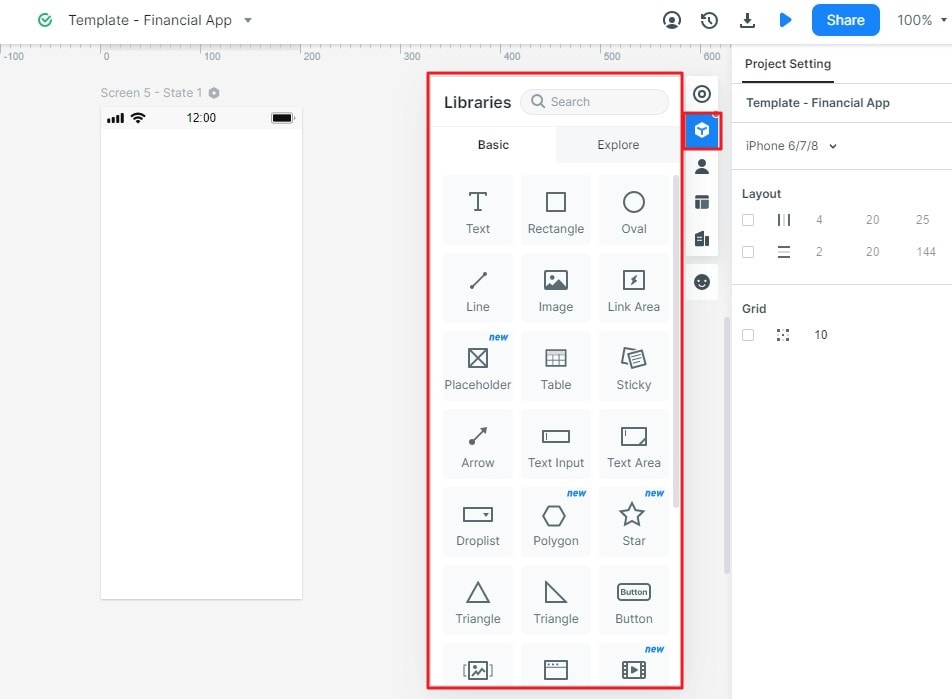
Once you have a workflow, transform it into a wireframe. Mockitt provides reusable interface components and screen interactions for building a reviewable prototype. Use these to plan the request form, confirmation, and queue before committing to their implementation.

Connect the actions that matter to the workflow and show the relevant feedback. An interface prototype can represent a saved request or an error state with sample screens. It does not establish that a database write, conditional business rule, or permission check works in production. For a more detailed screen-building walkthrough, see the web app prototype guide.
3. Start Building
Determine what information the application must store and who can view or change it. For the maintenance example, a request might have an identifier, location, description, submitter, status, and assigned coordinator. Agree on the allowed status transitions before implementing them.
Build the frontend interface and the supporting server behavior together around those requirements. HTML, CSS, and JavaScript can define the browser experience, while backend services validate requests, enforce authorization, and store records. The exact architecture depends on the project; it is not necessary to finish the entire frontend before thinking about the backend.
The production service should confirm submission only after the request has been stored successfully. If the connection fails, the employee needs an accurate outcome and a safe next action. A retry must not accidentally create duplicate maintenance requests.
4. Testing
Test throughout design and development, not only after the build is finished. Use a prototype usability testing plan to check whether people understand the proposed form and statuses. Later, test the implemented application's functionality, supported browsers, accessibility, performance, and security.
Include failures that the happy path hides: a missing location, an interrupted submission, an unauthorized attempt to update a request, and a coordinator viewing stale information. Keep interface observations separate from backend test results so a convincing screen is not mistaken for a working service.
Prototype the Request Flow in Mockitt
The original walkthrough below is retained with clearer task guidance. Its screenshots show an earlier Mockitt interface; use the equivalent controls in your current workspace. The maintenance example supplies the content to build, while the old images explain the editor's general workflow.
1. Open your Mockitt workspace. Create or sign in to the account you use for design work. Keep the exercise data fictional and avoid adding real employee or building-security information.
2. Start a prototype project. The earlier interface shows a Create control. Name the exercise “Maintenance request” so reviewers can distinguish it from a live service.
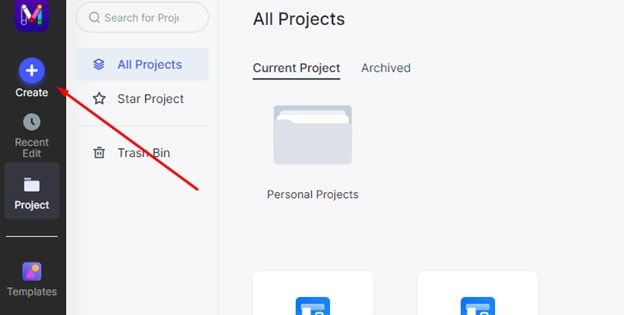
3. Choose the intended screen size. Start with the web-page layout for the coordinator's queue. Add a separate narrow layout if the employee will submit from a phone; shrinking the desktop view alone is not a responsive-design decision.
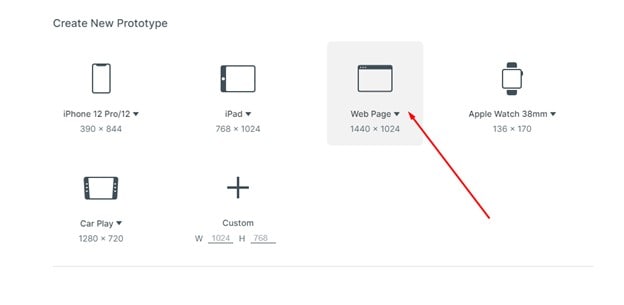
4. Lay out the task states. Create a request form, review screen, submitted confirmation, and coordinator queue. Add a missing-location state and a failed-submission state. Keep “Meeting Room B” and “Flickering ceiling light” consistent across the example screens.
5. Add components and connect actions. Use text inputs, labels, buttons, and a queue table or cards. Link the complete sample form to review, review to the submitted state, and the review's edit action back to the form. Prepare the failure state separately so reviewers can inspect it without depending on a real network failure.
6. Preview the flow and review the handoff. Try submitting the request, returning to edit it, and recovering from the prepared error state. Ask a reviewer what the final status means. The coordinator's example queue should show the same request details; clarify that this is a simulated view, not live synchronization between accounts.
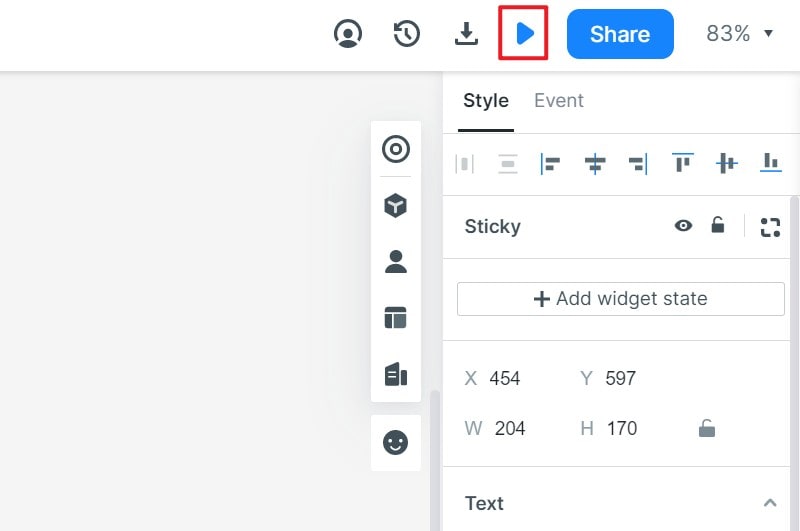
Use the prototype and its design details to explain the intended interface to developers. Preview or handoff is not, by itself, deployment of a secure application with a database and working user permissions. The useful result is an agreed workflow, understandable states, and specific implementation questions the team can resolve before release.