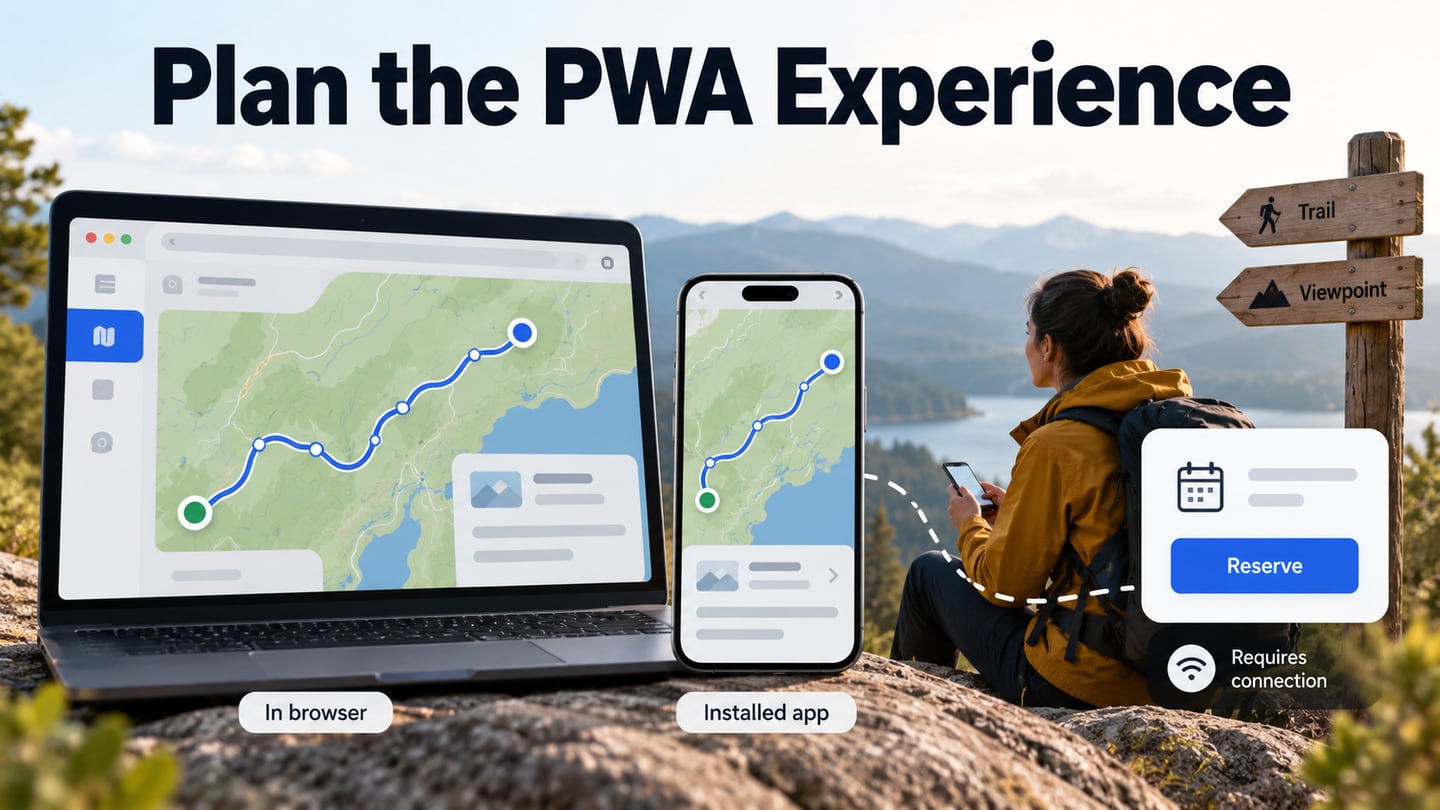
A progressive web app, or PWA, is a web application designed to offer capabilities such as installation and a more resilient experience when connectivity changes. Those capabilities depend on implementation and platform support; they do not appear merely because a site is called a PWA. A web app prototype helps a team plan the screens and states before developers build and test them.
What Does Progressive Web App Mean?
A PWA is still a web app, built with web technologies and accessible through a browser. Supporting browsers may let people install it so it has an app icon and can open in an app-like window. Installation does not imply every native capability is available. Device access, notifications and other features have their own support, permission and implementation requirements.
“Progressive” refers to improving the experience as supported capabilities become available, not downloading an application like a streaming video. A PWA can also use responsive layout; the two ideas address different needs. A team considering a PWA should compare the actual task and platform requirements with a native application rather than assume that one approach always replaces the other.
MDN’s installation guide describes the web app manifest and secure delivery requirements, with different promotion criteria across browsers. It also distinguishes installation from offline support: a service worker is not a universal prerequisite for installation, although many PWAs use one to provide an offline experience. Test the browsers and devices your audience uses instead of promising that everything works everywhere.
PWA Capabilities and Tradeoffs
The following five dimensions explain why a team might choose PWA capabilities and what it must verify. They are not a comparison between unrelated technologies: a PWA extends a web application, and a conventional web app can also be responsive, fast and accessible.
A Native-Like Experience
An installed PWA can open in a standalone window and provide a familiar app entry point. Its interface still needs to suit the user’s task and device. A native-looking shell does not establish native performance, accessibility or access to every operating-system feature. Specify the capabilities needed and check their support individually.
Access and Installation
A link provides access to the web experience, while an installation path may give repeat visitors a convenient launcher. The app still transfers resources, and installation steps vary by browser and platform. Keep the website usable for people who cannot or do not want to install it. A manifest or install prompt is not a substitute for a clear first visit.
Speed and Reliability
Service workers and caching can let an app respond with stored resources when the network is unavailable. The cache strategy must balance speed, freshness and failure handling. Previously cached route details may be useful offline; a new reservation may require a connection. Neither caching nor the PWA label guarantees a retention increase or a fast first load.
Engagement and Device Features
Notifications and supported device features can help a relevant task, but they require appropriate permissions and browser support. Do not assume that every native feature is exposed to a PWA, or that installed status makes an interaction independent of the browser engine. Define an alternative when a capability is unavailable, and request attention only for a clear user benefit.
Development and Maintenance Cost
A shared web codebase can reduce some duplicated work, but total cost depends on the capabilities, platforms, testing and maintenance required. A PWA may be distributed through the web, and some can also be packaged for app stores. Compare the actual delivery plan rather than assuming app-store submission is required for ordinary web apps or that a PWA is always cheaper.
Plan a PWA Prototype
Mockitt can help plan a PWA’s interface and simulated state changes. It does not implement a service worker, install manifest, push-notification service or production data layer simply by drawing those screens. For a fictional trail guide, the useful design question is what remains available offline and what the person should do when a connection is needed.
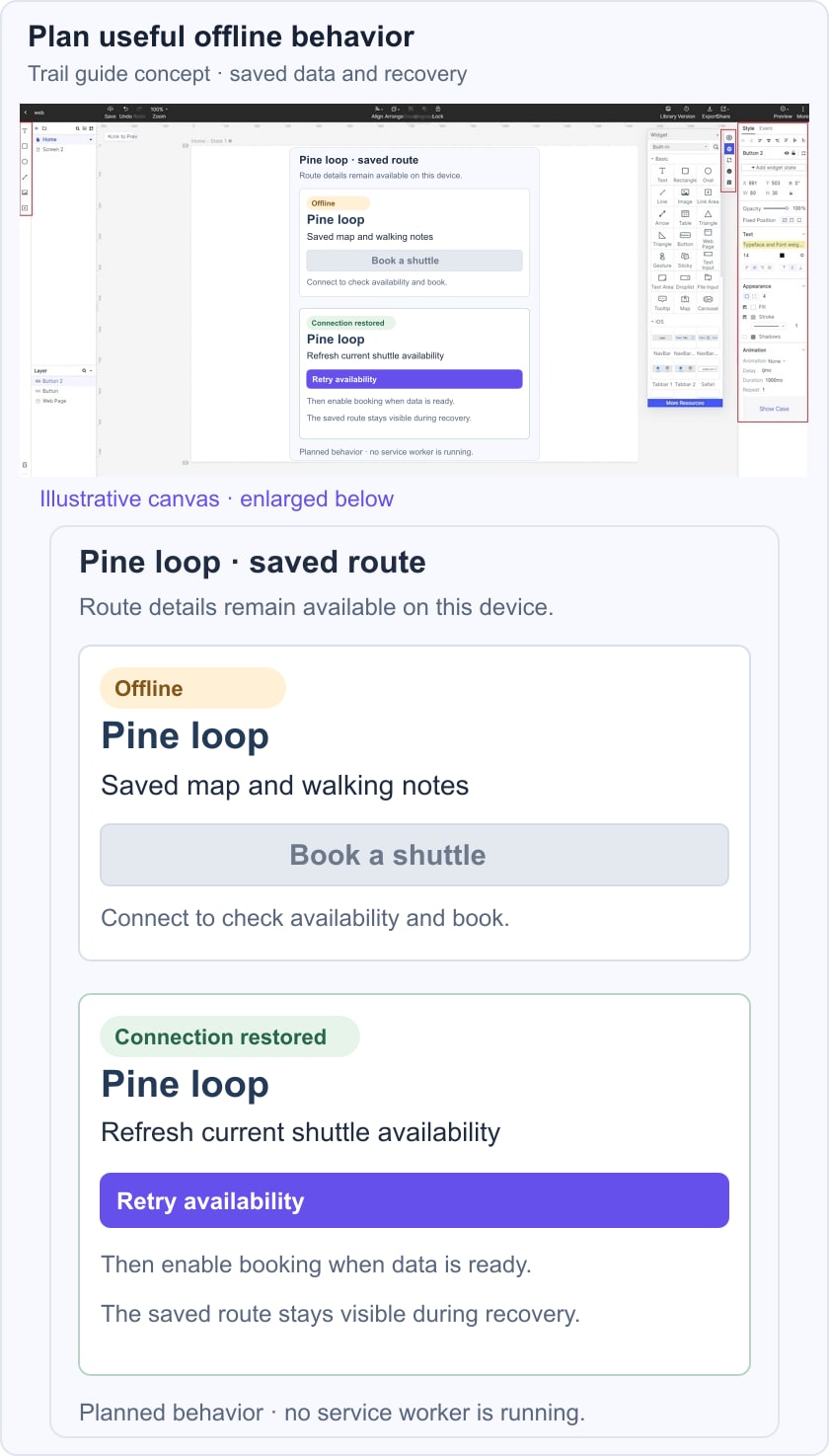
Use the prototype to review the normal task, the connection problem and recovery. A saved trail route might remain readable while a shuttle-booking action explains that it needs the network. Choose realistic content and visible status wording. The retained images show an earlier Mockitt interface; use equivalent current controls rather than relying on a fixed template count or historical panel position.
Four Steps for the Trail-Guide Prototype
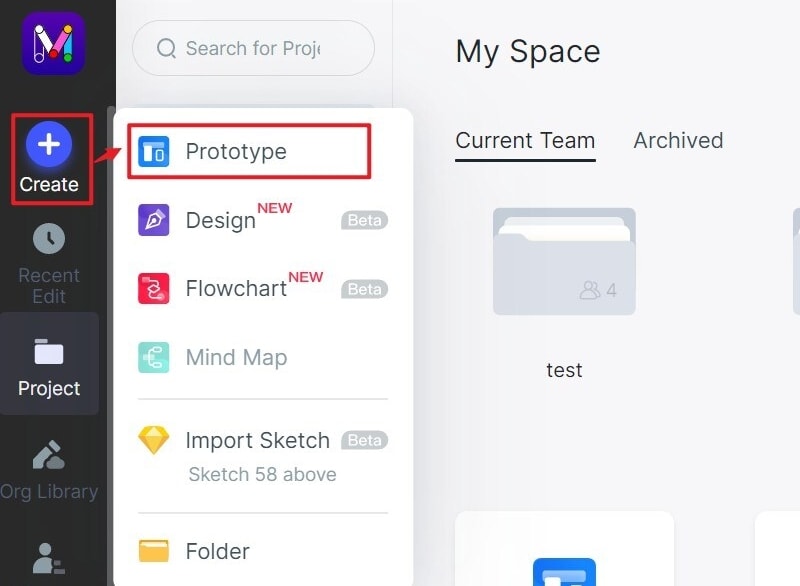
Step 1: Create a Project
Create a prototype project and name it for the task, such as “Trail guide: saved route and shuttle booking.” Choose the screen context in which the guide is likely to be used. A mobile canvas can support the outdoor example, while a wider layout may need a separate review.
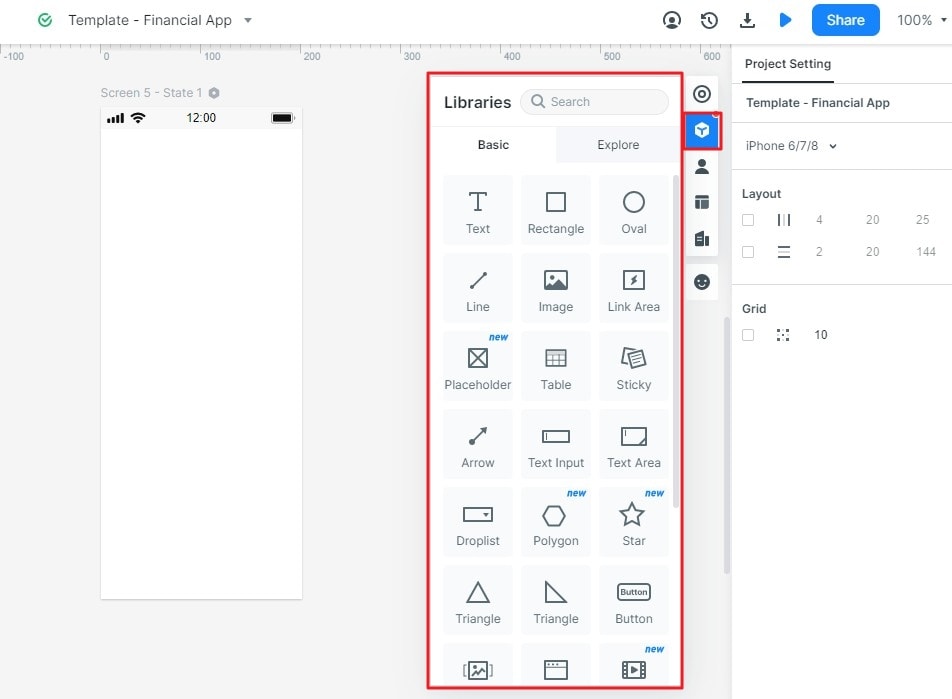
Step 2: Design the Interface
Arrange the route name, saved details, connection status and booking action. Use clear labels to distinguish information that is stored from information that may be out of date. Add the required components, then adjust their size and spacing for the actual content. Avoid showing a confident live availability claim in an offline state.
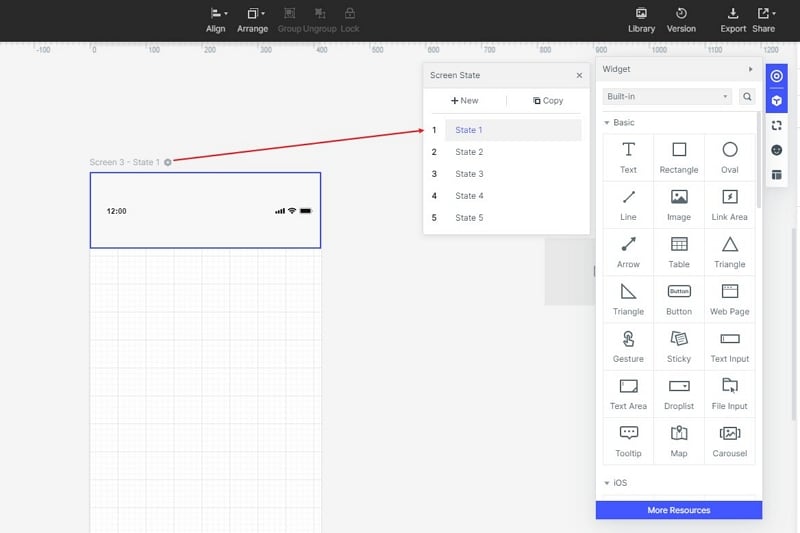
Step 3: Represent State Changes
Connect illustrative online, offline and restored-connection states. Keep the saved route visible while explaining why a new booking cannot yet be completed. Define what Retry does and whether the person needs to re-enter anything. These linked states communicate requirements; they do not prove that caching, reconnection or a transaction works in production.
Step 4: Preview and Review the Flow
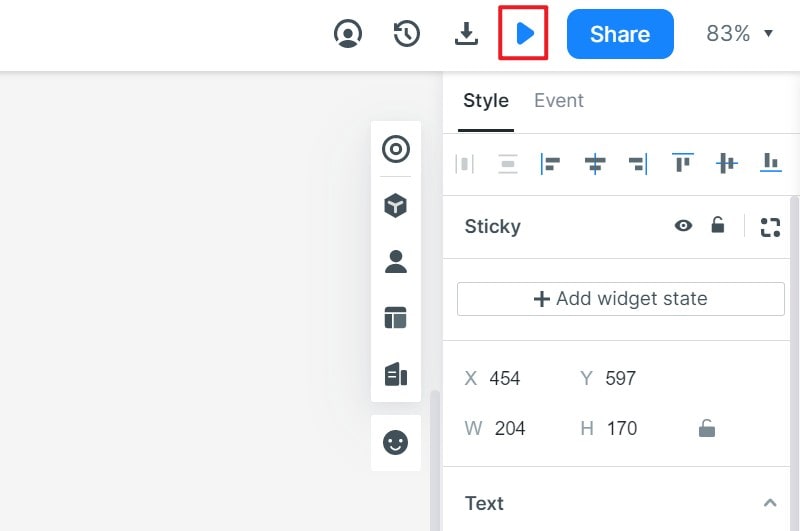
Preview the route-reading and booking paths, then ask a reviewer what is available and what must wait. The illustrative trail-guide states below separate cached route information from a connection-required action. Share the findings with developers together with the unanswered data-freshness, permission and failure questions. Verify installation, offline behavior and recovery in the implemented app on the intended platforms.