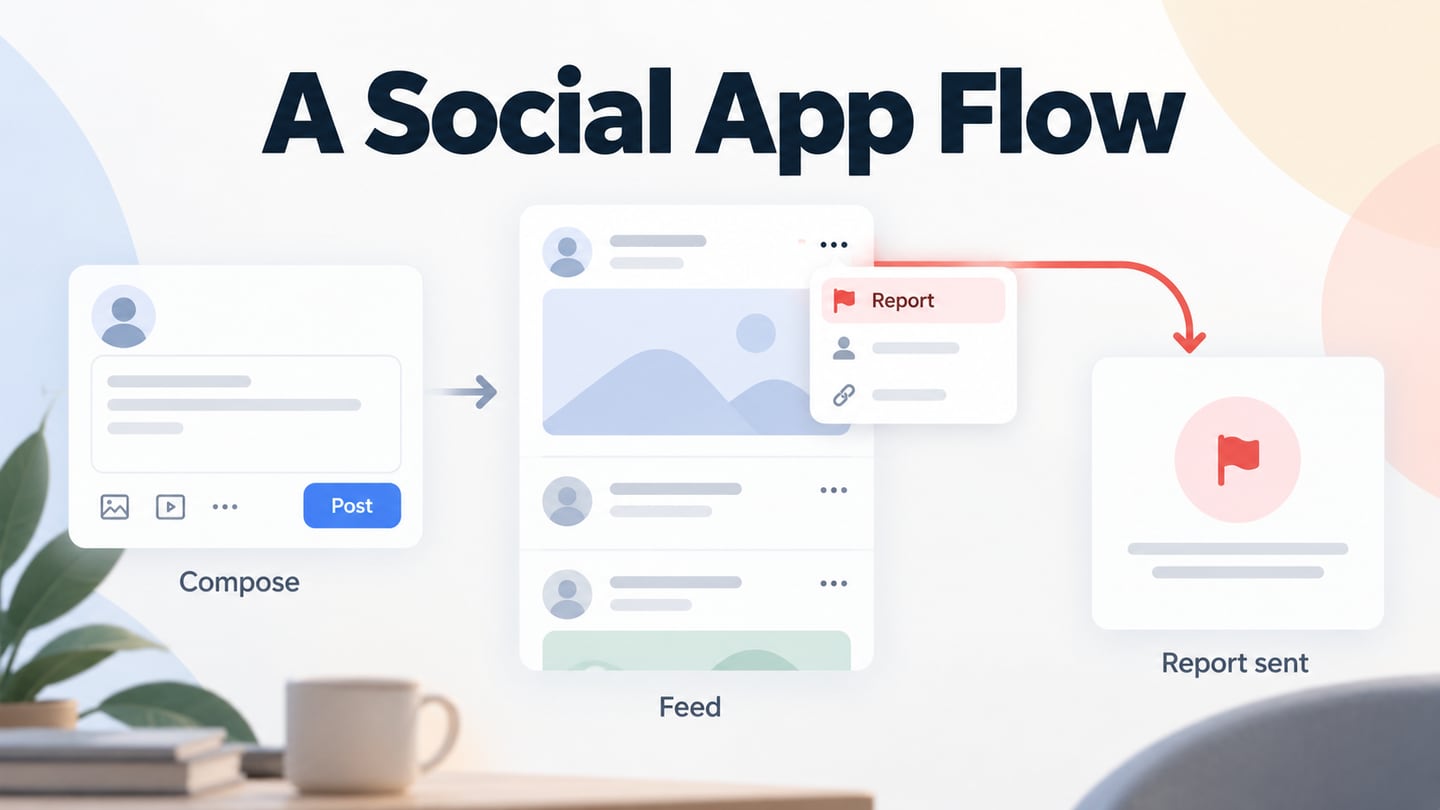
A social media app needs a clear reason for people to contribute and return. Start with a particular community and a useful exchange: sharing reading notes, asking local questions or discussing a shared interest. That purpose should shape the first posting and reading flows before the team commits to a broad feature list.
This guide follows the original design-to-launch sequence: create a prototype, connect its screens, review it and prepare the implemented app for distribution. A Mockitt social app prototype can make those interactions reviewable. It is a design artifact; a production social app also needs development, data storage, accounts and operational support.
How to Create and Review a Social App Prototype
Step 1: Create the Prototype
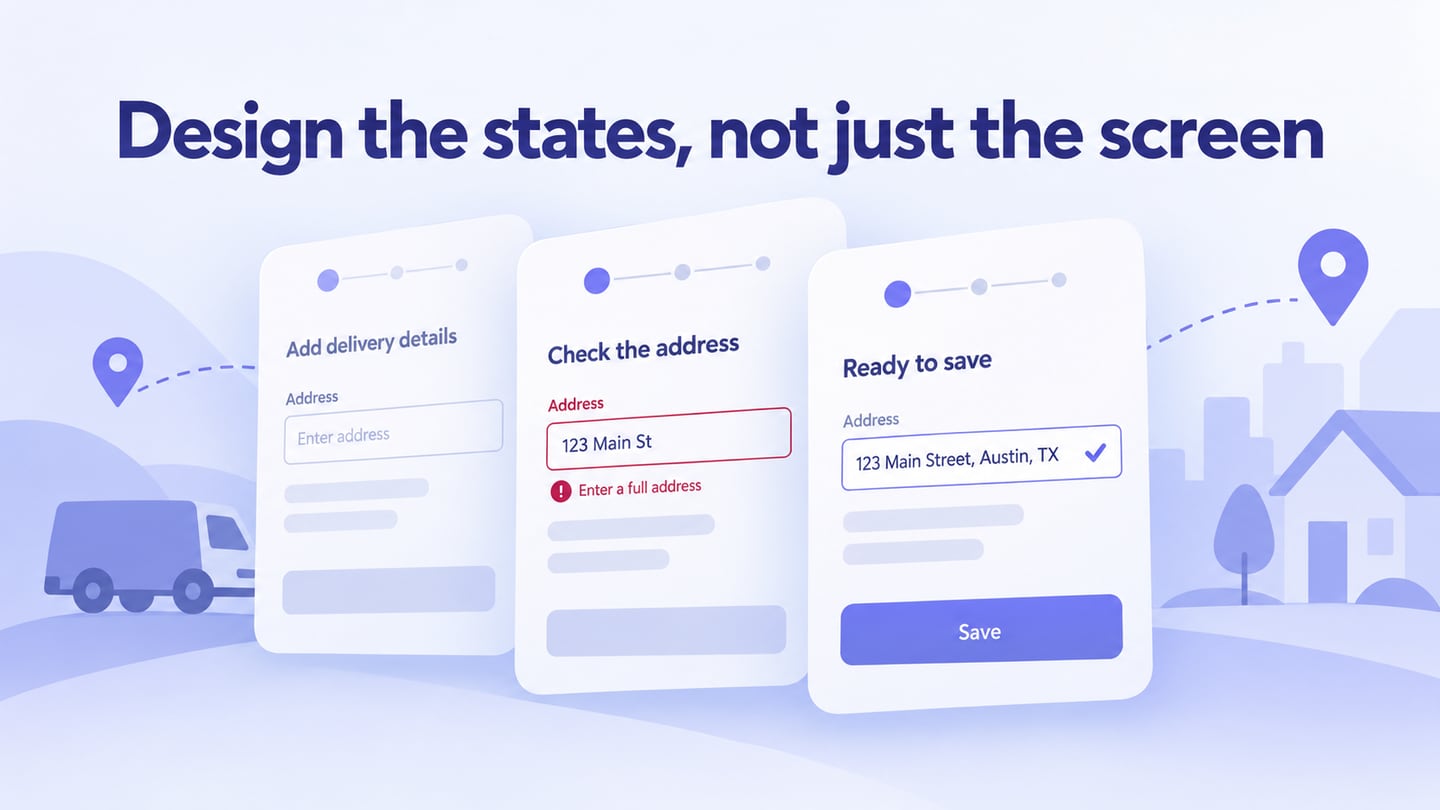
Choose one core loop, such as reading a post, contributing a reply and returning to the discussion. Represent the normal path and the states that change it: an empty feed, a failed submission or a post someone wants to report. This gives reviewers something more specific to assess than a collection of attractive screens.

Use the workspace features to express the proposed experience, keeping their role separate from the services that a developer will build.
Choose a Useful Screen Size
Start with the intended device and a suitable canvas size. A mobile screen and a desktop screen may need different navigation and content density. A preset supplies dimensions; it does not make a design responsive or create an app for that platform automatically.
Use Widgets and Content Deliberately
Text, image areas, buttons and other available widgets can represent a feed, a post composer and account settings. Use realistic sample content so reviewers can judge line lengths and hierarchy. Keep sensitive or personally identifying information out of a shared example.
Connect the Actions
Arrange the screens and connect the actions needed by the review. A tap on a post can lead to its detail screen; a report action can lead to a confirmation state. These transitions communicate intended behavior without proving that a server received or processed anything.
Distinguish Review Files from an Application Build
Use only the export or sharing options available in the workspace you are using. An image, a prototype preview or an HTML review package is not a signed iOS or Android production application. Do not treat an export as an IPA/APK build, account service, database or app-store submission.
Preview and Share the Flow
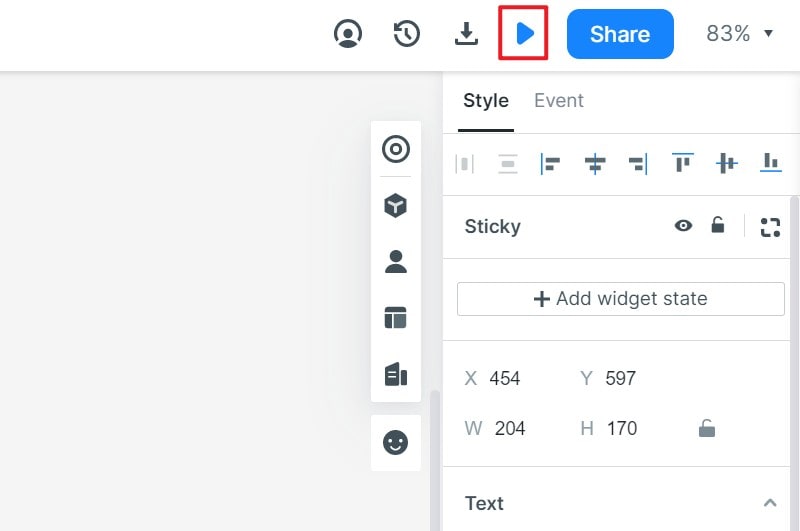
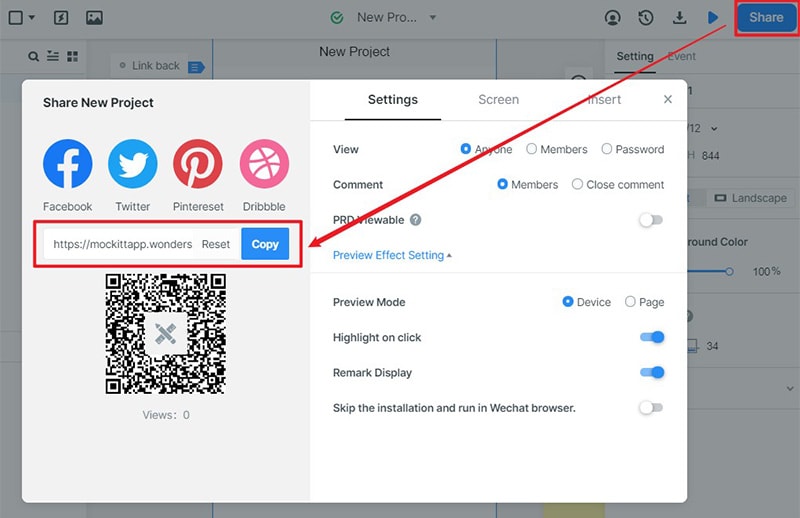
Open the prototype preview and inspect it on a relevant screen. Share through the available link or QR-code workflow when appropriate, checking access permissions before sending it. Ask reviewers to perform a task rather than simply comment on the visual style.
Use Feedback to Resolve Decisions
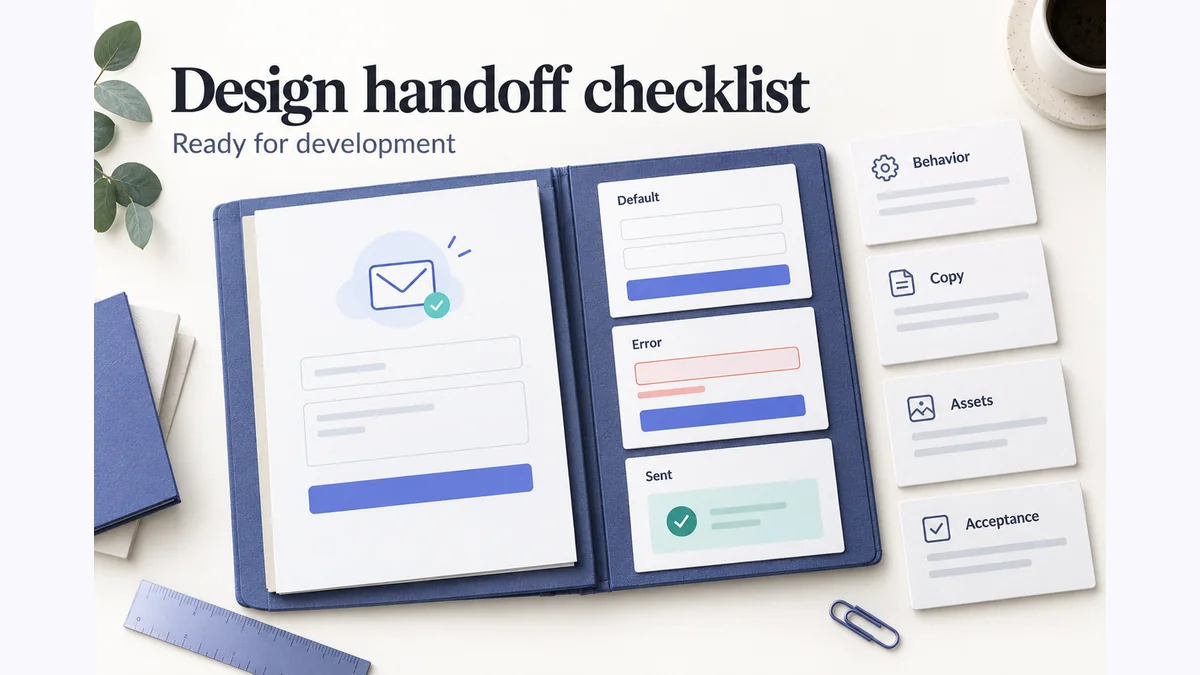
Collect comments about specific screens and states: whether the next action is clear, what happens after a submission and how people find a report option. Turn those observations into design decisions and implementation notes. Comments alone do not replace research with intended users.
The following steps turn the proposed community interaction into a reviewable flow. For the broader planning process, the app design guide covers how the prototype fits into a product project.
1. Create a New Project
Decide which device context the first review needs and use an appropriate project or screen preset. Keep the example focused enough that another person can complete the core task without being guided through unrelated screens.
Create the project using the controls available in your workspace, then add and name the screens for the flow. The retained screenshots show an earlier Mockitt interface, so labels and panel placement may differ from the current workspace.

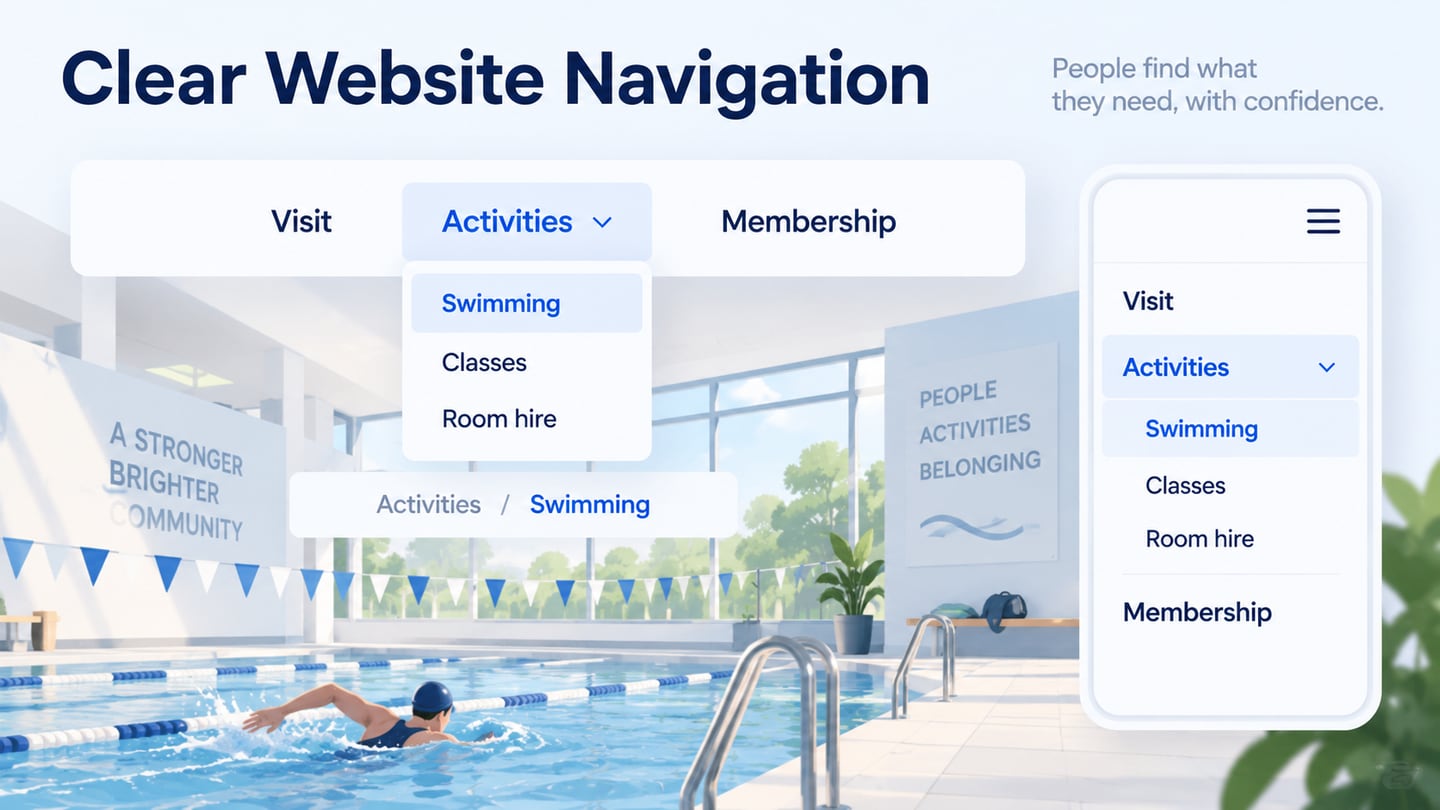
Give each screen a clear purpose, such as Community feed, Post details and Report received. This helps reviewers and developers connect the visible layout with the intended state.
2. Design the App Screens
Place the content before polishing the decoration. A feed item needs enough author, topic and action information to be understood, while the detail screen needs a readable discussion area. Keep the most important action easy to identify.
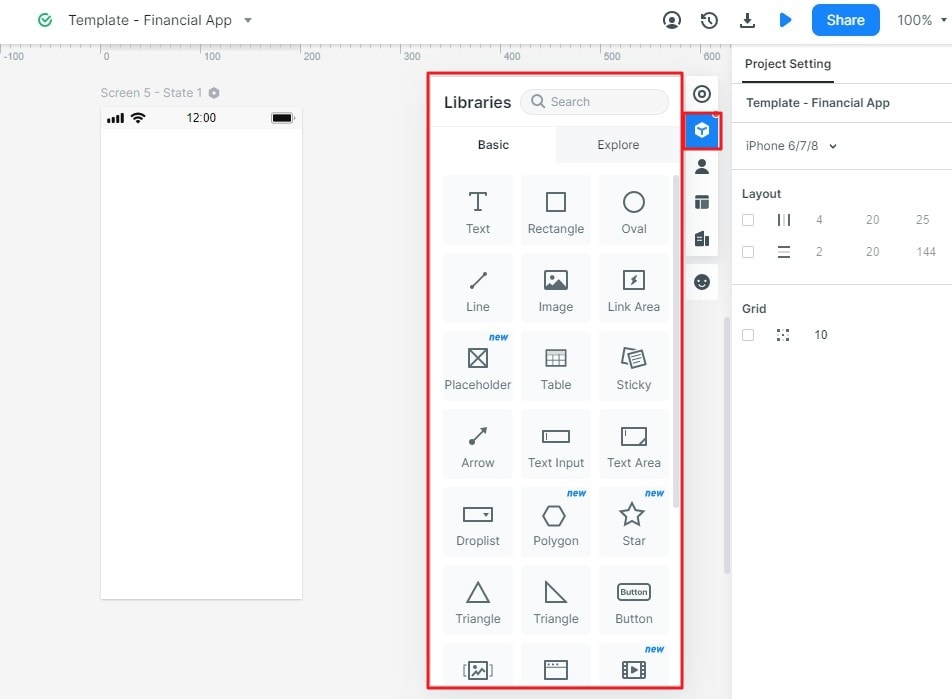
Connect a small number of actions to the relevant screens. Define what a tap does and where the person can go next. If a state represents an error or a moderation outcome, write that state explicitly instead of relying on an unexplained animation.
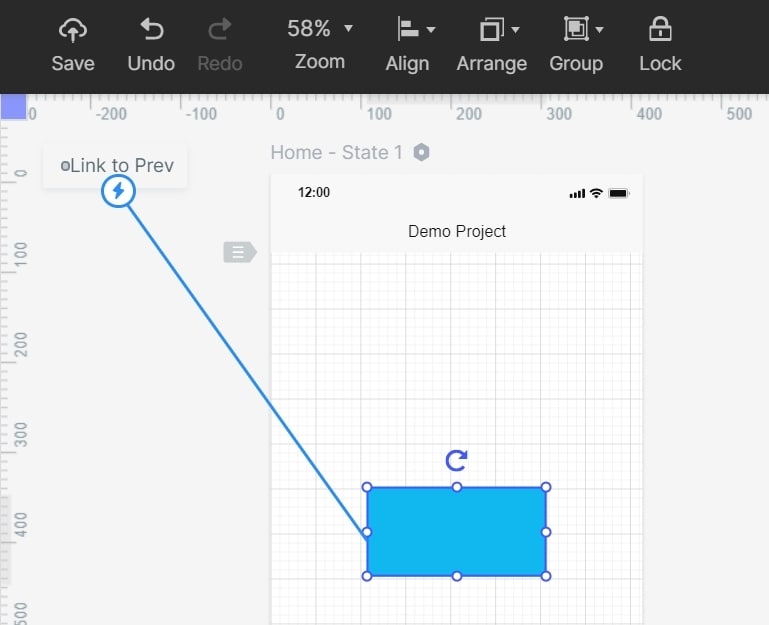
Use notes to distinguish example behavior from implementation requirements. For instance, a report confirmation screen can show the intended message while a note explains that production handling needs a moderation process and a backend request.
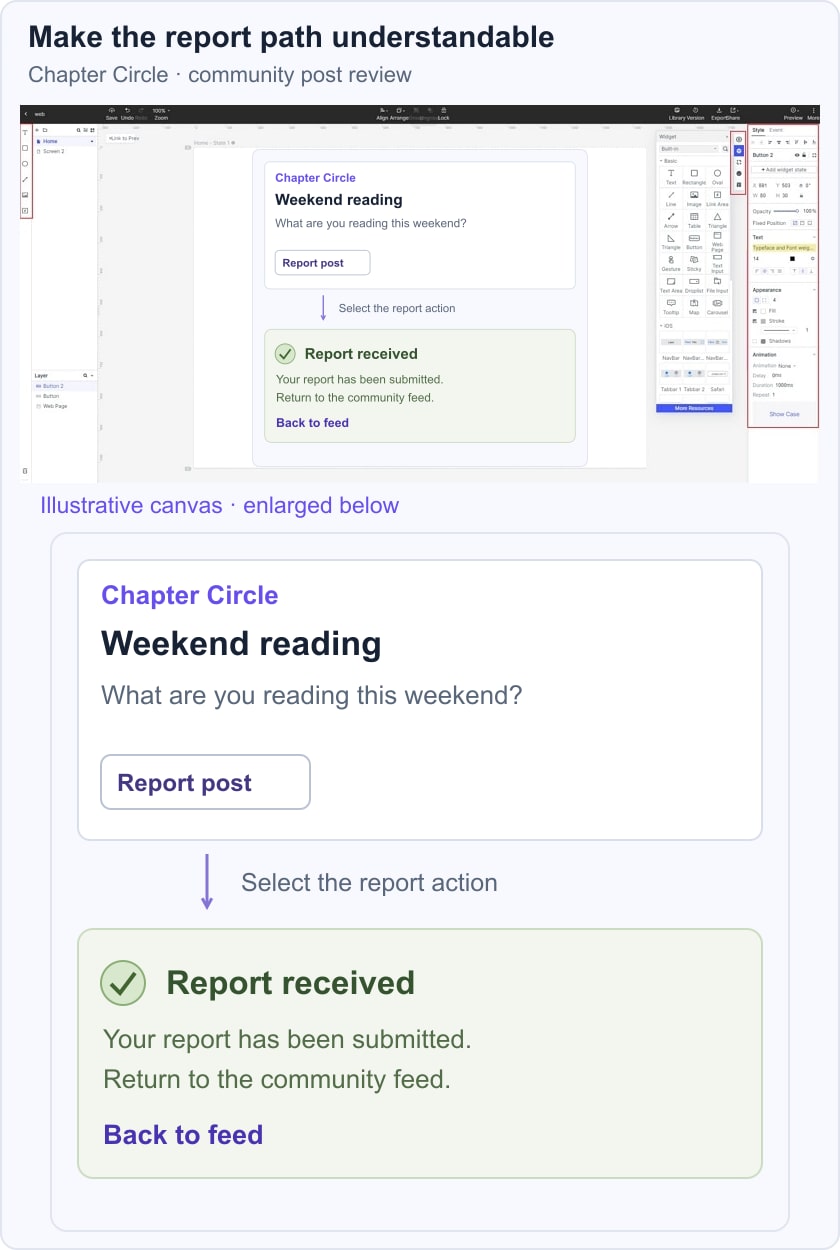
For a fictional Chapter Circle app, show a “Weekend reading” post in the community feed, a “Report post” action and a “Report received” confirmation. Review whether someone can find the action and understand the confirmation. The prototype represents those screens; it does not process a real report or promise a moderation response time.
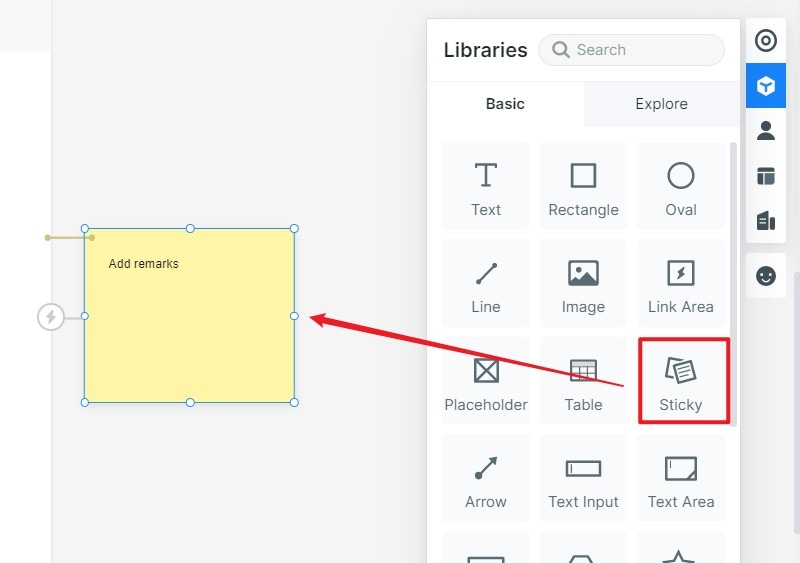
Connect the Interaction States
Use a transition that makes the change of state understandable. Keep motion secondary to the task: the reviewer should be able to tell which post is affected, what action was taken and how to return to the community feed.
3. Preview the Task
Start from the feed and follow the complete path. Check the post text, action labels, return route and confirmation together. Review an empty or unavailable state too, so the flow is not dependent on every screen being populated perfectly.
4. Share for Review
Share the prototype with the intended reviewers and explain the task they should attempt. Record points of confusion and revise the appropriate state. Agree on the behavior before implementation, then verify it again in the built application.
5. Implement the App and Prepare Store Submission
A reviewed prototype is the input to development. Build the interface and services, test authentication and data handling, and prepare the operational processes needed for a community product. Store submission begins with that working app and its required materials, not with the prototype file.
For Apple App Store Distribution
Review the App Review Guidelines before implementation and again before submission. Section 1.2 addresses user-generated content, including filtering, reporting, blocking abusive users and published contact information. Design those tasks into the experience and implement the supporting processes.
Set up the appropriate developer account, app identity and signing configuration for the intended distribution route. The app identifier and entitlements must match the capabilities actually used by the application.
Create the app record in App Store Connect and prepare accurate metadata, screenshots, privacy information and review access where required. Describe the implemented functionality rather than features shown only in a design.
Build, sign and upload the application using the supported development and distribution workflow. Test the build on relevant devices and ensure that the submitted version can be reviewed with working accounts or instructions as needed.
Complete the required information and submit the selected build for review. Approval is not guaranteed by following a design tutorial; respond to issues with the actual implementation and its supporting information.
For Google Play Distribution
Use the appropriate Play Console developer account and complete the verification and access requirements that apply to it. Check current requirements before planning a release date.
Create the app record, supply its language and identity information, and prepare the supported Android release artifact through the development workflow. A clickable prototype cannot serve as that artifact.
Read Google Play’s user-generated content policy. Community apps need appropriate terms, moderation and reporting or blocking controls according to their content and interactions; a visible report button without the necessary handling is insufficient.
Complete the store listing, content and policy declarations, testing requirements and release configuration that apply to the app. Verify that descriptions and screenshots match the submitted build, including its account and community-management behavior.
Keep distribution work connected to the design decisions: a report flow shown in the prototype should have a defined, tested counterpart in the application. Plan who maintains that behavior after launch.
Tips for a More Useful Social App Design
1. Understand the Community
Identify who will contribute, what they need from others and why an existing channel is insufficient. Compare relevant alternatives around those tasks. A general claim that everyone needs another social network does not provide a product direction.
2. Prototype the Important States
Review the contribution and reading loop alongside failures, empty states and reporting. Use concrete sample posts to reveal content-length and hierarchy problems. Test the built application separately for performance and other behavior that the prototype cannot establish.
3. Choose the Platform Deliberately
Choose platforms based on the intended community and the team’s delivery constraints. Device conventions, implementation and distribution requirements differ; one visual layout does not automatically satisfy them all.
4. Give the Community a Clear Purpose
Write a concise purpose and use it to evaluate features. For Chapter Circle, reading discussions come before unrelated features that obscure the feed. Clear interface wording should help people contribute, understand the result and recover when something goes wrong.