Before building an Android app, plan its screens and the paths between them. This guide shows how to create that wireframe and interactive prototype in Mockitt. It does not demonstrate Android Studio development or deliver a production Android application.
Mockitt provides a workspace for designing and reviewing screen prototypes. Use it to arrange Android or iOS screens, connect interactions, and share the intended flow before development.

Design the Android App Prototype
The steps below build the design prototype. The retained screenshots show an earlier editor interface; use the equivalent controls available in the current workspace.
Build the Android App Wireframe
A wireframe is an early layout of an application. Use simple boxes, labels, and links to plan the screen structure before polishing the interface. It can help the team review an Android app idea, but it does not implement the final application.
Mockitt allows you to design prototypes quickly, beautifully, and build dynamic effects without coding knowledge.
You can create prototypes for mobile (iOS/Android), pads, web, TV, and watches. You can even customize the project size based according to your choice. All you need to do is follow these simple steps.
Register yourselves and then log in to your account.
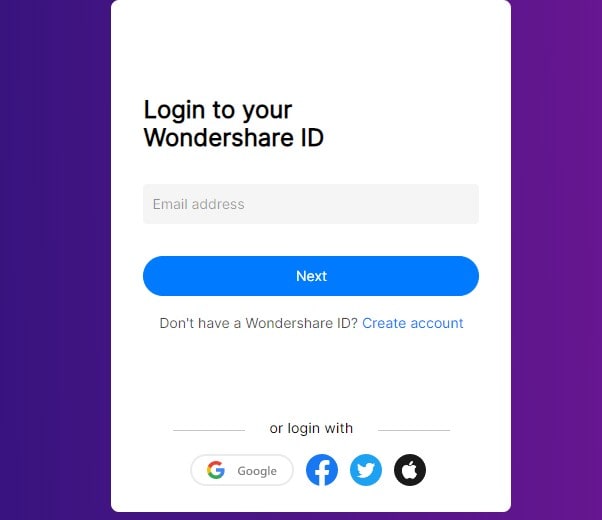
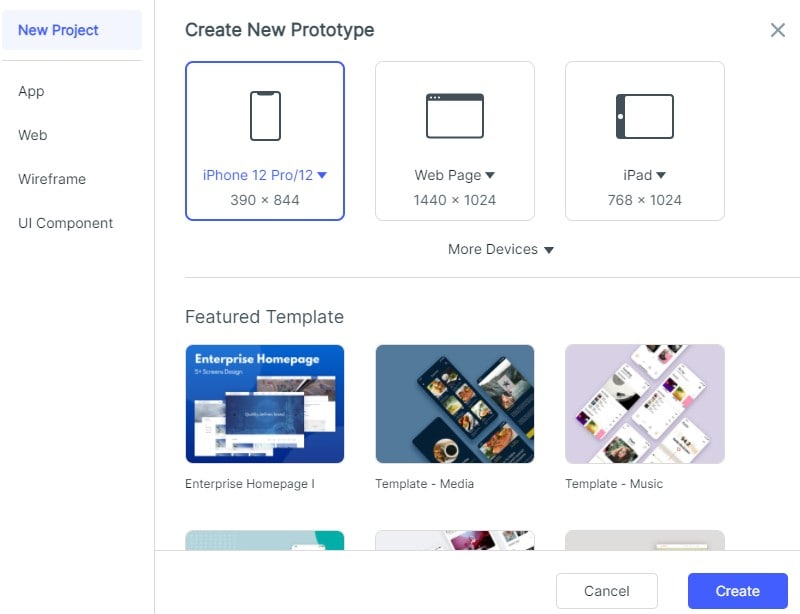
After signing in, click on "Create" to create a project and start prototyping.

Creating a blank project, selecting the type of device you want to build the prototype for, name the project, and click "Create" below, then you will enter the canvas.
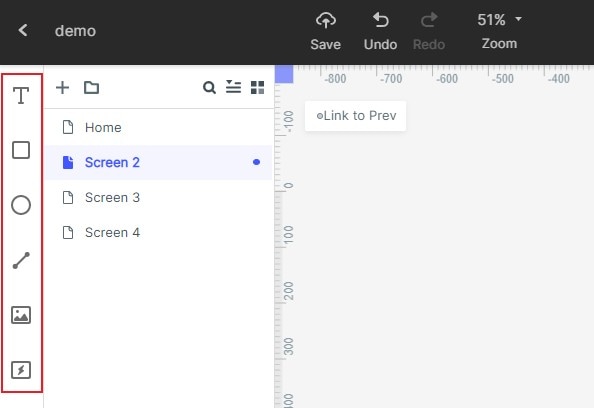
There is an option for fast widgets on your left, and there are two ways to add fast widgets to your project: i) Double click on the widgets, ii) Drag the widgets to the canvas.
On the right, there are three types of assets: "Built-in" Widgets, "My Widget", and Icon. You can find more different kinds of widgets in the "Built-in" option. There are two ways to add the widgets to the canvas, to double click the widgets or to drag it to the canvas directly.
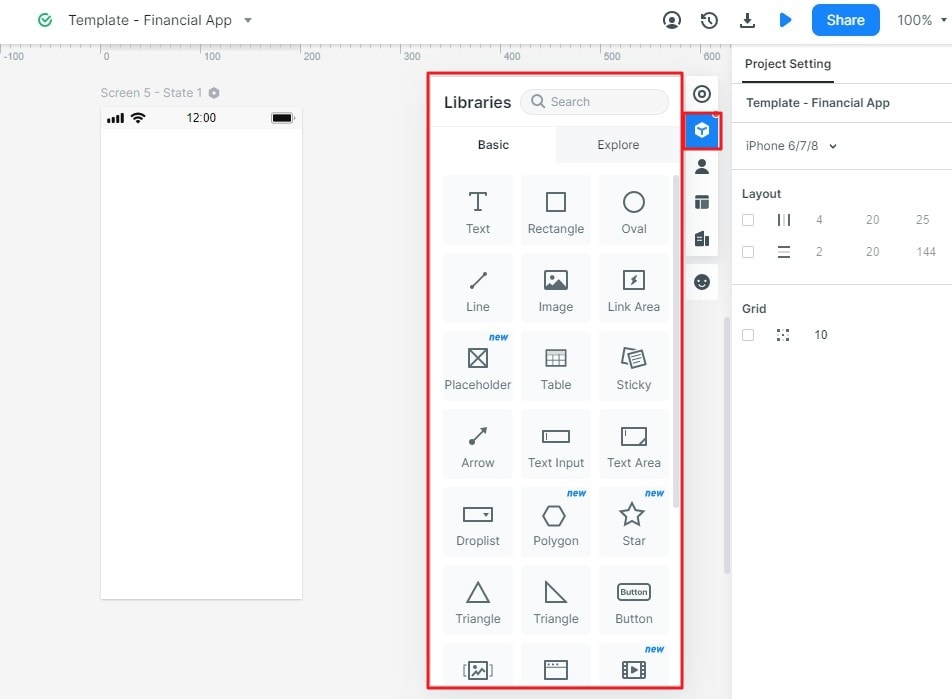
If you want to edit a widget, you could edit its properties in the Inspector Panel.
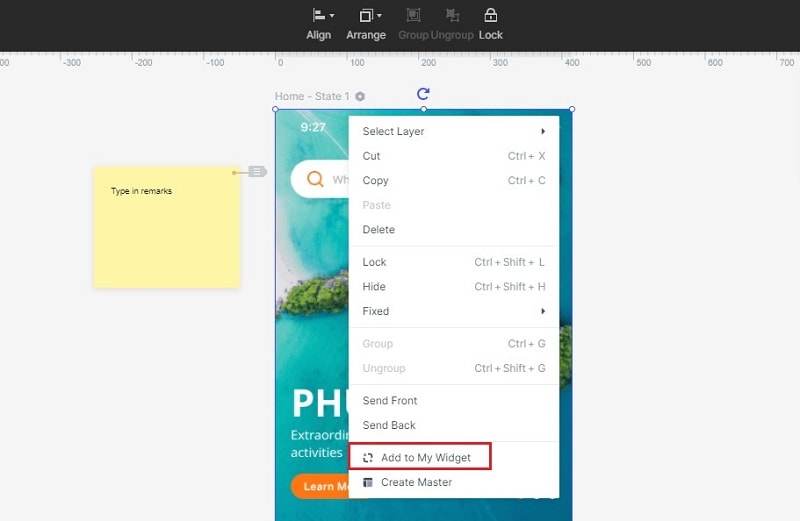
You can even save your favorite widget for future use. You can add the widget to "My widget" library in the following ways: (i) Drag the widget to "My widget" Panel, and (ii) Right-click the widget to "Add to widgets."
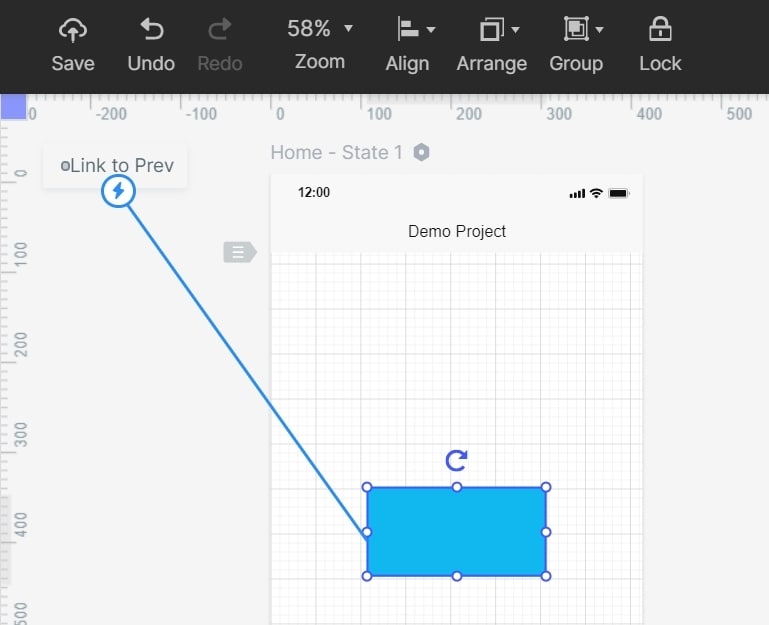
You can add links between screens, and there are again two ways to do so: i) Choose one widget, then click "New- Link" in the Link Panel on the right. Then set the gesture, action, target screen/state, and animation for the widget. (ii) Drag the link icon on the left of the widget to the target screen.
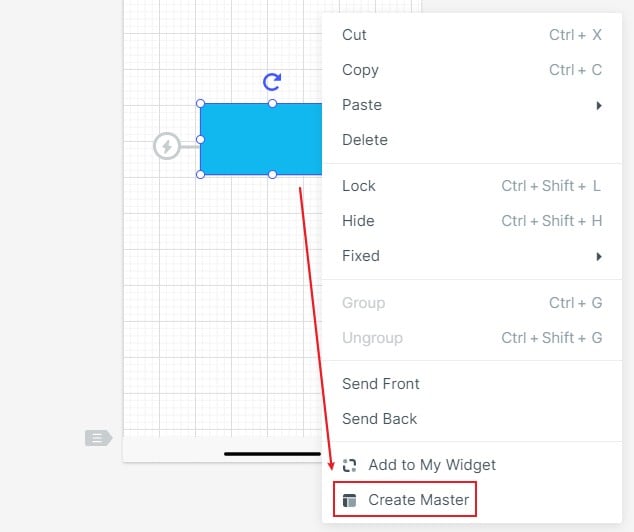
To convert widget to Master right-click to the widget to "Create Master." Then the Master will be saved in the Master library. Simply drag the Master to the canvas to create its instances. To change the Master, hover on the Master and click "edit."
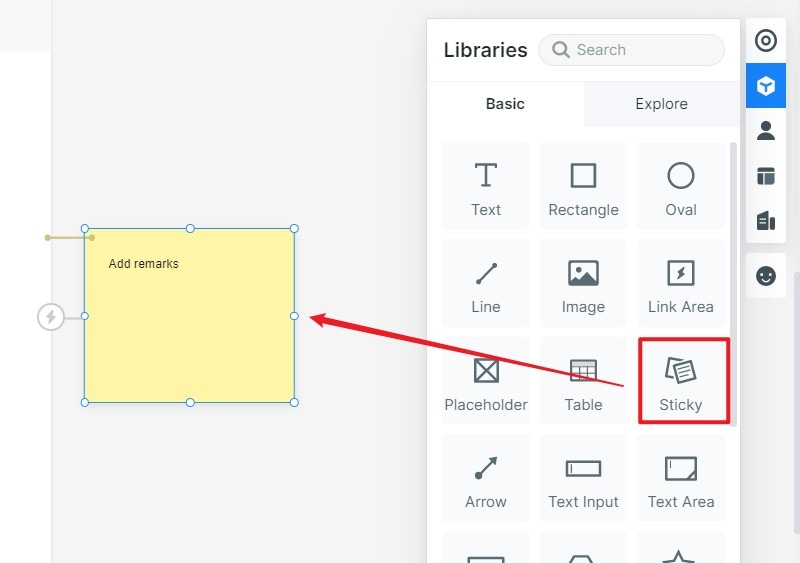
You can add notes to the Sticky, which is viewable in the Preview mode.
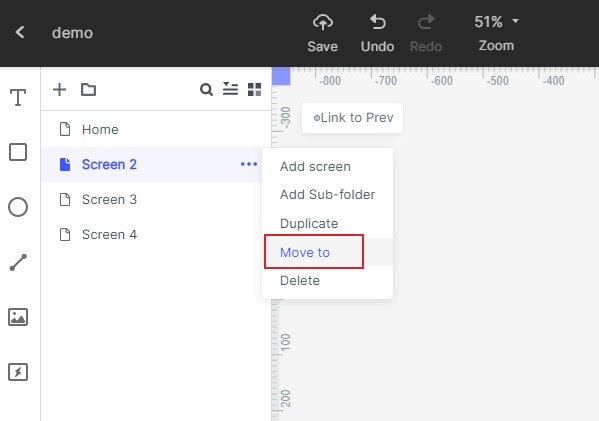
Use screens in the template hover on the screen list and click "Move to" to move the screen to the target project.
Right-click the widget to "Add to my widget". It will be saved in "My Widget" Library.
In my asset widgets, you can create, duplicate, move, and delete widgets. By holding down 'shift or command ctrl/key,' you can support multi-selection.
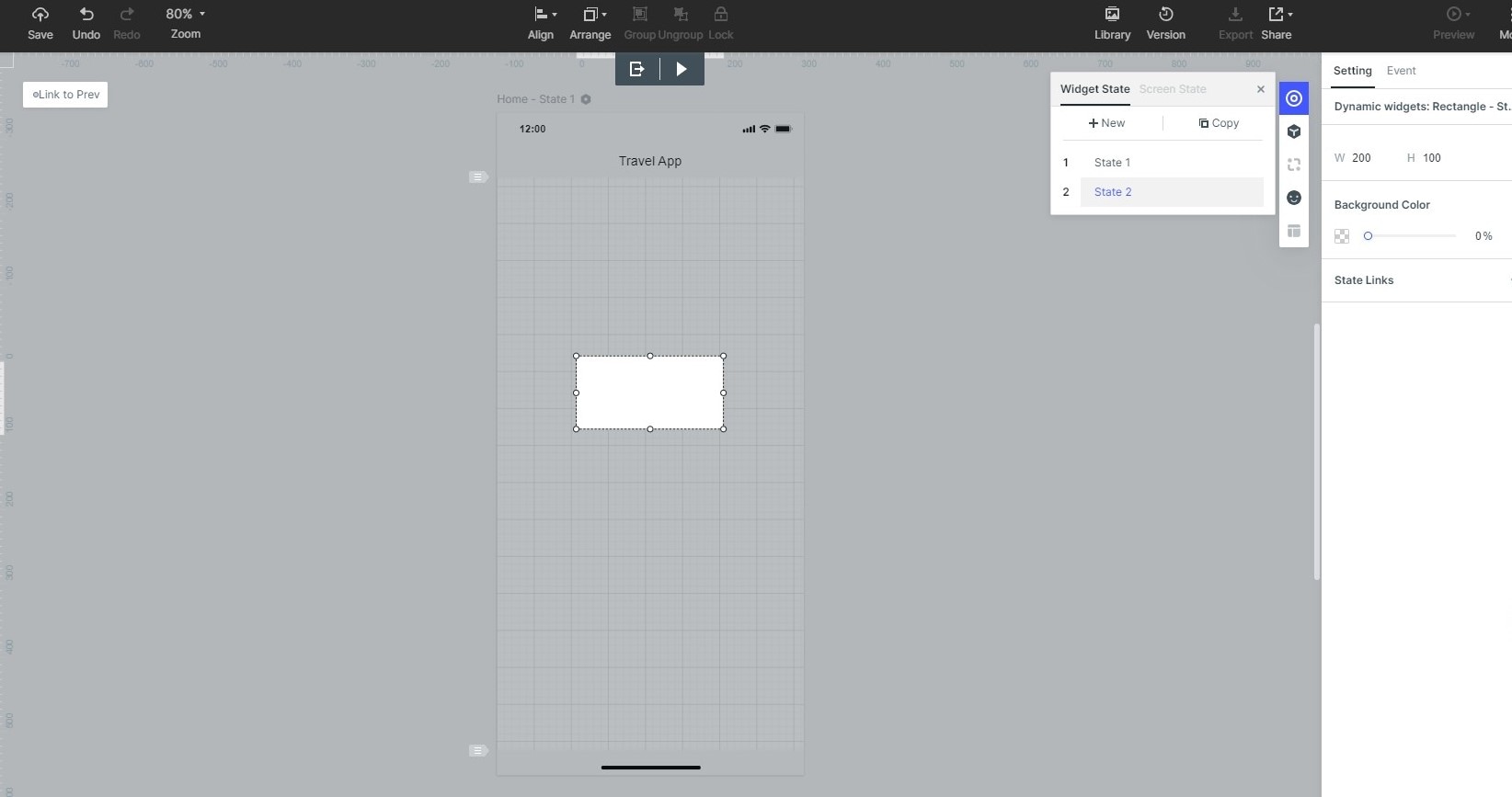
You can use dynamic widgets to create interaction animation. The screen state can be used to implement an overall interactive animation within the screen. Animation effects of the dynamic widgets and screen state are achieved by the state as well.
The steps, as mentioned above, were just a basic level of creating a prototype. There is an advanced stage where you can add audio, video, google spreadsheets, etc. All of these instructions are given in detail with templates on the main website of Mockitt.
Review and Hand Off the Prototype
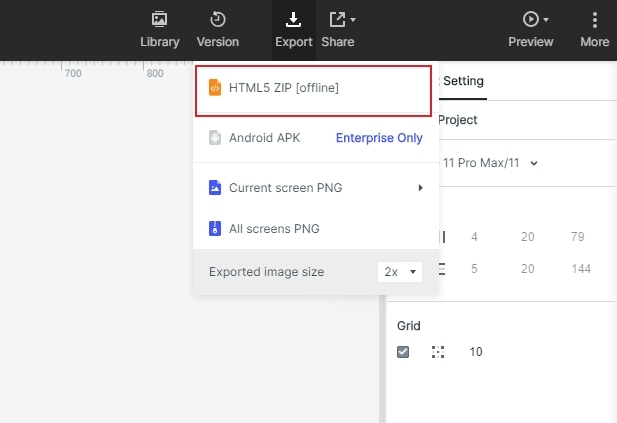
Preview the screens and interactions, then share the prototype and the available design specifications with the development team. Use the export options offered by the current workspace for a demonstration or review.
A prototype export is not a production Android application or an Android Studio project. The prototype download guide describes downloaded files as demos. Developers still need to implement the app behavior, data handling, permissions, and platform requirements, then test the result.
Summary
In this digital scenario, we have everyone regularly using apps. This gives rise to competition and creates a lot of stress. This stress can be overwhelming. To win in this race, one must be creative and different from others to survive. To be able to achieve this, Mockitt will help you to achieve that setting apart factor. It has beautiful interfaces, easy to use, yet great designs and templates for its users. Initially, it may seem not easy if you are starting as a new bee, but if you follow the instructions chart, it will be much easier. So what are you waiting for? Try Mockitt today!