The UI design process turns a user task and product requirements into an interface that people can understand and operate. Visual style matters, but so do information hierarchy, interaction states, accessibility, and feedback. A design tool can help create and review the interface; it does not replace the engineering and testing needed to release the product.
Detailed UI Design Process
Use the steps below as an iterative workflow. Each stage should produce something the next person can inspect: research findings, a task structure, reusable elements, defined states, and review decisions. The running example is a person rescheduling an appointment; it is an illustrative design exercise, not a reported test.
Step 1. Do Research
Research the task before choosing a visual style. Ask how people currently change an appointment, what information they need, and what can go wrong. Review relevant support questions and existing flows, and distinguish observed problems from your assumptions. Competitor screens may suggest questions, but they do not prove what your users need.
Turn the evidence into constraints for the interface. In the example, the person must see the original appointment, know which replacement slots are available, and understand when the change is confirmed. A mood board can explore tone and styling, but it should follow these requirements rather than determine the task.
Interviews and observation can reveal why people hesitate or make mistakes. Ask about a recent real experience and avoid leading questions such as whether someone likes your proposed design. A survey can reach more respondents but needs carefully defined questions and sampling. Record the research limitations; neither method guarantees a complete picture.
Step 2. Structure the task before styling it
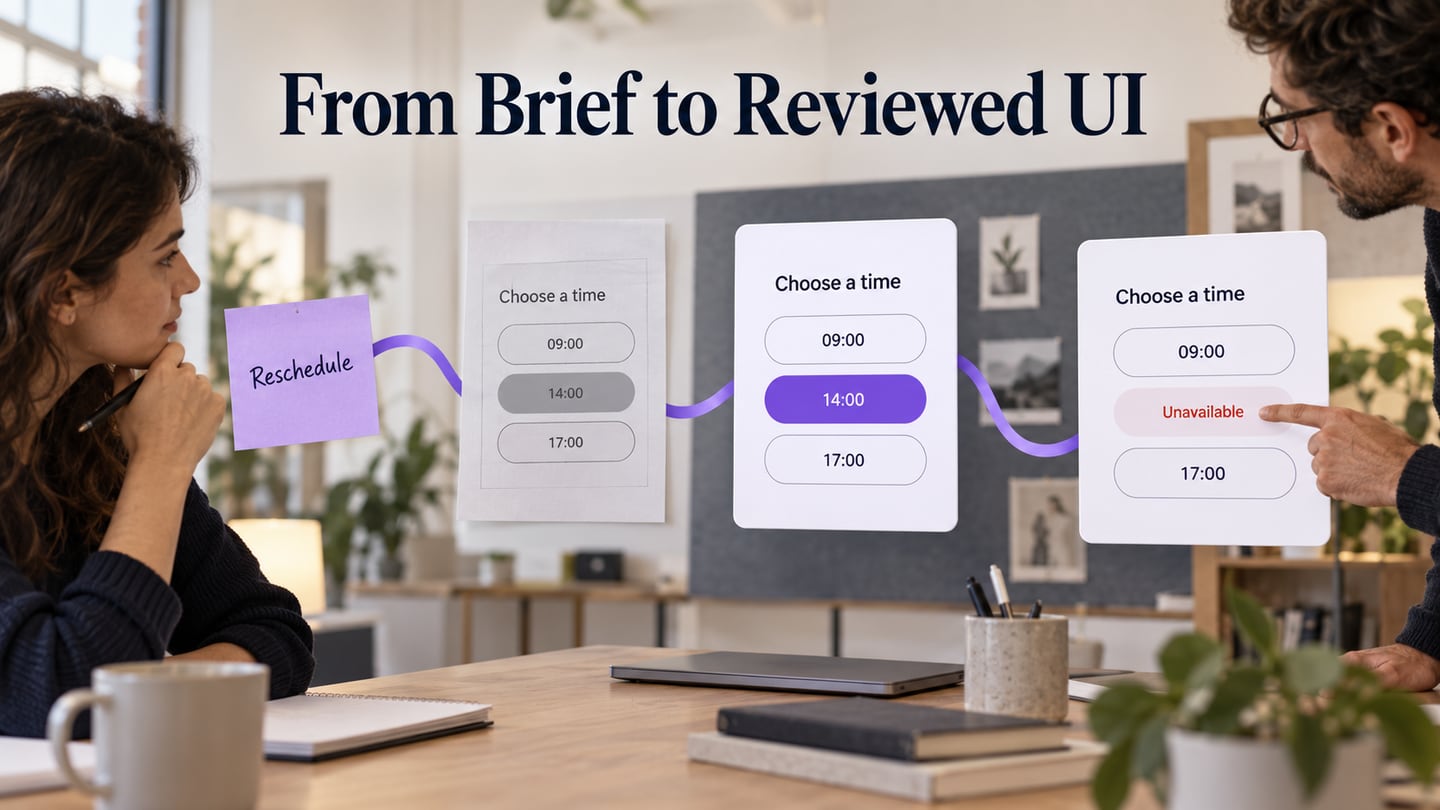
Map the main path and its alternatives, then sketch the information each screen needs. For rescheduling, that might be Current appointment → Choose date → Choose slot → Review → Confirmation. Include a changed-availability state and a way to leave without losing the original booking. Use a Mockitt prototype to make these decisions reviewable without building the service.
Agree which questions the prototype should answer. A structure review asks whether people find the right action; a later visual review asks whether hierarchy and state differences are clear. Share the design with appropriate access and test at a realistic screen size. A simulated preview cannot demonstrate actual booking availability or backend behavior.
Design and review the interface in Mockitt
Step 1: Create a new project
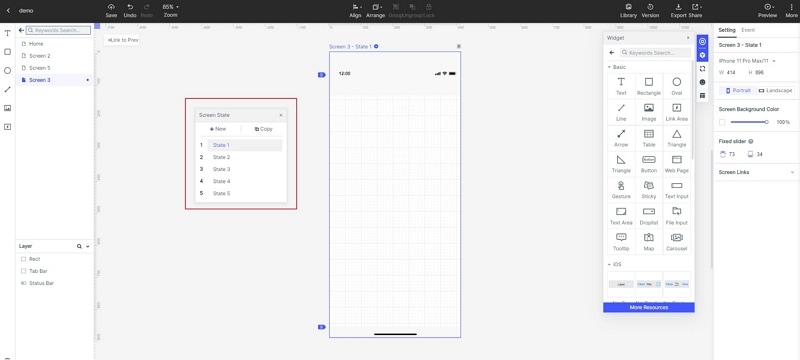
- Create a prototype project for the task and name its screens by purpose. Start with the device context supported by the research, then plan how the content adapts. The retained screenshots show an earlier Mockitt interface; use the equivalent actions in your current workspace.
 Historical editor screenshots illustrate the workflow; current controls may differ.
Step 2: Design the task and its states
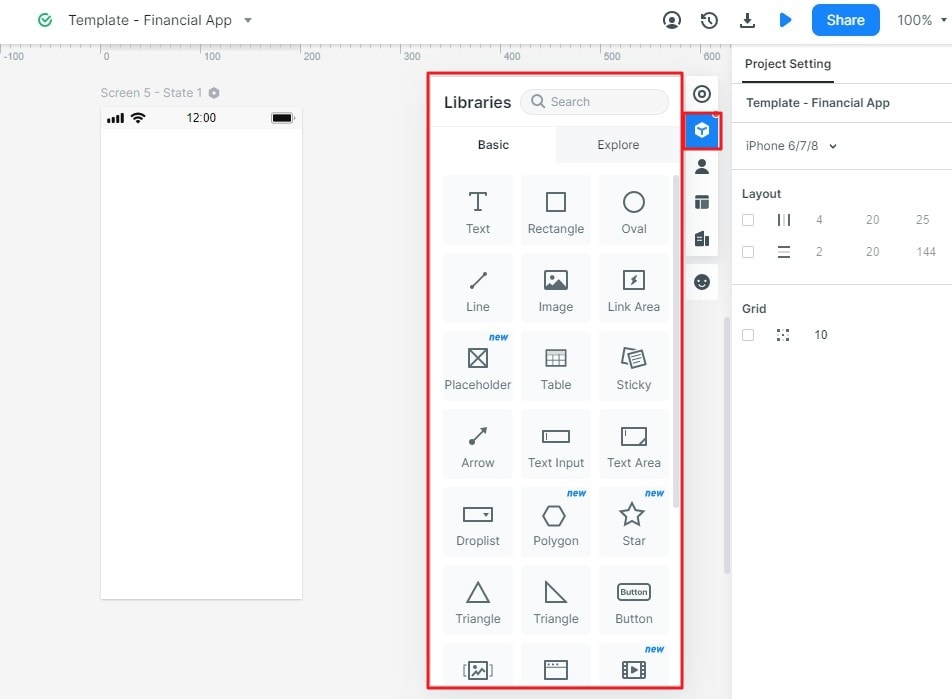
- Add controls and content. Use suitable components for the date, time slots, original appointment, and primary action. Reuse spacing and typography rules. Placeholders can establish a layout, but review it again with realistic dates, long labels, and empty content.
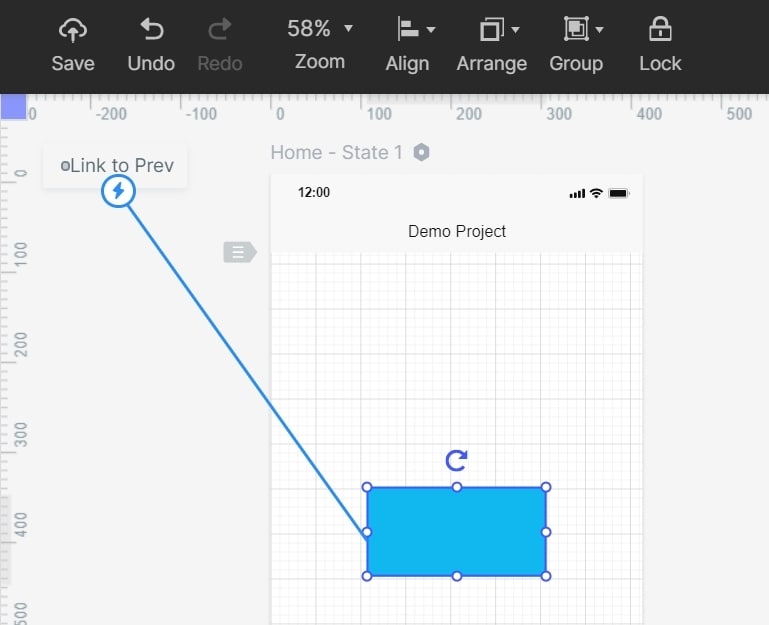
- Connect the screens. Link the intended actions and include back, cancel, and recovery routes. In the rescheduling flow, choosing a date should not itself confirm a booking. Make the final commitment explicit.
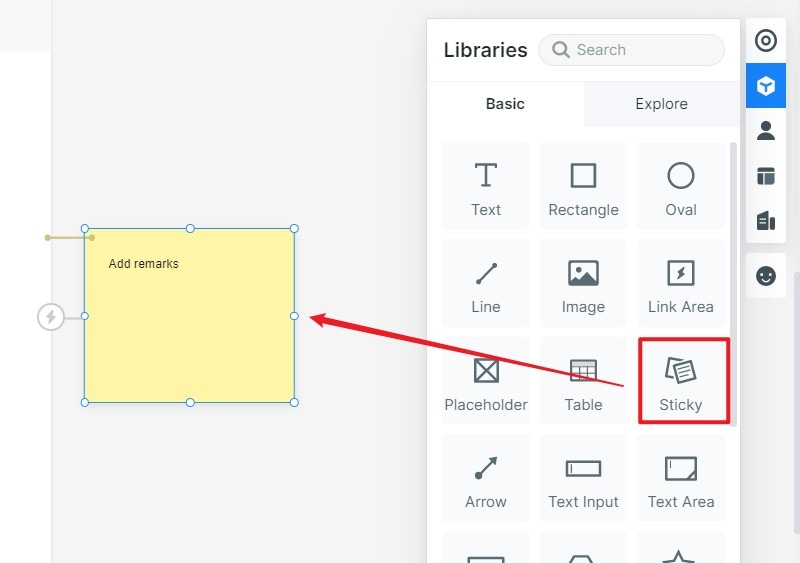
- Annotate decisions. Use notes to explain behavior that a picture cannot express, such as when availability is refreshed and whether the existing appointment remains reserved. Assign unresolved policy questions to an owner.
- Define feedback. Show loading, selected, disabled, error, and success states when the task needs them. Motion can clarify a transition, but it should not be the only way to communicate a result.
Step 3. Review the behavior and visual hierarchy
- Preview the path and ask a reviewer to reschedule without instructions from the designer. Check whether the person understands the old and new appointment details and recognizes the final confirmation. Record observed issues, revise the affected state, and review it again. Do not declare the interface “perfect” because every link works.
For the rescheduling example, keep the original appointment visible until the change is confirmed. If a selected slot becomes unavailable, explain what happened and return the person to a useful choice rather than silently resetting the form. Document these decisions before handing off the screens.
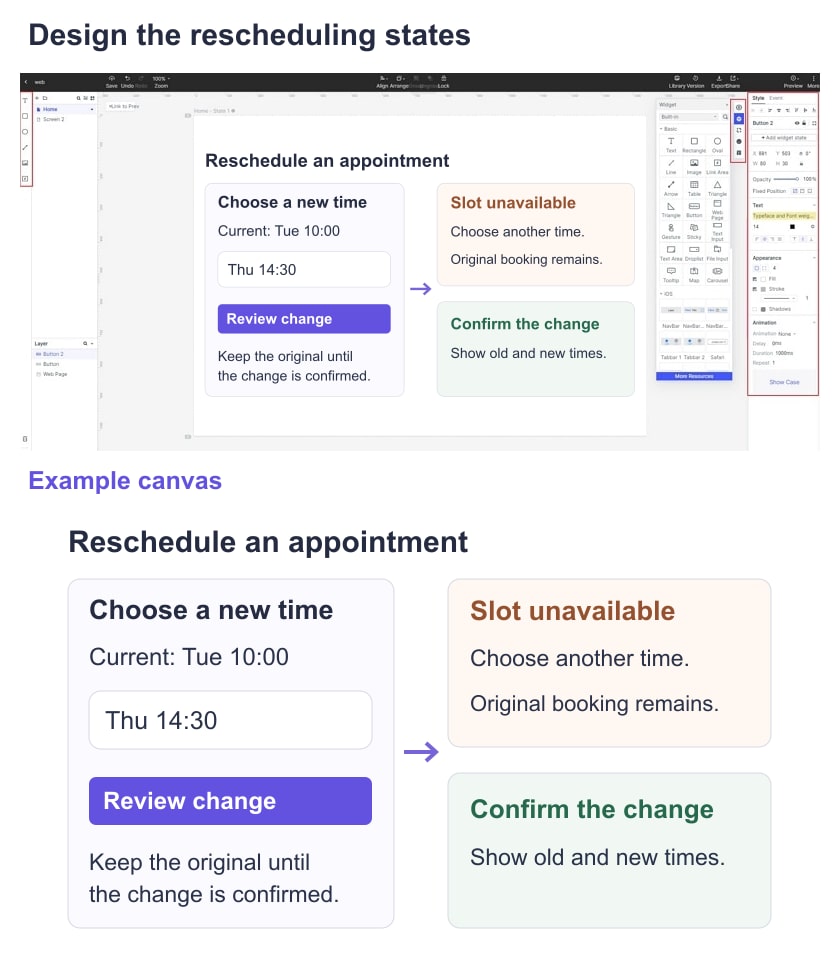
Review the visual layer with reusable components: primary and secondary actions, input labels, selected dates, disabled slots, and error messages. Check text contrast and visible focus against the relevant WCAG criteria. A visual prototype can document these requirements, but keyboard, screen-reader, and other implementation behavior must also be tested in the real interface.
Step 4. Hand off, implement, and validate
- Share the approved screens, component states, content, responsive rules, and unresolved questions with development and QA. Engineers implement the booking logic, data handling, and accessibility semantics. Compare the working interface with the intended behavior and test it before release. Sharing a prototype is not launching a fully functional app.
Tips to Make Good UI Wireframe Design
These original wireframe tips remain useful within the larger process. Apply them to a decision you need to make, rather than polishing every screen to the same level.
1. Have clear objectives
Define the question a wireframe should answer. For example: can a person distinguish changing an appointment from canceling it? A clear question tells you which screens and details are necessary.
2. Sketching your ideas
Sketch a few alternatives for the difficult decision, such as a calendar-first layout versus a list of available slots. Compare how each handles the same task and constraints before investing in detailed styling.
3. Choose the right canvas
Choose a realistic starting viewport, then check narrow and wide layouts. A correct canvas size does not guarantee that the design will adapt; record how columns, controls, long text, and content priority change.
4. Select the right elements
Use a consistent grid and reusable elements, but let content requirements drive the layout. A date picker, status message, and confirmation summary have different jobs and need appropriate space.
5. Consistency is critical
Keep equivalent actions and states consistent across the flow. Reuse components and shared styles where appropriate, and document intentional exceptions. Consistency includes behavior and wording, not only matching colors.
6. Focus more on flow, not single screens
Review the transitions between screens, including returning to a previous step with selections preserved. A set of attractive standalone screens can still produce a confusing task.
7. Use color intentionally
Low-detail wireframes can use restrained color so structure remains the focus. Later, give color a defined role in hierarchy and state communication. Do not rely on color alone to distinguish an unavailable slot or an error; include a label or another meaningful cue.