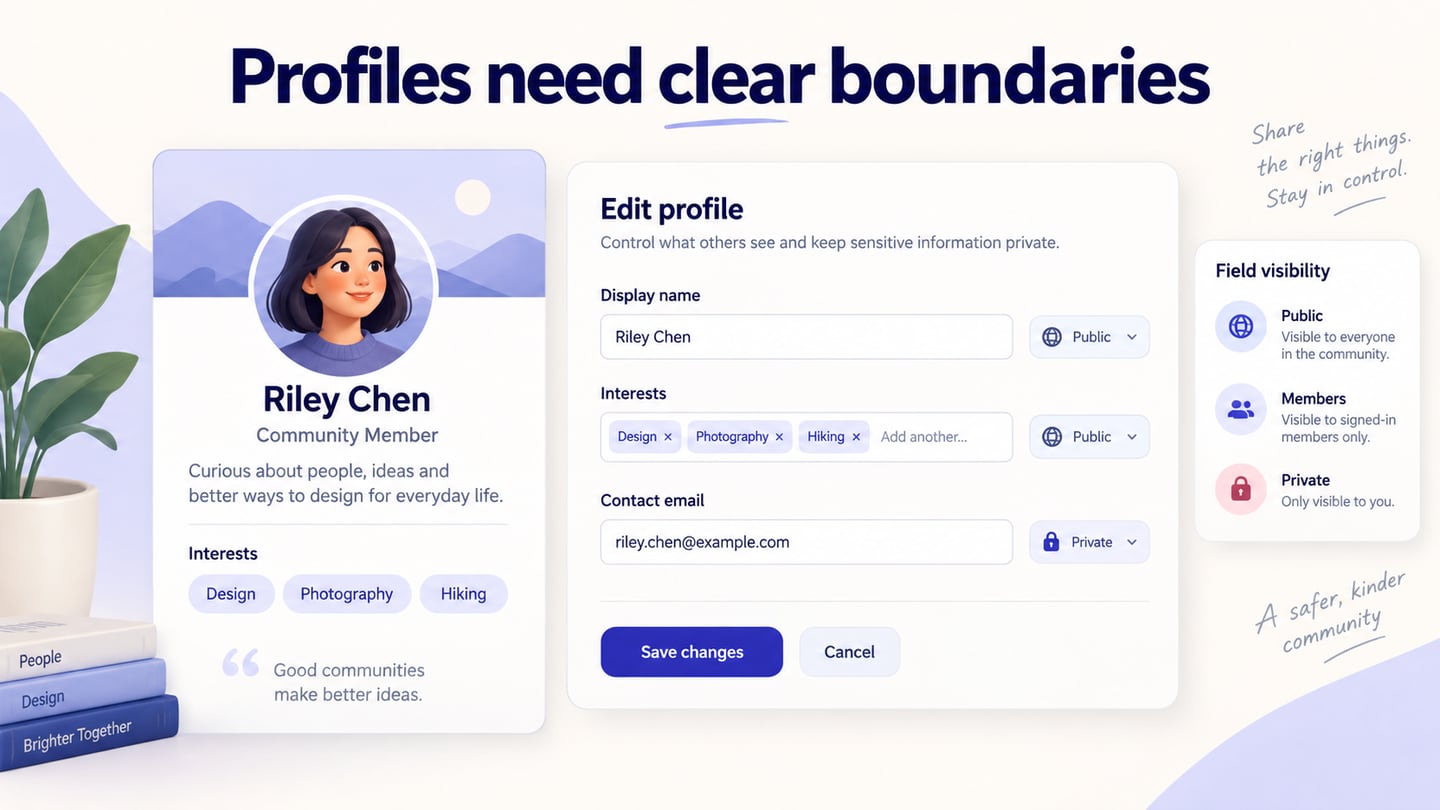
A user profile UI brings together a person’s identity, relevant activity and controls for managing their information. Social profiles are familiar examples, but a community directory or team workspace may need very different fields. Before drawing the screen, distinguish what other people can see from what only the account owner should see. You can use Mockitt’s UI design workspace to arrange those fields, build reusable elements and prepare the interface for review. This guide follows the original profile-design workflow and applies it to a small community directory.
 Earlier Mockitt workspace example; the travel screens illustrate the editor, not the profile designed in this guide.
Part 1: A Workspace for Profile UI Design
Choose a design workspace according to the output you need: an editable screen, reusable components, a clickable review flow or implementation specifications. A profile mockup is useful when it makes hierarchy and visibility rules concrete. It should not promise working account permissions, image uploads or data storage merely because those controls appear on the canvas.
Mockitt provides design and prototyping workflows for arranging interface elements and sharing a proposal. Start with the profile’s essential information rather than adding every field found in another application. A public member page might need a display name, short biography and interests, while a private settings screen contains contact details and account controls.
Use the following capabilities for specific design tasks, and check the current workspace and plan where access or export options matter.
- Work in the supported browser environment and review the design at the intended screen sizes. A browser-based workspace does not imply that every editing feature is available on every phone or tablet.
- Share the design with collaborators so they can discuss the same field and state. Keep design feedback tied to the screen it concerns, especially when a comment changes whether a field is public or private.
- Keep an agreed project and version available to reviewers. Confirm access permissions before sharing; use synthetic member details in the example rather than copying real profile data into a public prototype.
- Use an available image export when a static review is sufficient, and check the export options in the current plan. A linked prototype is more useful when the question concerns editing, cancellation or validation.
- Reuse common labels, inputs and buttons so the profile matches the rest of the product. Define the corresponding component states instead of adjusting similar controls independently on every screen.
- If starting from an existing design file, verify the supported import workflow and inspect the result. Do not assume an imported file preserves every component, font or interaction without checking it.
- Check the project’s save or synchronization status before leaving the workspace. In the profile being designed, separately specify when a member’s edit is committed, what Cancel does and what happens if saving fails.
Part 2: How to Create Profile UI Design
Step 1: Account Setup
Open Mockitt through the current official site and sign in to the workspace, or create an account if needed. Agree on the example’s scope before creating screens: this walkthrough covers viewing and editing a community member profile, not account registration, authentication or moderation.
Step 2: Creating a Project
Create a blank project or choose a relevant starting template in the workspace. For a directory, plan a member list, a profile view and an edit view. A template can supply reusable visual structure, but remove fields that have no clear purpose for your users. Keep the original task and field names visible in the project so feedback remains specific.
Step 3: Project’s Title, Device, and Size
Name the project Community member profile and choose a starting viewport. Prepare a narrow version as well as the desktop view rather than treating the first device size as permanent. Long names, multi-line biographies and enlarged text can change the layout. Plan which information wraps and how the edit form remains usable without horizontal scrolling.
Step 4: Designing the User Profile Interface
Add the profile’s display name, optional photo or initials, short biography and the information relevant to the directory. Keep Edit profile available to the owner without implying that visitors have the same controls. Use persistent labels for editable fields; a placeholder disappears when someone types and is not a substitute for an identifying label. Group private account details separately from the public profile.
For a community-garden profile, use the fictional member Jordan Lee, initials JL and an About me field describing interests. Put Contact email in the owner’s edit view with the label Only you; do not display it on the public card. Create an invalid-email state that retains the other edits and explains how to fix that field. Beside it, prepare the successful save state so reviewers can compare exactly what changed.
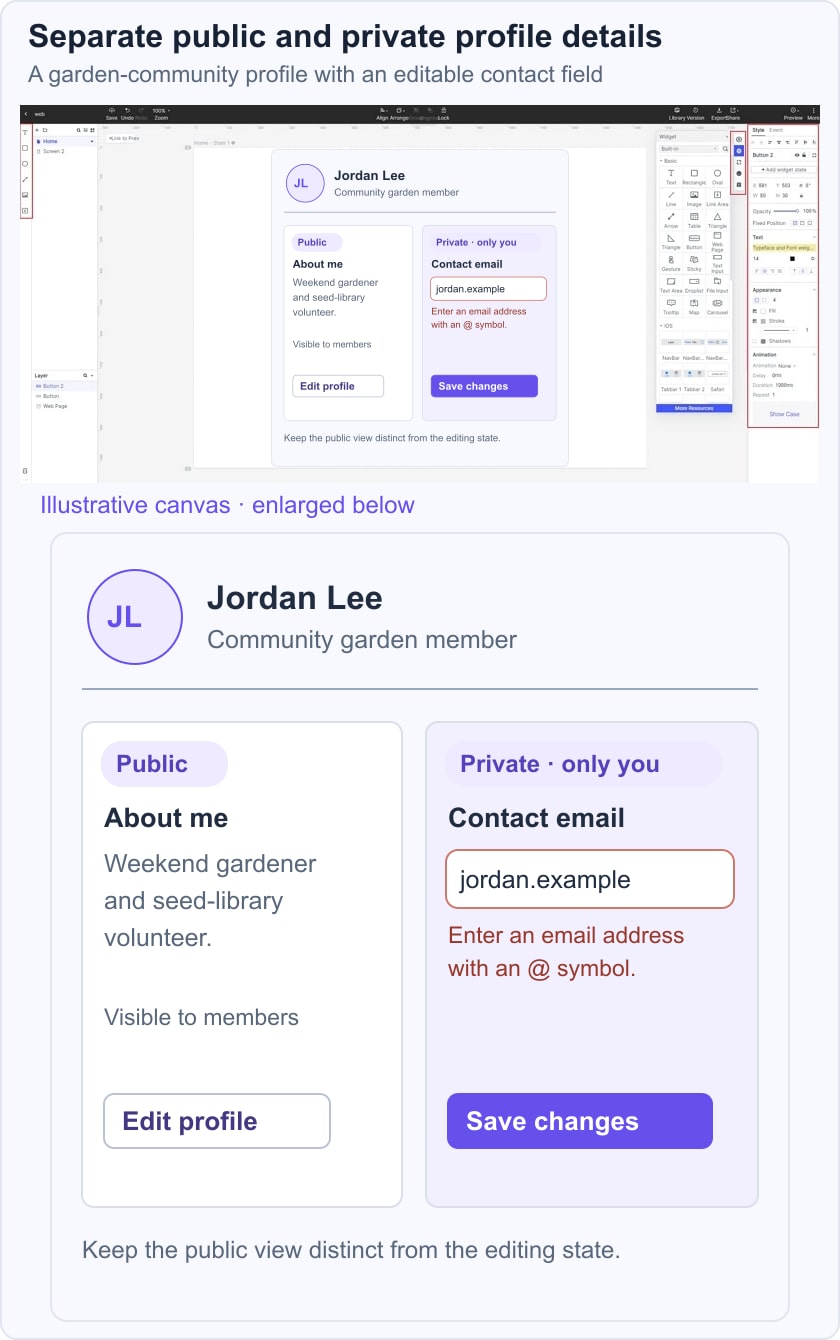
Follow the W3C guidance on labels and instructions when describing expected input. Document visibility rules with the product team: hiding an email in a mockup does not implement access control. The implementation must enforce the agreed rule wherever that information is requested.
Step 5: Sharing the User Profile Design
Share the profile flow with the team and ask a reviewer to change the biography, correct the invalid email and cancel another edit. Use the review questions to check what the person believes will become public. Confirm whether Save changes updates only the profile, whether Cancel preserves the previous values and how the interface communicates a failed request. Record unresolved behavior before handing off the screen.
Part 3: Useful Tips for Profile UI Design
A useful profile does more than display an attractive avatar. Evaluate the page as both an identity summary for visitors and an information-management task for its owner. These checks make the original design tips more concrete.
- Understand the audience and the purpose of each field. In a community directory, interests may help members find collaborators; a date of birth may add no useful information. Ask why a field is needed, who can see it and whether it can be omitted before deciding that it belongs on the profile.
- Keep labels, fonts, icons and navigation consistent with the surrounding product. A visitor should recognize which information is a link, which is a status and which can be edited. Use the same field label in the display and edit views so people can connect the two.
- Design error and incomplete states deliberately. Show a fallback for a missing photo, allow a long display name to wrap, and retain valid entries after an error. Apply the same form validation principles to optional fields as to required ones when a value is supplied.
- Ask the team to review the visible information and the permission rules together. A designer may identify a confusing label, while a product or engineering owner must confirm which viewers are allowed to access the value. Keep those decisions attached to the approved profile state.
- Make the main identity easy to scan and put secondary details below it. Avoid a crowded row of unrelated actions. For Jordan’s profile, the display name and biography explain who the member is; administrative actions belong in the owner’s settings area, not in the visitor’s reading flow.
- Use accessible controls and clear feedback. Give an image-change action a text label, keep keyboard focus visible, and explain a rejected file or invalid value in text. Test the completed interface with keyboard and assistive technology; a visual prototype can guide those checks but cannot establish that they pass.