Mockitt - Free UI/UX Design Tool
"UI is the saddle, the stirrups and the reins. UX is the feeling you get being able to ride the horse. - Dain Miller
- UX Design vs UI Design | What's the Difference?
- Step-by-Step Guide on How to Do UI/UX Design with Ease.
- Top List of Must-Recommend UI/UI Tools.
- Leading UI/UX Design Trends to Dominate in 2020-2021.
- UI/UX design secrets you need to know.
Step-by-Step Guide on How to Create Minimalist UI Design
User interface design is a process which is used to build interfaces, focused on the style or looks for computerized devices, in software. Now, it is required that designers keep on bringing in new ideas constantly. However, minimalist designs do not look amazing without putting many efforts which designers love. Minimalism, if applied wisely, helps users to see the core elements of the interface, which makes it easier and fun for the users. Furthermore,minimal UIdesigns look very intuitive and lively yet purposeful. These minimalist UI designs bring together sophisticated and organized, wide-spread designs of mobile applications and websites.
The Best Tool for Minimalist UI Design
There several tools forminimalist UI designtools available but Wondershare Mockitt is considered as one of the best wireframing designing tools. The best part about is it is that one can effortlessly link the screen as when one has used several other designing tools can get a little clumsy. It is a cool collaborative prototyping go-to tool that a lot of UI or UX product managers and designers opt for. This UI design tool, it comes with various easy to use features and has multi-platform prototyping with several widgets and multiple drop-down and drag features.
Another amazing feature about it is that multiple people work on this tool at the same time, on the same project and even edit it. It has been an underdog in the market as it wasn’t quite popular amongst the UI or UX designers as they didn’t have any idea about what this designing tool is capable of. Other than these features, the tool also supports offline file download, supports exporting in PNG, APK, HTML and IPA. It also has this quick share and preview option where one can just quickly scan the QR code and share the project with clients or teammates without having to log in.
How to Create Minimalist UI Design?
Now, we will discuss how to create awow minimalist UIDesign using the tool.
In Wondershare Mockitt , one can easily create prototypes for any platform and easily customize the project size. Also, you can opt forminimal UI icon pack apkavailable for you in this platform.
Step 1: Create a new project
- Create an account in this tool and log in.
- Select ‘Create Project’ after logging in
- Choose a blank project
- Choose the appropriate device type
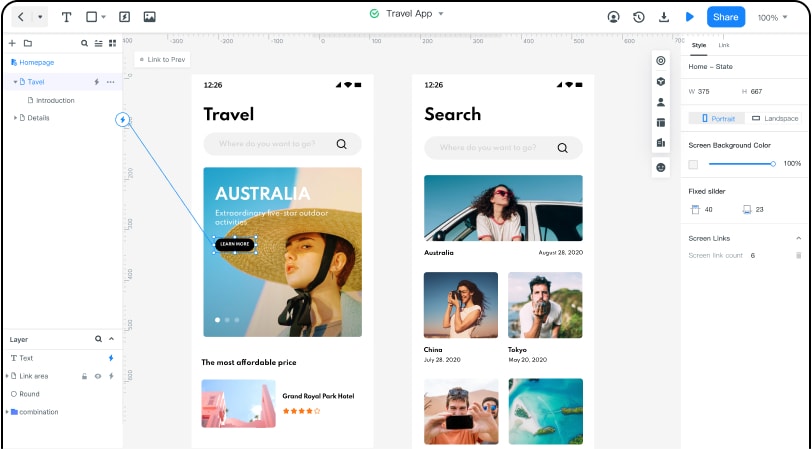
To start designing:
When designing, one will require certain widgets and icons. These features are already available on Wondershare Mockitt :
- When you open a project, you will see assets on both sides.
- On the left side, there are ‘Fast Widgets’.
- On the right, there are ‘Build-in Widgets’, ‘My Widgets’ and ‘Icons’.
- Double click on the widgets or icons to select them.
- You can also drag and bring it on the canvas.
- Right-click on the widget to edit the widgets or icons according to your requirement.
- To save the edited widgets, drag the widgets to ‘My Widgets’.
- Or you can also right-click on it to ‘Add to Widgets’ to create your library.
To link between screens, these are the steps:
- Choose ‘New link’ from the right panel and set a gesture. You can also set an action or animation to it the selected widget.
- Audio clips, video clips and any spreadsheets can also be easily added by putting the URL link for the looked-for file, and you can publish it.
To access asset library and dynamic widgets
- There are already several widgets and icons in the build-in templates and asset library present as “demo.”
- “Dynamic widgets” helps in adding more components to your UI design. You can add interacting animation, size and colour and manage screen state by changing shape.
Previewing your design.
- You will be required to preview and test the prototype through the target device.
To share your design
- You can easily add more people, such as developers or your teammates to preview and make changes in the design prototype.
- Collaborate with a team of developer, graphic designer and manager through Enterprise to get the best result
Useful Tips for Minimalist UI Design
Furthermore, here are some steps to create a smooth and effortless, minimalist UI designs:
- Fonts keeping the fonts simple and the size of the font to match with the font design. Keeping the fonts minimal would keep the whole design minimal. Not using more than two fonts is advised.
- Grid system this trick makes the design appear visually balanced. Keep the consistency maintained and try not to go overboard with all the features.
- Be aware of platform specifics it is important to learn about the platforms in which your designs are created as it may impose its specifics on one’s designs. To help you out here a little Clickable area of iOS is 44*44pixels and in android its 48*48 pixels.
- Preparing UI kit for beginners, it is advised to get familiar with the designing they use. So, jotting down all the illustrations, styles, icons and elements one uses in different situations and keeping track of them can come in handy in the long run.
- Prominent elements while creating a minimalist design, designers generally do not use pictures, but if one wants to use an image, they can use images that are prominent, minimal and informative. Keep in mind to choose an image which is minimal itself and have subtle details.
- Space the white space or also called negative, is more about space than colour. This space plays a huge role in creating a different, eye-catching design. Mark out the core elements and use bold colours always does the trick or even if one wants to use subtle colours with monochromic background, this negative space can be used tastefully to create an impactful yet minimal design.
These were some useful tips you can apply while creating a minimalist UI design. Redefining the “less is more” through minimalist designing approach needs a proper thought out process yet simple, clear and visually composed and proportioned with great attention to core details.
