What Exactly is jQuery UI?
jQuery is a JavaScript library; jQuery UI builds on it with interactions, widgets, and effects for web interfaces. They are related projects, not two names for the same library. A developer uses jQuery UI to implement a control such as a datepicker or dialog. A designer can first model the interaction in a Mockitt prototype to explain the task, states, and recovery path that the control must support.
JavaScript is the relevant programming language here, not Java. jQuery UI still requires HTML, CSS, JavaScript, and appropriate dependencies. The official jQuery UI documentation is the starting point for examples and API details. Do not infer mobile usability or compatibility from an old screenshot: check the current package requirements and test the actual application.

What Can You Do with jQuery UI?
The library organizes its main capabilities into three groups. Choose a component because it supports a defined user task, then inspect its documented events, options, and limitations. Adding a widget does not by itself make a page accessible, responsive, or connected to application data.
- Interactions
- Widgets
- Effects
Interactions
Interactions include draggable, droppable, resizable, selectable, and sortable behavior. These require initialization and configuration in code; they are not automatically activated by placing a visual element on a page. If a workflow uses dragging or sorting, also plan an alternative for people who cannot use that pointer action and verify the implemented behavior.
Widgets
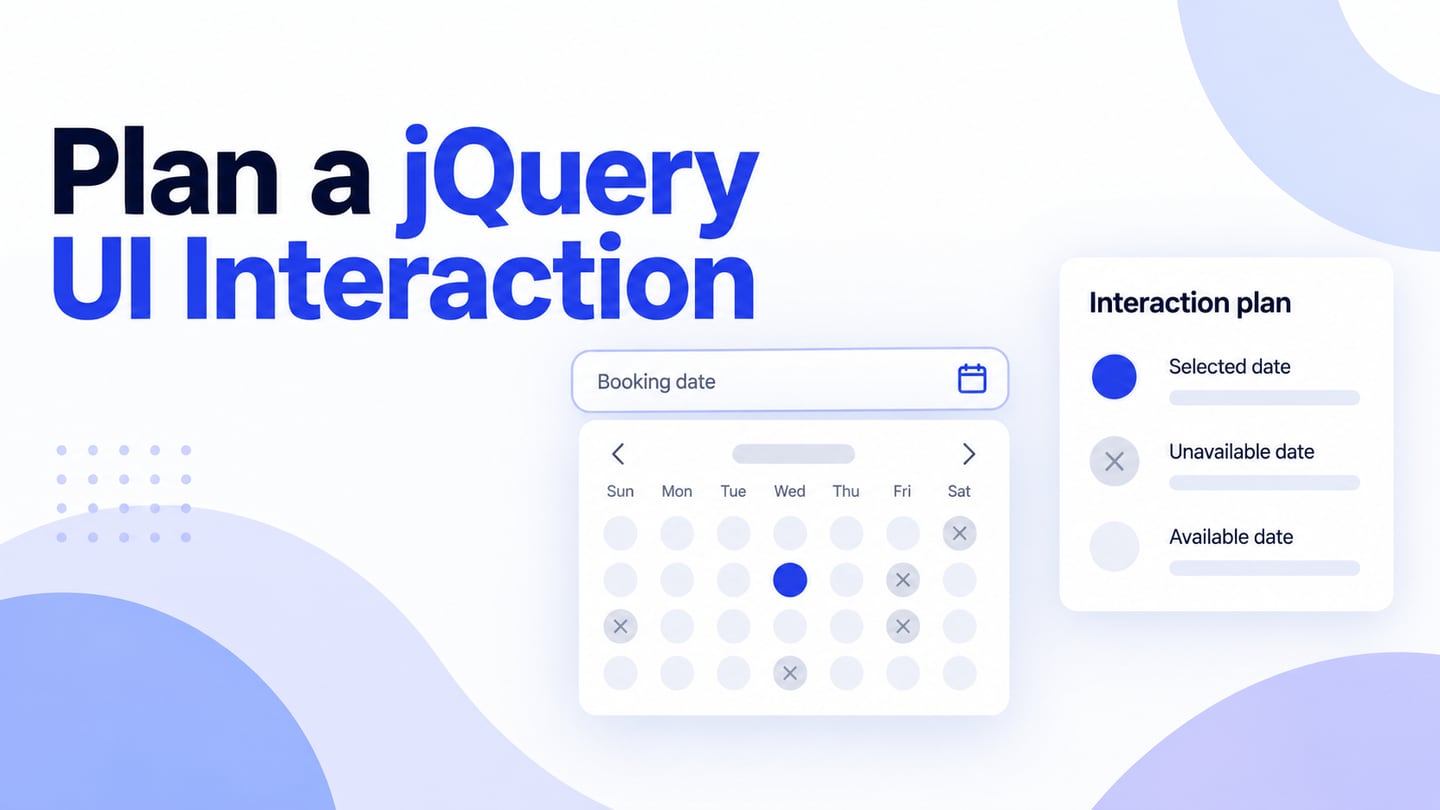
Widgets include buttons, tabs, spinners, sliders, dialogs, accordions, and a datepicker. Their role is to provide an interaction pattern that the developer can configure. The datepicker documentation shows options and examples; the team must still decide date rules, labels, localization, and how the selected value is used.
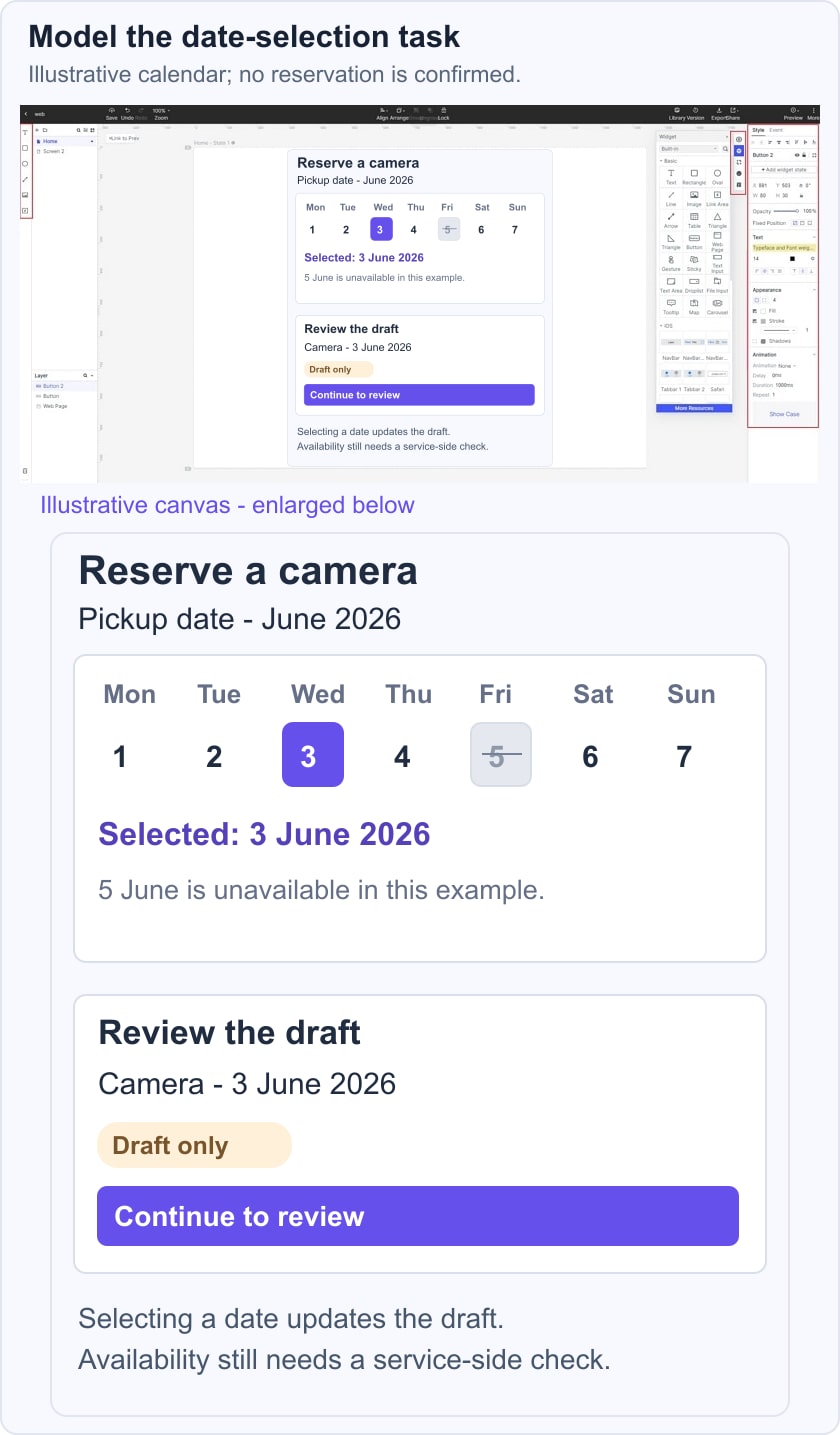
For an illustrative equipment-reservation screen, a calendar selects a pickup date and a text field displays the same value. Model an available date, an unavailable date, and a corrected selection. State whether the booking is only a draft or has been confirmed by the service. A calendar selection alone should not be presented as a completed reservation.
Effects
Effects can animate colors, classes, or visibility changes. Use them to clarify a change in state, such as opening a panel, rather than to decorate every action. Consider reduced-motion preferences and whether the transition delays the task. The page must remain understandable when motion is reduced or absent.
These groups provide reusable interface behavior, but they do not define the whole experience. In the reservation example, the datepicker is only one part of the journey: the person also needs an equipment choice, availability information, a review step, and a clear result.
Use JavaScript to connect component events to the application’s state. For instance, a selected date can update a draft form value, while the application separately checks server availability. Document which feedback is immediate and which depends on a request. This distinction prevents a prototype from implying that a local visual change has already saved a booking.
Beginners should start with the official examples and a small interaction, then review browser support, keyboard operation, and error handling. jQuery UI remains relevant to some existing projects, but it is not the default choice for every new application. Compare dependencies, maintenance, and the team’s implementation approach rather than judging libraries only by their screenshots.
Plan the Interface in Mockitt Before Implementation
Mockitt supports planning screens and connecting prototype states visually. It can help the team review the equipment-reservation flow before writing the interface code. It does not replace the jQuery UI runtime or produce a complete working booking service merely because the prototype is interactive. Use the prototype to specify the intended experience and keep implementation responsibilities clear.
Here are the features of the Mockitt app for better understanding.
- Use relevant icons and widgets as a starting point for the reservation screen.
- Adjust labels, dimensions, and colors to match the task rather than accepting a template unchanged.
- Reuse appropriate design components so repeated controls remain visually consistent.
- Connect the important screens and states to show how a selection changes the next step.
- Share a preview with collaborators and check access settings before requesting feedback.
Keep the prototype focused on the path a reviewer needs to inspect. A reservation example should show selection, review, confirmation, and a way to correct a mistake. Use usability testing to investigate whether the labels and next steps are understood; visual polish alone is not evidence that the flow works.
For a first prototype, name each state clearly and annotate rules that are not visible on the screen. A developer needs to know why a date is unavailable and what happens if availability changes after selection, not only what the calendar looks like.
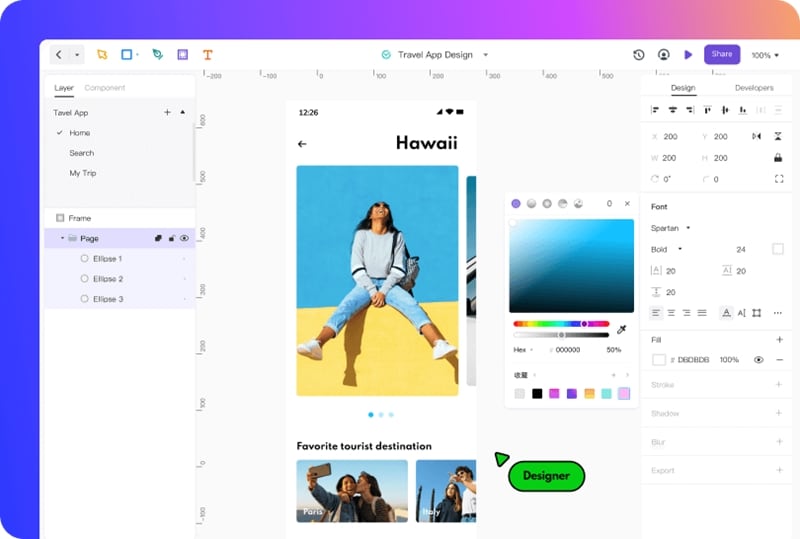
Prepare the layouts relevant to your audience, such as desktop and narrow-screen views. Review long labels, touch targets, and content order in each. The retained editor image is a historical example of visual editing; it does not demonstrate that a generated website will automatically adapt to every device.
jQuery UI Components and Mockitt Design Resources
jQuery UI supplies code-based controls and interactions that run in a web page. Mockitt’s design resources help construct a visual prototype. A design component and a runtime widget may look similar while having different responsibilities. The prototype needs annotations for behavior that will later be implemented and tested.
Templates and reusable elements can provide a starting point for common layouts, such as a travel or finance interface. Select resources that fit the task and adapt their content. Avoid assuming that a particular prototype asset maps one-to-one to a jQuery UI widget or exports the application code you need.
After adapting a component, inspect its default, selected, unavailable, and error states. A shared resource is useful when it makes repeated decisions consistent; it still needs review in the context of the page. The Semantic UI component categories offer another way to distinguish basic elements, grouped content, and behavior when discussing implementation.
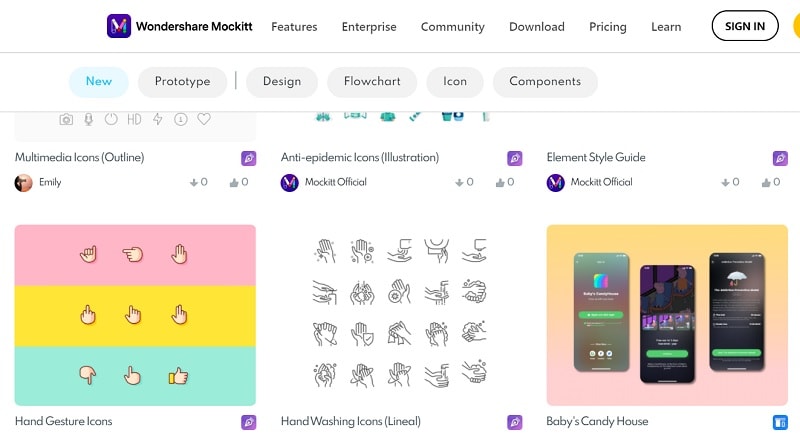
The historical community screenshot below shows examples of reusable resources available in an earlier interface. Treat it as an archive illustration, not a current inventory or availability promise. When choosing assets today, check their source, usage terms, and fit with your project.
Conclusion
Use jQuery UI for the documented controls that suit the application, and use a prototype to make their role in the user journey explicit. For the reservation example, verify both the calendar interaction and the full draft-to-confirmation path. A useful design-to-development handoff separates the visual specification, client behavior, and server responsibilities so each can be tested.