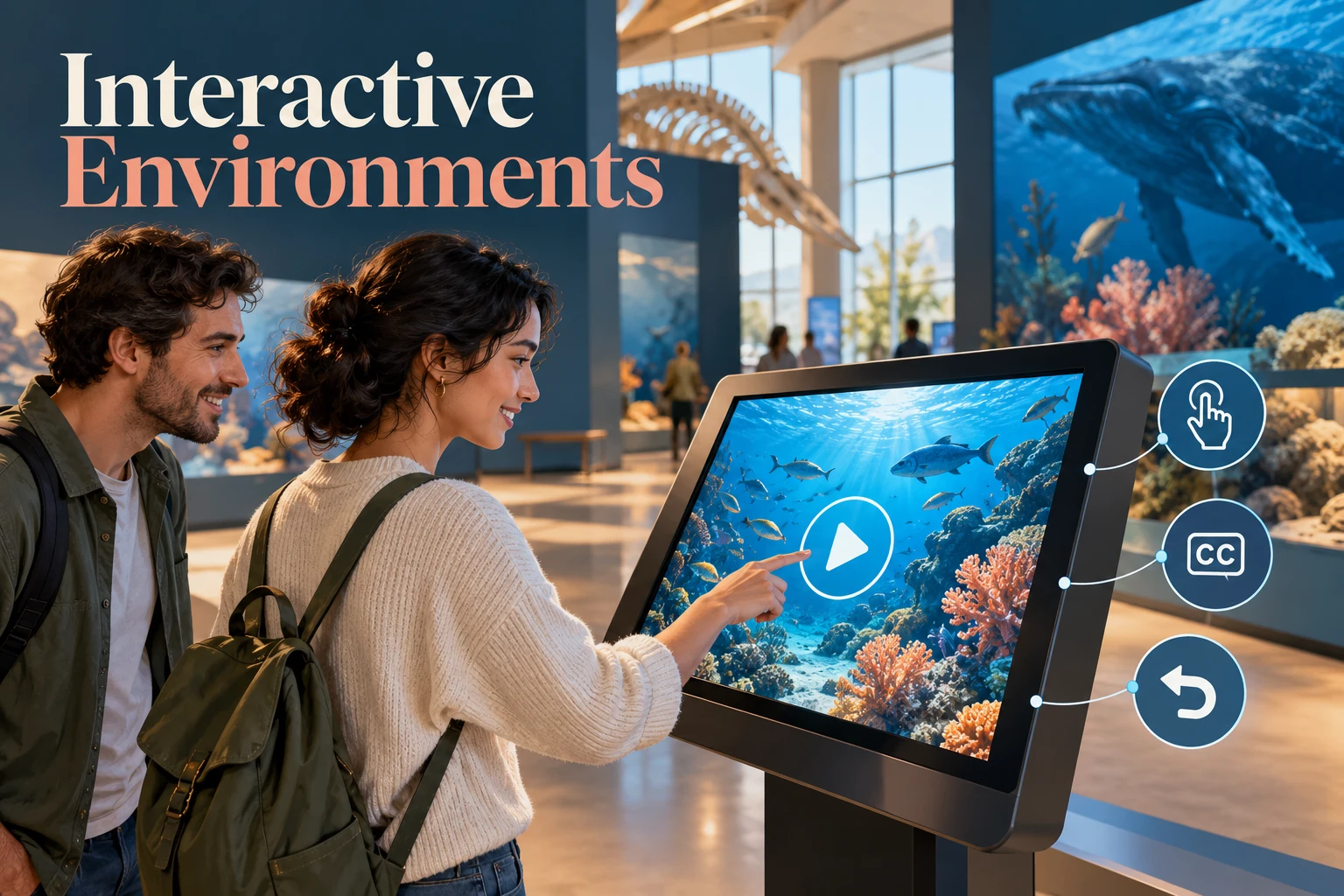
Interactive environments are digital or physical spaces that respond to a person’s actions. A website, learning activity, touchscreen exhibit, or location-based game can all create an interaction loop: a person acts, the system changes, and the person receives feedback. The useful question is whether that response helps the person understand or accomplish something.
Touch, a pointer, a keyboard, voice, and body movement can provide different ways to interact. The right choice depends on the setting and the people using it. A noisy museum, for example, may need visible instructions and captions even when an exhibit also offers sound.
Before implementing an interactive website or kiosk, you can use Mockitt to prototype the screen interactions. Define the starting state, action, response, and return route. A screen prototype helps review that flow; it does not establish that physical sensors or location tracking work.
Brands, educators, and public services use interactive spaces for different purposes. Effective design follows that purpose: helping a visitor find an exhibit requires different behavior from teaching a word or comparing a product.
What are Interactive Environments? - A Brief Introduction.
An interactive environment uses an interface that responds to input. Computer-based media may include video, animation, a simulation, a game, or a training activity. Simply placing a video on a page does not make the whole experience meaningfully interactive; the response needs a clear relationship to the person’s action.
Interactive environments can also represent objects, spaces, or artifacts in two or three dimensions. Depending on the implementation, people may explore them through touch, gestures, sound, or movement. An immersive presentation is one possible form, not a requirement for every interactive experience.

There are five important things that one needs to consider to create an interactive space that can achieve the objective in the best possible manner:
- Words: Use readable labels and enough information for people to understand the action and its result.
- Visual representations: Use icons, images, and graphics to support the words and explain relevant relationships.
- Physical objects or space: Consider the device, posture, reach, surroundings, and input method. A phone used while walking and a fixed touchscreen need different arrangements; no single layout automatically fits all hardware.
- Time: Consider how feedback, transitions, loading, and time limits affect the task. People should have enough time to understand a response and control nonessential movement.
- Behavior: Define what the system does after an action, including mistakes, cancellation, and recovery. Behavior is not simply a requirement to record users.
Words, visuals, physical context, time, and behavior work together. A clear label is useful only if the response matches it and the person can reach and operate the control in the intended setting.
An Example of Everyday Interactive Environments.
Everyday interactive environments include websites that let people explore content, ask a question, or choose a product. The design should make the available action and its result understandable.
Chatbots are one example: a person submits a question and receives a response. The experience also needs a way to clarify an answer, correct an input, or reach another form of help when the conversation does not resolve the task.
Learning and shopping sites use choices, feedback, and navigation to connect actions to information. Clicks and swipes are inputs; the quality of the experience depends on what happens next, rather than the number of interactions added.
Duolingo illustrates interactive learning through exercises and feedback. In SBS’s My Grandmother’s Lingo, speaking words is part of exploring a language story, and the site also exposes an option to continue without a microphone. That alternative is a useful reminder to design around the visitor’s context. The older “30 pieces, 30 species” project is a historical example of using interactive presentation for an awareness topic.
Common Uses for Interactive Environments.
Interactive environments support a range of tasks. Each use has a practical design question to answer:
- Learning is fun
Quizzes, puzzles, visuals, and sounds can make learning participatory. A useful learning activity explains why an answer is correct or incorrect and lets the learner try again. Interaction alone does not establish better retention; the explanation and practice need to support the learning goal.
- Navigate quickly
Navigation sites and applications respond to a destination, route choice, or changed location. Make the current position and next action understandable, and provide a recovery path when a location cannot be found. Nearby points of interest can help when they support the journey rather than obscure it.
- Revolutionize gaming
Pokémon GO is an example of a game that connects digital activities with places in the physical world. Interactive games can combine visual feedback, choices, and communication. Their design also has to account for the person’s surroundings and ability to pause or stop.
- Feedback made simple
Interactive feedback can ask a relevant question at the point where an experience is fresh. Keep the request short, optional, and understandable. Do not force a response or assume that a more elaborate interaction produces more useful answers.
- Shopping made easy
Interactive shopping can help someone compare options, adjust a product, or inspect details. Keep price, availability, and selection visible when the view changes. The experience should support a purchase decision rather than add movement for its own sake.

The relationships between Interactive Environments and UX.
Interactive environments shape part of the user experience, alongside content, service reliability, accessibility, and the physical setting. More interaction does not automatically mean better UX.
The relationship between the two can be understood by the points below:
- Interactive features support a goal when their response helps someone make progress.
- Personalization can reduce repeated effort, but shared devices need a clear reset so one visitor’s choices are not shown to the next.
- Feedback should explain the result of an action, not just make the interface look lively.
- An alternative input path can make a task possible when voice, motion, or precise touch is unsuitable.
- Observe task completion and mistakes to assess the experience; interaction counts alone do not show whether it helps.
Example: a Shared Museum Touchscreen
A museum visitor wants to find the Ocean Life exhibit and hear a short introduction. Define the experience before adding animation: choose an exhibit, show its location, offer the introduction, and provide a clear route back to the exhibit list.
| Visitor action | Visible response | Alternative or recovery |
|---|---|---|
| Select Ocean Life | Exhibit name, location, and available introduction | Return to the list without losing orientation |
| Start the introduction | Playing state with captions and a pause action | Read the text without audio |
| End the visit | A clear reset to the initial exhibit list | Keep the current screen if the reset is cancelled |
| No response while loading | A status message and a retry or return route | Keep enough context to avoid restarting blindly |
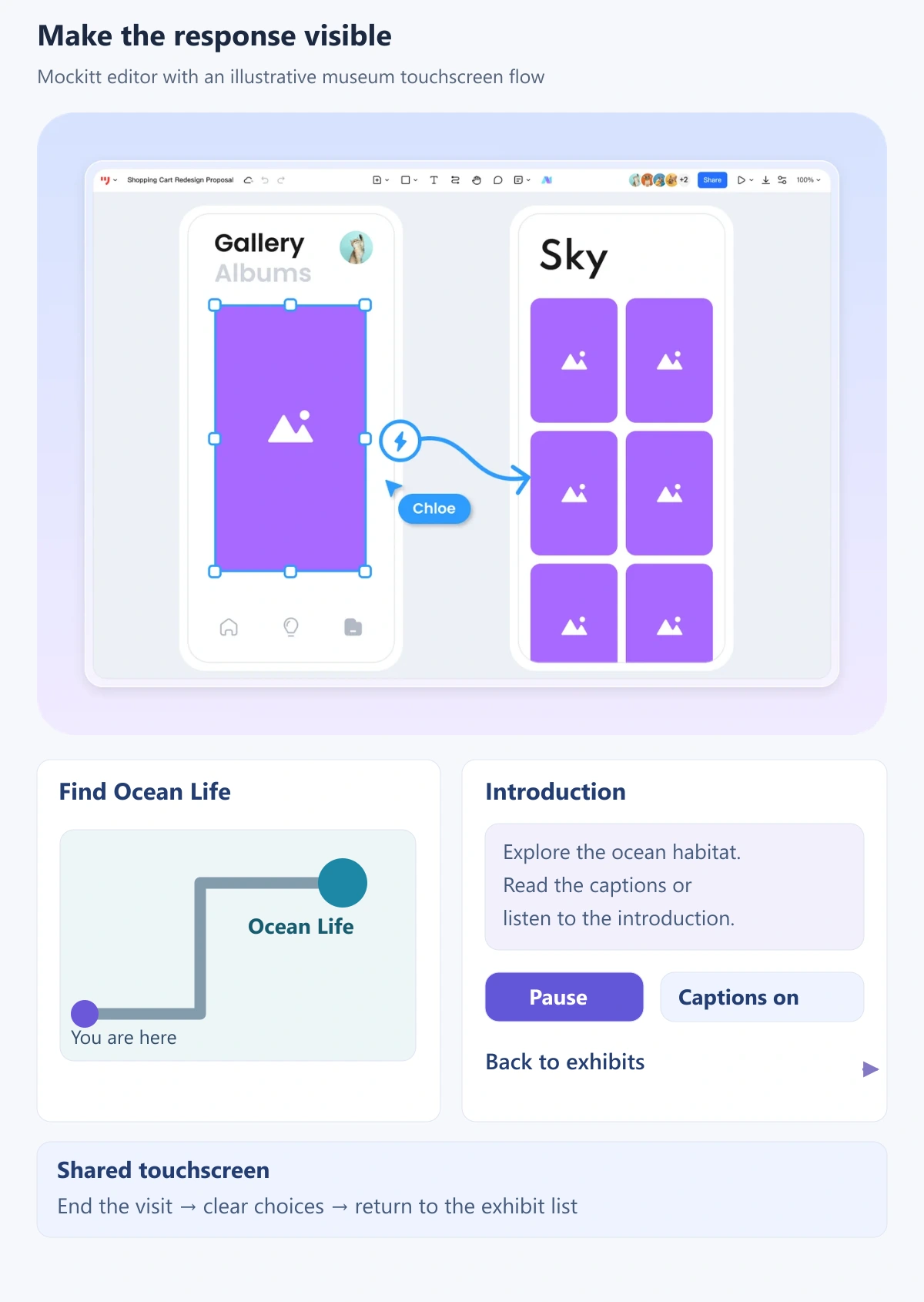
In the prototype, connect these screens and model what the visitor sees after each action. Ask someone to find the exhibit, pause the introduction, and return to the list. A visual walkthrough can reveal missing responses. The actual kiosk still needs checks with its hardware, audio, reach, and accessible input methods.
For a web implementation, the W3C keyboard-accessibility guidance explains why functionality needs an operable keyboard route where the underlying action permits it. Its pause, stop, and hide guidance also addresses qualifying moving and auto-updating content. Do not make automatic movement the only way to understand the exhibit.
Use a reset confirmation only when losing the current choices would matter. If a blocking confirmation is needed, the modal-dialog UX guide explains how to keep the decision clear and provide a reliable return path. A simple Back action usually does not need another interruption.
Conclusion
Goal-driven interactive environments connect an action to a meaningful response. Choose the input methods, content, and feedback for the task and setting, then make room for mistakes and recovery.
A successful experience can be quiet and straightforward. Start with one useful interaction loop, test it with the people and devices involved, and add complexity only when it improves what visitors can do.