Descriptive analysis summarizes the data you have collected: counts, typical values, variation, and patterns. In UX research, it can help describe task times, completion counts, or survey responses before you decide what to investigate next. Quantitative data can come from observations, logs, or surveys; qualitative data can include notes and quotations. The method should fit the research question, not the other way around.
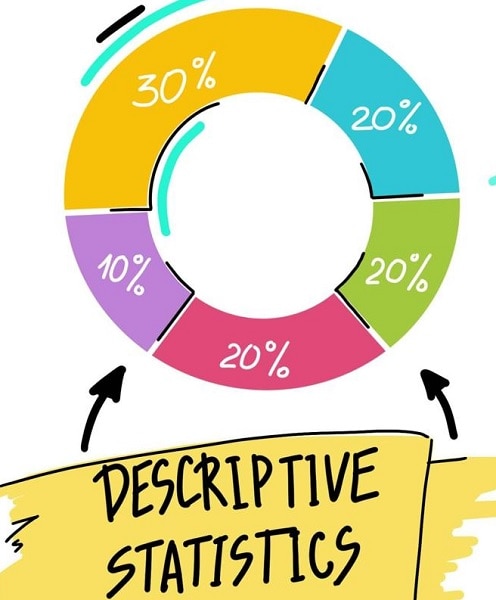
Illustration of proportions summarized with descriptive statistics.
What is a Descriptive Analysis?
Descriptive analysis organizes observed data into summaries that a reader can inspect. It describes the collected sample rather than automatically proving what is true of all users. Before calculating anything, define the unit of observation, the measurement, and the period covered. For a usability task, distinguish one participant’s attempt from several repeated attempts by the same person.
Descriptive and inferential analysis answer different questions. Descriptive statistics summarize the observations you have; inferential methods use data and assumptions to estimate or test something beyond those observations. Neither is reliable merely because of its label. Sampling, missing values, measurement errors, and the chosen summary can all affect the conclusion. A neat average cannot repair an unrepresentative sample.
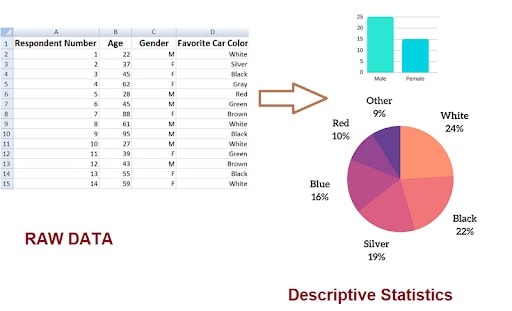
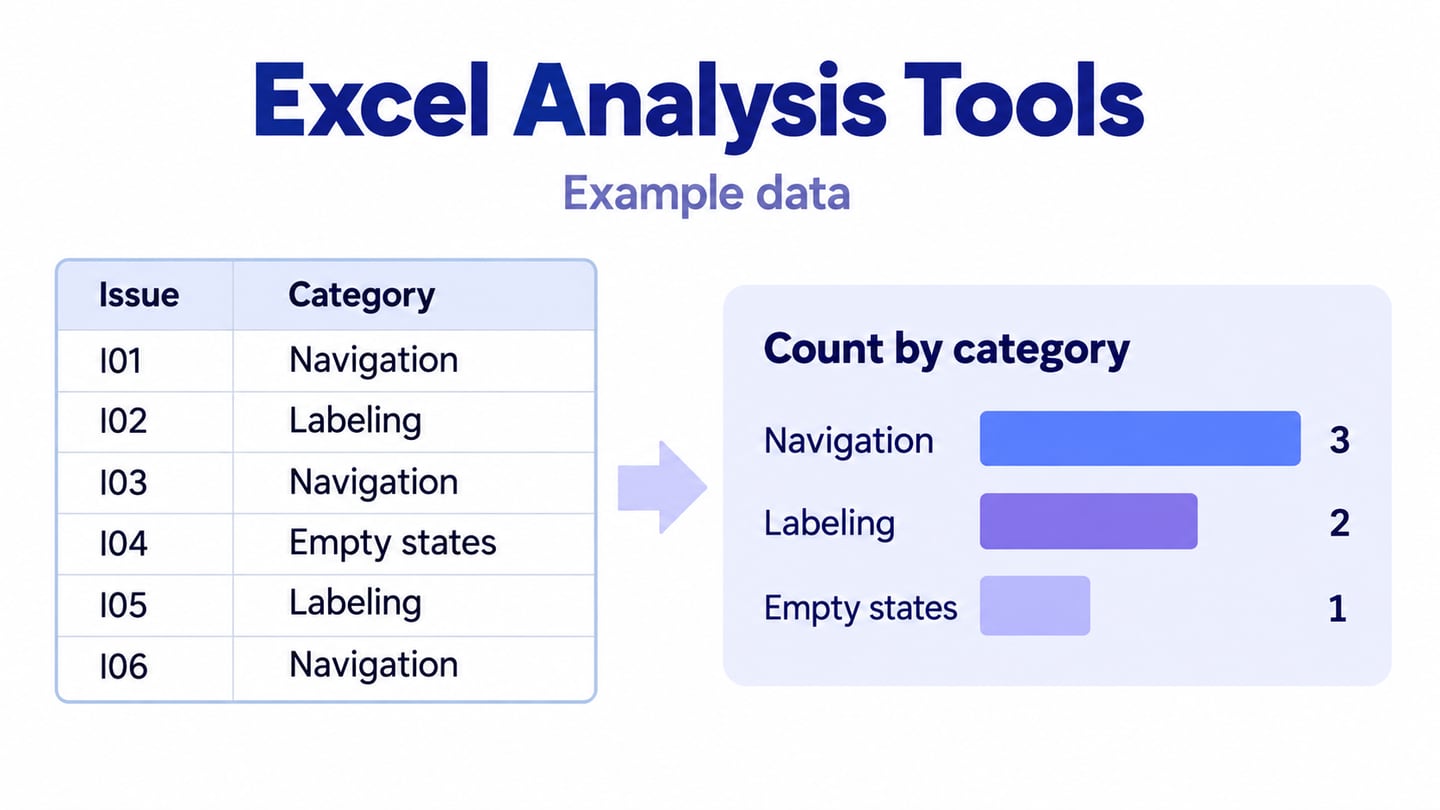
Example records summarized as charts.
What are the 4 Types of Descriptive Analysis?
Four useful families of descriptive measures are frequency, central tendency, dispersion, and position. They are complementary ways to inspect data, not four competing workflows. Choose the measures that match the type of variable and the question you are trying to answer.
The measure of Frequency:
Frequency is a count of how often an event or category appears. Report the denominator with a percentage: “4 of 5 participants completed the task” is clearer than “80% completed it.” If a participant can choose several answers, explain why the category percentages may add up to more than 100%.
The measure of Central Tendency:
Central tendency describes a typical value. The mean is the sum divided by the number of observations. The median is the middle value after sorting, or the mean of the two middle values for an even-sized numeric set. The mode is the most frequent value; a set may have several modes or no single useful mode. Choose a summary that fits the data rather than reporting all three without a reason.
The measure of Variations:
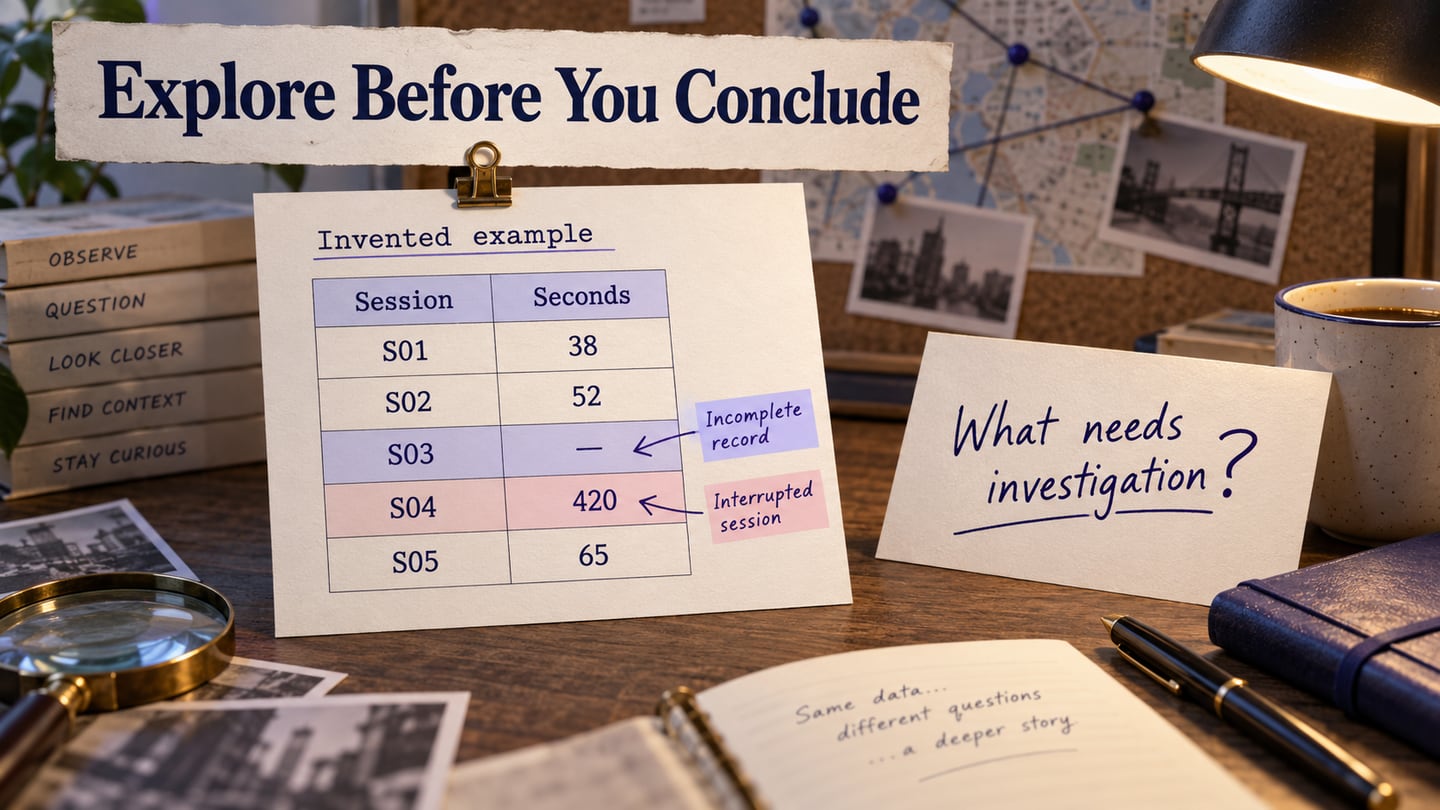
Dispersion describes how spread out the values are. Range, interquartile range, variance, and standard deviation answer different questions about that spread. Minimum and maximum values help reveal extremes. An outlier deserves investigation, not automatic deletion: a long task time might be a genuine usability problem rather than a recording error.
The measure of Positions:
Measures of position, such as quartiles and percentiles, describe where a value lies within a distribution. They do not inherently compare a product with competitors. A percentile needs a clearly defined reference set, and different calculation conventions can produce different results in small samples.
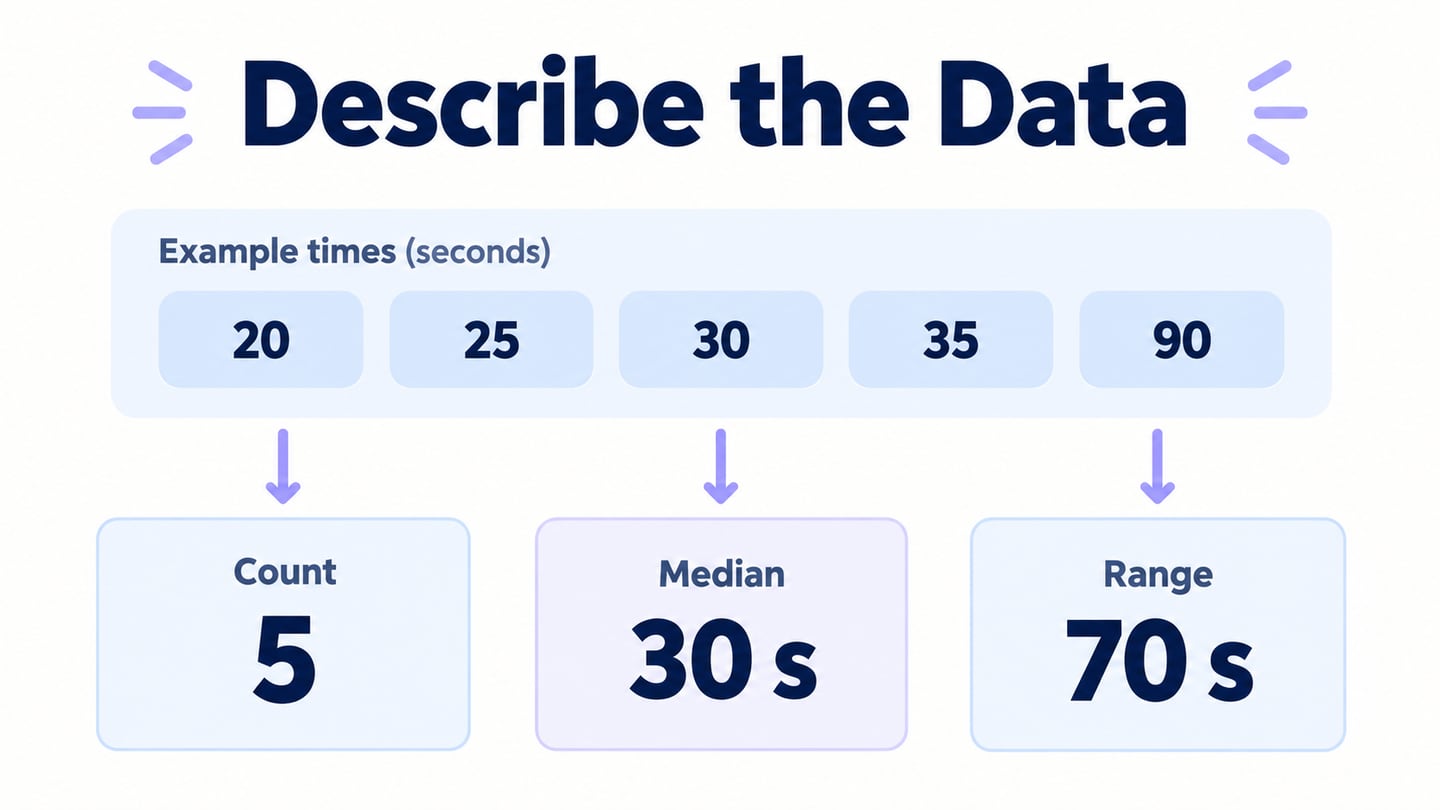
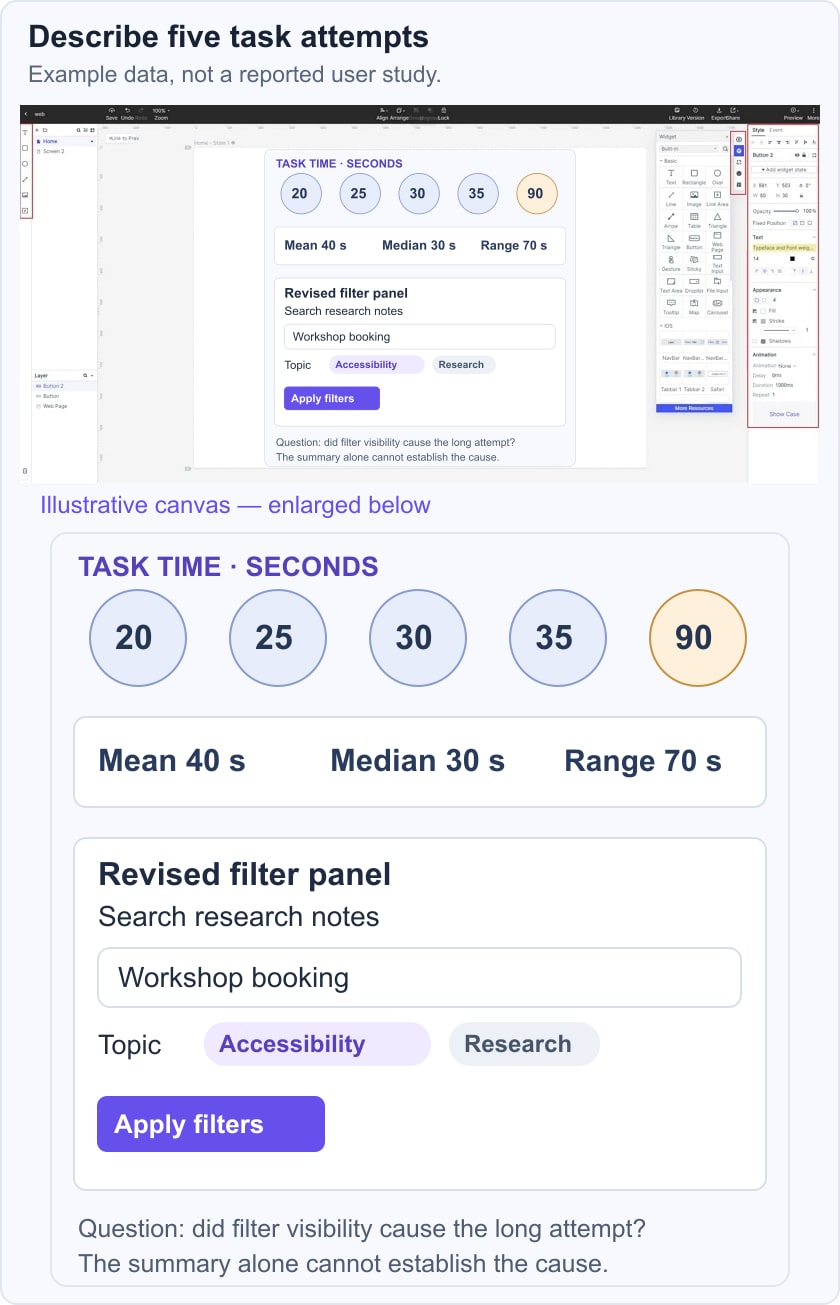
Consider five illustrative task times: 20, 25, 30, 35, and 90 seconds. The mean is 40 seconds, the median is 30 seconds, and the range is 70 seconds. These are example values, not a reported study. The longer attempt raises the mean; report the individual values or the spread alongside the average so a reviewer can see that difference.
The summary tells you what happened in those attempts, not why. Read the session notes before deciding whether a label, a filter, or another part of the interface caused difficulty. The broader research data-analysis process connects data preparation and interpretation with the decision you need to make.
How to do a Descriptive Analysis?
A spreadsheet or statistical package can calculate descriptive summaries. The original SPSS screenshots below show a historical desktop interface, so labels may differ in your installed release. IBM’s SPSS command reference distinguishes DESCRIPTIVES from procedures such as FREQUENCIES and EXAMINE. Check the variable type and the statistic you need before choosing a dialog.
Step 1: Open Analyze → Descriptive Statistics → Descriptives. The historical screenshot shows that menu path. Use appropriate numeric variables; an identifier encoded as a number is not automatically a quantity worth averaging.
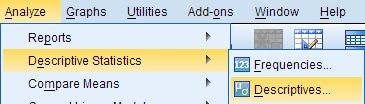
Historical SPSS menu: Analyze > Descriptive Statistics > Descriptives.
Step 2: Move the intended variables into the analysis pane. Confirm their labels, units, and missing-value settings first. “Save standardized values as variables” is optional and is only needed when you want standardized scores; it is not a requirement for calculating a basic descriptive summary.
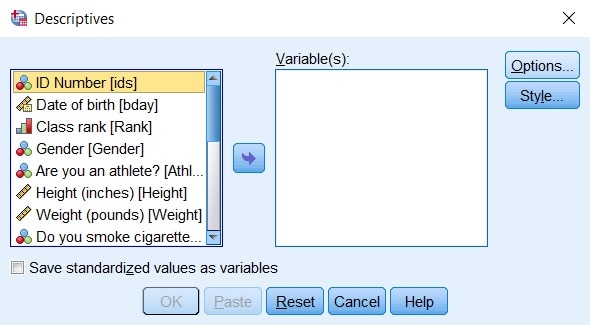
Historical SPSS Descriptives dialog for selecting variables.
Step 3: Open Options and select the measures needed for your question, such as mean, standard deviation, minimum, and maximum. Run the analysis and inspect the valid and missing counts with the output. For statistics such as median or mode, choose an appropriate procedure such as Frequencies; IBM’s SPSS Brief Guide explains these descriptive-statistics workflows.
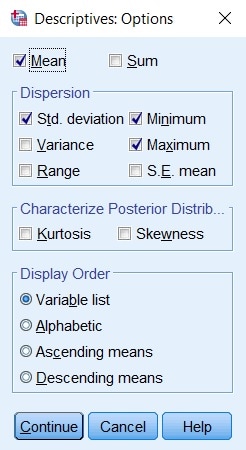
Historical SPSS options for summary measures and display order.
Before sharing the result, check that each number has a variable label and unit, that missing values were handled as intended, and that the sample size is visible. If the result differs from a manual calculation on a small subset, resolve that discrepancy first. A software-generated table still needs interpretation.
Software for UX
After analyzing the data, use Mockitt to prototype a design response. Keep the statistical calculation in a suitable analysis tool and use the prototype to make the proposed change reviewable. For example, if session notes suggest that participants missed a filter, compare a clearer filter panel with the original. The product image below is a historical editor example, not statistical software.
The worked example below places the five task times beside a revised filter panel. The long attempt prompts a question about filter visibility; it does not prove the filter caused the delay. Keep that question with the prototype so the next review can test it with new observations.
Useful Mockitt Features for the Follow-up Design
- Arrange the proposed screen and its important states in a visual prototype.
- Use explicit labels and a focused task so reviewers can understand what changed.
- Use components and templates as starting points, then adapt them to the observed problem.
- You can customize the 'Widgets and icons' in the Asset library according to your requirements.
- This app allows you to save the personalized design elements in the Asset Library and reuse it in future.

Conclusion
Descriptive analysis is useful when the summary remains connected to the underlying records. Keep the sample size, units, missing-data decisions, and limitations visible. Use data visualization to make a pattern easier to inspect, then test the proposed design change instead of treating the summary as proof that the change will work.