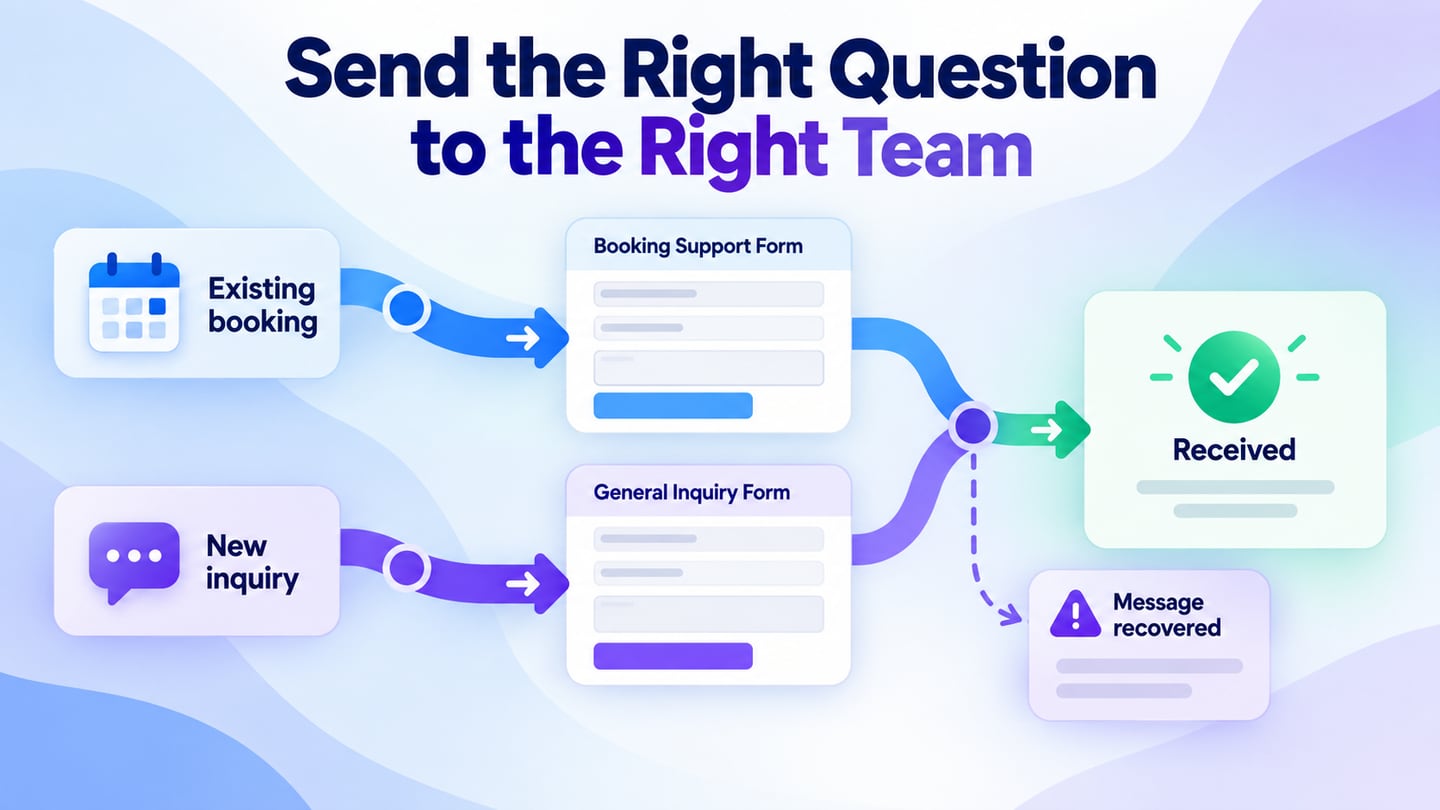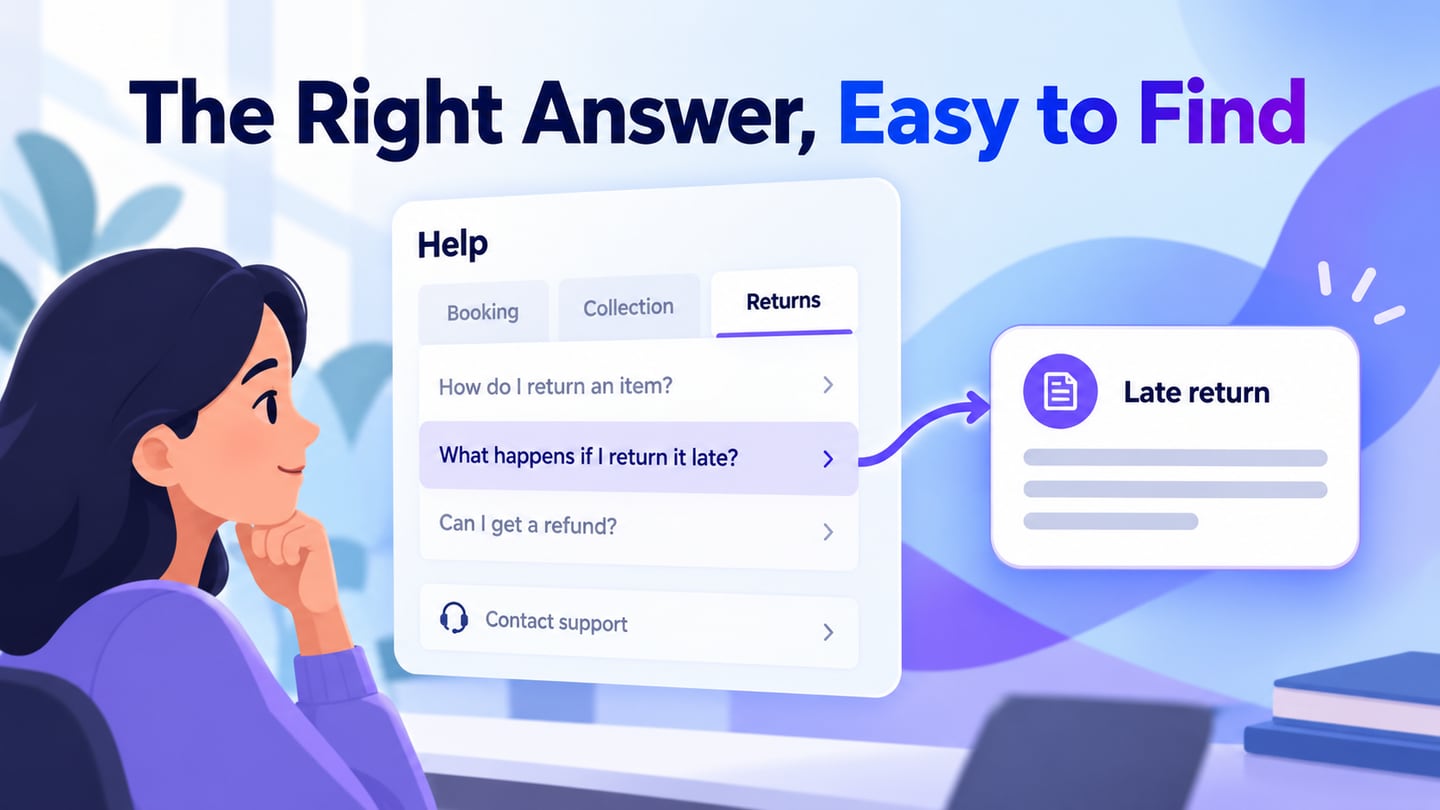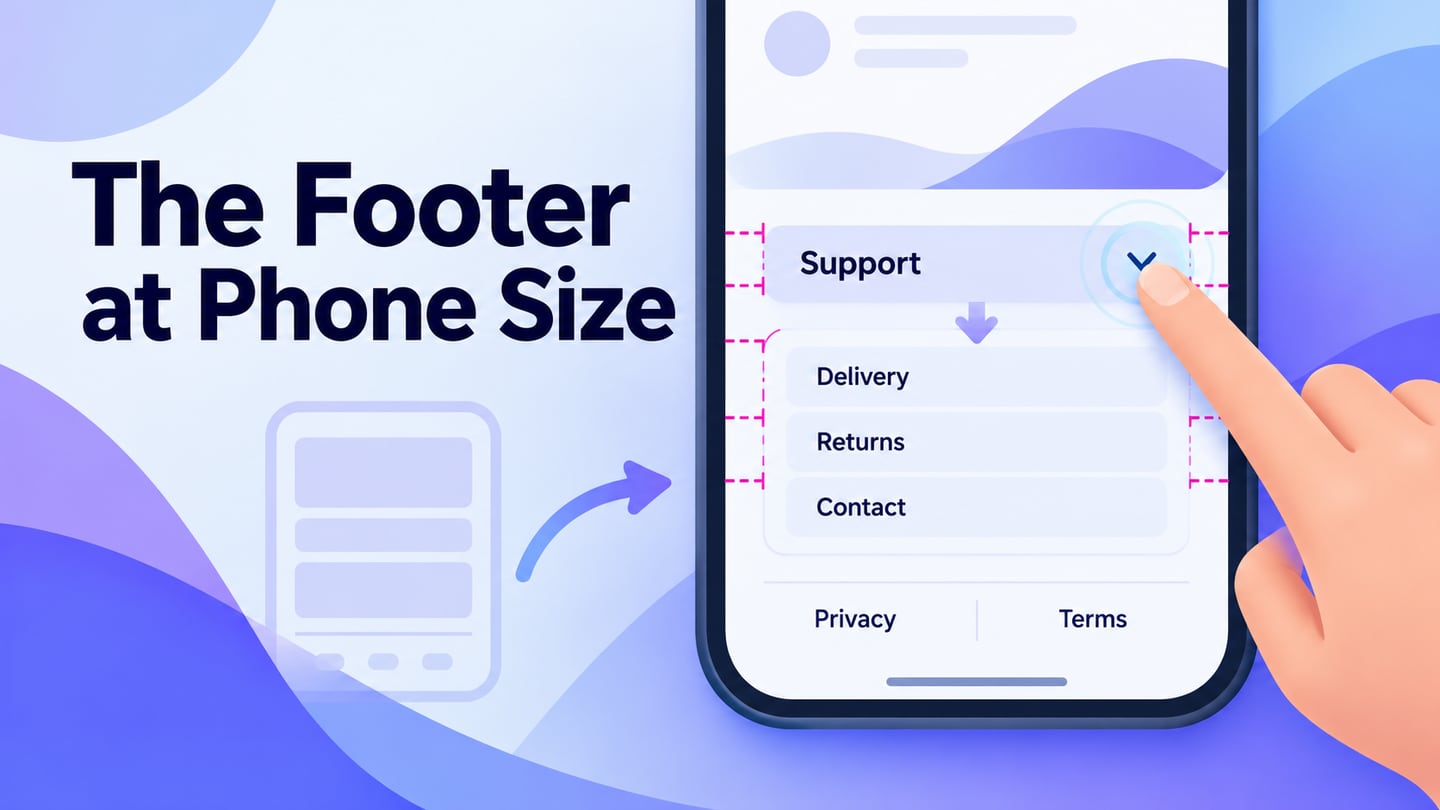
Good mobile footer design keeps support, contact details and policy links easy to find on a small screen. Group related links, use clear labels and leave space between touch targets. The five website examples below show layouts to learn from; use Mockitt’s online prototype editor to review your link groups and expanded states before implementation.
A website footer usually holds secondary navigation, contact details and policies. It is different from a persistent bottom tab bar inside an app, which supports primary navigation throughout an ongoing task.
Evaluate the footer and header references by what their screenshots actually show. Historical captures are useful for examining hierarchy; they do not prove that a current website has the same controls or behavior.
- Part 1. Prototype the mobile footer and its states
- Part 2. Five historical mobile footer references
- Part 3. What header references reveal about mobile navigation
Part 1. Prototype the mobile footer and its states
Start with the smallest layout you expect to support, then test longer labels and increased text size. A footer needs enough room for touch targets and focus indicators, not just enough room to fit every link.
In Mockitt, lay out the footer content and connect the states needed for a review. Keep the page’s real destination names and use a separate screen for an expanded group, a submission result or an error when that makes the interaction easier to inspect.

Include these elements in the prototype:
- Clearly labeled link groups, with enough separation to distinguish one destination from the next.
- Contact controls that state whether they open an email, phone call, map or support page.
- Essential policy links that remain discoverable without completing a marketing interaction.
- Expanded and collapsed states if a group uses a disclosure control.
- A review path for keyboard focus, longer text and the return from an external destination.
For an illustrative Studio Help footer, show Support as an expandable group containing Delivery, Returns and Contact. Leave Privacy and Terms visible below it. When Support opens, its content pushes the following rows down rather than overlapping them; closing it returns focus predictably to the same control.
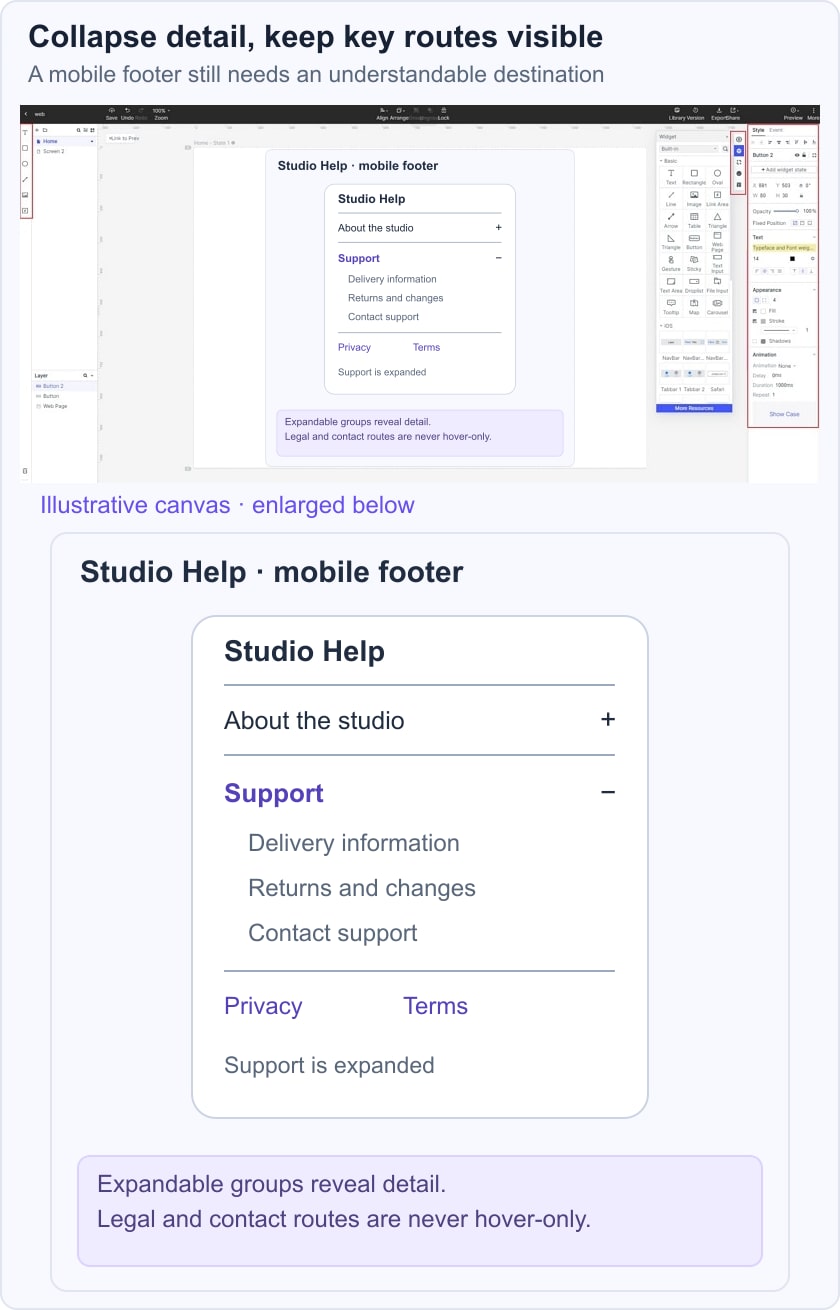
The W3C disclosure pattern uses a button and an expanded state. In the implemented page, Enter or Space should operate the button and the accessibility state should match the visible content. A prototype can communicate this requirement, but the delivered HTML still needs to be tested.
Ask a reviewer to find the return policy, then the contact route for a delayed delivery. If both tasks lead to the same vague “More” control, improve the labels before adding visual polish.
Part 2. Five historical mobile footer references
The following references are websites, not footer-design tools. Evaluate the visible arrangement and test the interaction yourself before adopting it.
#1: Black Pizza
The Black Pizza capture uses a minimal final section with a question, a hashtag and brand information. The restrained content creates a clear stopping point, but it leaves little room for a broad support directory.
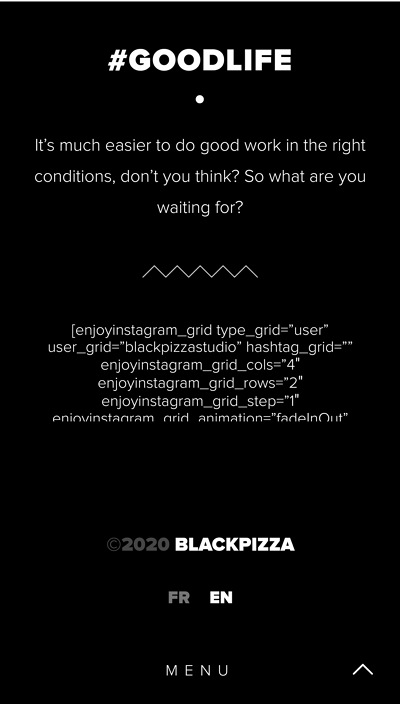
The archived capture also contains an exposed embed shortcode above the footer. Treat that as a defect to avoid: missing integrations should not leak implementation text into a customer-facing page. Check the page with optional third-party content unavailable.
#2: BlueStag
The BlueStag capture places contact information and a direct invitation near the end of the page, followed by supporting information. Its useful feature is the order of the reader’s next actions.
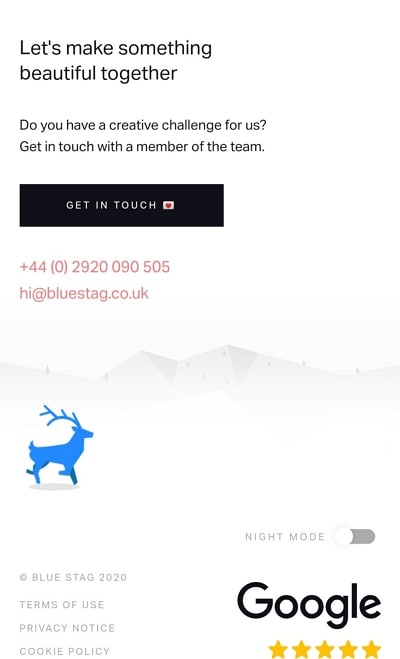
Keep a service inquiry easy to find before decorative or credibility content. Ratings, if used, need an accurate source; a screenshot alone is not evidence that the same rating remains current. Ensure phone and email links have enough separation for reliable tapping.
#3: Guerlain
The Guerlain capture groups help, contact, legal information and social links in a restrained layout. These groups answer different questions, so keeping their labels visible helps readers choose the right path.
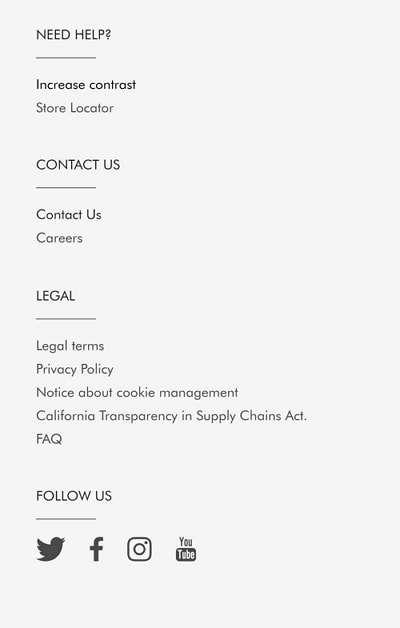
Check text contrast and the actual target area rather than judging usability by the apparent size of a social icon. Do not infer a newsletter, store locator or interactive behavior that is not visible in the capture.
#4: Isitwp
The IsItWP capture combines a short introduction with compact groups for sections, reviews and coupons. It shows one way to reduce the initial height of a large footer while retaining its categories.
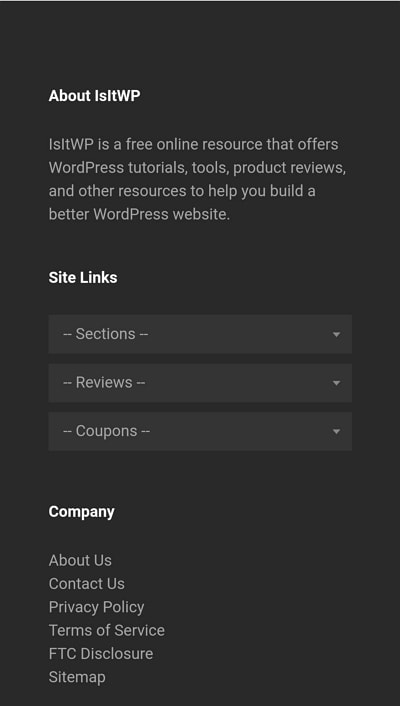
If you implement expandable groups, use accessible disclosure controls rather than styling a non-interactive heading to look clickable. Test whether a visitor can reach every link using a keyboard and whether expanded content remains in the expected reading order.
#5: Blue Fountain Media
The Blue Fountain Media capture puts an office address, a Get Directions link, social routes and a contact action near each other. The relationship between the office and its directions is clear.
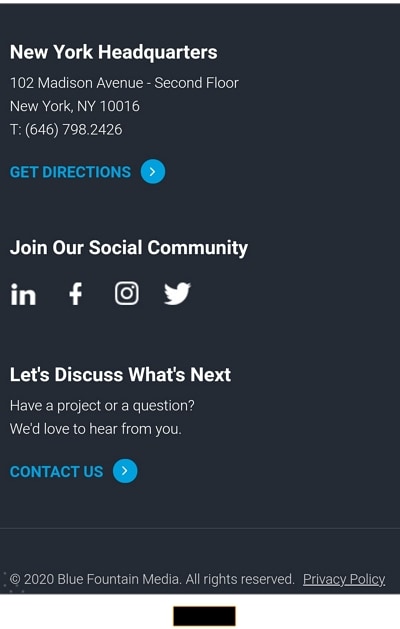
For your own footer, verify where Get Directions opens on the supported devices. A visible link does not establish which map application or API is used. Provide a readable address even if the external map service is unavailable.
Part 3. What header references reveal about mobile navigation
The header and footer should use consistent names for shared destinations. The header design workflow covers the full navigation task; the references below focus on what can be learned from the original captures.
#1: Lyft
The historical Lyft mobile capture distinguishes riding from driving and keeps a menu control in the top area. The audience choice is the relevant lesson: give different visitor tasks clear labels instead of forcing them into one generic action.
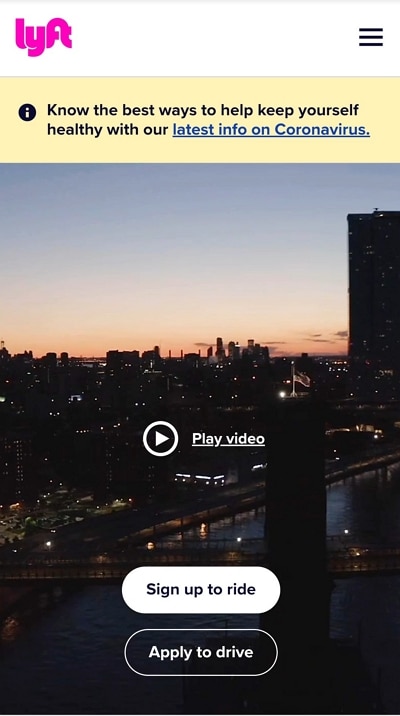
The old campaign notice is not a recommendation for current copy. When adapting this pattern, test the menu’s opened state, its close control and focus return; those behaviors cannot be confirmed from the closed screenshot.
#2: Stripe
The retained Stripe reference is a desktop capture, not evidence of a mobile layout. It demonstrates a prominent value statement and an action hierarchy, which can inform a separate mobile prototype.
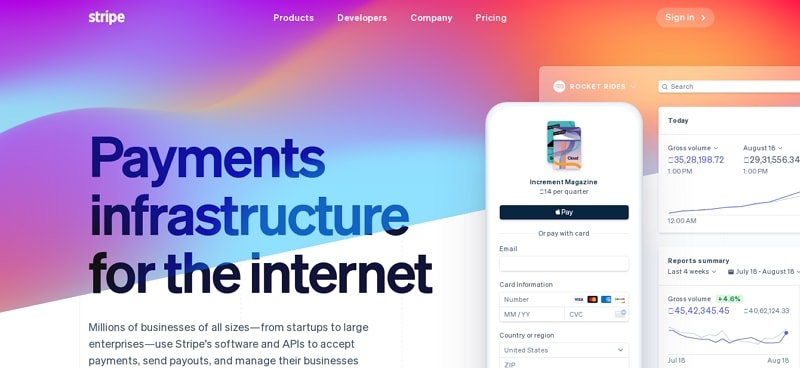
Do not shrink the desktop header proportionally. Decide which navigation becomes a disclosure, where the primary action remains visible and how long labels wrap. Validate these decisions at the actual mobile width.
#3: Squareup
The Square mobile capture shows a compact header with brand, cart and menu controls above the main message. Each item has a different purpose, so their labels and touch areas should stay distinct.

The still image does not prove that a call to action remains fixed during scrolling. If your implementation uses a sticky header or action bar, check focus visibility around fixed content so the bar does not hide the control a keyboard user is operating.
#4: Shutterfly
The Shutterfly reference raises a useful design question for a store: how should product categories, search and the cart remain discoverable on a small screen?
Start with those tasks, then add a campaign message only if it leaves the navigation readable. A discount banner should not force essential controls out of reach or change the header height after the page becomes interactive.
#5: BuzzFeed
The original BuzzFeed image was also a desktop reference. For a content-heavy mobile site, preserve access to sections and search rather than assuming that every trending topic belongs in the header.
Test a long section name and a search query with no results. The header should help readers recover from either state without trapping them in a full-screen panel or losing their place in the article.
Conclusion
Before release, inspect the minimum target-size guidance, text wrapping, expanded groups, contact destinations and the last row at the bottom of the viewport. Test with the keyboard and a narrow screen, not only with a mouse in a wide browser.
Use the footer content planning guide to choose the groups, then the HTML/CSS footer example to communicate the structure to development. The finished footer should help someone complete a task after the main content ends.