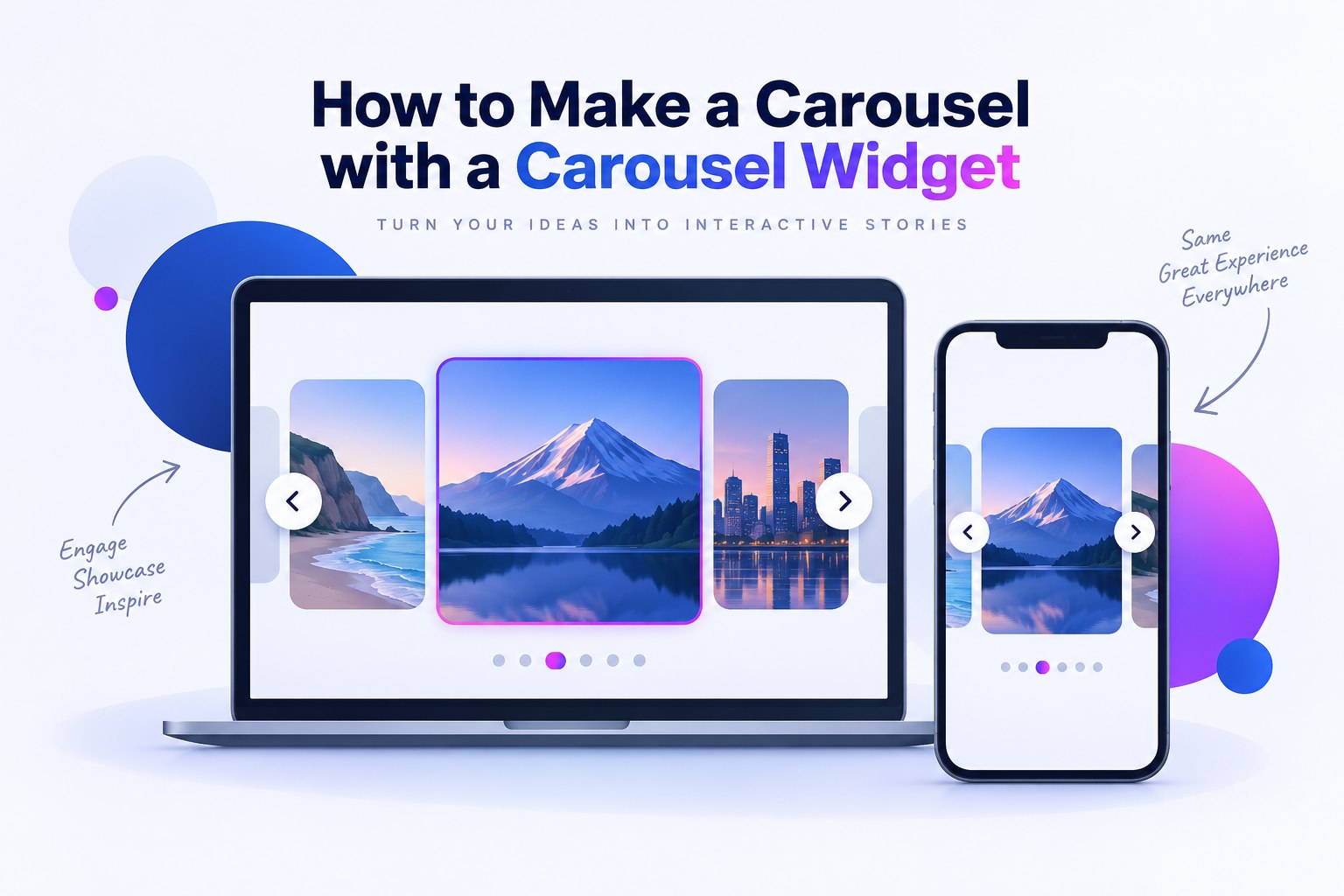
Into every designer's life there eventually comes the request: "Could we get a carousel on our homepage?" A carousel can also be called a slider, slideshow, or gallery. A carousel optimizes screen space by displaying only a subset of images from a collection of images in a cyclic view. The navigational controls on a carousel suggest additional content that is not currently visible; this encourages the user to continue exploring. Therefore, this pattern is very popular for advertisements, image galleries and storytelling. This guide explains how to make a carousel as an interactive prototype using – Mockitt.
A Tool for Prototyping a Carousel
A carousel prototype lets designers try slide order, controls, and transitions before developers implement the component. Mockitt provides a browser-based workspace for modeling these interactions. Use the prototype to communicate the intended behavior, then include keyboard, pause, and focus requirements in the development handoff.
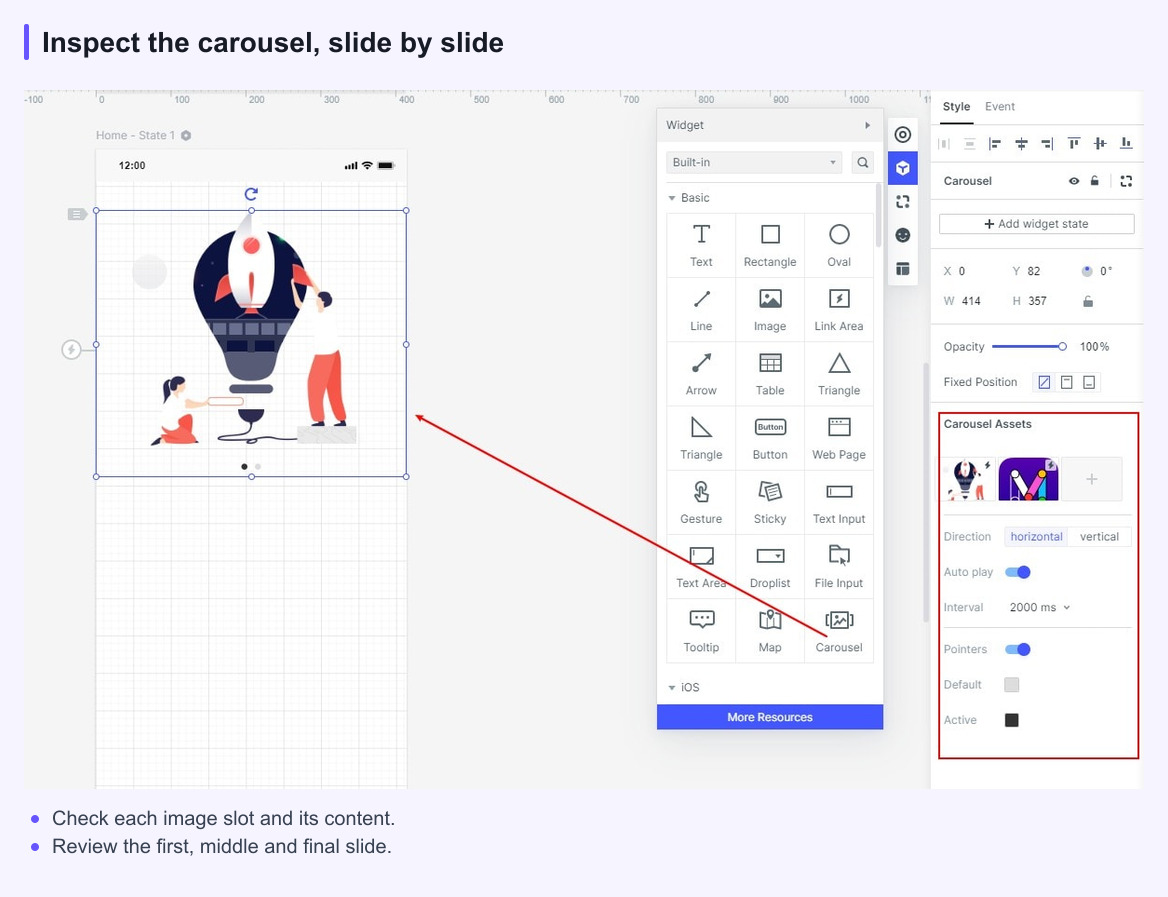
Mockitt provides built-in components for design prototypes, including the carousel widget shown below. Designers can create and reuse their own libraries to build custom carousels as well.
To start a carousel prototype, log in to your Mockitt account and create a new project with the Webpages layout. From the list of built-in components, drag out the carousel component. A picture placeholder automatically appears on the right setting panel. You can choose the pictures to upload and adjust the order of the carousel pictures by dragging and dropping pictures directly on the thumbnail. You can customize the following with the Carousel widget –
- Carousel Scroll – You can set the carousel scroll to horizontal or vertical based on your preference and design requirement.
- Carousel Rotation - The Carousel widget also provides an option to set the carousel rotation. You can choose to set the interval between the rotations to auto rotate. You can also link a slide to another page when the user clicks it.
- Indicator point - You can choose whether to display the indicator point or eliminate it from your carousel design. You can also color the point as per the color palette for your design.
Use the handoff view to inspect the carousel's visual specifications and share available style values with the development team. These values are design references, not a complete HTML, CSS, and JavaScript carousel. Developers still need to implement navigation, keyboard operation, focus handling, and any autoplay controls, then test the result.
Useful Tips for Making a Carousel
It is not just sufficient to learn to create a carousel using a carousel maker online. It is equally important to design and use the carousel right. Here are a few tips to ensure you get your carousel right –
1. Avoid autoplay – Many of the carousel's biggest problems arise from the fact that they often advance automatically, without the user doing a thing. Every user has a different comprehension speed. Autoplay may be too fast for some users and too slow for others. If you include it, provide a visible pause control and stop rotation while users interact with the carousel.
2. Use a familiar control – Two common methods of allowing people to control the sliders they encounter have sprung up and have become pretty familiar to most on the web. They are:
- Arrows that, on click, advance to the next slide, or move back. You can place these visually on the slides, or either above or below them. Just make sure they are placed on, and point in, the direction they move to.
- Dot navigation - These are either filled or hollow circles that both indicate how many slides there are, and allow people to click to move to the corresponding slide.
3. Short & clear text - Be sure to keep the text short and clear. If you are not sure whether your text is short enough, throw it into the design and see if you can read it before the slide moves on.
4. Touch friendly carousel - There's nothing more natural than seeing a carousel on your phone and reaching out to swipe it. And it's far easier for visitors than trying to tap that tiny arrow. Support swipe where appropriate, but retain visible controls with accessible labels and keyboard operation so the carousel does not depend on a gesture alone.
Use the carousel prototype to review content order, navigation, and timing with the team. Record the agreed behavior in the handoff so the implemented component can be checked against the design.
Make carousel behavior testable
A carousel should have a clear reason to move. Give each slide a meaningful label, keep the primary action in a predictable place, and make the current position visible to people who cannot rely on motion alone.
Test the first, middle, and last slides at the narrowest supported width. This catches clipped content and controls that become unreachable when the carousel is embedded in a longer page.